1OM-1064-002.pdf - 第112页
1. Notes 1.7 V acuum Nozzles Do not apply oil, etc., to the diffusion plate. • Note that sebum nor oil, etc., should not adhere to Plane A (Fig. 2.7) of the dif fusion plate. If sebum or oil adheres to Plane A, the recog…
1. Notes
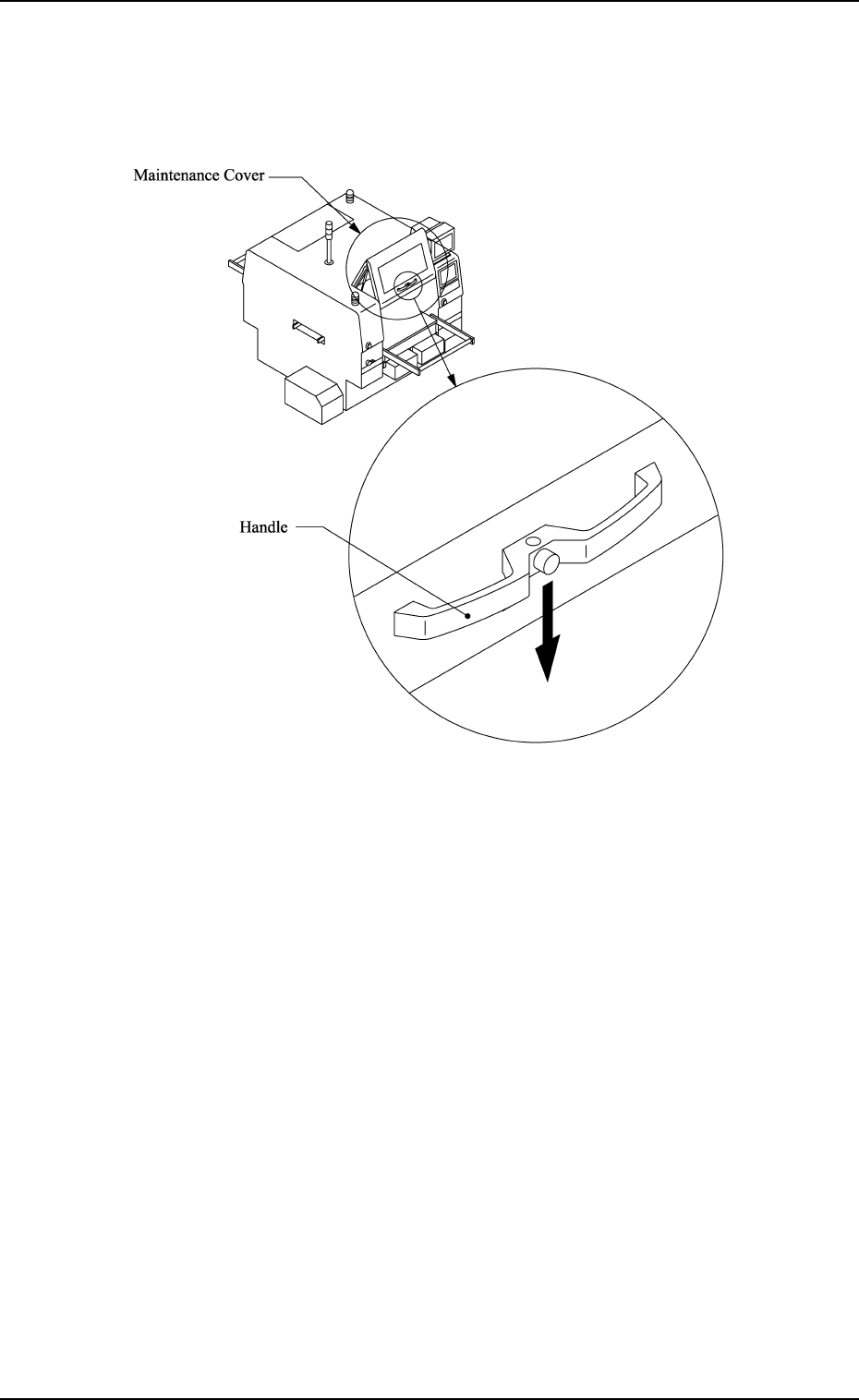
How to Close the Maintenance Cover
(1) Hold the handle firmly with both hands and push down the maintenance
cover slowly.
0004-002 2-13 Tg0246-PM-OP
Fig. 2.6
(2) Make sure that the maintenance/supply cover is at its lower limit
and then release the handle.
1. Notes
1.7 Vacuum Nozzles
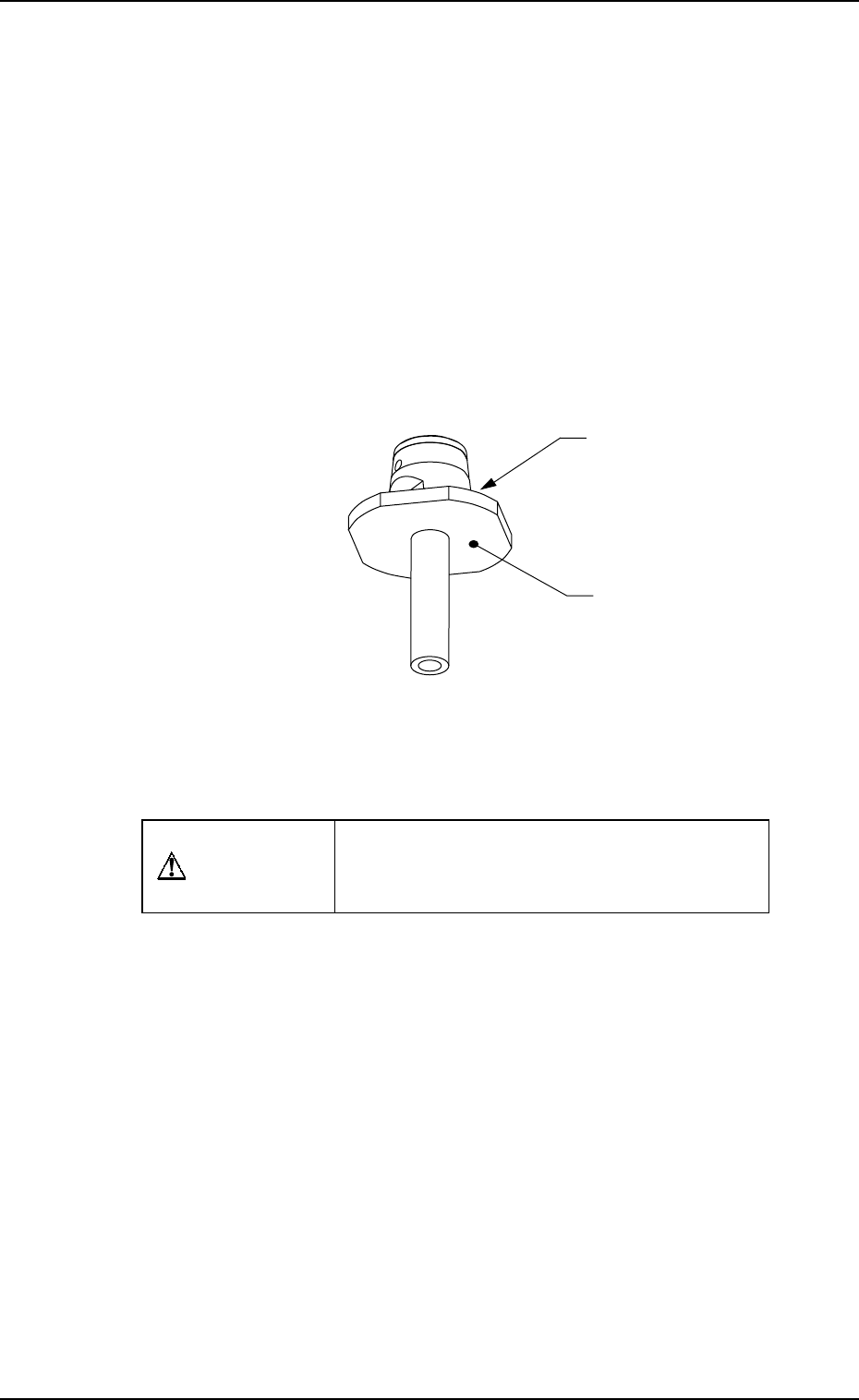
Do not apply oil, etc., to the diffusion plate.
• Note that sebum nor oil, etc., should not adhere to Plane A (Fig. 2.7) of the
diffusion plate.
If sebum or oil adheres to Plane A, the recognized image will look uneven,
causing a component recognition error.
Avoid nicking the diffusion plate.
• Do not hold the diffusion plate while cleaning the vacuum nozzle. Wipe off
dirt and dust with a rag or blow them off with an air gun.
Note that a component recognition error might occur when the diffusion
plate is nicked.
Don’t put a magnet near the vacuum nozzle.
CAUTION
When handling the removed vacuum nozzle,
be careful not to magnetized, trouble will oc-
cur during pick-up and placement procedure.
Diffusion Plate
A
0004-002 2-14 Tg0246-PM-OP
Fig. 2.7
2. Hierarchical Structure of Operation Displays
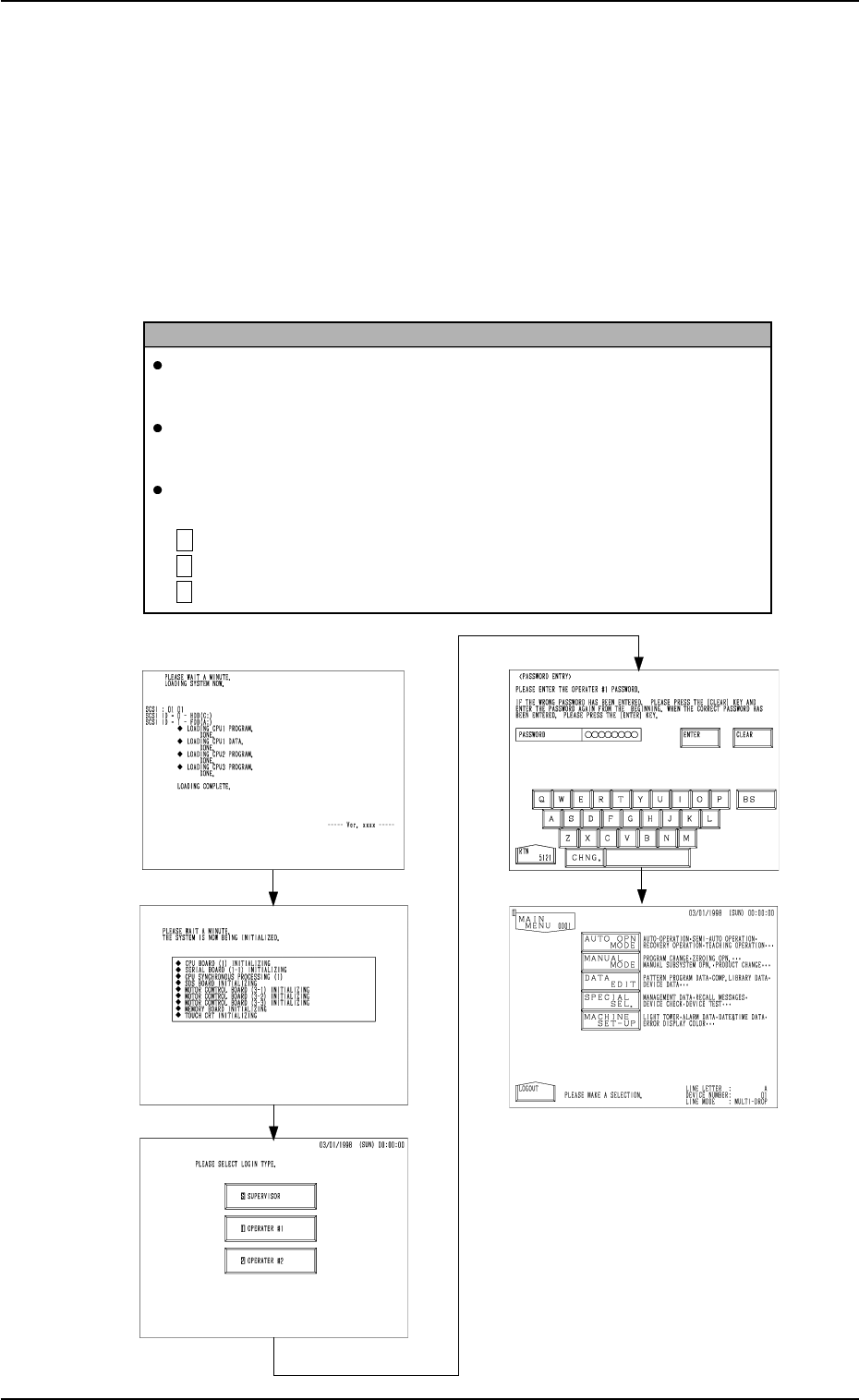
Fig. 2.8
Fig. 2.9
Fig. 2.10
Fig. 2.12
Fig. 2.11
2. Hierarchical Structure of Operation Displays
2.1 MAIN MENU Display
(1) Press the [POWER ON] button on the operation panel.
(2) Select “Log In” type at the log-in selection display. (Hierarchical Sequence:
“INITIALIZATION” Display (Figs. 2.8 and 2.9) → Log-In Selection Dis-
play (Fig. 2.10))
(3) Enter the password at the “PASSWORD ENTRY” display (Fig. 2.11)
and press the [ENTER] key.
(4) The “MAIN MENU” display (Fig. 2.12) appears on the screen.
Reference
When no password is set, the “MAIN MENU” display appears on the
screen without going through the “PASSWORD ENTRY” display.
Refer to “3. Management of Password of Secton 4 in Volume 4” for the
password setting.
A mark (a color code) appears at the upper left corner of all displays,
clarifying the selected “Log In” type.
S (Red) : For Supervisor
1 (Yellow) : For Operator #1
2 (Light Green) : For Operator #2
9910-001 2-15 Tg0246-PM-OP