1OM-1064-002.pdf - 第116页
2. Hierarchical Structure of Operation Displays 2.3 Hierarchical Displays As shown in Fig. 2.14, the labels have a hierarchical tree structure and the branch labels are displayed longitudinally under the trunk label such…
2. Hierarchical Structure of Operation Displays
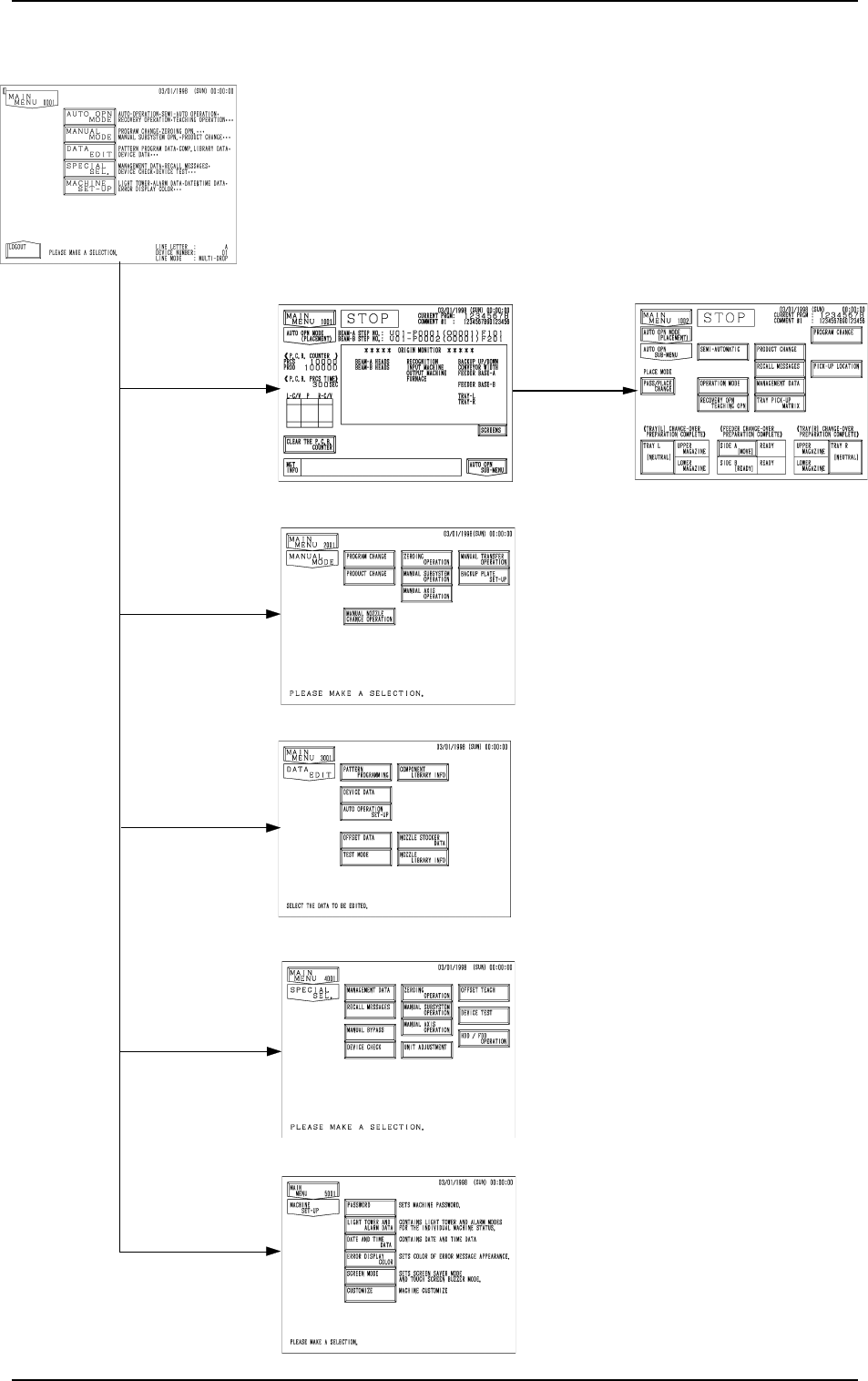
[AUTO OPN MODE]
Key
AUTO OPN. SUB-MENU
AUTO OPN MODE
SPECIAL SEL.
MACHINE SET-UP
[MANUAL MODE]
Key
[DATA EDIT]
Key
[SPECIAL SEL.]
Key
[MACHINE SET-UP]
Key
DATA EDIT
MANUAL MODE
[AUTO OPN.
SUB-MENU] Key
2.2 Hierarchical (Tree) Structure of Operation Menus
All operation menus can be selected through touch screen key
operations.
The “MAIN MENU” display holds the following branch dis-
plays. Selecting a menu key leads the operator to the corre-
sponding display.
0004-002 2-17 Tg0246-PM-OP
2. Hierarchical Structure of Operation Displays
2.3 Hierarchical Displays
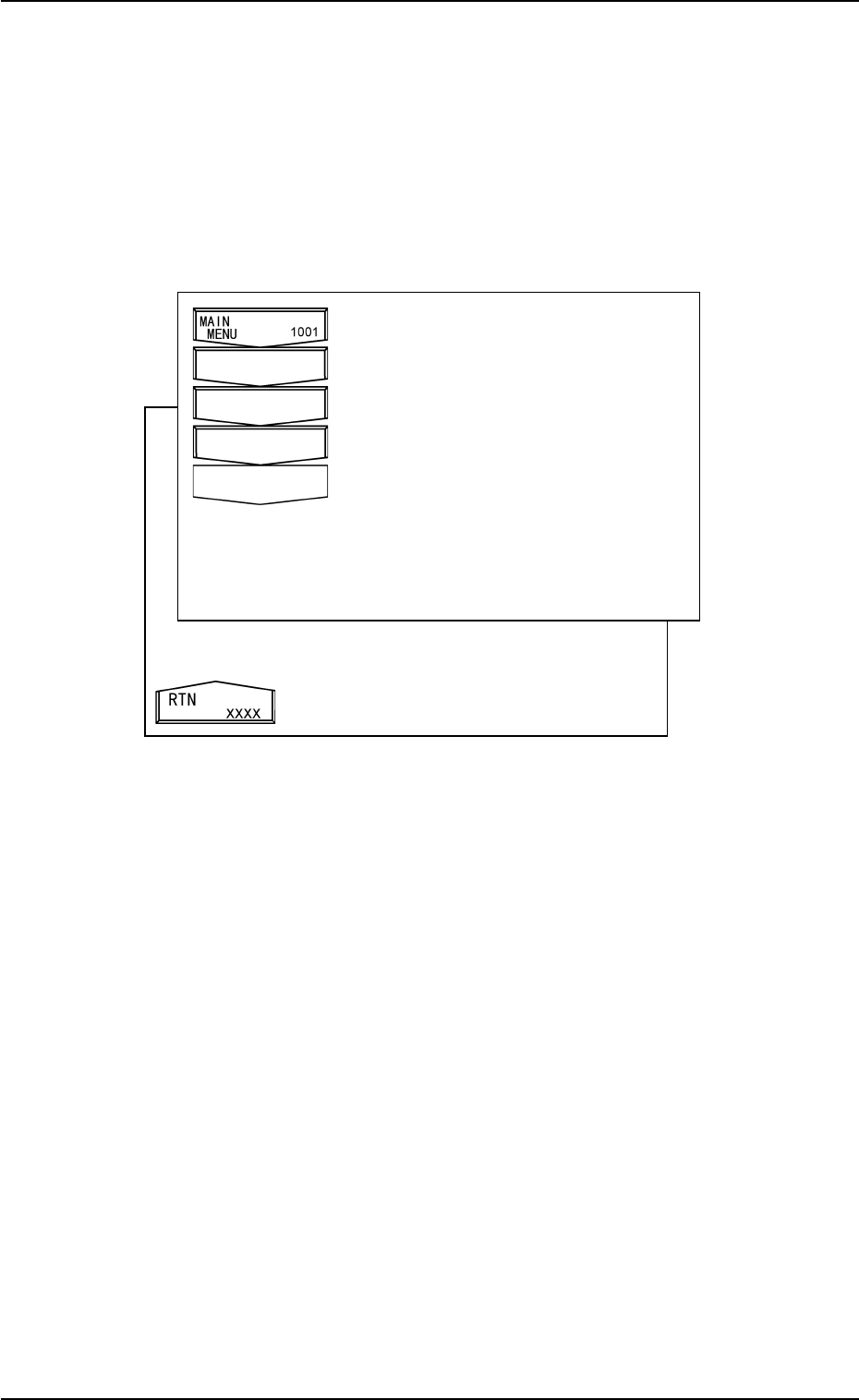
As shown in Fig. 2.14, the labels have a hierarchical tree structure and the
branch labels are displayed longitudinally under the trunk label such as “MAIN
MENU ####”. This provides a clear visual display of location in the hierarchi-
cal structure.
Note: In certain cases, the corresponding display may not be opened. In this
case, an [RTN] key appears on the screen, enabling the operator to go
back to the previous display. (Fig. 2.15)
• The lowest single frame shows the current hierarchical position.
• When a double frame key is selected, the current position is shifted to the
selected branch.
• The numbers shown at the bottom right of the keys “MAIN MENU XXXX”
and “RTN XXXX” represent the hierarchical Nos.
• Pressing the [RTN] key opens the previous display.
Note: When the [RTN] key is pressed at a data edit display such as the
“PATTERN PROGRAM EDIT” and “COMPONENT LIBRARY
EDIT” displays, a display for data saving appears on the screen.
Fig. 2.14
Fig. 2.15
9910-001 2-18 Tg0246-PM-OP
2. Hierarchical Structure of Operation Displays
Foreground Colors Background Colors
Keys related to
“AUTO OPN MODE”
Blue
Green
Keys related to
“MANUAL MODE”
Blue Light Green
Keys related to
“DATA EDIT”
Blue Light Blue
Keys related to
“SPECIAL SEL.”
Blue Light Yellow
Keys related to
“MACHINE SET-UP”
Blue Light Gray
9910-001 2-19 Tg0246-PM-OP
2.4 Touch Screen Keys
The following frame icons are used as keys to distinguish between the simple
indication sections (format field, title field, explanation, etc.) and the keys.
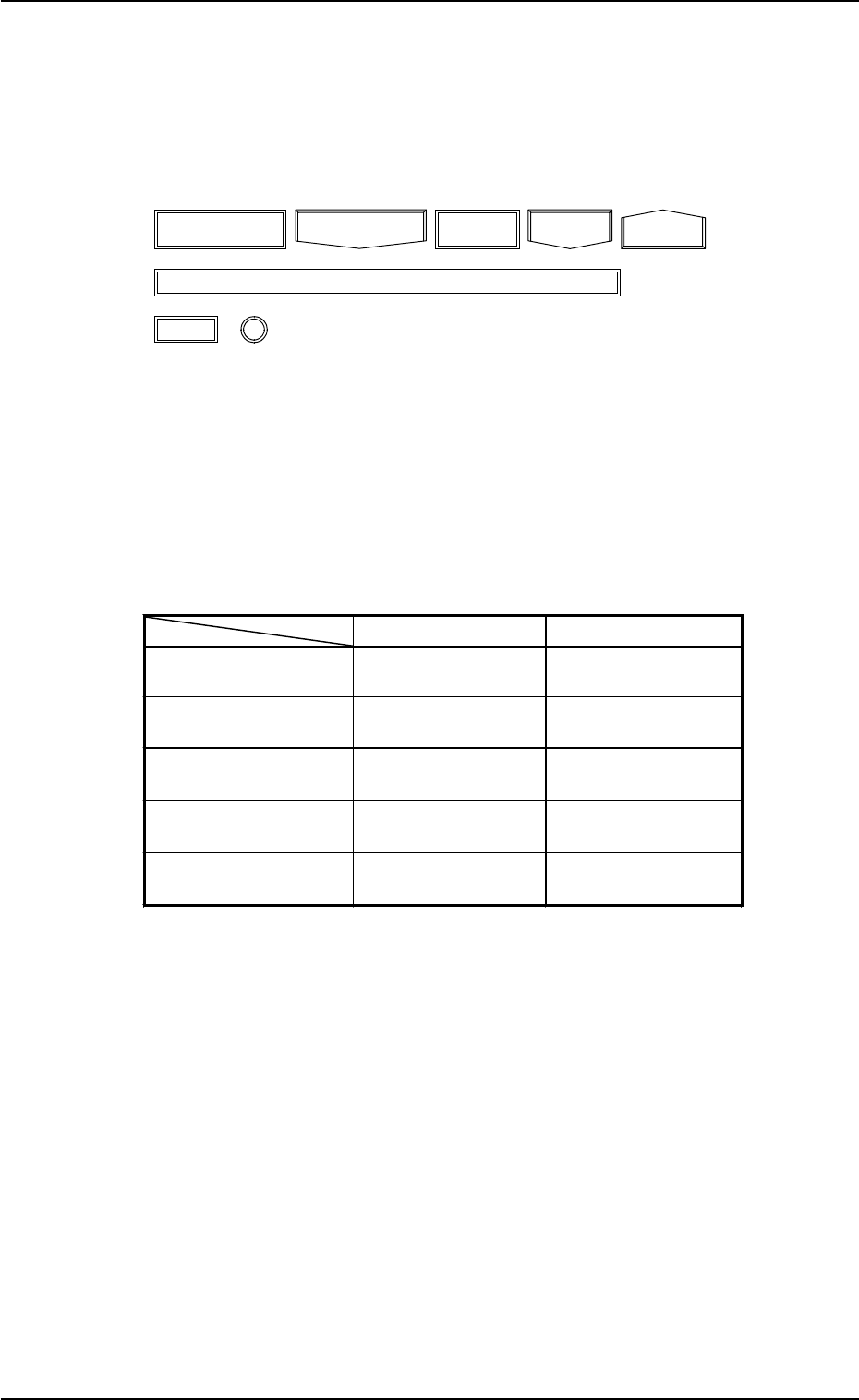
(1) Keys are enclosed by the following double frames.
Fig. 2.16
(2) When a colored key is selected, the current display is changed to another
one.
The colors used for keys significantly related to the hierarchical branches
(AUTO OPN MODE, MANUAL MODE, DATA EDIT, SPECIAL SEL.,
and MACHINE SET-UP) of the “MAIN MENU” display are selected
such that the operator can conceptualize an operation type through the
colors.
Table 2.2
(3) Uncolored keys can be selected. When such a key is selected, it is col-
ored. Another touch screen key, etc., must usually be pressed after the
selection.