1OM-1064-002.pdf - 第65页
Name Symbol Function LIGHT S10 • This switch is used to turn on or off the illum inating lamps for the component placem ent section and a P.C.B. • Turns on or off the work lam p on Side A (rear side). CONSOLE X6 • This c…
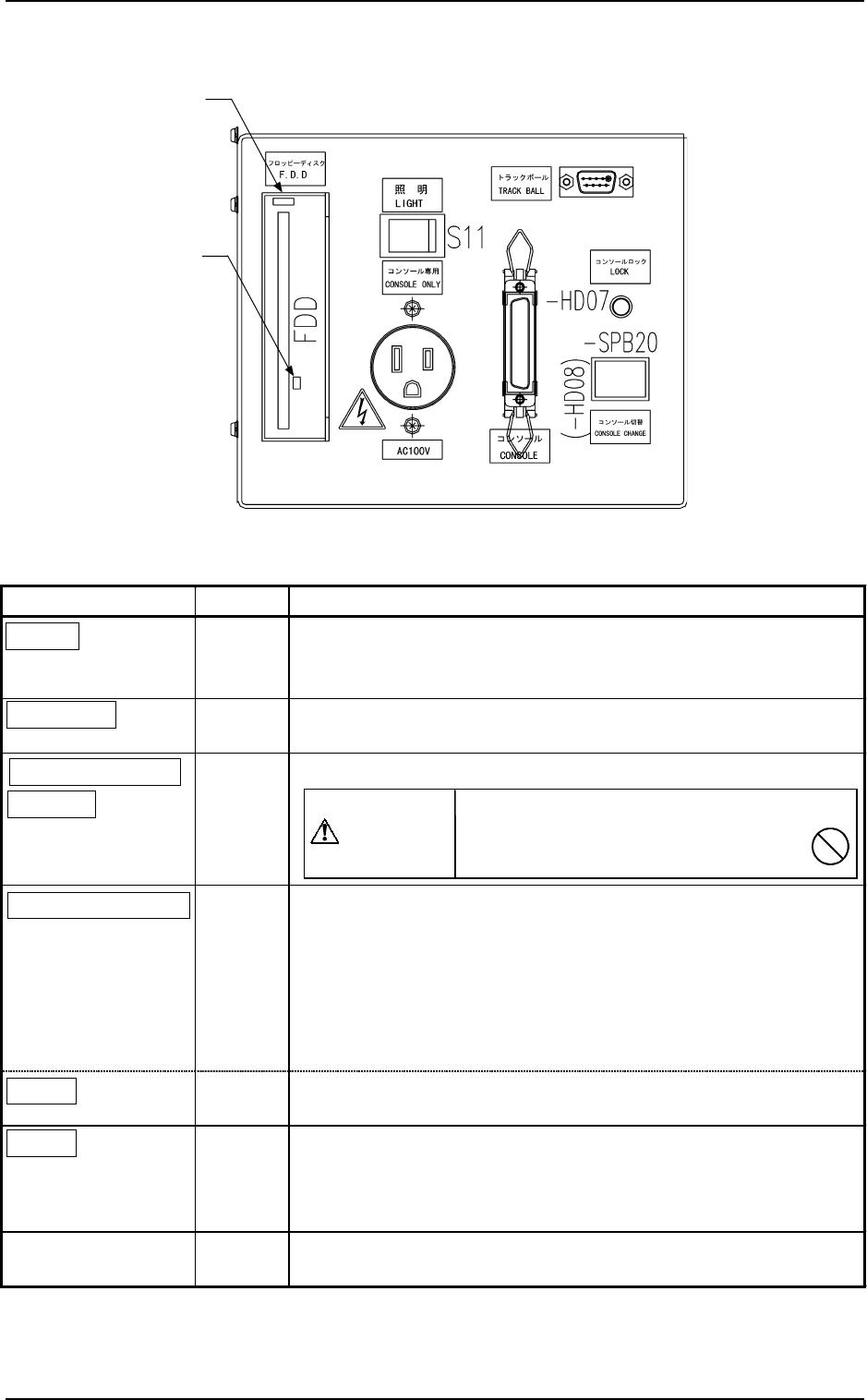
5.3 Front Console Panel
Name Symbol Function
LIGHT
S11
•
This switch is used to turn on or off the illuminating lamps for
the component placement section and a P.C.B.
• Turns on or off the work lamp on Side B (front side).
CONSOLE
X8
•
This connector is used to link a programming device (option) for
data communication.
CONSOLE ONLY
AC100V
X11
•
This outlet is used only for the programming device (option).
CONSOLE CHANGE
-SPB20
(-HD08)
• This button is used to select either the front or the rear serial port
for external communication of the console.
•
When the button is pressed while -HD08 is ON (console
activated), only the front console becomes available (console
locked) and the LEDs (-HD07 on the front and rear sides)
illuminate.
• To cancel the locked console, press the button again.
LOCK
(-HD07)
• While -HD07 is ON, it indicates that front and rear consoles are
locked.
F.D.D.
FDD
• Floppy Disk Drive
Do not press the eject button when the access lamp is ON.
Otherwise, the data stored on the inserted floppy disk may be
corrupted.
TRACK BALL
XCN146
•
This port is used to connect a trackball for component library
teaching operation (option), etc.
Do not connect any other device except
the programming device (option)
to this outlet.
CAUTION
5. Operation Panel (Names and Functions)
0004-002 1-34 Tg0246-PM-OP
Fig. 1.11
Table 1.3
Eject Button
Access Lamp
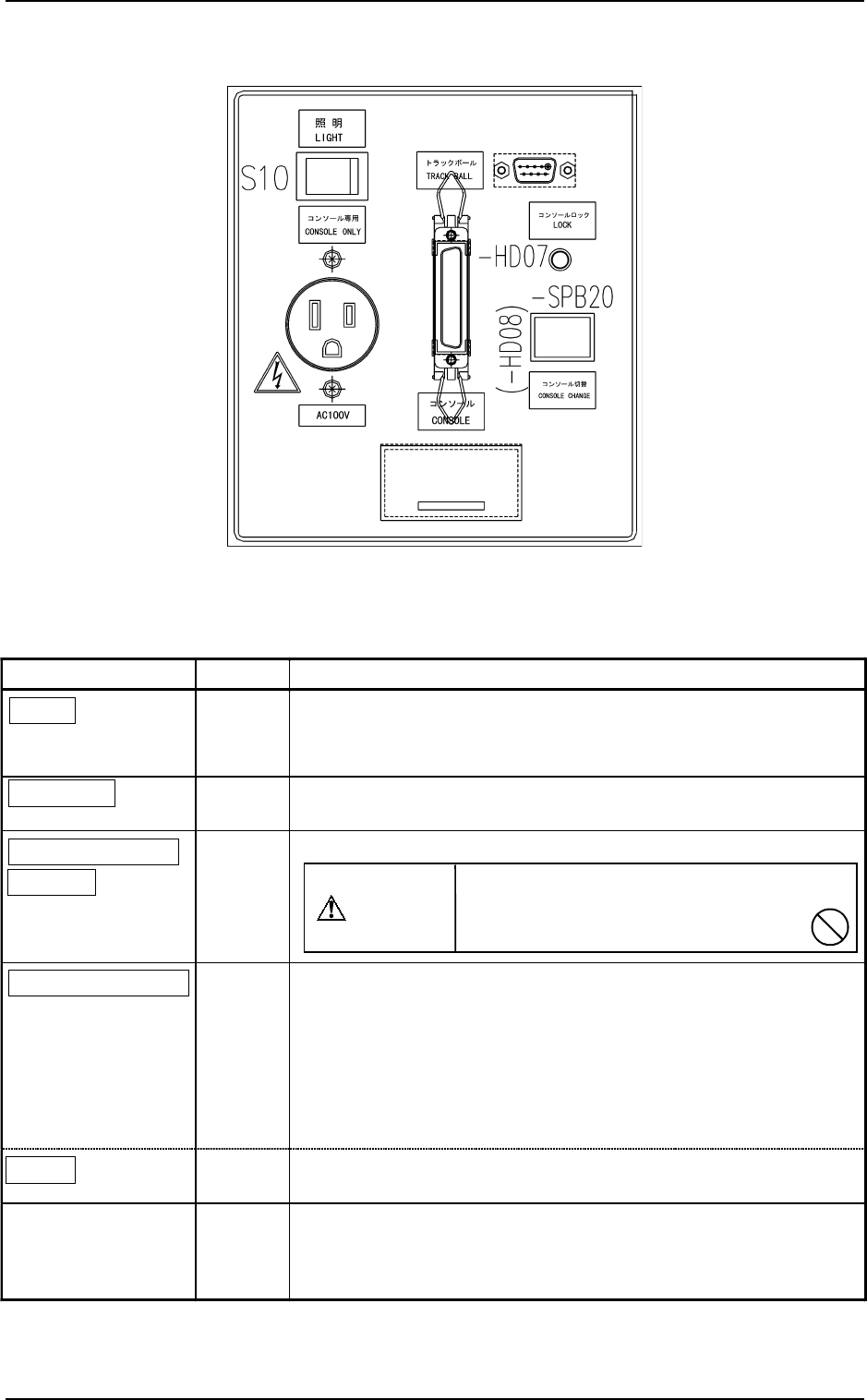
Name Symbol Function
LIGHT
S10
•
This switch is used to turn on or off the illuminating lamps for
the component placement section and a P.C.B.
•
Turns on or off the work lamp on Side A (rear side).
CONSOLE
X6
•
This connector is used to link a programming device (option) for
data communication.
CONSOLE ONLY
AC100V
X10
•
This outlet is used only for the programming device (option).
CONSOLE CHANGE
-SPB20
(-HD08)
• This button is used to select either the front or the rear serial port
for external communication of the console.
•
When the button is pressed while -HD08 is ON (console
activated), only the rear console becomes available (console
locked) and the LEDs (-HD07 on the front and rear sides)
illuminate.
• To cancel the locked console, press the button again.
LOCK
(-HD07)
•
While -HD07 is ON, it indicates that front and rear consoles are
locked.
TRACK BALL
XCN156
•
This port is used to connect a trackball for component library
teaching operation (option), etc.
(The track ball connection on the rear side is optional.)
Do not connect any other device except
the programming device (option)
to this outlet.
CAUTION
5. Operation Panel (Names and Functions)
0004-002 1-35 Tg0246-PM-OP
5.4 Rear Console Panel
Fig. 1.12
Table 1.4
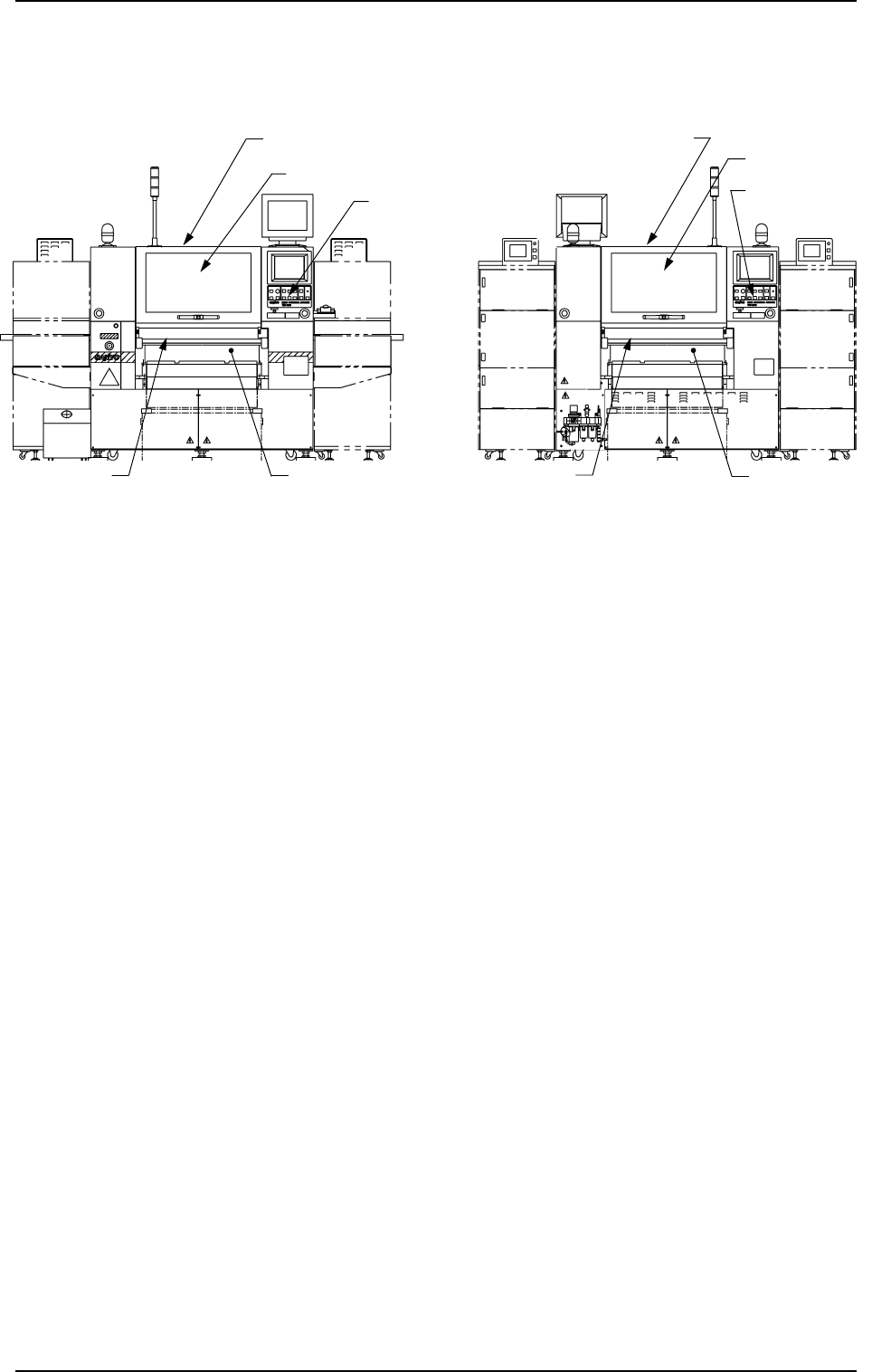
Maintenance Cover (B)
[READY] Button
Safety Bar (B)
Feeder Base
Supply Cover (B)
Maintenance Cover (A)
Supply Cover (A)
[READY] Button
Safety Bar (A)
Feeder Base
5.5 [READY] Button
5. Operation Panel (Names and Functions)
0004-002 1-36 Tg0246-PM-OP
• The [READY] button is used to tell the machine that the feeder on the feeder
base is set ready for replacement or component supply.
• When a component shortage error occurs during automatic operation, the
X/Y beam moves to its standby position and the LED (-HD09) of the
[READY] button (on the error-caused side) extinguishes.
At this time, the supply cover and the safety bar on the related side are
unlocked, making them accessible for feeder replacement and component
supply.
• When the [READY] button is pressed with the LED (-HD09) kept ON, the
X/Y beam on the related side moves to its standby position, the LED (-
HD09) of the [READY] button extinguishes, and the supply cover and the
safety bar on the related side are unlocked, making them accessible for feeder
replacement and component supply.
While the X/Y beam is moving to its standby position, the supply cover and
the safety bar on the related side are kept locked and the LED (-HD09) of
the [READY] button blinks.
• After feeder replacement or component supply work, close the supply cover
and the safety bar and then press the [READY] button to set the machine in
the “READY” mode.
(Front View) (Beam B Side) (Rear View) (Beam A Side)
Fig. 1.13