Programming_mail.pdf - 第10页
I- 2 Programming Manual Part I Basic Operation 1 Basic Operation of Inspection Software 1.1 Basic Operation This section describes basic operations of the inspection software. 1.1.1 W indow Details The main window consis…

I-
1
Programming Manual
Part I Basic Operation
Basic Operation
I-2
Programming Manual
Part I Basic Operation
1 Basic Operation of Inspection Software
1.1 Basic Operation
This section describes basic operations of the inspection software.
1.1.1 Window Details
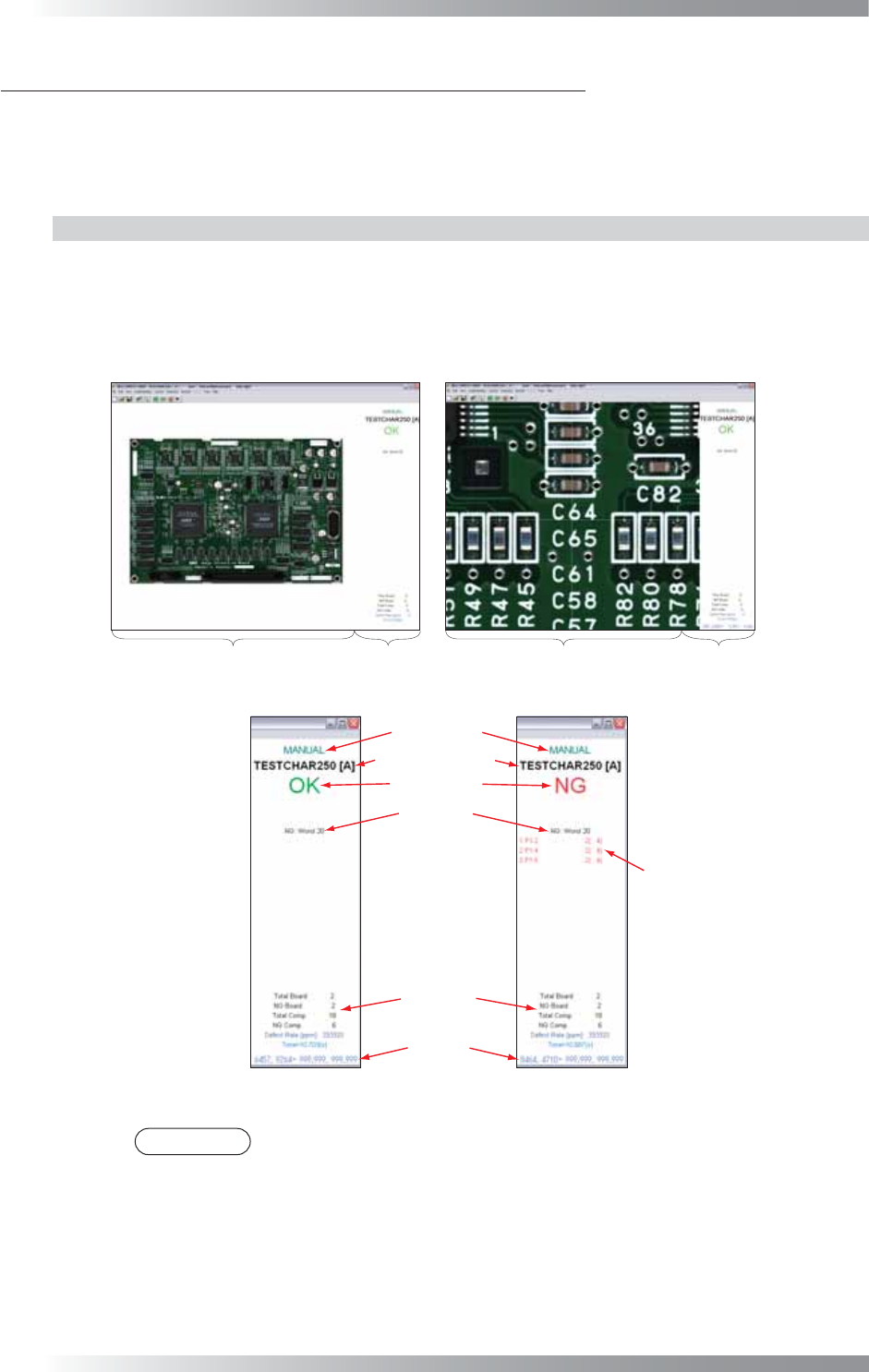
The main window consists of the following two frames.
Image Frame Displays the scanned image or inspection data.
Index Frame Displays the operation mode, inspection data name, inspection result, and cursor
position coordinate.
Full View Screen
Enlarged View Screen
Image Frame
Index Frame
Image Frame
Index Frame
Figure 1-1 Window Names
Component Data
Inspection Data Name
All Inspection
Results
Position
Coordinate
Index Display
Inspection Result
Operation Mode
Figure 1-2 Explanation of Index Frame
NOTE
Index Display can be selected from the following formats. Select View > Results
from the menu-bar. Displays the corresponding components in Component Data.
Worst 20 Ranks the components in which defects are found by the number of occurrences,
and display the worst 20 components.
False 20 Ranks the components in which false calls are found by the number of false call
occurrences, and displays the worst 20 components.
NG Displays the components that produced NG inspection results.
OK Displays the components that produced OK inspection results.
I-3
Programming Manual
Part I Basic Operation
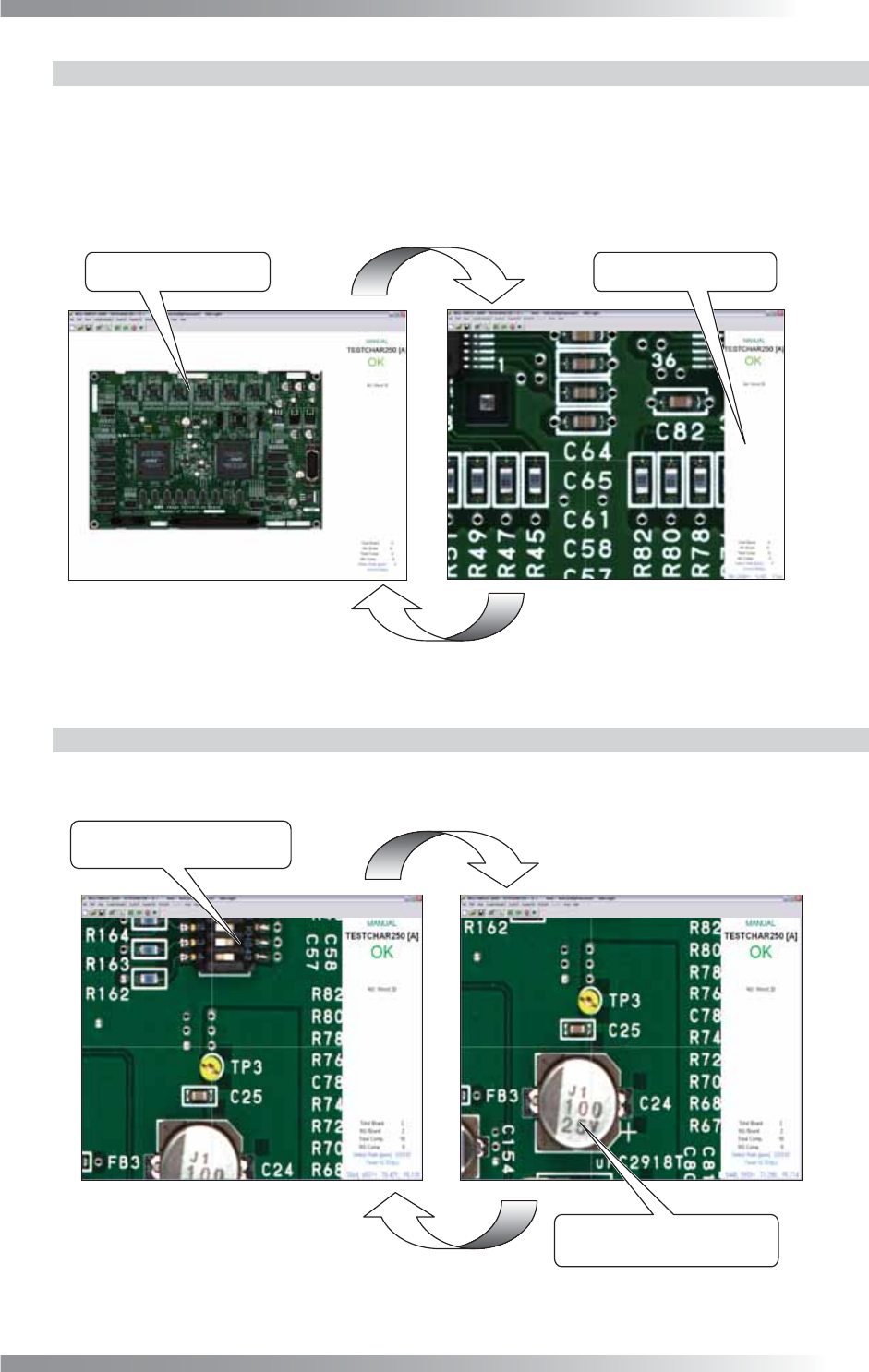
1.1.2 Switching Between Enlarged View Screen and Full View Screen
Enlarged View Screen
Left-click on the image in Full View Screen. The image is enlarged by centering on the clicked point.
Full View Screen
Left-click the index frame in Enlarged View Screen to go back to Full View Screen.
Full View Screen
Zoom In
Zoom Out
Enlarged View Screen
Left-click the index frame.
Left-click the area to view.
Figure 1-3 Full View Screen and Enlarged View Screen
1.1.3 Area Moving in the Enlarged View Screen
Left-click on the image to move the view area. The area centered on the clicked point is displayed.
If it reaches to the image edge, the screen returns to Full View Screen.
Left-click the lower side of the
screen to move downward.
Area Move
Area Move
Left-click the upper side of the
screen to move upward.
Figure 1-4 Moving in the Enlarged View Screen