Programming_mail.pdf - 第63页
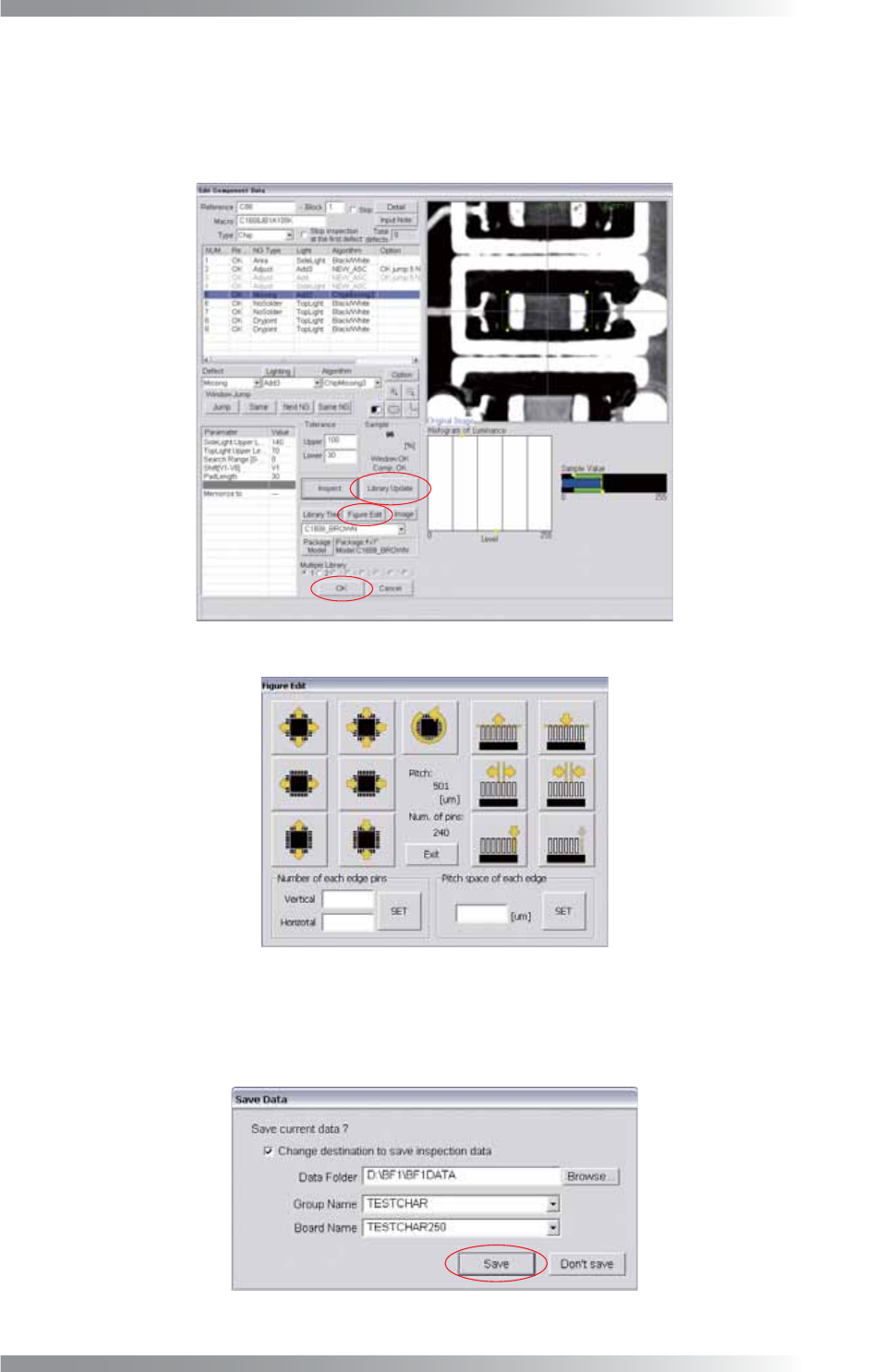
II- 19 Programming Manual Part II Inspection Data Step45: The Edit Component Data dialog of a template library is appeared. Press Figure Edit in the lower side of the dialog. The dialog shown in Figure 1-33 appears. In t…
II-18
Programming Manual
Part II Inspection Data
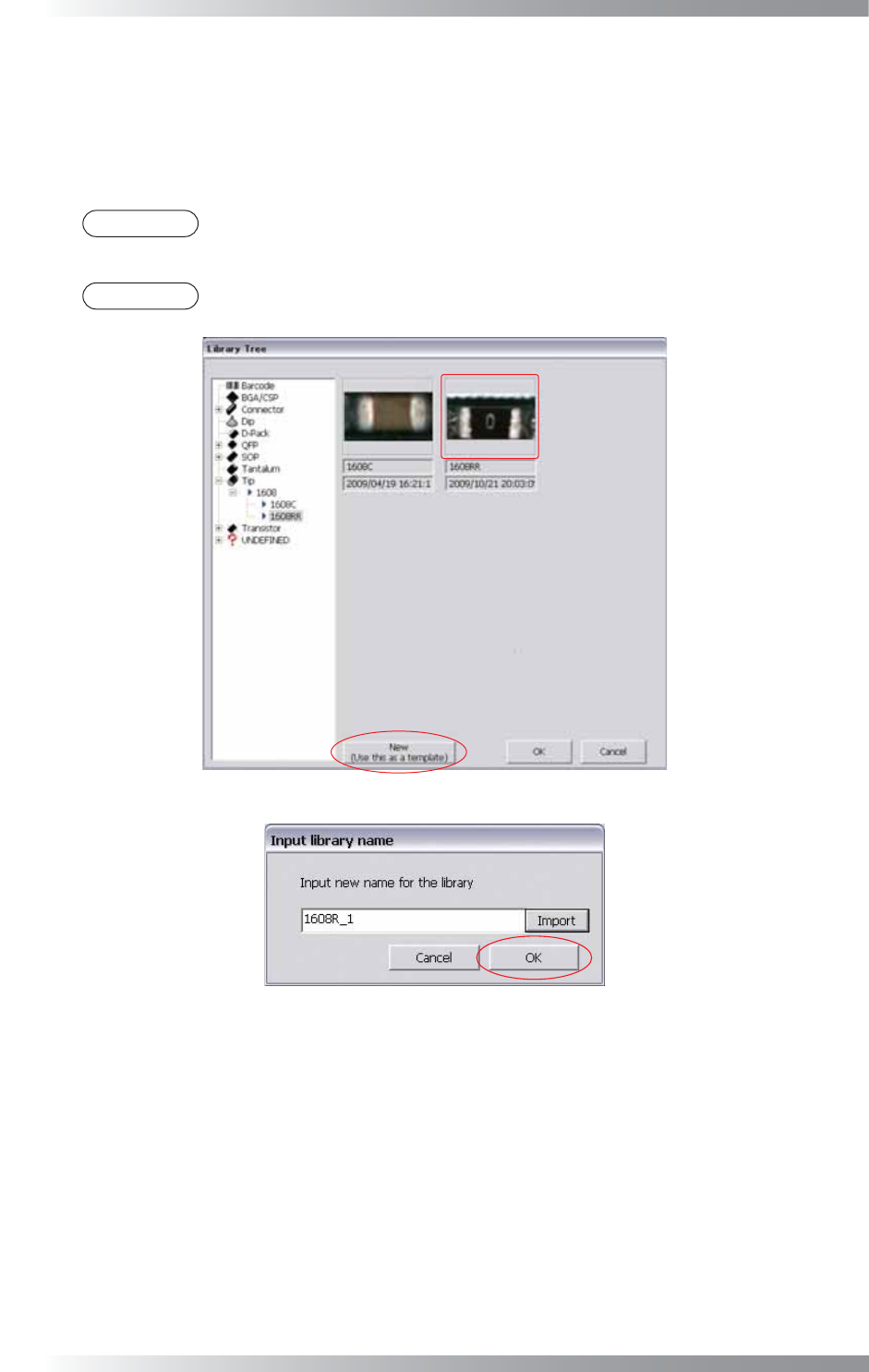
Step44: The dialog shown in Figure 1-30 appears. Select an appropriate library for the component.
Double-click the library to edit the inspection data. In case of making a new library, select an
existing library that can be a base of new library. After select the base library, press New(Use this
as a template). The base library is registered as template library. The dialog shown in Figure 1-31
appears. Enter the library name and press OK.
NOTE
In case of making a new library, select a library which can be applied to a lot of similar
components and set the library as a template.
NOTE
Press Import in Figure 1-31. A component name and macro name are displayed.
Figure 1-30 Assign Library
Figure 1-31 Input Library Name
II-19
Programming Manual
Part II Inspection Data
Step45: The Edit Component Data dialog of a template library is appeared. Press Figure Edit in the lower
side of the dialog. The dialog shown in Figure 1-33 appears. In the dialog, a component can be
zoomed in/out, expanded/shrank, or rotated in 90°. A number, clearance, and length of an IC lead
can also be adjusted. After all settings are completed, press Update and OK.
Figure 1-32 Edit Component Data Dialog
Figure 1-33 Figure Edit
Step46: After libraries are assigned to all components, press Finish in Figure 1-28. The dialog shown in
Figure 1-34 appears. Press Save. If necessary, check Change destination to save inspection
data, and specify the directory to save.
Figure 1-34 Save Data
II-20
Programming Manual
Part II Inspection Data
1.2 Sub Board Deployment and Submark
1.2.1 Sub Board Deployment
Here describes how to copy sub board data to another sub board.
The procedure for copying the data of Sub Board 1 to Sub Board 2 on a different X-axis point is
described below as an example.
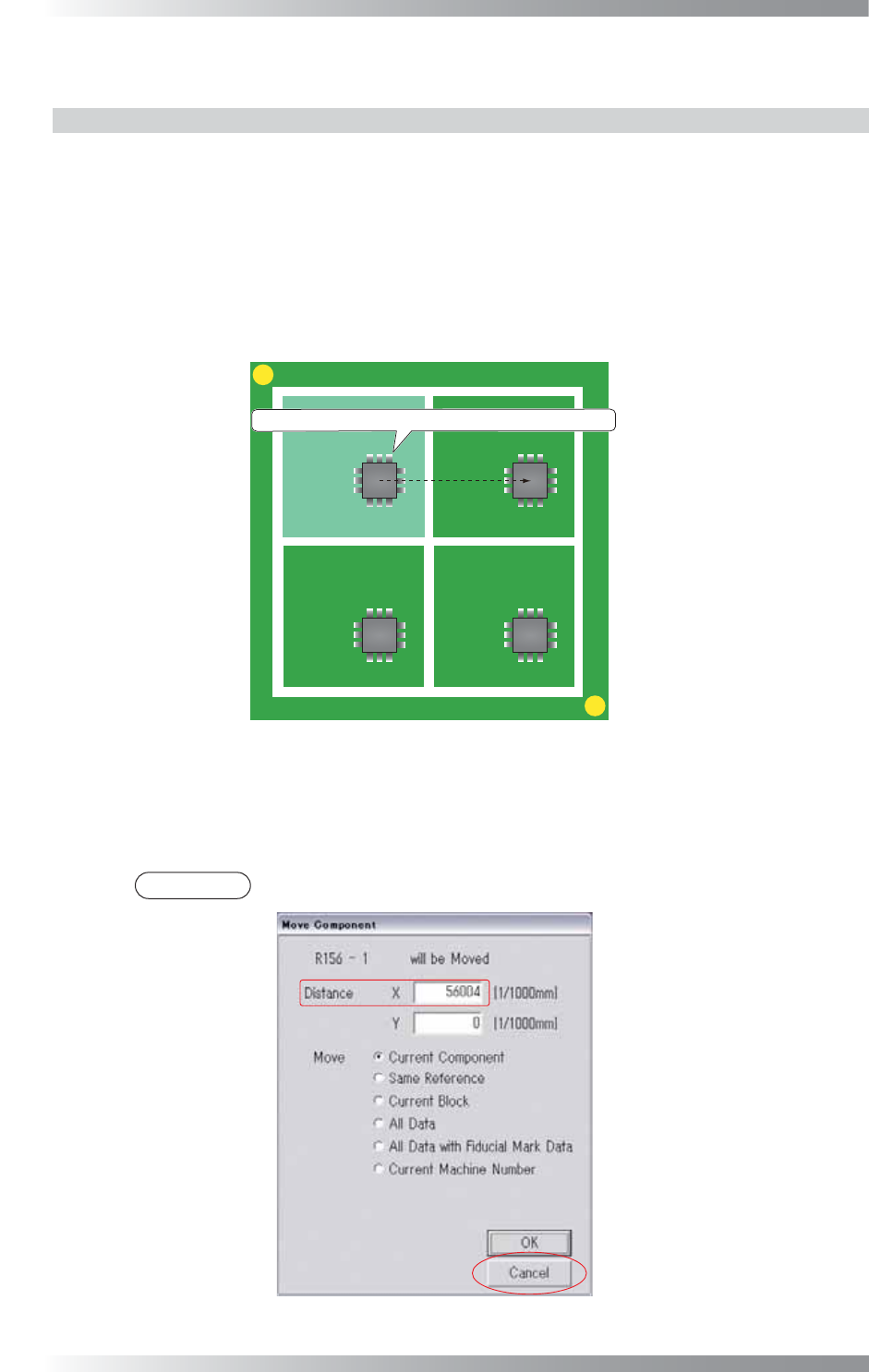
Step1: Make sure of the distance to the target by the following procedure.
Select a component data on Sub Board 1 and move it to the same component data on
Sub Board 2 by mouse-dragging.
MARK1
MARK2
Sub Board 1 Sub Board 2
Sub Board 3 Sub Board 4
㻰㼕㼟㼠㼍㼚㼏㼑
Move a component data from sub board 1 by mouse-dragging.
Figure 1-35 Distance 1
Step2: The dialog shown in Figure 1-36 appears.
Make sure of the value of Distance X and press Cancel.
NOTE
If copying the sub board data to a different Y-axis point, make sure of the value of Distance Y.
Figure 1-36 Distance 2