Programming_mail.pdf - 第90页
III- 16 Programming Manual Part III Inspection Algorithm 1.7 P eak 1.7.1 Inspection Ov er view Peak is the algorithm to inspect based on peak value within an inspection window . If the peak of brightness level is in OK r…
III-15
Programming Manual
Part III Inspection Algorithm
1.6.3 Setting Procedure
Step1: Select a lighting that the target component is visually clear from the Lighting drop-down list.
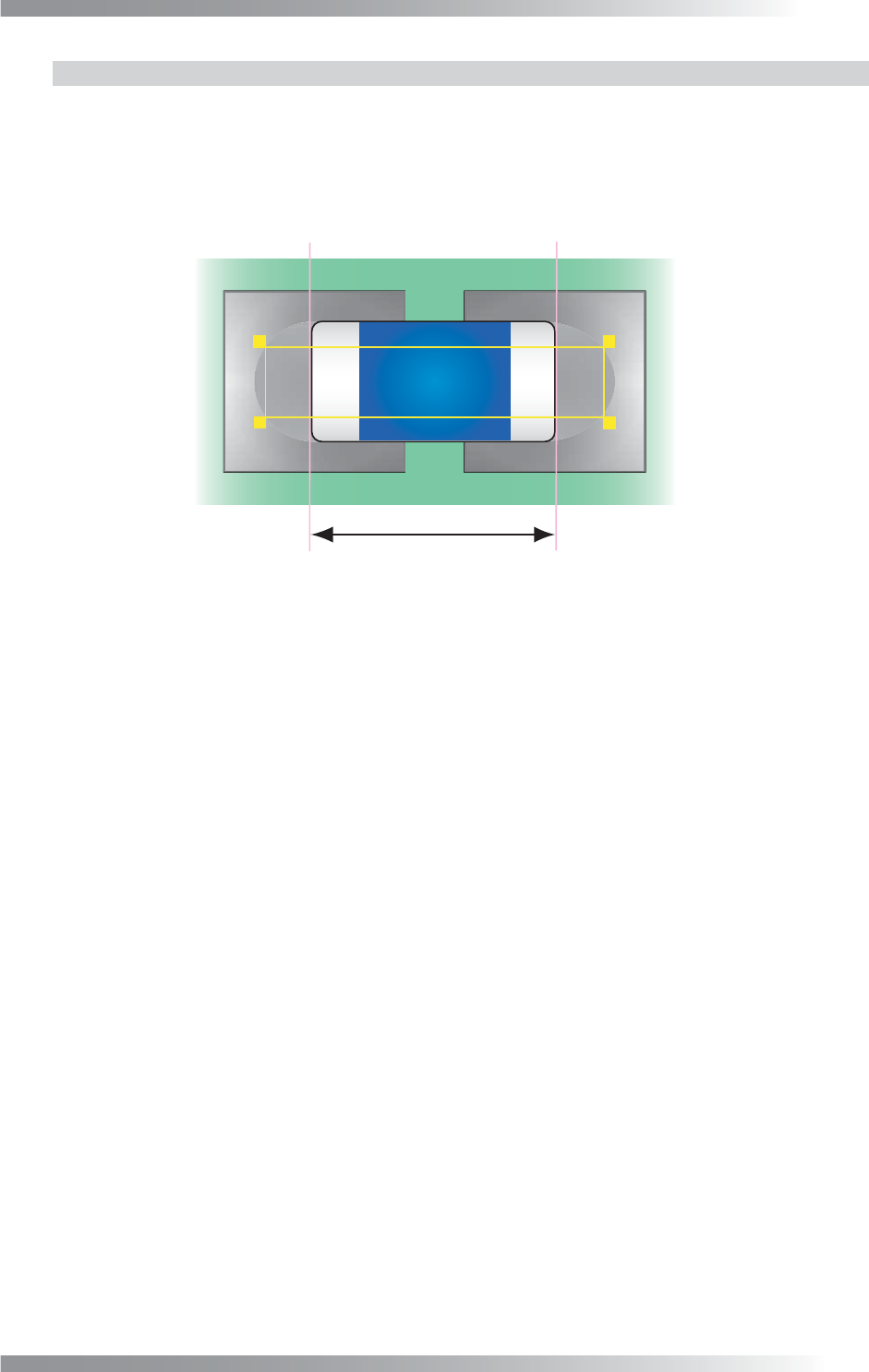
Step2: Adjust the inspection window to be longer than the length of the component in the longitudinal
direction. In lateral direction, adjust the inspection window to be shorter than the component.
Length
Figure 1-16 Inspection Window of Length
Step3: Verify the value of Upper Level and Lower Level. Enter 0 in Upper Level and Lower Level
fi eld if the component brightness level is lower than the PCB. Enter 255 in Upper Level and
Lower Level fi eld if the component brightness level is higher than the PCB.
Step4: Set the OK range by setting Upper and Lower. Sample shows the component length by
10 μm.
Step5: Enter the appropriate vector into the Shift fi eld by selecting from V1 to V8 according to the
vector used in the Memorize to fi eld in the Adjust window.
Step6: Press Inspect. Make sure that the inspection is completed properly.
III-16
Programming Manual
Part III Inspection Algorithm
1.7 Peak
1.7.1 Inspection Overview
Peak is the algorithm to inspect based on peak value within an inspection window.
If the peak of brightness level is in OK range, the result will be OK.
Brightness level within an inspection window can be obtained stably because this algorithm is not
affected by noise. Peak is suitable for a missing inspection of IC components.
1.7.2 Parameter Setting
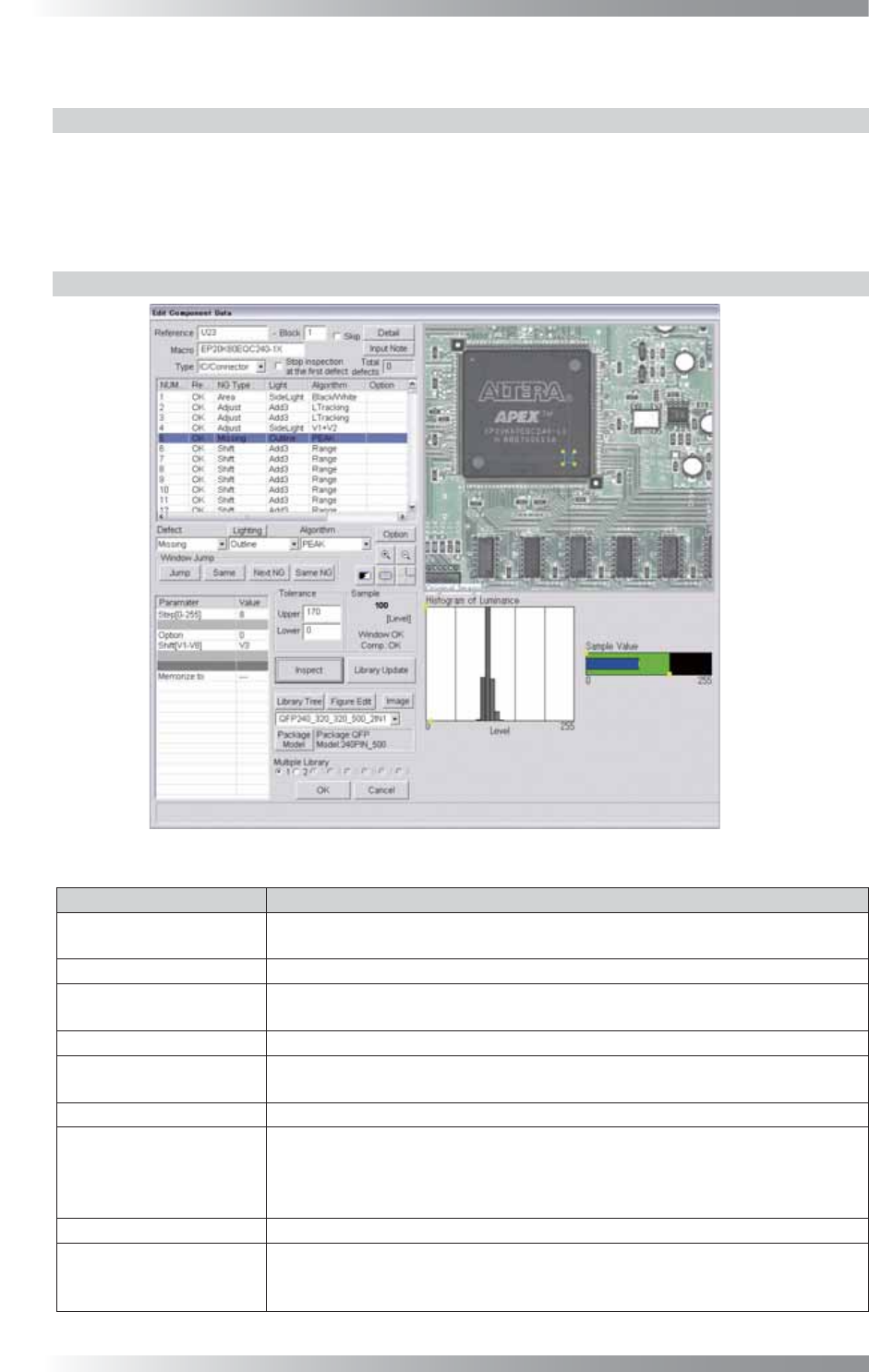
Figure 1-17 Peak
Parameter Description
Lighting
Select a lighting that displays the brightness level difference between the
component and the PCB visually clear.
Algorithm Select Peak.
Step[0-255]
Default is 8. The bar graph shows the number of pixels that is divided brightness
level by 8 in the graph in the lower right side of the dialog.
Option Enter 0.
Shift[V1-V8]
Enter the appropriate vector. Any value from V1 to V8 is available.
Select the vector according to the Memorize to fi eld of the Adjust window.
Memorize to -
Upper, Lower
Calculates a value intermediate between OK sample and NG sample value. If OK
sample value is smaller than NG sample value, enter intermediate value in Upper
fi eld and 0 in Lower fi eld. If NG sample value is smaller than OK sample value,
enter 255 in Upper fi eld and intermediate value in Lower fi eld.
Sample Shows the peak value within the inspection window.
The graph in the lower
right side of the dialog
The Histogram of Luminance bar graph shows the number of pixels of every
bright level. Sample value is the largest brightness which is distributed within
the inspection window.
Table 1-7 Parameter of Peak
III-17
Programming Manual
Part III Inspection Algorithm
1.7.3 Setting Procedure
Step1: Select a lighting that displays the brightness level difference between the component and
the PCB visually clear from the Lighting drop-down list.
Step2: Make sure of the OK brightness level.
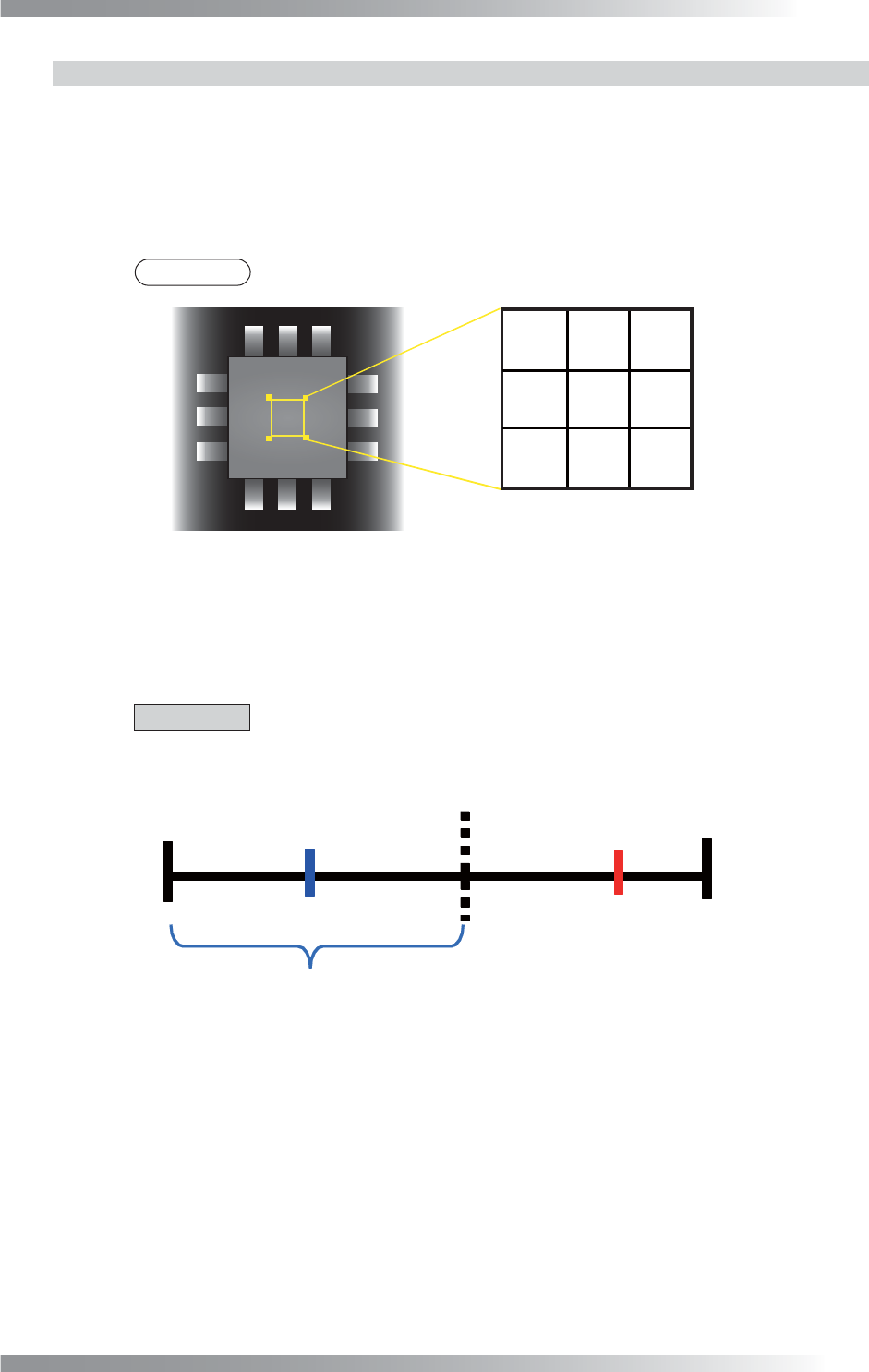
Move the inspection window onto the surface of the
component and make sure of the sample value.
NOTE
Sample value is the peak value within the inspection window.
㪏㪇㪐㪇㪎㪇
㪍㪇 㪌㪇 㪎㪇
㪎㪇㪍㪇㪎㪇
Sample Value[70]
Figure 1-18 Calculation of Sample Value
Step3: Make sure of the NG brightness level. Move the inspection window to the PCB and make
sure of the sample value.
Step4: Calculate a value intermediate between OK sample value and NG sample value.
CAUTION
Change the lighting if there is no difference between OK sample value and NG
sample value with default lighting.
0 255
OK
㪉㪈㪇㪎㪇
㪈㪋㪇
Intermediate Value
OK Sample Value NG Sample Value
Figure 1-19 Calculation of Intermediate Value
Step5: If OK sample value is smaller than NG sample value, enter intermediate value in Upper
fi eld and 0 in Lower fi eld. If NG sample value is smaller than OK sample value, enter 255
in Upper fi eld and intermediate value in Lower fi eld.
Step6: Enter the appropriate vector into the Shift fi eld by selecting from V1 to V8 according to the
vector used in the Memorize to fi eld in the Adjust window.
Step7: Press Inspect. Make sure that the inspection is completed properly.