Programming_mail.pdf - 第170页
IV - 6 Programming Manual Part IV Option Setting 1.3 Algorithm Setting Press Ctrl + Alt + concurrently . The dialog shown in Figure 1-6 appears. Set the algorithm to be used in each NG type. T o change the in use/Not in …
IV-5
Programming Manual
Part IV Option Setting
1.2.3 Skip by Sub Board
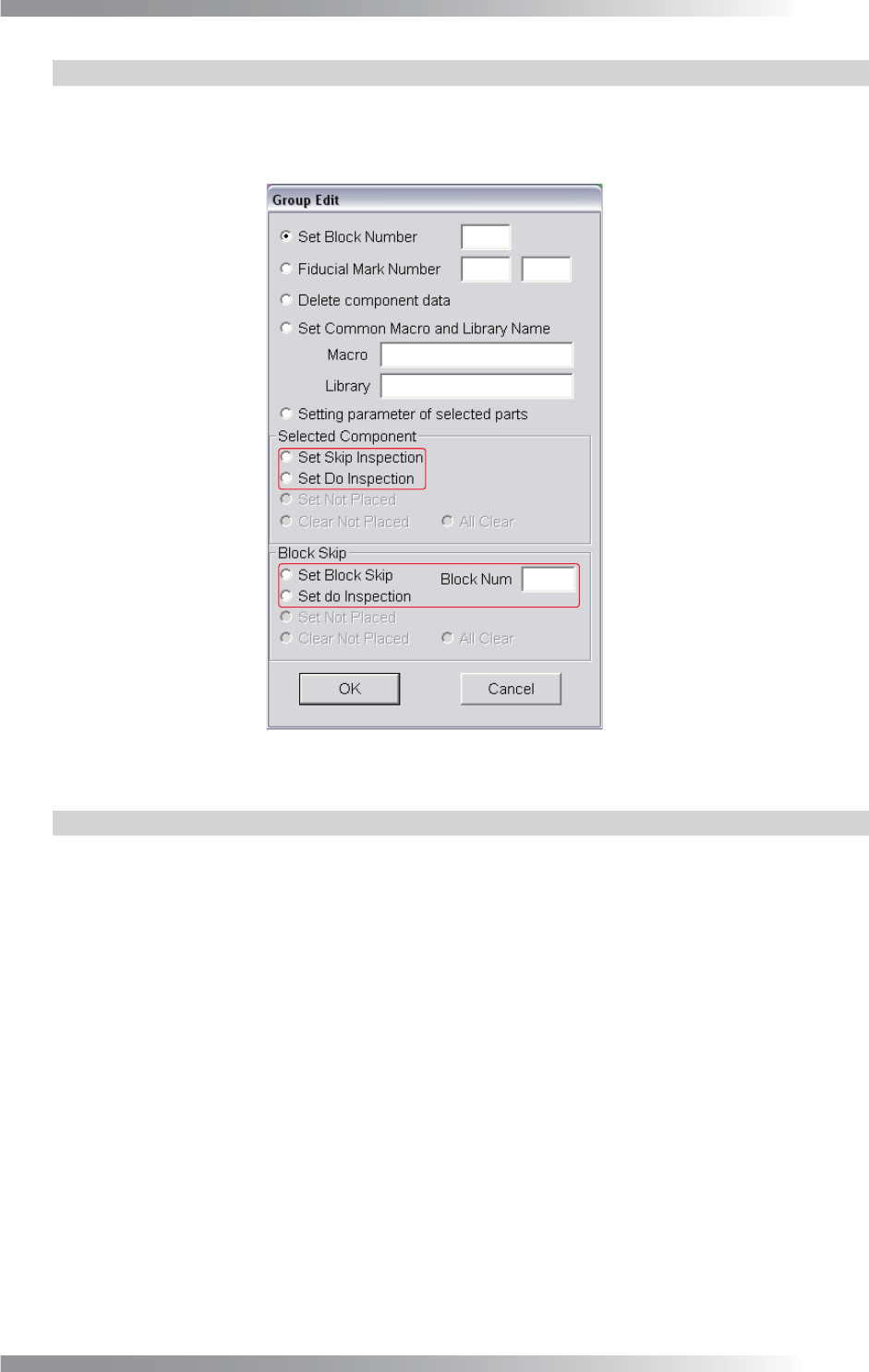
Surround a sub board to be skipped in inspections with a frame by mouse-dragging. The dialog shown
in Figure 1-5 appears. Enter a sub board number into the Block Num fi eld and check Set Block Skip
in Block Skip. To cancel the inspection skip setting, check Set Do Inspection in Block Skip.
Figure 1-5 Group Edit
1.2.4 Skip the inspection of arbitrary area
Surround a sub board to be skipped in inspections with a frame by mouse-dragging. The dialog
shown in Figure 1-5 appears. Check Set Skip Inspection in Selected Component.
To cancel the inspection skip setting, check Set Do Inspection in Selected Component.
IV-6
Programming Manual
Part IV Option Setting
1.3 Algorithm Setting
Press
Ctrl
+
Alt
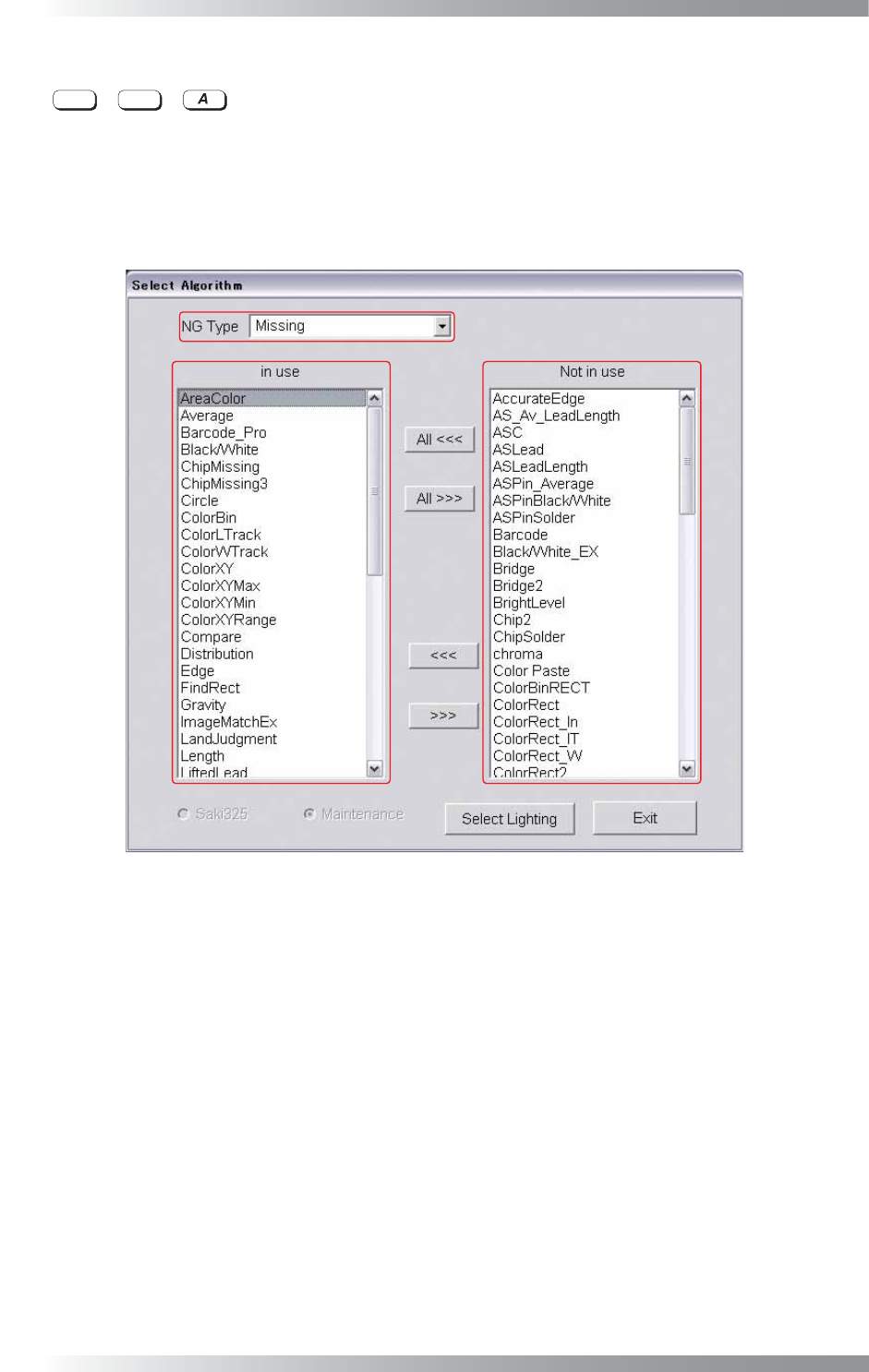
+ concurrently. The dialog shown in Figure 1-6 appears.
Set the algorithm to be used in each NG type.
To change the in use/Not in use setting of an algorithm, press <<< or >>>.
If All <<< or All >>> is pressed, the in use/Not in use setting of an algorithm is applied to all NG types.
To make sure of each NG typeʼs in use/Not in use algorithms, select All Algorithm from the NG Type drop-
down list.
Figure 1-6 Select Algorithm
IV-7
Programming Manual
Part IV Option Setting
1.4 Side Check
1.4.1 Making Inspection Data for a Double Side PCB
Step1: Make the side A inspection data by reference to Part II 1.1 Make Inspection Data on AOI
Machine.
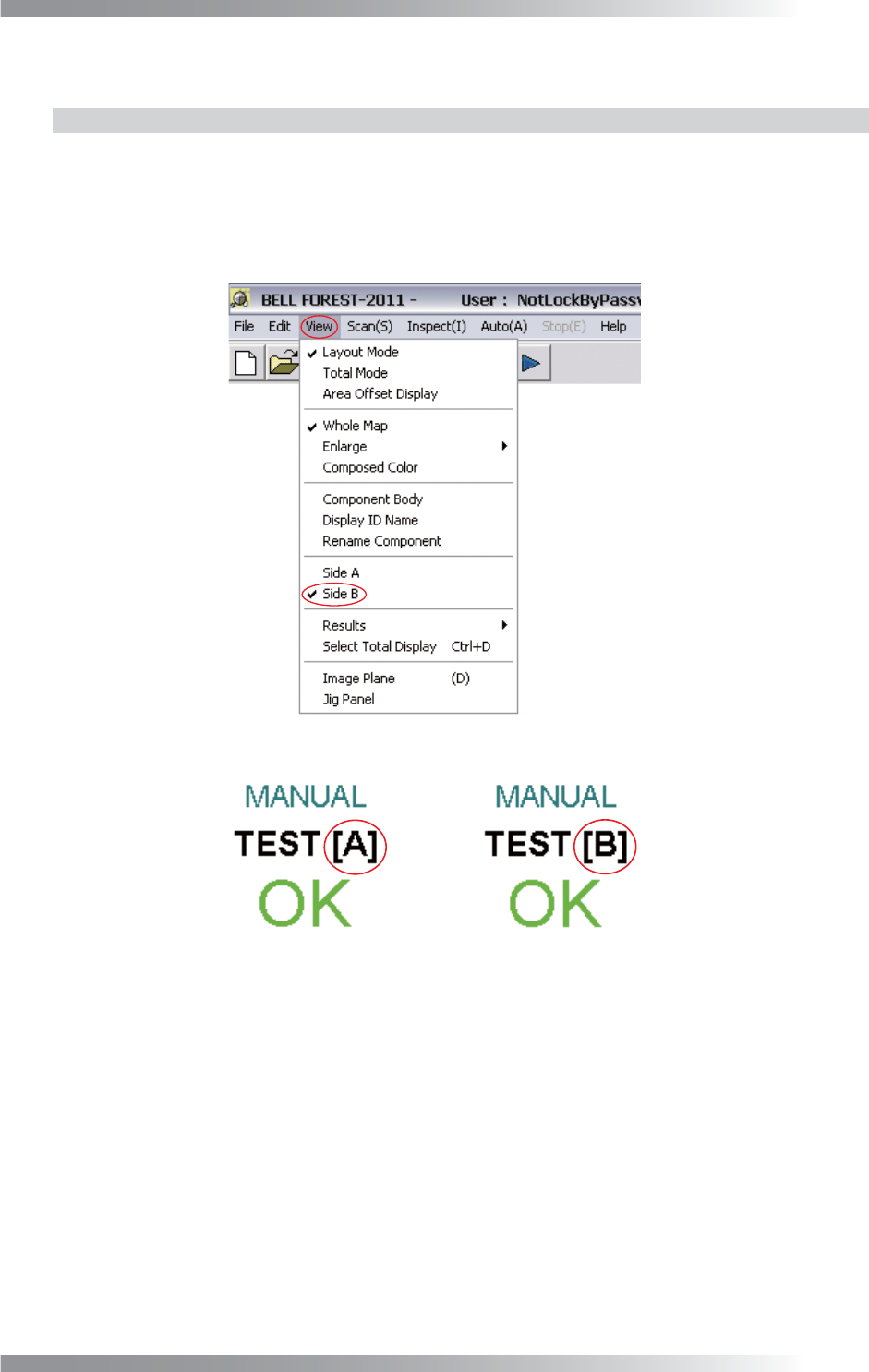
Step2: Select View > Side B from the menu-bar. The PCB side B will be displayed.
Make sure that B is displayed on the upper right corner of the display.
Figure 1-7 Side B
Figure 1-8 A→B