Programming_mail.pdf - 第156页
III- 82 Programming Manual Part III Inspection Algorithm Step6: Adjust the brightness level by pressing + and - in the lower left of --> until the characters are displayed visually clear. Step7: Enter the arbitrary fo…
III-81
Programming Manual
Part III Inspection Algorithm
2.1.3 Setting Procedure
Step1: Select a lighting that displays characters visually clear from the Lighting drop-down list.
Step2: Adjust the size of the inspection window to surround the target characters.
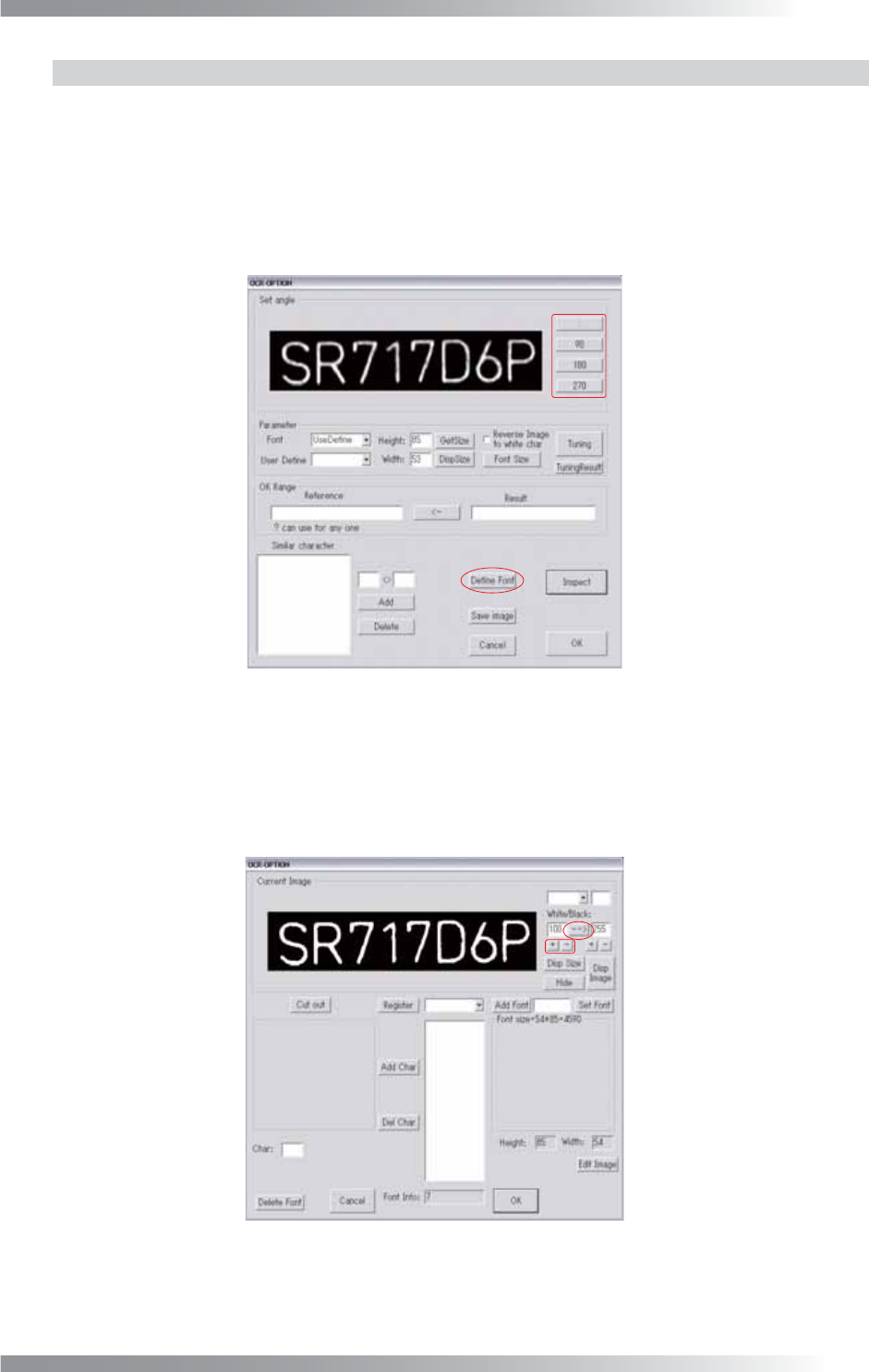
Step3: Press Set in the right side of Algorithm. The dialog shown in Figure 2-2 appears.
Figure 2-2 OCR_Pro 1
Step4: Adjust the character angle by Set angle if the character is not upright.
Step5: Press Defi ne Font. The dialog in Figure 2-3 appears. Change the character display setting
to Black/White by pressing --
>
.
Figure 2-3 OCR_Pro 2
III-82
Programming Manual
Part III Inspection Algorithm
Step6: Adjust the brightness level by pressing + and - in the lower left of --> until the characters are
displayed visually clear.
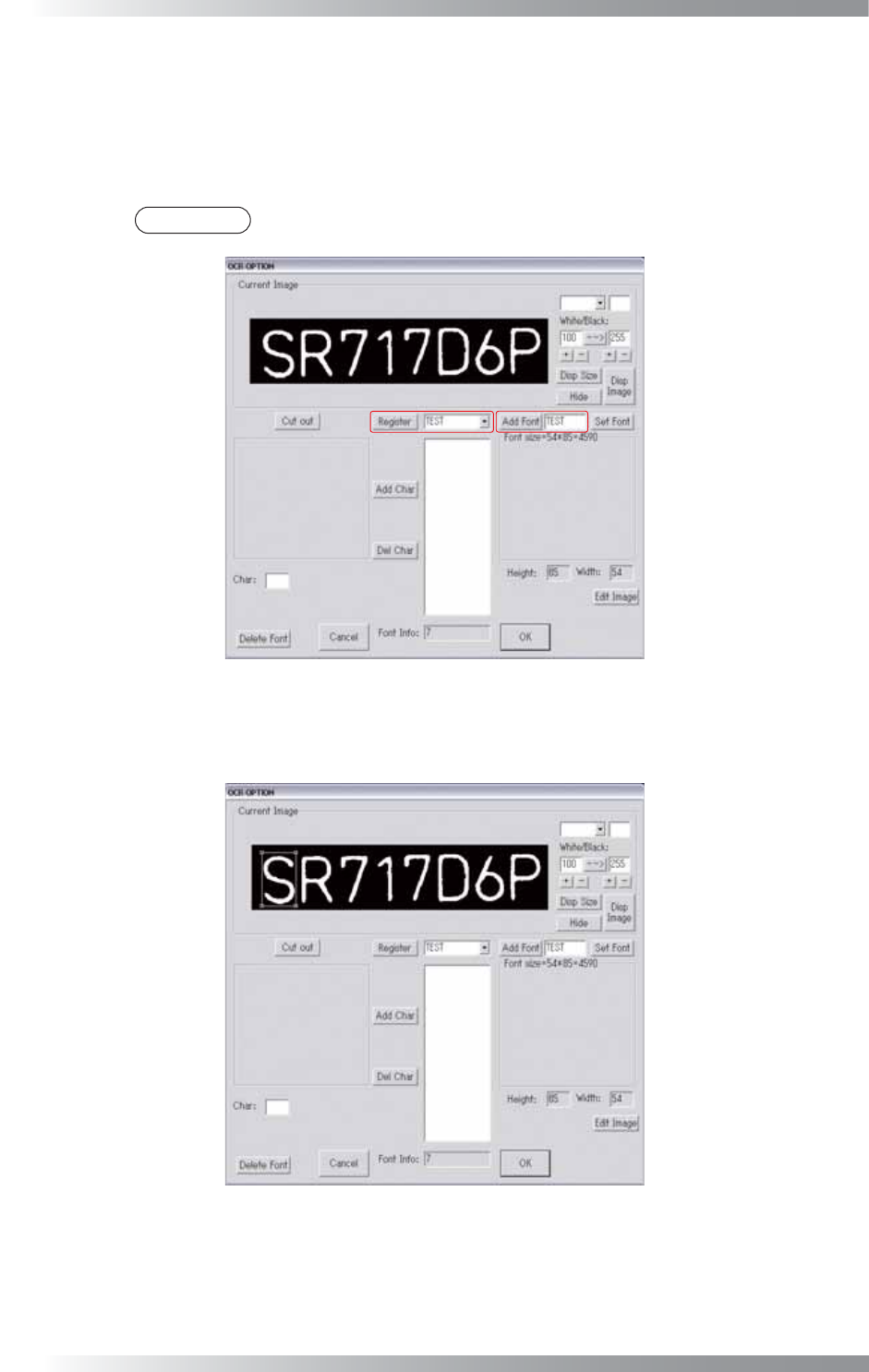
Step7: Enter the arbitrary font name to the text-box at the right of Add Font. Press Add Font. The
font name is displayed in the drop-down list in the right side of Register.
NOTE
Enter the font name within eight characters by single-byte alphanumeric characters.
Figure 2-4 OCR_Pro 3
Step8: Left-click in the upper left part of the fi rst character.
Adjust the window size by dragging the mouse to the lower right side of the fi rst character.
Figure 2-5 OCR_Pro 4
III-83
Programming Manual
Part III Inspection Algorithm
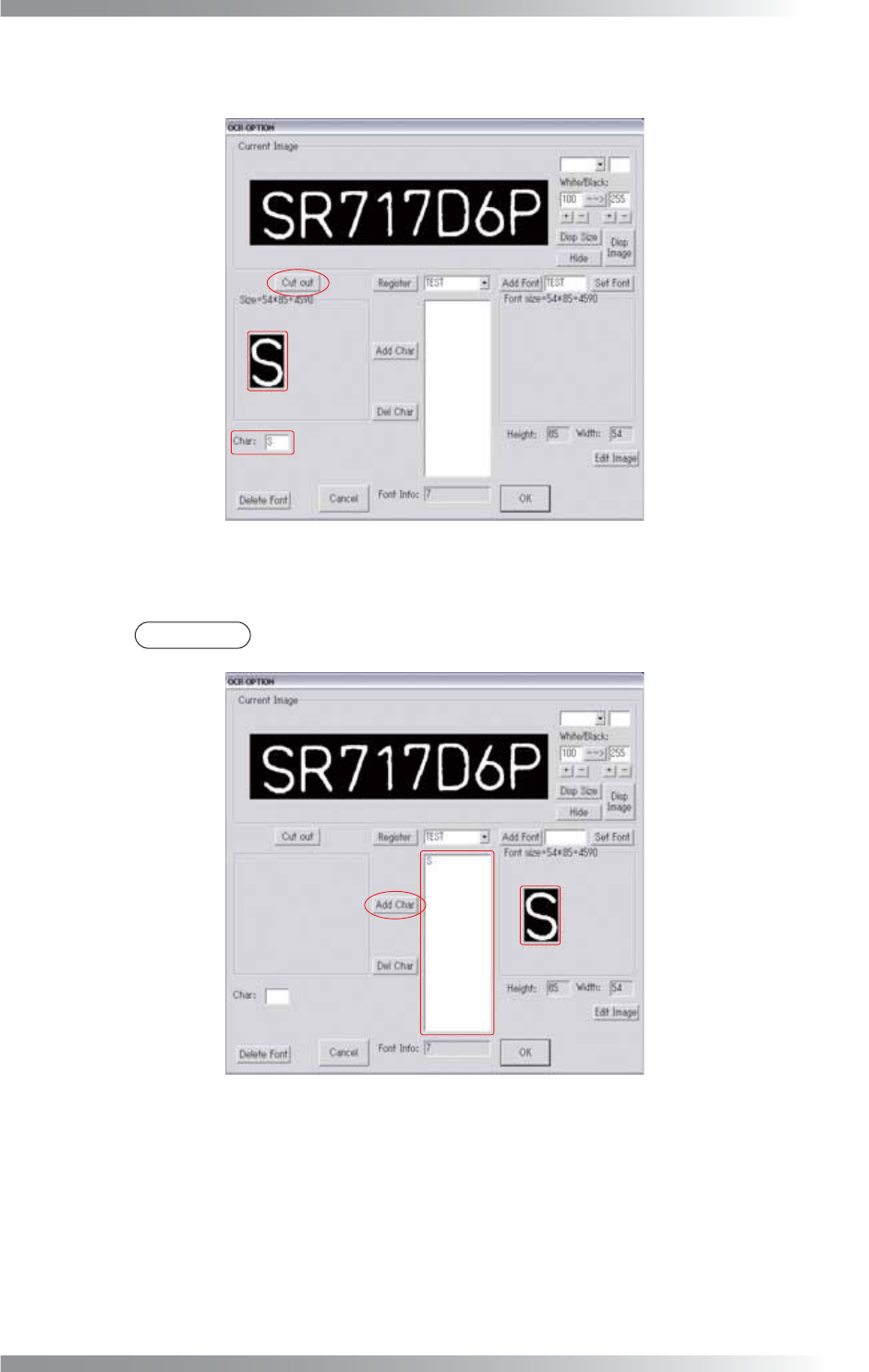
Step9: Press Cut out. The selected image is displayed under Current Image. Enter the fi rst
character to the text-box in the right side of Char:.
Figure 2-6 OCR_Pro 5
Step10: Press Add Char to register the character and the image as a font added in Step7.
NOTE
To delete characters, select character from the list-box and press Del Char.
Figure 2-7 OCR_Pro 6