Programming_mail.pdf - 第36页
I- 28 Programming Manual Part I Basic Operation 2.7 Privile ge Setting This section describes how to register a new user and user level. Unexpected change of system setup or inspection data can be avoided with this funct…
I-27
Programming Manual
Part I Basic Operation
Other Setup
Check Marking and select one from the following items in Figure 2-6 Search Data; FALSENG,
LIMITERR, MARKERR, NGBLOCK-1, NGMARK, OKBLOCK, or OKMARK.
Press Edit. The Other Setup dialog shown in Figure 2-10 appears.
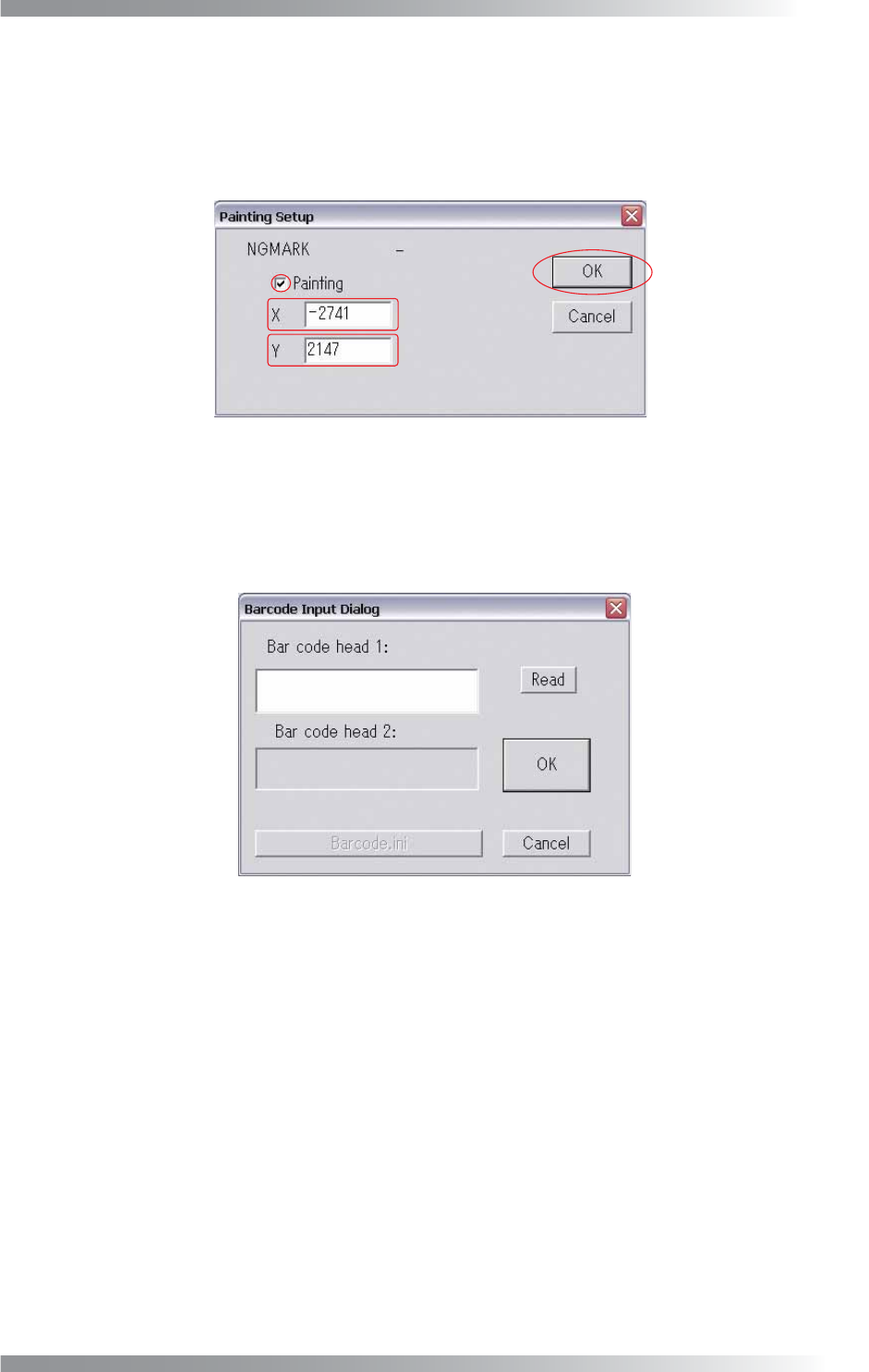
Check Painting. Enter coordinates of a marking location and press OK.
Figure 2-10 Other Setup
2.6 Barcode
Data read by a barcode-reader can be displayed if using an optional barcode-reader.
Press Barcode in Figure 2-1 Select System Setup. The Barcode dialog shown in Figure 2-11 appears.
Figure 2-11 Barcode
Press Read in Figure 2-11 Barcode to test the barcode reading function.
The value read is displayed in Barcode head 1.
I-28
Programming Manual
Part I Basic Operation
2.7 Privilege Setting
This section describes how to register a new user and user level.
Unexpected change of system setup or inspection data can be avoided with this function.
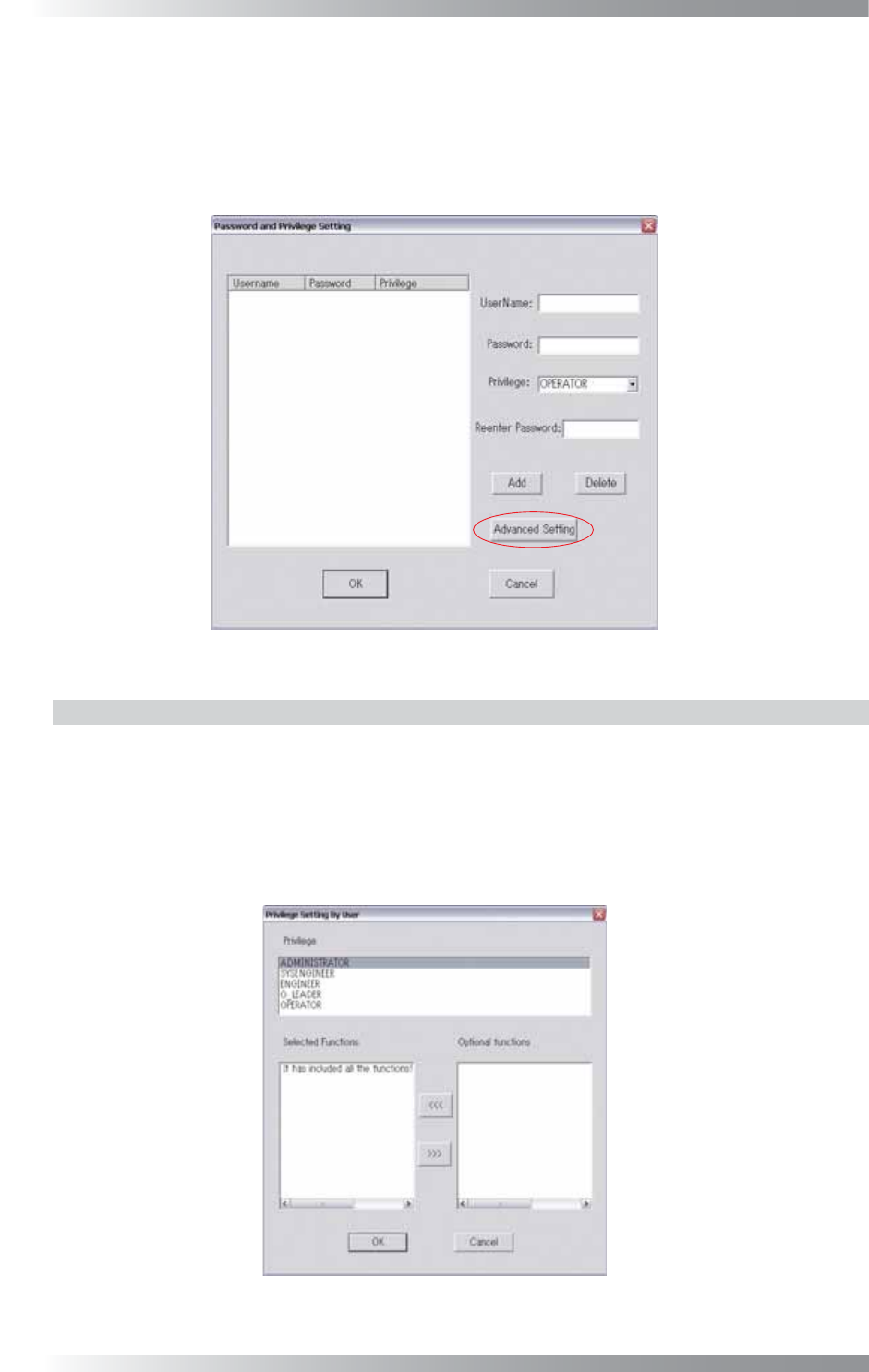
Press Privilege Setting in Figure 2-1 Select System Setup.
The Privilege Setting dialog shown in Figure 2-12 appears.
Figure 2-12 Privilege Setting
2.7.1 User Accessible Level
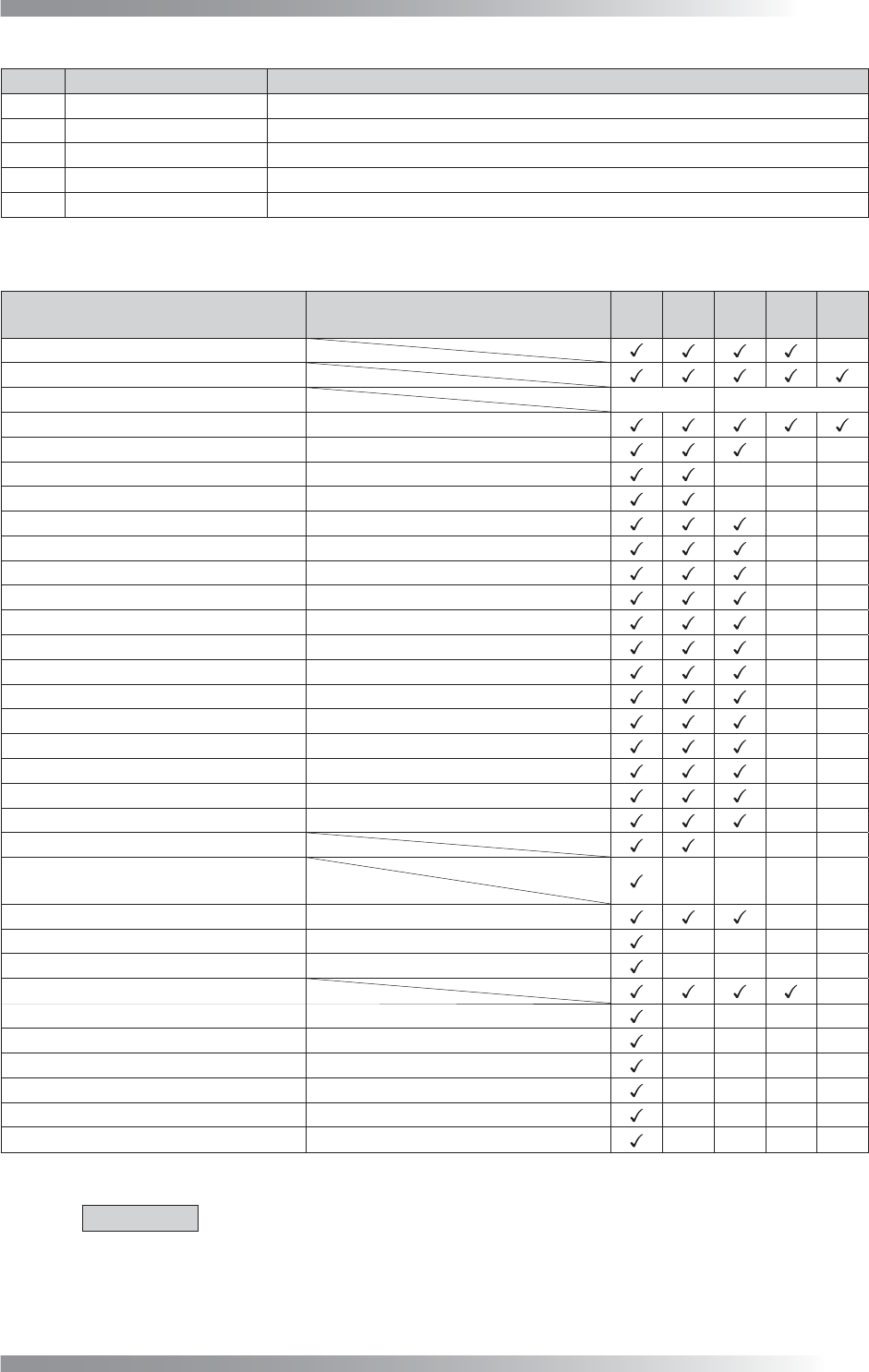
Accessible levels for users can be arranged into fi ve levels.
Operable functions in each level can be changed in the Advanced Setting dialog in Figure 2-13.
Press Advanced Setting in Figure 2-12 and the Advanced Setting dialog shown in Figure 2-13 appears.
Select a user accessible level in Privilege. Operable functions are displayed in Selected Functions.
Inoperable functions are displayed in Optional Functions.
Press <<< or >>> to move functions.
Figure 2-13 Advanced Setting
I-29
Programming Manual
Part I Basic Operation
No. User Accessible Level Description
L1 Administrator
All functions and dialogs are available.
L2 System Engineer
Not allowed to change the privilege setting.
L3 Engineer
Not allowed to change the privilege setting and system setup.
L4 O_Leader
Not allowed to save inspection data.
L5 Operator
Allowed to select inspection data and run Auto Mode only.
Table 2-6 User accessible level and functions availability
Function
Items which can be changed the
accessible level in the advanced setting
L1 L2 L3 L4 L5
Edit Inspection Data
-
Auto Inspection
BF Termination
Return to OS
OS Shutdown
Menu-bar→File→Select Data File-
>
Select Data
Menu-bar→File→Save Data
File-
>
Save Data --
Menu-bar→File→Add Data
File-
>
Add Data
---
Menu-bar→File→Append CAD Data File-
>
Select CAD Data ---
Menu-bar→File→Select Image
File-
>
Select Image
--
Menu-bar→Edit→Search
Edit-
>
Search
--
Menu-bar→Edit→Add
Edit-
>
Add
--
Menu-bar→Edit→Input mode
Edit-
>
Input Mode --
Menu-bar→Edit→Delete
Edit-
>
Delete
--
Menu-bar→Edit→Edit NG
Edit-
>
Edit NG
--
Menu-bar→Edit→Block
Edit-
>
Block
--
Menu-bar→Edit→Offset
Edit-
>
Offset
--
Menu-bar→Edit→Reference List
Edit-
>
Reference List
--
Menu-bar→Edit→SubMark Edit-
>
SubMark --
Menu-bar→Edit→Edit Library
Edit-
>
Edit Library
--
Menu-bar→Edit→Link Library
Edit-
>
Link Library
--
Menu-bar→Edit→Unlink Library Edit-
>
Unlink Library --
Menu-bar→Edit→System Setup
---
Menu-bar→Edit→System Setup
→Privilege Setting
----
Menu-bar→View→Rename Component
View-
>
Rename Component --
Menu-bar→Auto→Lotnumber
Autorun-
>
Lotnumber
----
Menu-bar→Auto→Marking Autorun-
>
Marking pen ----
Menu-bar→Pass
-
Not used
BFRP1-
>
Delete OK Data
----
Not used
BFRP1-
>
Delete This Data
----
Not used
BFRP1-
>
Repaired
----
Not used
BFRP1-
>
All Repaired ----
Not used
BFRP1-
>
Show Current Offset
----
Not used
BFRP1-
>
Make Report
----
Table 2-7 User Accessible Level and restricted function
CAUTION
For diagonal items, an accessible level can not be changed.
If the password needs to be changed, please contact Saki Corporation.