Programming_mail.pdf - 第244页
V- 54 Programming Manual Part V Inspection Data 5 Inspection Selection Inspection selection is an effective function to manage inspection data of its product variations. 5.1 Inspection Ov er view Some components are not …
V-53
Programming Manual
Part V Inspection Data
4.8.2 Setting Procedure of Bridge Inspection
Step1: Press BRIDGE button.
Step2: Check Inspect Bridge.
Step3: Check Dedicated.
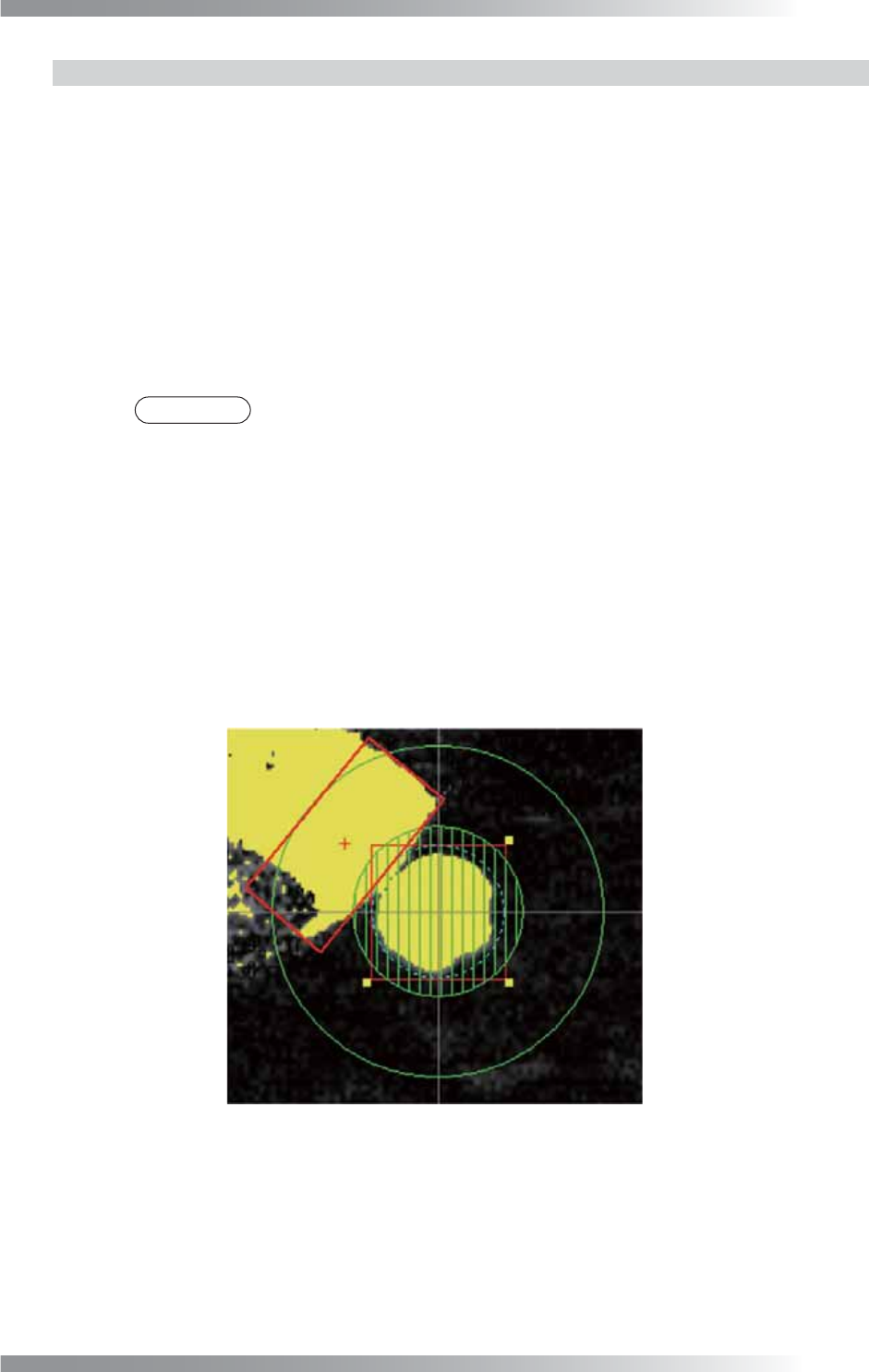
Step4: Adjust the Coverage value so the adjacent pin edge is included in the inspection area.
Specify the inspection area by the width (pixels) from the dotted line circle. The inspection
area is inside the green circle excluding the netted (masked) area. If the value gets bigger,
the search area becomes larger.
NOTE
If the solder and the clinch pin end are not displayed clearly by Dedicated, check
Other and select a lighting from the drop-down list.
Step5: If the edge of the pad is uneven, set the Mask width value. Specifi es the “no inspection”
area in the inspection area set in Coverage by the width (pixels) from the dotted line circle.
Set the mask so the solder is covered.
Step6: To exclude specifi c angles such as a PCB pattern or silk print from an inspection area, set
the Angle mask value. Specifi es the “no inspection” area in the inspection area set in
Coverage by angle. Two angle masks can be set.
Step7: Enter a value into the Bright range fi eld to detect solder.
Figure 4-17 Bridge Inspection
V-54
Programming Manual
Part V Inspection Data
5 Inspection Selection
Inspection selection is an effective function to manage inspection data of its product variations.
5.1 Inspection Overview
Some components are not mounted in different variations even in the same design. Componentʼs shapes
and colors may also differ from supplier to suppliers. In those cases, different variation of the inspection data
can be applied without making new inspection data with Inspection selection function. Inspection selection
achieves to reduce time for data creation and to manage inspection data easily.
5.2 Type of Inspection Selection
5.2.1 Skip Inspection
Skips arbitrarily selected components. The function is useful if components are missing as PCB
version differs.
5.2.2 Do Inspection for Not Placed
Only inspect missing component for arbitrarily selected components. If there is no component, the
result will be OK.
This is used when inspecting whether components which do not have to be mounted on certain
versions of PCB are mounted or not.
5.2.3 Exchange Macro
Apply arbitrarily macro for arbitrarily selected components.
Because libraries can be made for each macro, multiple libraries can be applied to the same
component.
5.3 Setting Procedure
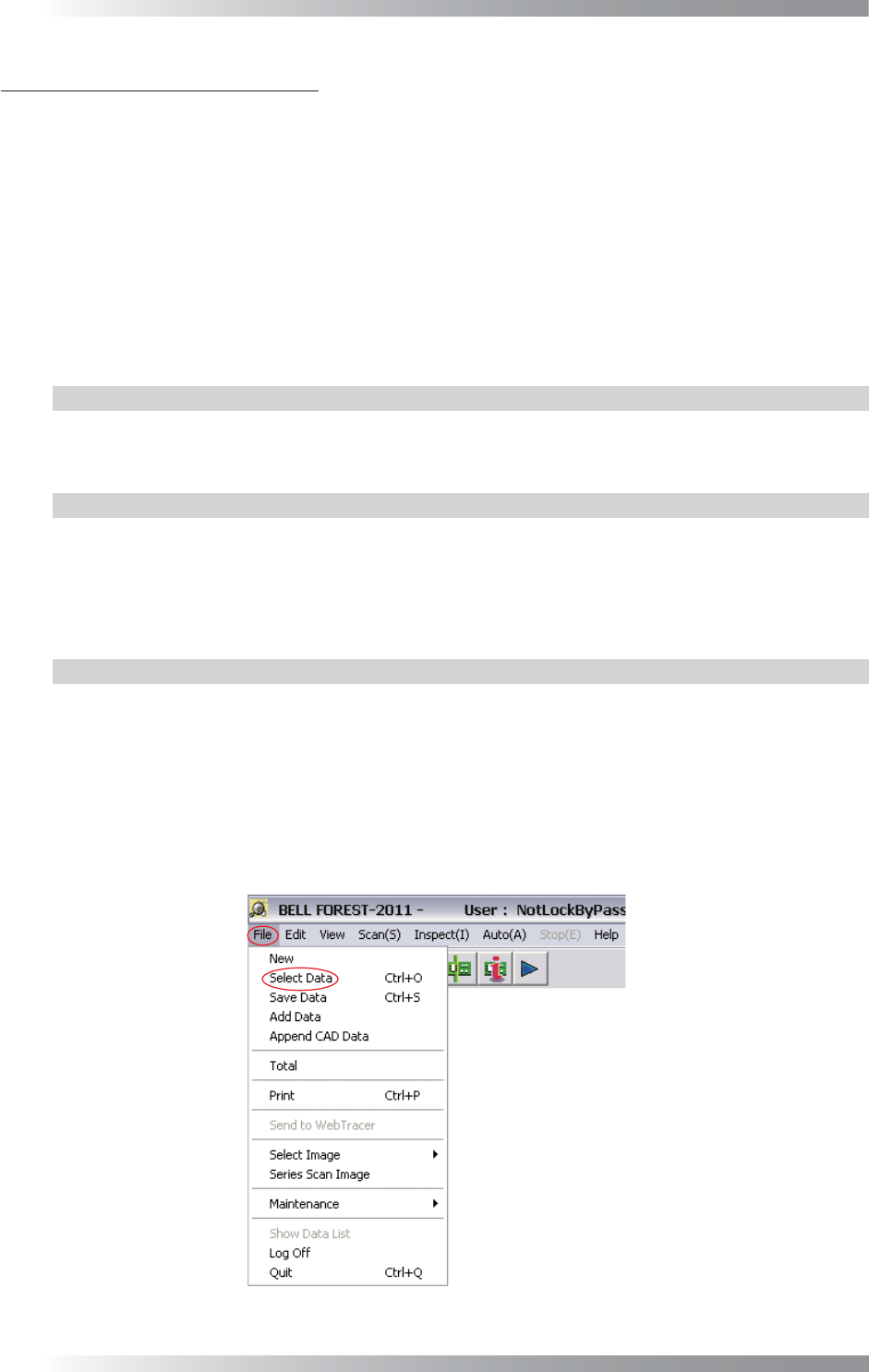
Step1: Select File > Select Data from the menu-bar to open the inspection data.
Figure 5-1 Select Data
V-55
Programming Manual
Part V Inspection Data
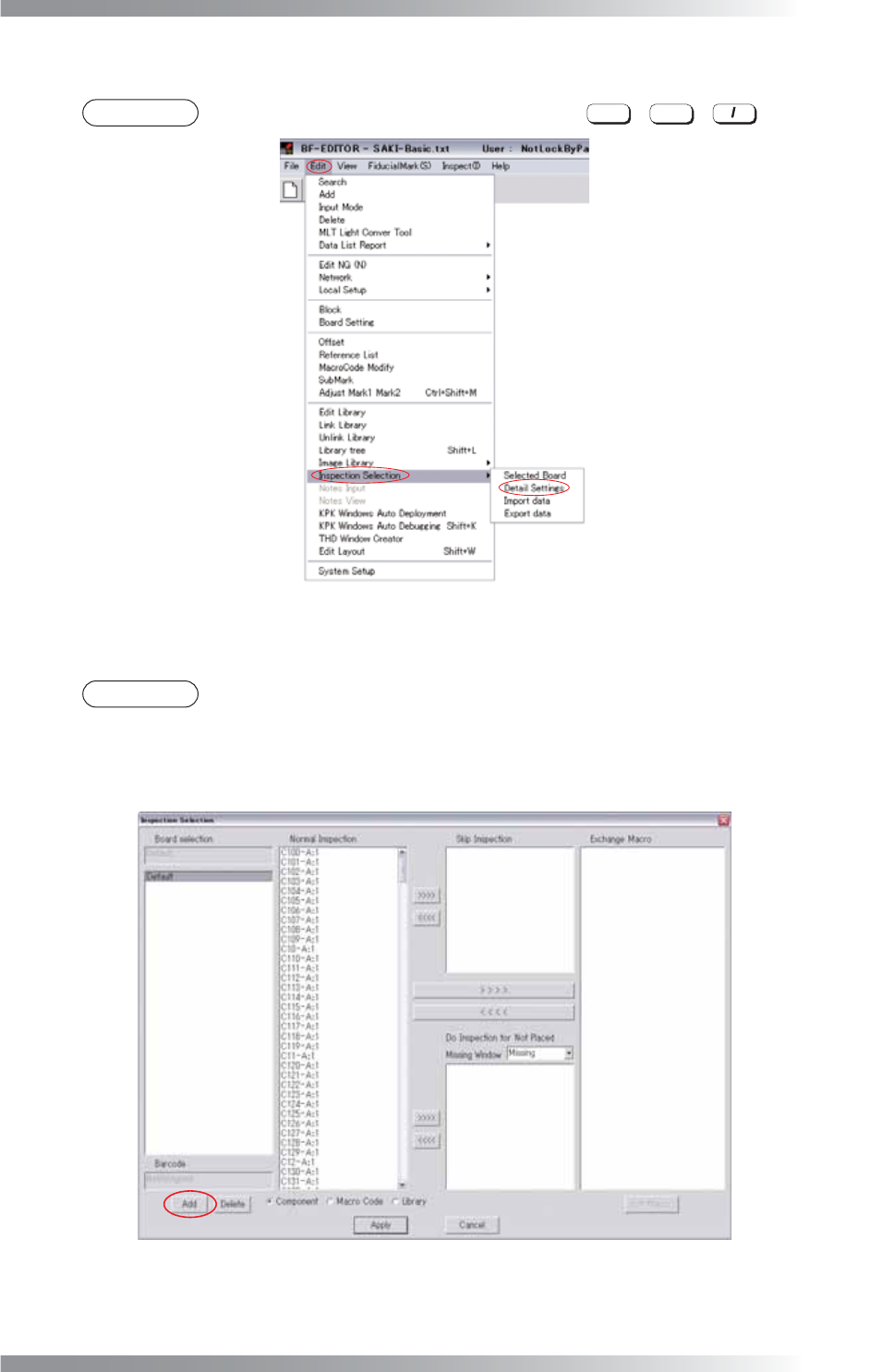
Step2: Select Edit > Inspection Selection > Detail Settings from the menu-bar.
NOTE
The same operation can be performed by pressing
Ctrl
+
Alt
+ .
Figure 5-2 Detail Settings
Step3: The dialog shown in Figure 5-3 appears. Press Add.
NOTE
Select an inspection selection from the Board Selection list-box and press Add. A new
inspection selection is added based on the selected inspection selection from the Board
Selection list-box. If there is no inspection selection in the Board Selection list-box, a new
inspection selection is added based on the Default inspection selection.
Figure 5-3 Add