Programming_mail.pdf - 第15页
I- 7 Programming Manual Part I Basic Operation 1.1.7 Display the Edit Component Data Dialog If there are many false calls, the inspection data should be readjusted. Right-click the target component, open the Edit Compone…
I-6
Programming Manual
Part I Basic Operation
The table below describes the items in Board Data Edit dialog.
Item Description
Board Name
Displays the target PCB name.
Group Name
Displays the group name which has the same library with the target PCB.
Board size
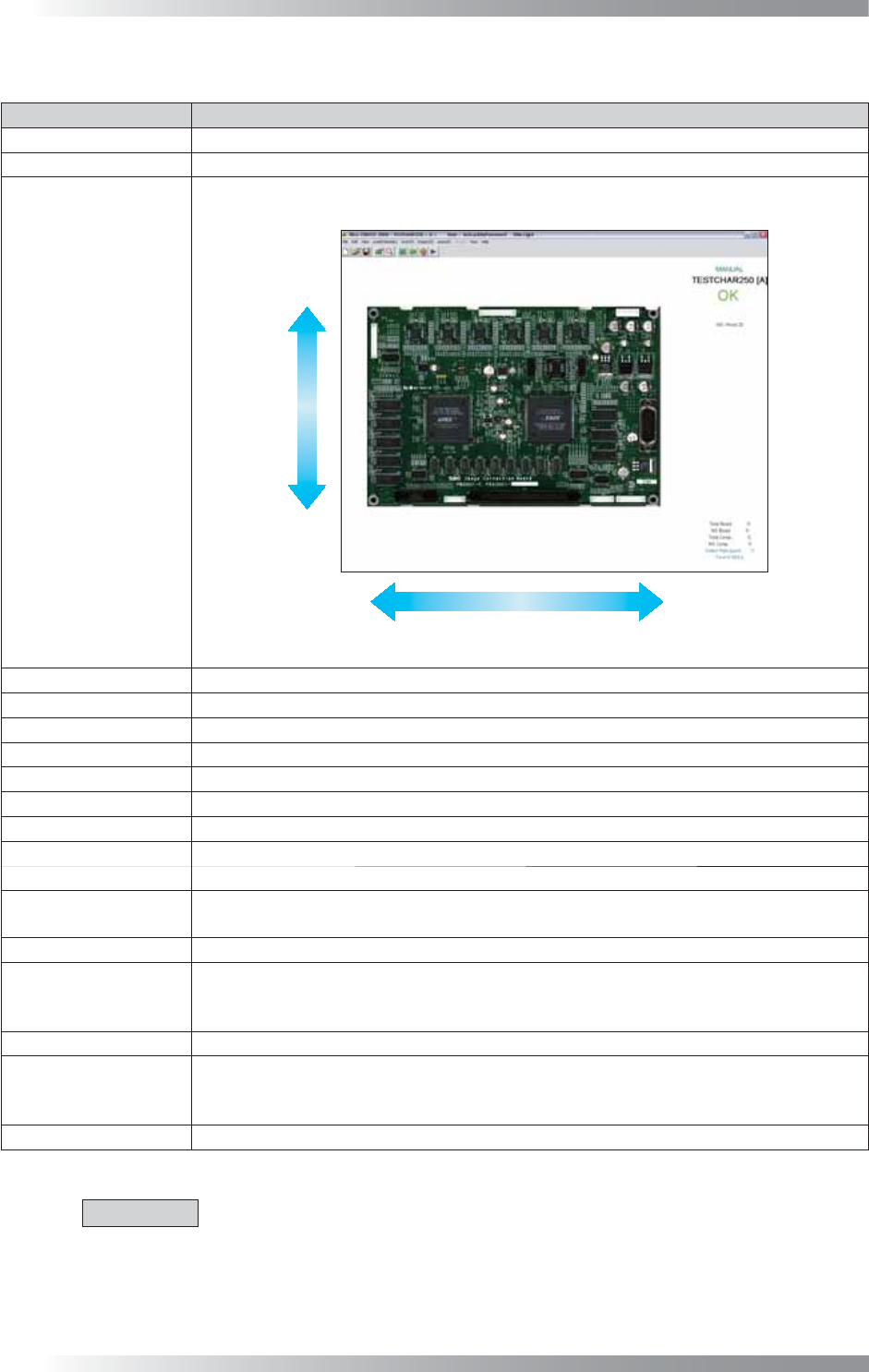
Sets the target PCB size (μm). X-axis and Y-axis are set as shown below.
t indicates PCB thickness. (*1)
Y
X
Figure 1-9 Board Size Setting
Board Origin
Sets the PCB origin.
Model Name Not available.
Comment
Enter any comments if necessary.
Data Editor
Enter data creator.
Date
Created date (Month/Day/Year).
Operator Shift
Work shift.
Block No. Enter the number of sub-PCBs, if necessary.
Machine No. Not available.
Number Not available.
Use Fiducial Mark
Compensation
Enables fi ducial marks to correct misalignment.
MARK1
Sets the position of the fi rst fi ducial mark in X and Y coordinates.
Actual Position
Displays the actual position of a fi ducial mark in X and Y coordinates. The gap against the
MARK1 value represents the amount of deviation between the inspection data and
scanned image.
MARK2
Sets the position of the second fi ducial mark in X and Y coordinates.
Actual Position
Displays the actual position of a fi ducial mark in X and Y coordinates. The gap against the
MARK2 value represents the amount of deviation between the inspection data and
scanned image.
Option Not available.
Table 1-1 Each Item of
Board Data Edit
CAUTION
(*1) In case of BF-Comet10, BF-Comet18, and BF-Sirius, longitudinal direction is X and
lateral direction is Y.
I-7
Programming Manual
Part I Basic Operation
1.1.7 Display the Edit Component Data Dialog
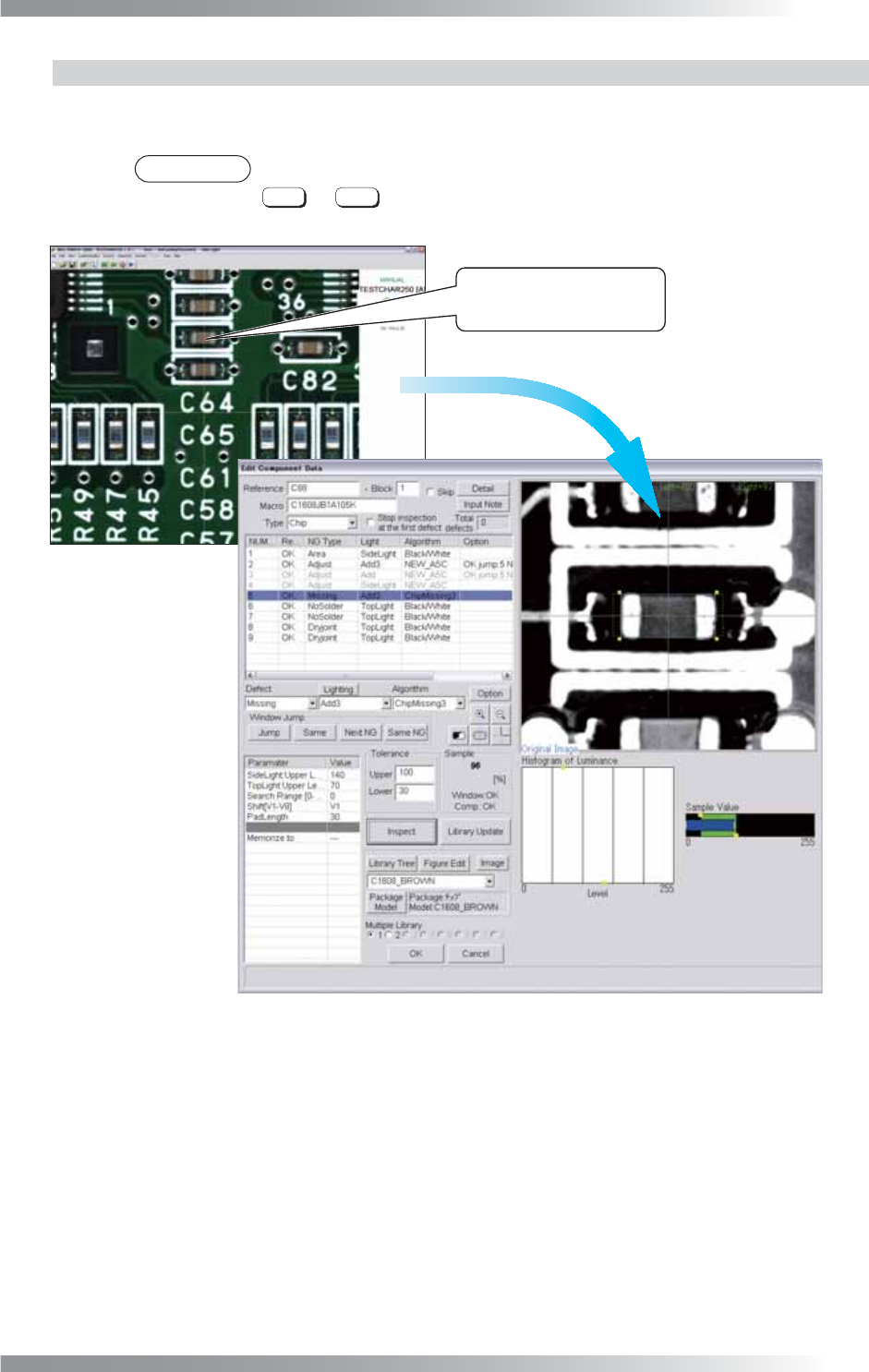
If there are many false calls, the inspection data should be readjusted. Right-click the target component,
open the Edit Component Data dialog shown in Figure 1-10 and adjust the inspection data.
NOTE
Inspection data switches to another data in order of its created date by pressing
←
or
→
.
The above operation is also available in Full View Screen and
Enlarged View Screen.
Right-click on the target
inspection window to edit.
Figure 1-10 Edit Component Data
I-8
Programming Manual
Part I Basic Operation
The following three ways are available to open the Edit Component Data dialog.
Search the component and open the Edit Component Data dialog
Press
Ctrl
+
Alt
+
F
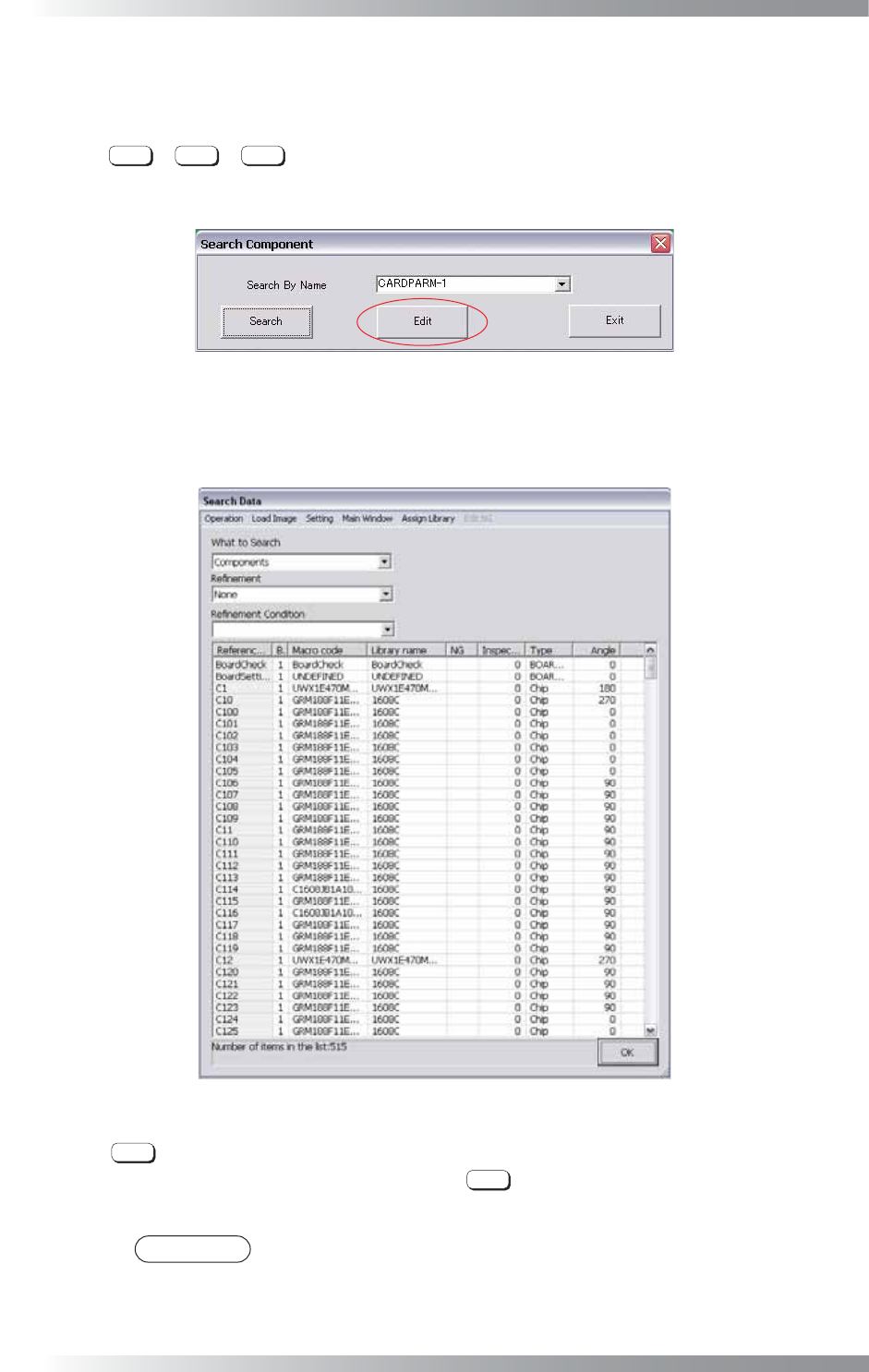
concurrently and the Search Component dialog shown in Figure 1-11
appears. Enter the component name and press Edit. The Edit Component Data dialog for the
component appears.
Figure 1-11 Search Component
In another way, select Edit > Search from the menu-bar and the Search Data dialog shown in Figure
1-12 appears. Double-click the component. The Edit Component Data dialog for the component appears.
Figure 1-12 Search Data
Press
Enter
to open the Edit Component Data dialog
Click an arbitrary position on the image and press
Enter
.
The NG component data that is in the closest to the clicked position is displayed.
NOTE
This operation is available in Full View Screen and Enlarged View Screen.