Programming_mail.pdf - 第198页
V- 8 Programming Manual Part V Other Function Combine Similar Colors Figure 1-1 1 Combine Similar Colors Figure 1-12 Add Some Colors from the Current Area 1 Figure 1-13 Add Some Colors from the Current Area 2 Step2: Make…
V-7
Programming Manual
Part V Other Function
1.2.2 No Bare PCB
Registers the PCB color under the component as NG color.
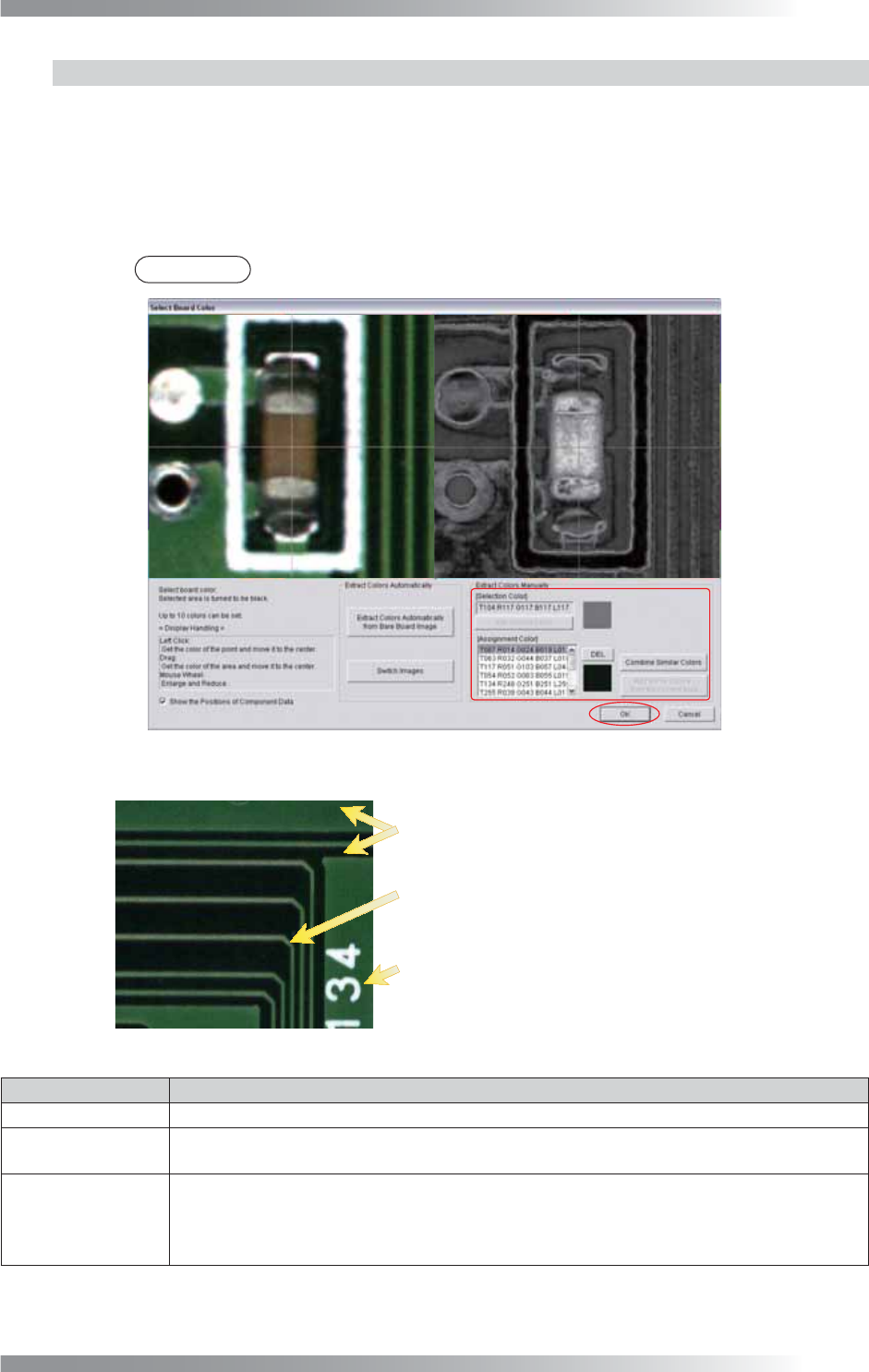
Step1: Click the parts to be registered as NG colors and press Add Current Color.
NG color is displayed in the Assignment Color list-box.
The area which color is similar to the registered color is displayed in black on the right image.
Continue to register all NG colors in the list-box until the NG area is displayed in black.
NOTE
Maximum 10 colors can be registered.
Figure 1-9 Extract Colors Manually
Register PCB surface color and resist surface color.
Register the pattern color as NG color
Register the silk color as NG color
if it is different from the resist surface color.
if the silk printing is under components.
Figure 1-10 Register NG Colors
Item Description
DEL Select the color in the list-box and press DEL to delete the color.
Combine Similar
Colors
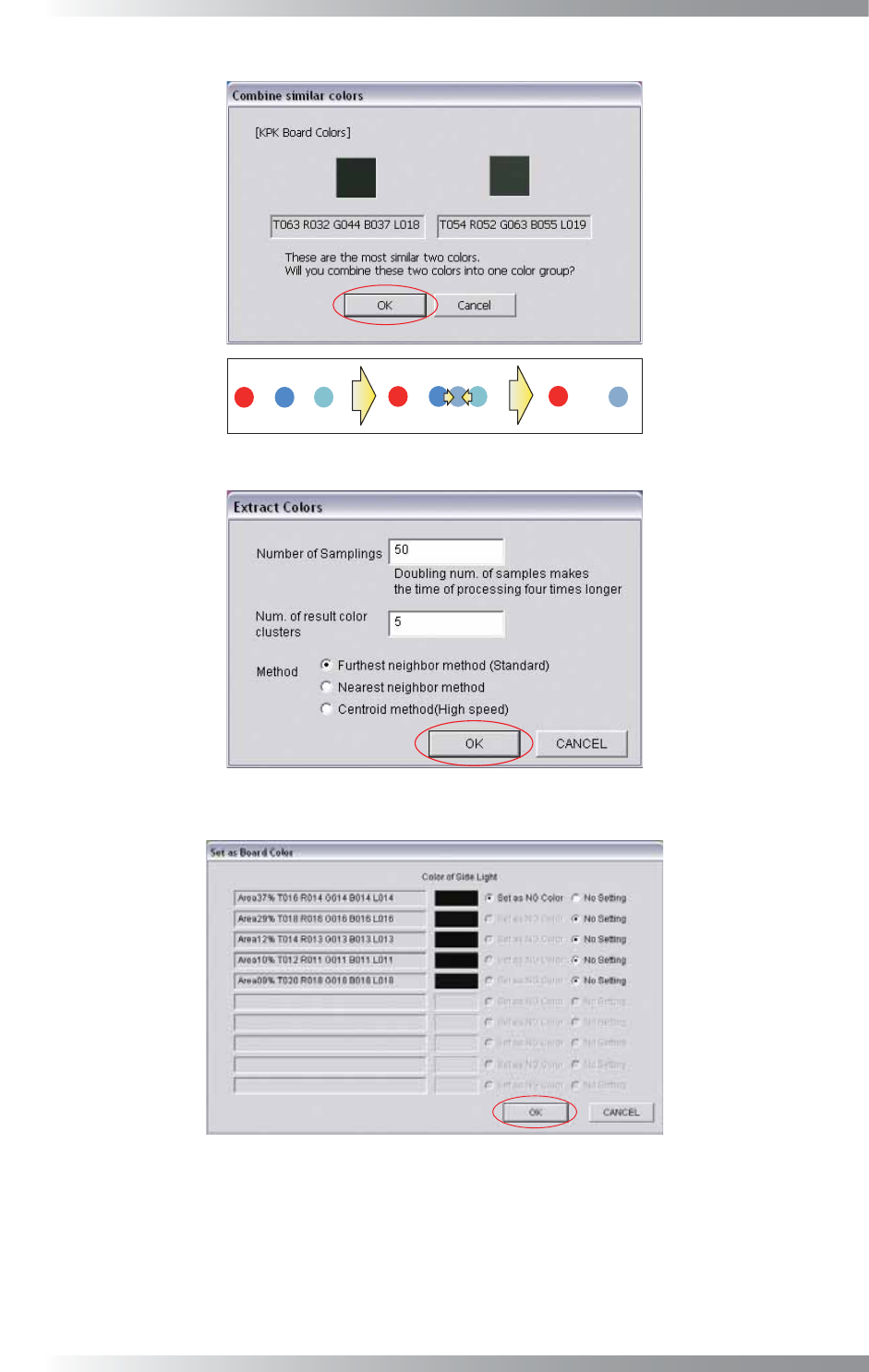
Press Combine Similar Colors and the dialog shown in Figure 1-11 appears. Press OK to
combine the selected two similar colors to decrease the number of registered colors.
Add Some Colors
from the Current
Area
Select the area which color is to be registered as NG. Press Add Some Colors from the
Current Area and the dialog shown in Figure 1-12 appears. Press OK and the dialog shown
in Figure 1-13 appears. The extracted colors are displayed. To register the color as NG
colors, check Set as NG Color and press OK.
Table 1-1 Each Item of Extract Colors Manually
V-8
Programming Manual
Part V Other Function
Combine Similar Colors
Figure 1-11 Combine Similar Colors
Figure 1-12 Add Some Colors from the Current Area 1
Figure 1-13 Add Some Colors from the Current Area 2
Step2: Make sure that the PCB color is displayed in black. If the PCB color is closer to the extracted
PCB color, the PCB color will be darker. Refer to Part V 1.2.3 Auto Deployment of KPK.
V-9
Programming Manual
Part V Other Function
1.2.3 Auto Deployment of KPK
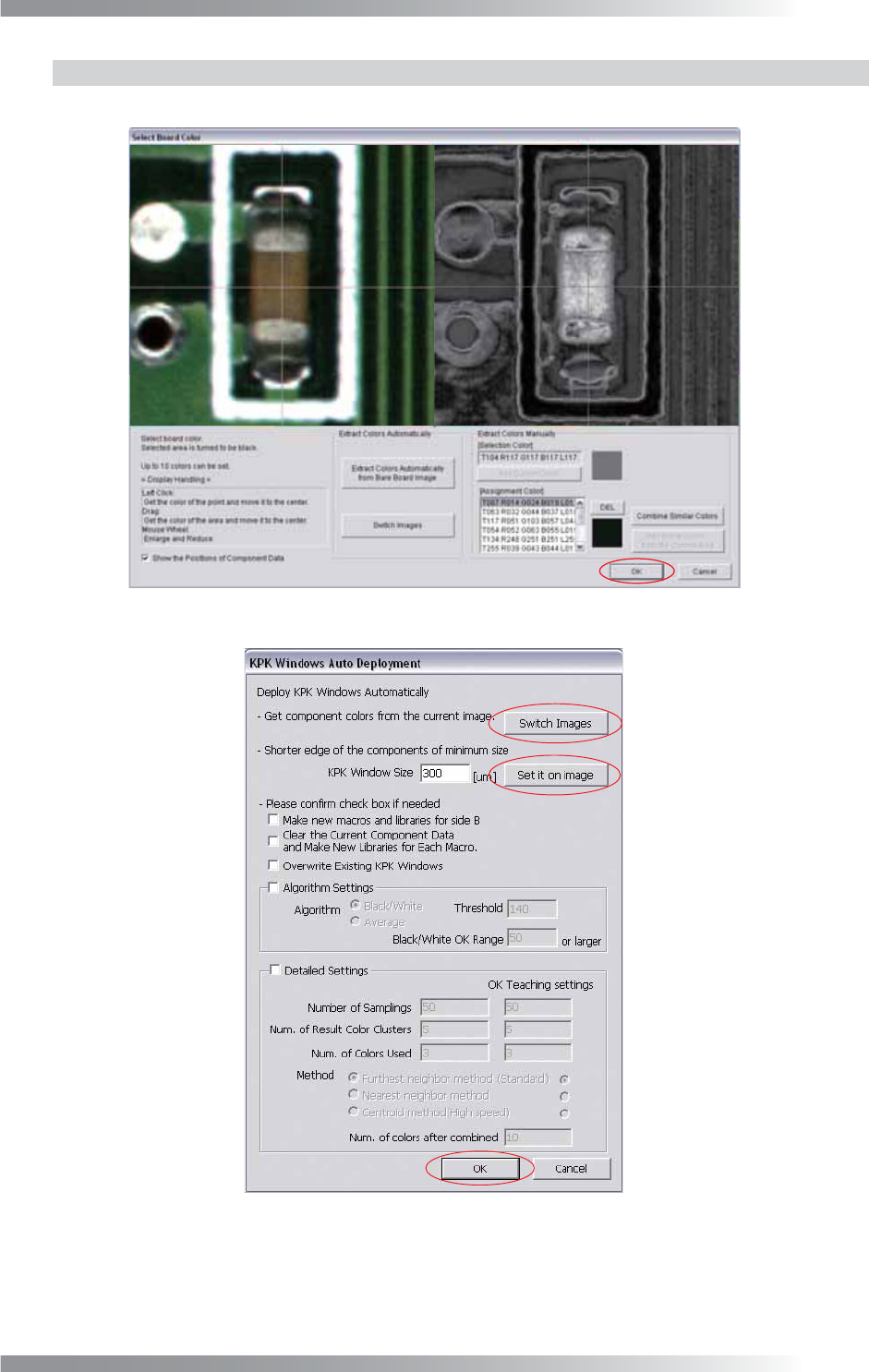
Step1: Register all NG colors and press OK. The dialog shown in Figure 1-15 appears.
Figure 1-14 Specify PCB Color
Figure 1-15 KPK Windows Auto Deployment
Step2: Press Switch Images and open OK PCB images.