Programming_mail.pdf - 第236页
V- 46 Programming Manual Part V Inspection Data 4.5 Straight Pin Inspection Setting Straight pin inspection detects the straight pin automatically . This algorithm veri fi es if there are pins or not. 4.5.1 Parameter of S…
V-45
Programming Manual
Part V Inspection Data
4.4.2 Setting Procedure of Pin Hole Inspection
Step1: Press HOLE button.
Step2: Check Inspect Pin Hole.
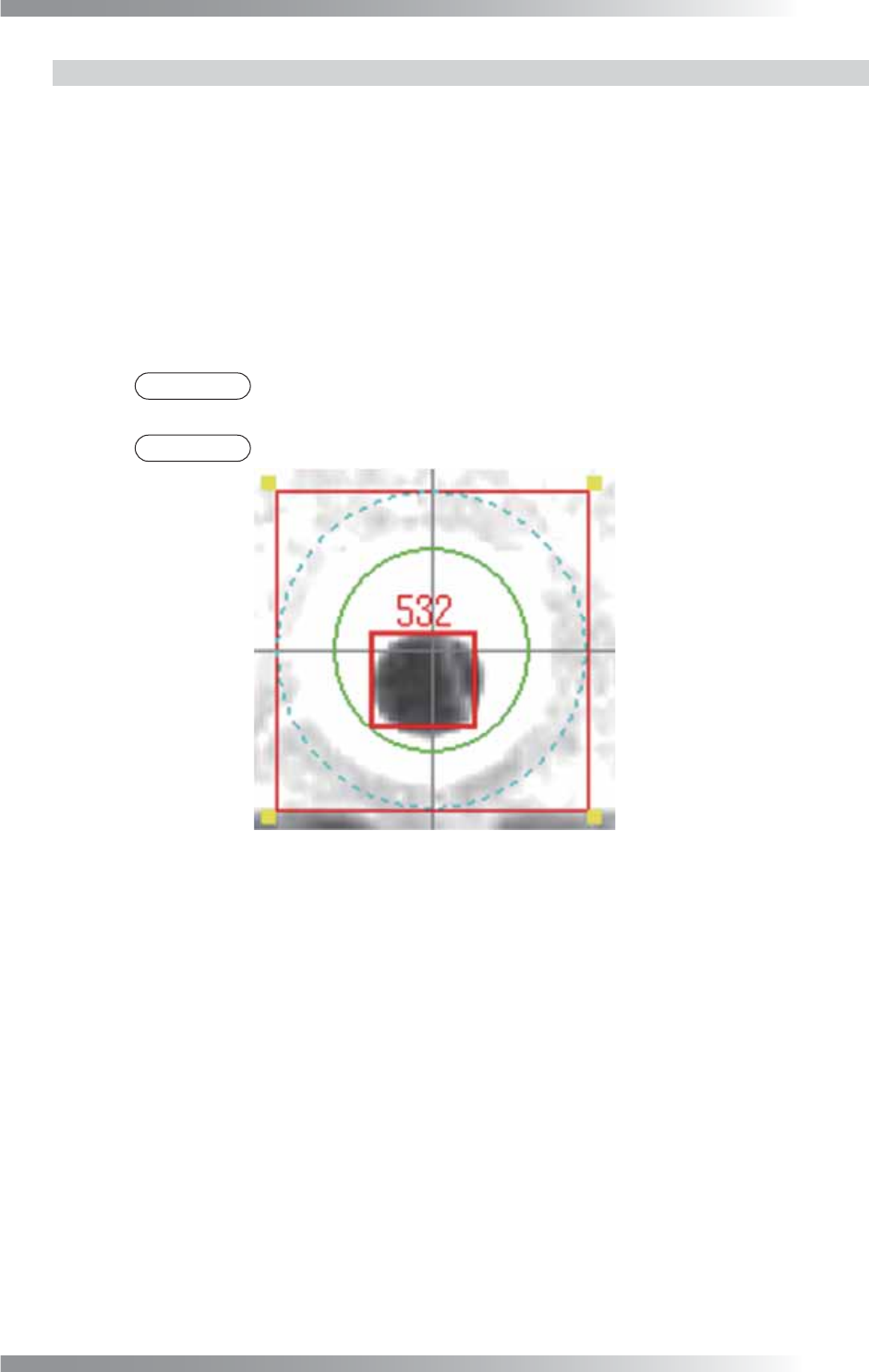
Step3: Adjust Width to surround the hole. The inspection area is specifi ed by width (pixel value)
from the green circle. The inspection area is in the green circle. Enter the bigger value to
enlarge the inspection area.
Step4: Enter a value in the Upper limit fi eld.
NOTE
Detected indicates the number of pixels of the hole (an area whose color is
recognized as black).
NOTE
The value displayed on the screen indicates the value of Detected.
Figure 4-8 Pin Hole Inspection
V-46
Programming Manual
Part V Inspection Data
4.5 Straight Pin Inspection Setting
Straight pin inspection detects the straight pin automatically.
This algorithm verifi es if there are pins or not.
4.5.1 Parameter of Straight Pin Inspection
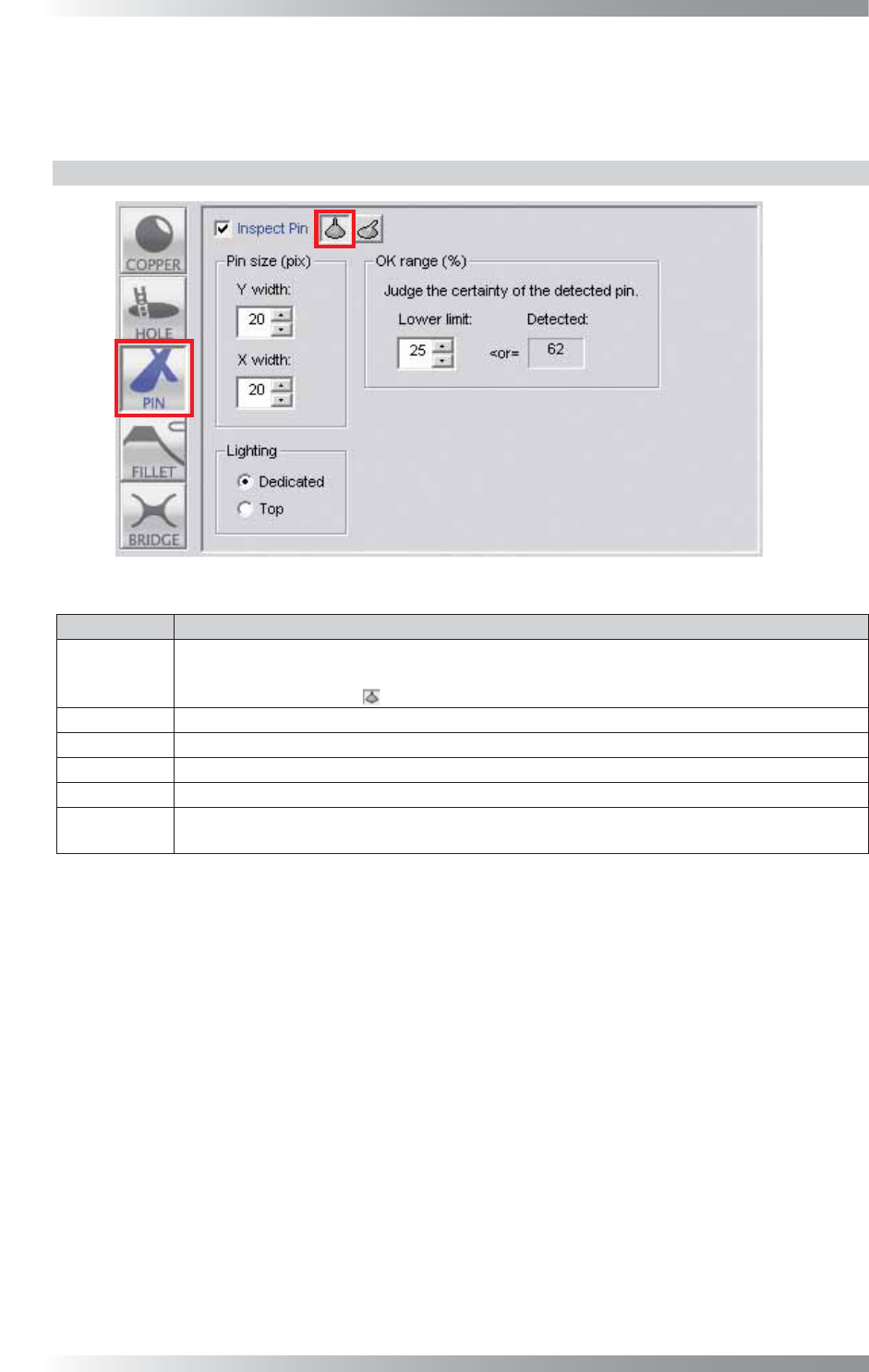
Figure 4-9 Straight Pin Inspection Setting
Parameter Description
Inspect Pin
To activate pin inspection, check Inspect Pin.
To disable pin inspection, un-check Inspect Pin. Buttonʼs color is displayed as gray.
Press straight pin icon (
) to inspect straight pin.
Y width
Set the width (pixel value) of the direction of the Y-axis of a pin.
X width
Set the width (pixel value) of the direction of the X-axis of a pin.
Lighting Select a lighting. Default setting is Dedicated.
Lower limit Set the lower limit of the OK range.
Detected
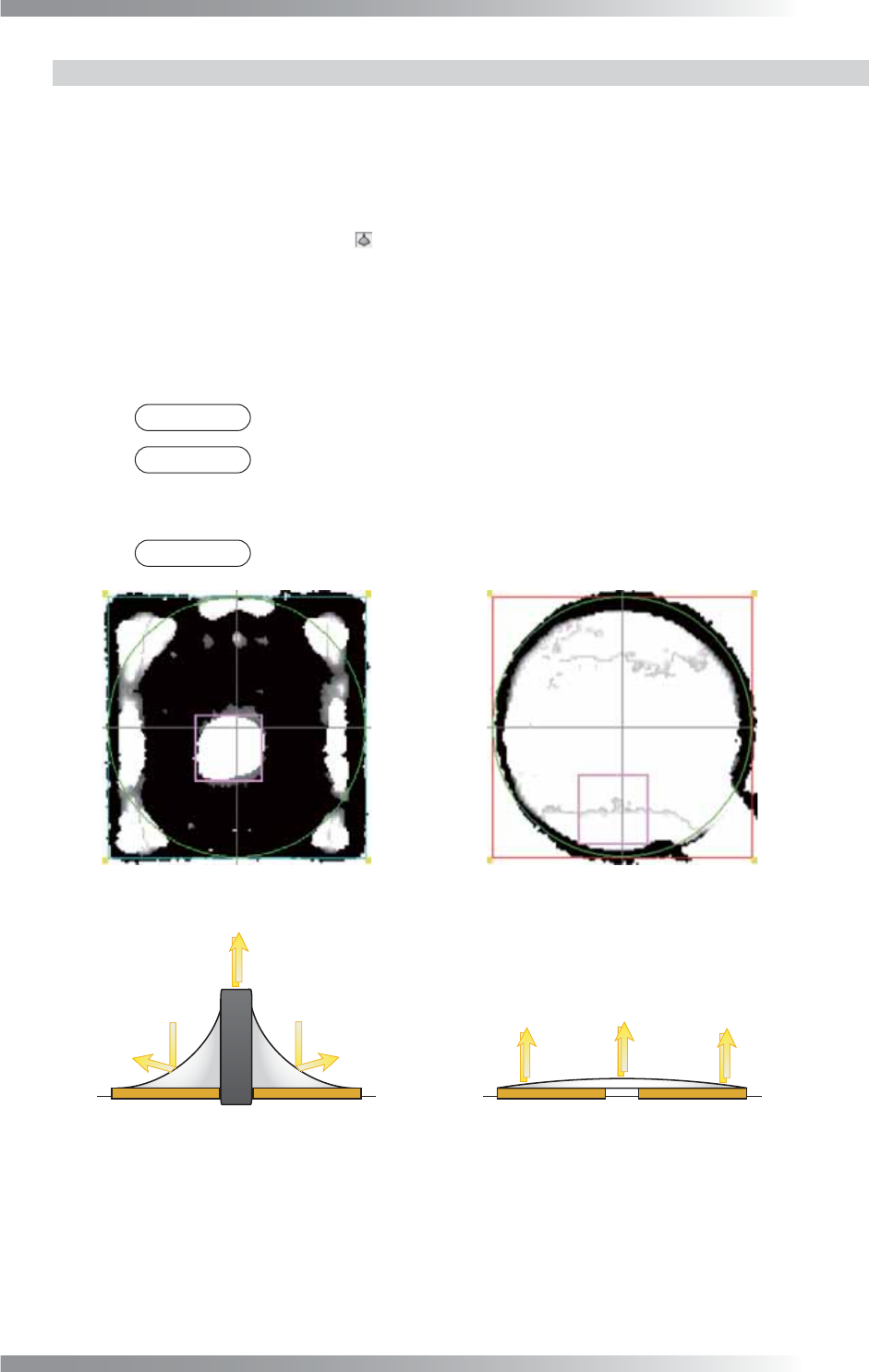
Displays Straight pin brightly and its surroundings darkly (refer to Figure 4-10).
The Detected value is high when an inspection area is bright and its surroundings are dark.
Table 4-5 Parameter of Straight Pin Inspection
V-47
Programming Manual
Part V Inspection Data
4.5.2 Setting Procedure of Straight Pin Inspection
Step1: Press PIN button.
Step2: Check Inspect Pin.
Step3: Press the straight pin icon (
).
Step4: Check Dedicated.
Step5: Enter values in Y width and X width fi eld to set the size of the straight pin. Press Inspect.
Make sure that the straight pin is surrounded by the pink window.
NOTE
If the straight pin is not detected by Dedicated, check Top
NOTE
The inspection area is the area where surrounded by the pink window.
Step6: Enter a value in Lower limit fi eld.
NOTE
Detected will be high if an inspection area is bright and its surroundings are dark.
(a)Normal(Detected value is 59 ) (b)No Pin(Detected value is 2 )
Straight Pin
(Bright)
Solder
(Dark)
Solder
(Dark)
Solder
(Bright)
Solder
(Bright)
Solder
(Bright)
Figure 4-10 Straight Pin Inspection