Programming_mail.pdf - 第185页
IV - 21 Programming Manual Part IV Option Setting Step3: Make sure that the correct destination is entered in BF-EDITOR Transfer Data to . Enter Board Name , Board Size and Board Thickness . Press OK . NOTE The destinati…
IV-20
Programming Manual
Part IV Option Setting
3 Make Inspection Data on BF-Editor
The scanned image can be transferred from AOI machine to the BF-Editor. The inspection data can be
made from the transferred image in BF-Editor.
3.1 Transfer Data to BF-Editor
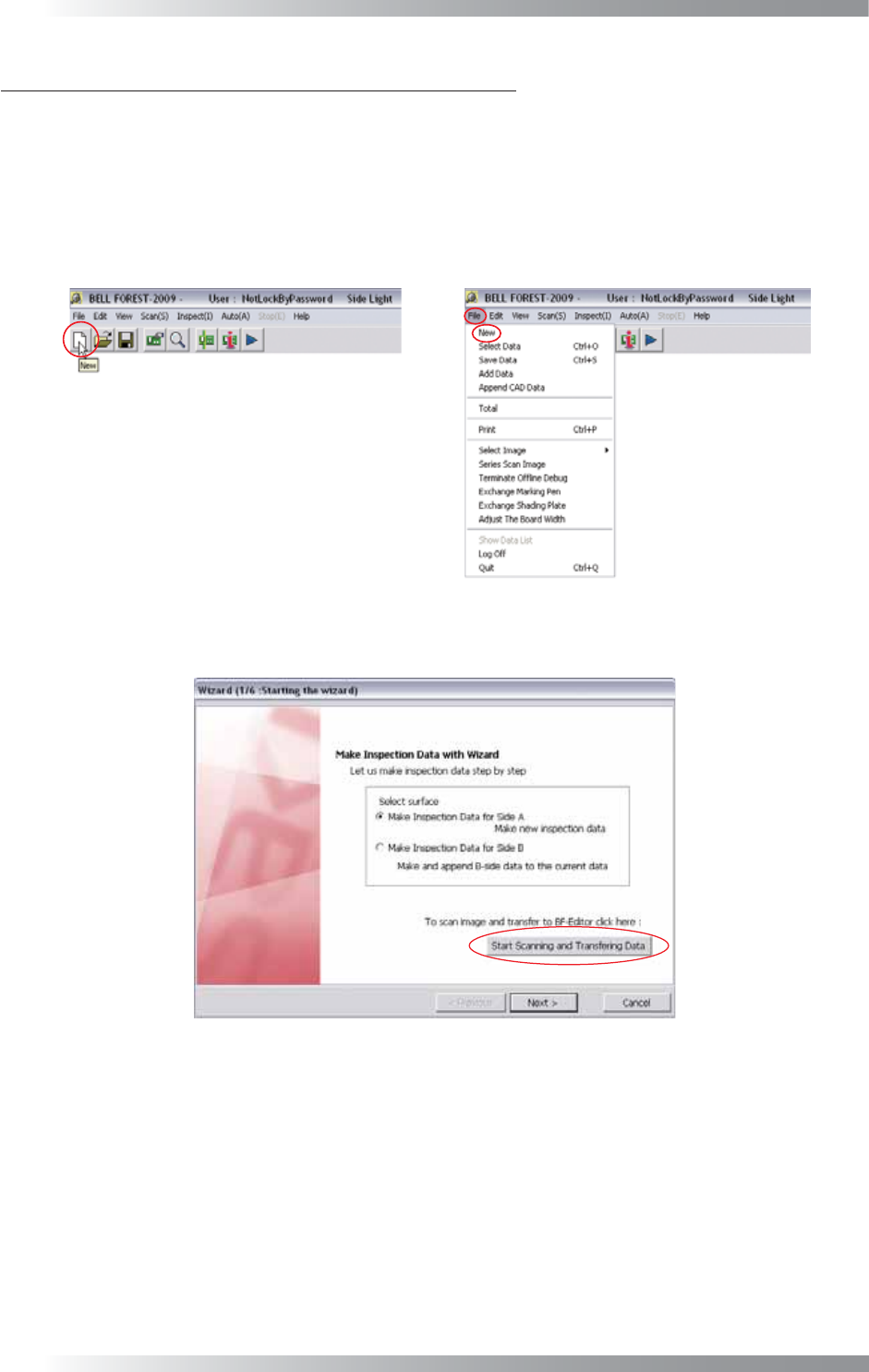
Step1: Press New button on the tool-bar or select File > New from the menu-bar on the AOI machine.
Figure 3-1 New
Step2: Press Start Scanning and Transferring Data.
Figure 3-2 Wizard 1
IV-21
Programming Manual
Part IV Option Setting
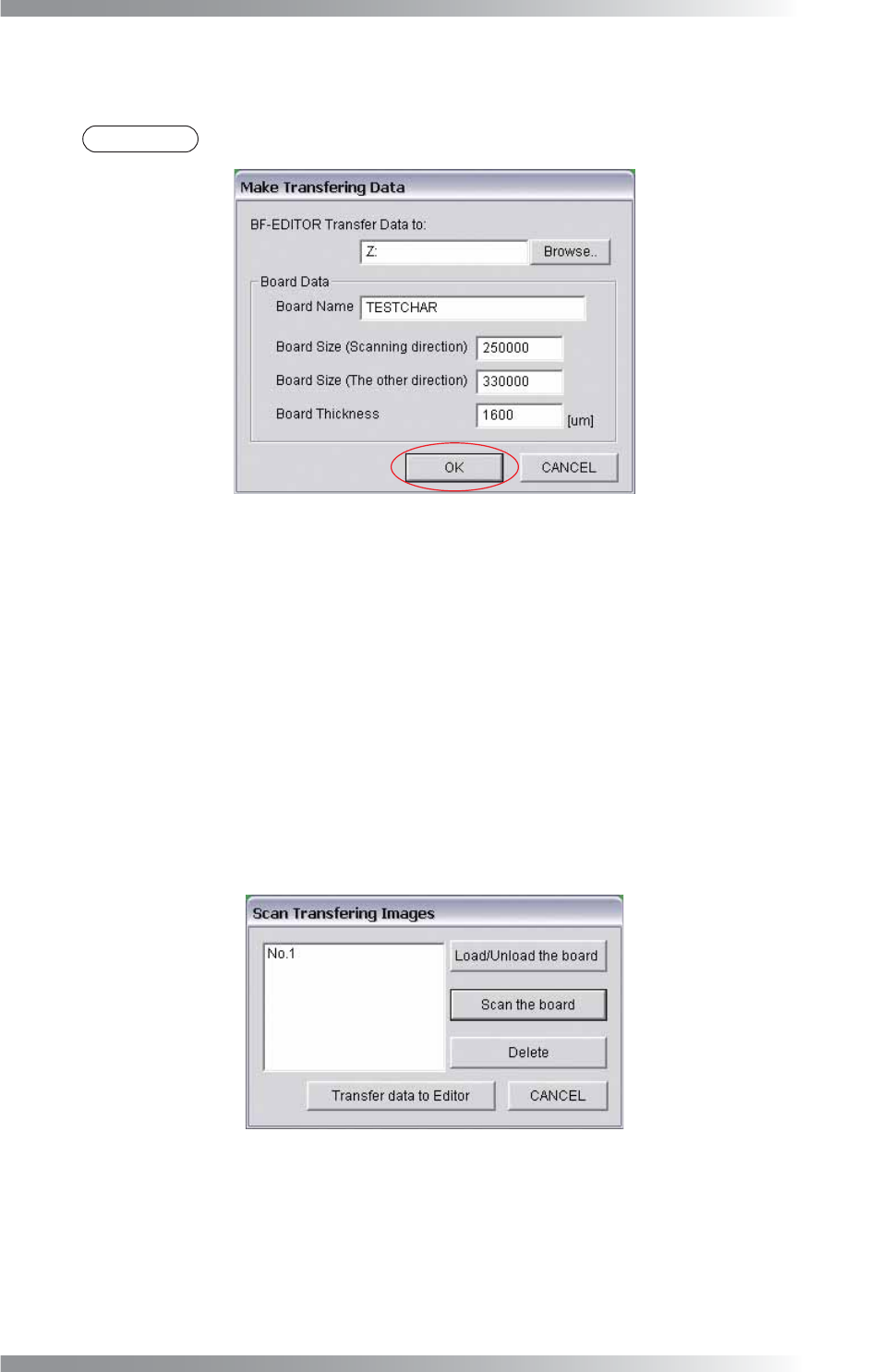
Step3: Make sure that the correct destination is entered in BF-EDITOR Transfer Data to.
Enter Board Name, Board Size and Board Thickness. Press OK.
NOTE
The destination to save the transfer data was set during the installation of BF-Editor.
Figure 3-3 Make Transferring Data
Step4: Scan the PCB. Procedures differ between benchtop machines and inline machines.
In case of benchtop machines
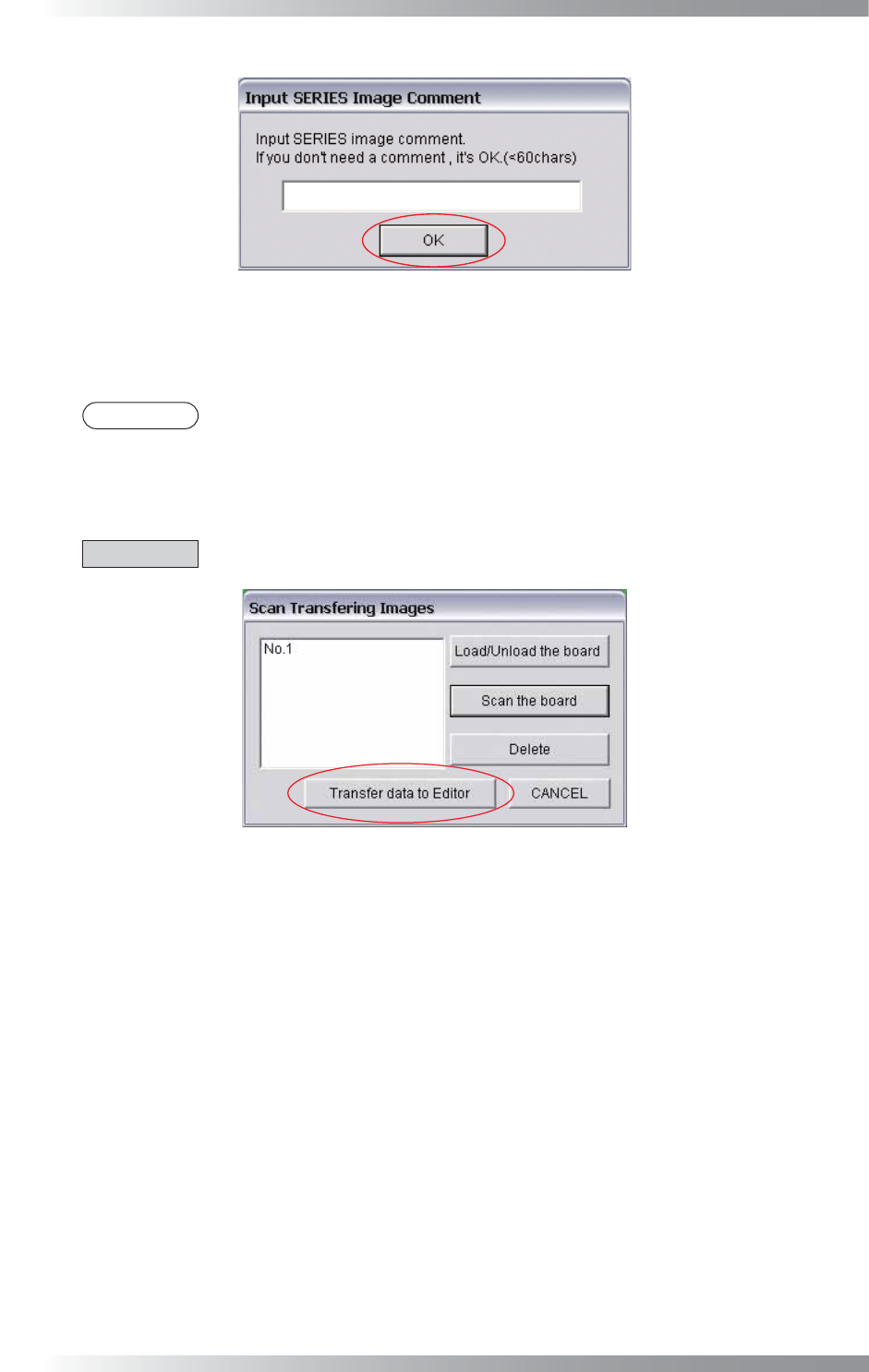
Set the PCB in the machine and press Scan the board. After scanning the PCB, the dialog shown
in Figure 3-5 appears. Some comments can be added if necessary. Enter comments into the text-
box and press OK. If there is no need to add a comment, press OK.
In case of inline machines
Adjust the conveyor rail width and set the PCB on the conveyor rail. Press Load / Unload the
board. After setting the PCB to the machine, press Scan the board. To unload the board, press
Load / Unload the board.
Figure 3-4 Scan Transferring Images
IV-22
Programming Manual
Part IV Option Setting
Figure 3-5 Input SERIES Image Comment
Step5: Images can be used for inspection data debugging if multiple images are saved.
Scan the necessary number of images.
NOTE
The maximum number of images can be saved is 10.
Step6: Press Transfer data to Editor to transfer images. Transferred data will be saved in Transferring
destination of BF-Editor data\TRANSDATA folder.
CAUTION
Make sure that BF-Editor is activated before pressing Transfer data to Editor.
Figure 3-6 Transfer Data to Editor