Programming_mail.pdf - 第80页
III- 6 Programming Manual Part III Inspection Algorithm 1.2 L T r acking / WT r acking 1.2.1 Inspection Ov er view L T racking / WT racking is the algorithm to correct misalignments between CAD data and actual component …
III-5
Programming Manual
Part III Inspection Algorithm
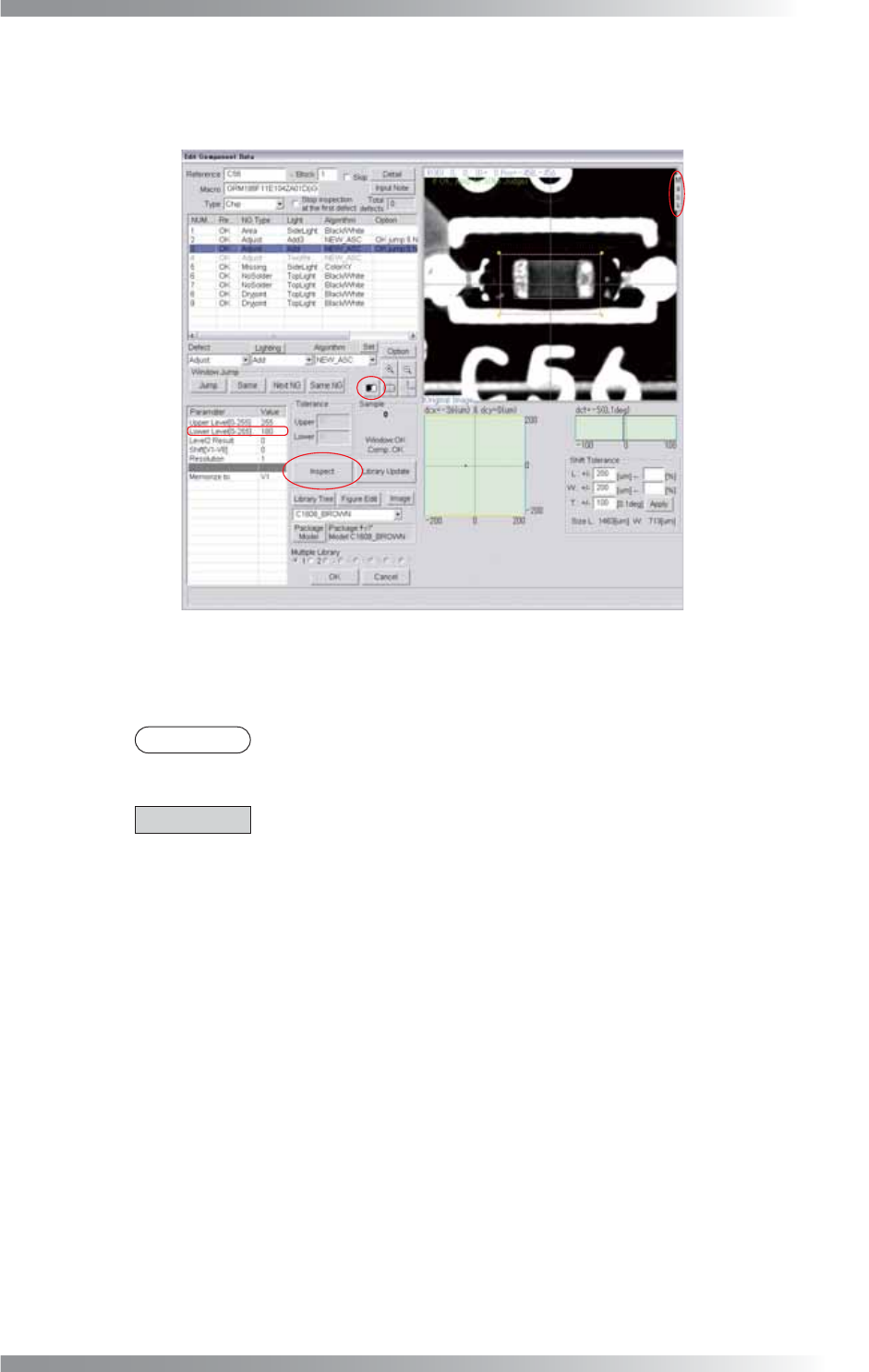
Step12: Press TB Set and OK.
Step13: Press Mask once to remove the mask.
Figure 1-6 Remove Mask
Step14: Press the black-white button in the upper side of Sample, and make sure that searching
electrode is successful.
NOTE
Readjust the Lower Level value if the search is not successful.
Step15: Enter V1 into the Memorize to fi eld.
CAUTION
Register the inspection result in the Memorize to fi eld.
Any value from V1 to V8 is available.
Enter it in the appropriate fi eld to refl ect the result to other algorithms.
Step16: Press Inspect. If the search is successful, the pink window surrounding the component’s
body appears.
III-6
Programming Manual
Part III Inspection Algorithm
1.2 LTracking / WTracking
1.2.1 Inspection Overview
LTracking / WTracking is the algorithm to correct misalignments between CAD data and actual
component positions. The actual component positions are automatically searched based on
brightness differences between a PCB and components and LTracking / WTracking corrects
misalignments (X axis, Y axis). LTracking should be used to correct longitudinal direction misalignments
of inspection windows. WTracking should be used to correct lateral direction misalignments of
inspection windows. LTracking / WTracking is suitable for chip components whose electrodes are
visually unclear or IC components.
1.2.2 Parameter Setting
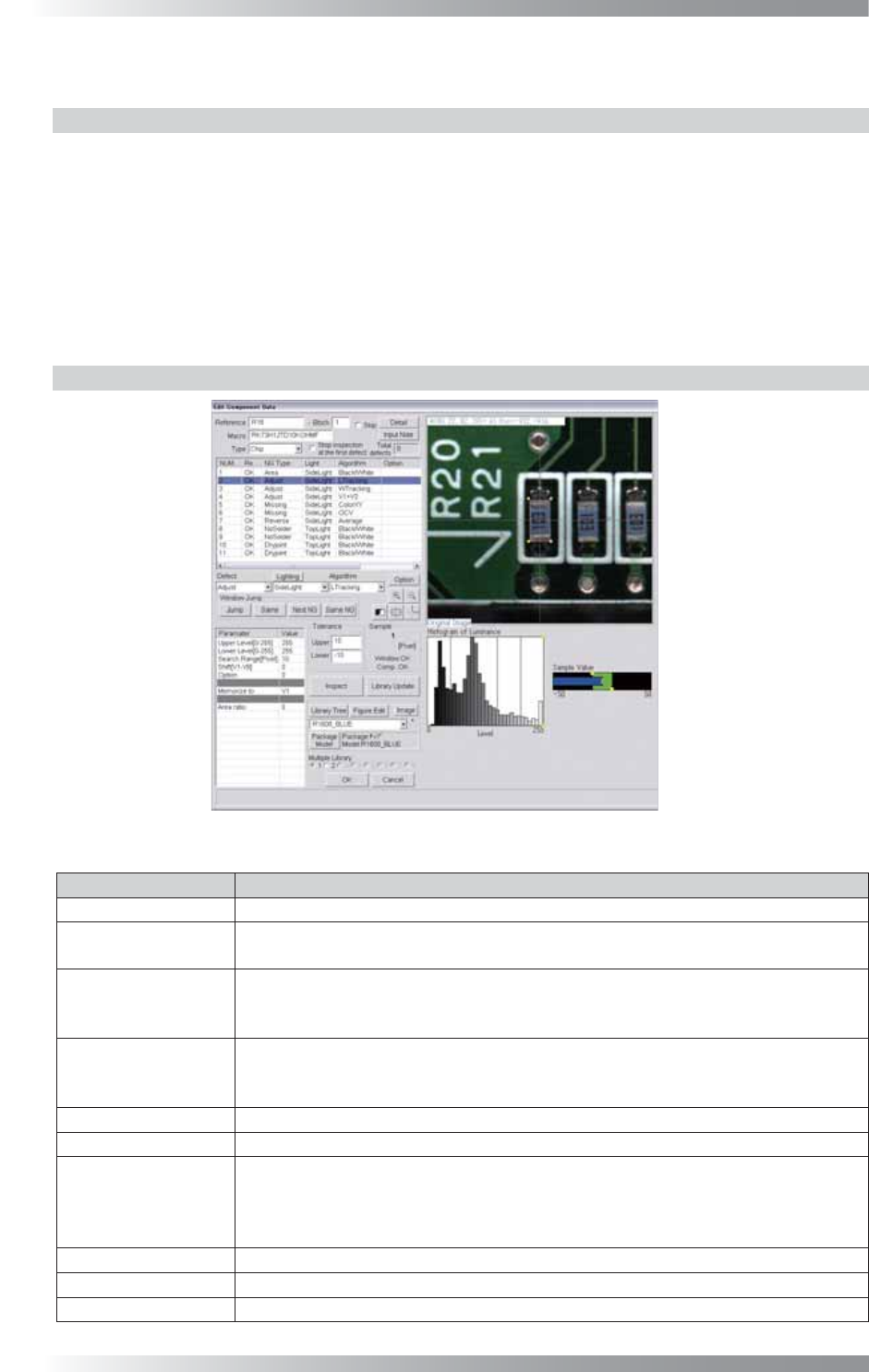
Figure 1-7 LTracking / WTracking
Parameter Description
Lighting Select a lighting that displays component edges visually clear.
Algorithm
Select LTracking or WTracking
(refer to 1.2.4 Difference between LTracking and WTracking).
Upper Level[0-255],
Lower Level[0-255]
If a component brightness level is lower than a PCB, enter 0 in Upper Level and
Lower Level. If a component brightness level is higher than a PCB, enter 255 in
Upper Level and Lower Level
.
Search Range[Pixel]
Default is 10. Enter the bigger value to enlarge the search range. However, if Search
Range is too large, the calculation time might become longer or a PCB pattern might
be mis-recognized as a component.
Shift[V1-V8] Enter 0.
Option Enter 0.
Memorize to
Enter V1, V2, and V3 to each three Adjust window. Register amount of the
longitudinal misalignment as V1, amount of the lateral misalignment as V2. These
two amounts are added to calculate V3 by using algorithm V1+V2.
Enter V3 in the Shift fi eld to refl ect this amount of misalignment to other algorithms.
Area ratio Enter 0.
Upper, Lower Enter the same value of Search Range to ± fi eld.
Sample
Shows amount of a misalignment.
Table 1-2 Parameter of LTracking / WTracking
III-7
Programming Manual
Part III Inspection Algorithm
1.2.3 Setting Procedure
Step1: Select a lighting that displays component edges visually clear from the Lighting drop-down list.
Step2: Make sure of the values of Upper Level and Lower Level. Enter 0 in Upper Level and Lower
Level if the component brightness level is lower than the PCB. Enter 255 in Upper Level and
Lower Level if the component brightness level is higher than the PCB.
CAUTION
Select the lighting if the component edge is visually unclear with the default setting.
Step3: Enter V1, V2 and V3 into the Memorize to fi eld of each of three Adjust windows.
For details, refer to Part III 1.2.5 Algorithm V1+V2.
Step4: Press Inspect.
If the search is successful, the pink window surrounding the component’s body appears.
NOTE
The value in the Sample fi eld shows the amount of misalignment. If the Sample value
is out of the OK range, adjust the Area window position and re-check the Sample value.
CAUTION
The Adjust window can be scaled to any size by moving yellow square points in
window corners. Do not move the window position with mouse dragging.
1.2.4 Difference between LTracking and WTracking
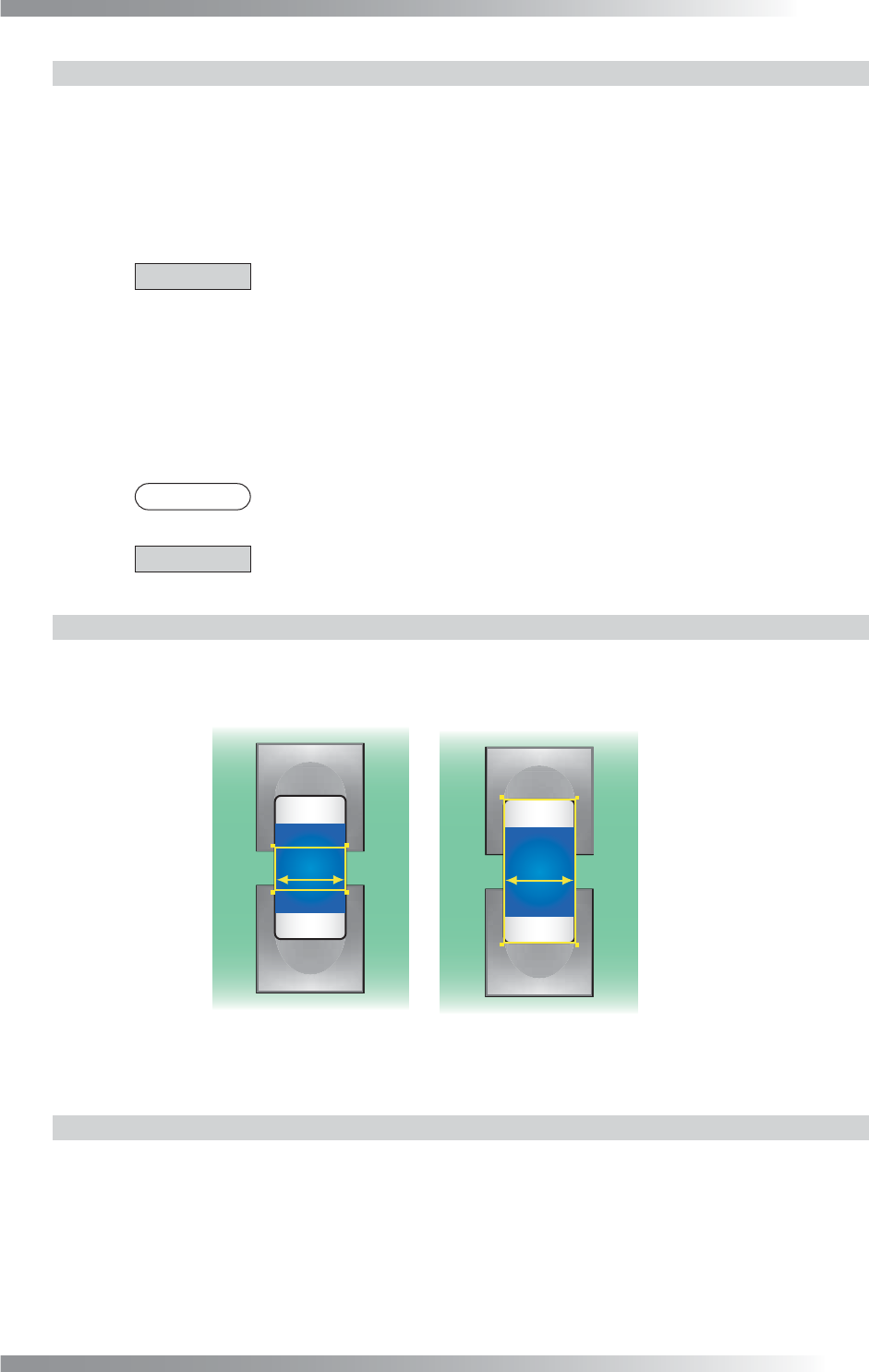
As the window shown in Figure 1-8 (a), LTracking should be used to correct longitudinal direction
misalignments of inspection windows. WTracking should be used to correct lateral direction misalignments
of inspection windows. This is the same as the difference between ColorLTrack and ColorWTrack.
㪣
㪮
Longitudinal
(a) LTracking
(b) WTracking
Lateral
Direction
Direction
Longitudinal
Direction
Lateral
Direction
Figure 1-8 Difference between LTracking and WTracking
1.2.5 Algorithm V1+V2
Three Adjust windows are necessary to correct misalignments with LTracking and WTracking.
The fi rst window calculates the amount of longitudinal direction misalignments and the second
window calculates amount of lateral direction misalignments. Enter V1 and V2 to each window’s
Memorize to fi eld. Enter V3 to the last Adjust window Memorize to fi eld.
Enter V3 in Shift to refl ect amount of misalignments to other algorithms.