Programming_mail.pdf - 第39页
I- 31 Programming Manual Part I Basic Operation 2.8 Send_DB Setting Not available. 2.9 T hree LED T est T est the lighting of LED’s. This function controls the lighting-up of the LEDs. Press Three LED T est in Figure 2-1…
I-30
Programming Manual
Part I Basic Operation
2.7.2 Registration Method of New User
Here describes how to register a new user name.
Only Administrator is authorized to use this function.
Step1: Select Edit > System Setting > Privilege Setting from the menu-bar.
CAUTION
Register Administrator fi rst as only Administrator can enter System Setting >
Privilege Setting and change settings.
CAUTION
If the password for Administrator is lost, please contact Saki Corporation.
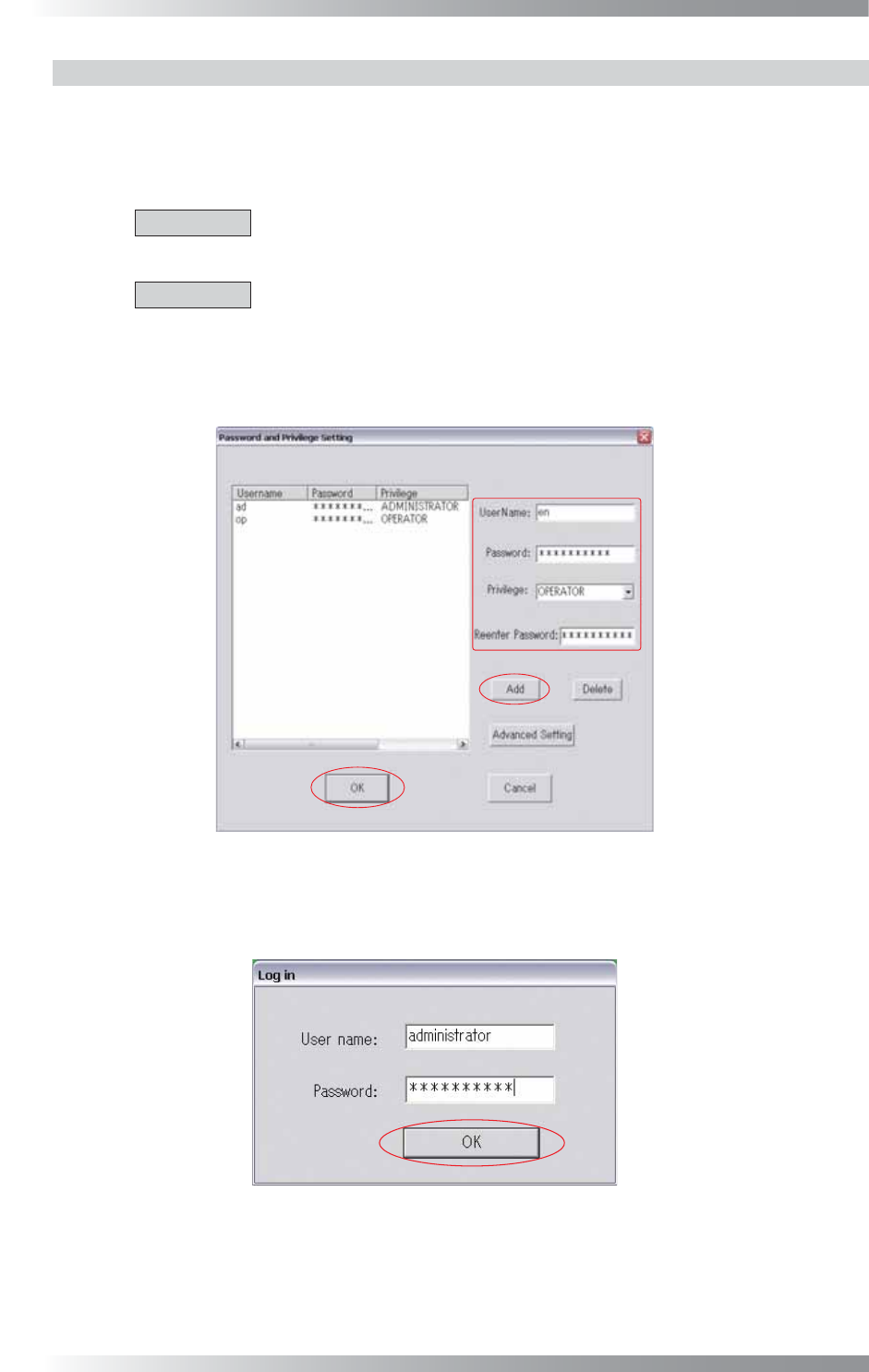
Step2: Enter User name, Password, and Re-enter Password. Select a user accessible level in
Privilege and press Add. After all the settings are completed, press OK.
Figure 2-14 Privilege Setup Screen
Step3: The Log in dialog appears right after the system is activated. Enter a user name and
password. Press OK. Operation starts depending on the specifi ed user accessible level.
Figure 2-15 Log in
Step4: Select File > Log in to return to Figure 2-15 to change the user accessible level.
I-31
Programming Manual
Part I Basic Operation
2.8 Send_DB Setting
Not available.
2.9 Three LED Test
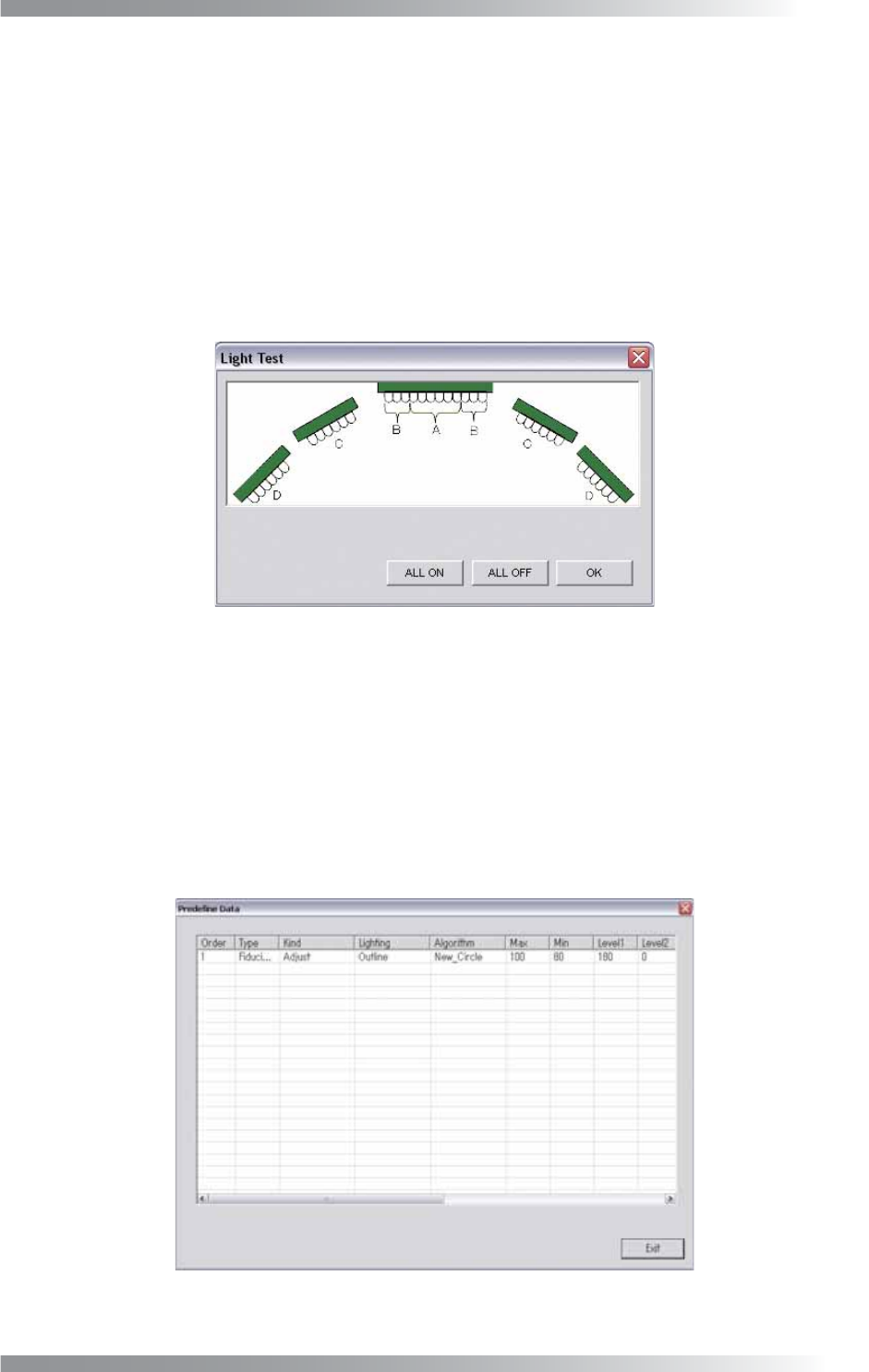
Test the lighting of LED’s. This function controls the lighting-up of the LEDs.
Press Three LED Test in Figure 2-1 Select System Setup.
The Light Test dialog shown in Figure 2-16 appears.
Press ALL ON and make sure that all lights are turned on.
Press ALL OFF and make sure that all lights are turned off.
All lights are turned off automatically in 15 seconds.
Figure 2-16 Light Test
2.10 Machine Layout
Not available.
2.11 Predefi ne Setting
This list displays the parameters, such as NG Type, Screen Selection, Judgement, saved in the Edit
Component Data dialog. Press Predefi ne Setting in Figure 2-1 Select System Setup.
The Predefi ne Setting dialog shown in Figure 2-17 appears.
Figure 2-17 Predefi ne Setting
I-32
Programming Manual
Part I Basic Operation
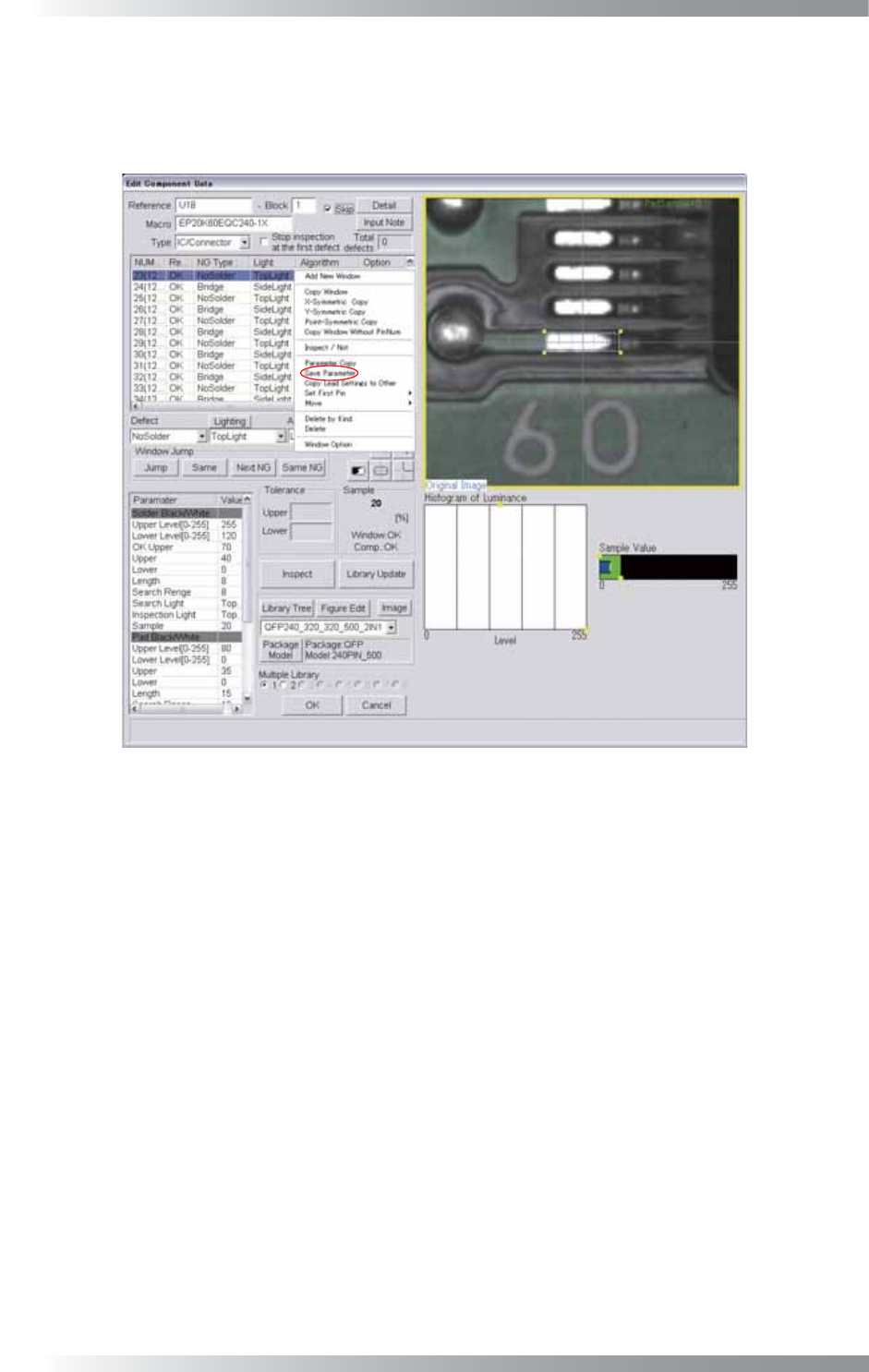
Here describes how to save inspection data parameters.
Right-click the inspection data to open Figure 2-18 Edit Component Data.
Right-click the inspection window and select Save Parameter to save parameters of the inspection data in
Figure 2-17 Predefi ne Setting.
Figure 2-18 Edit Component Data
2.12 Self Diagnosis
Not available.
2.13 Machine Origin
Not available.