Programming_mail.pdf - 第151页
III- 77 Programming Manual Part III Inspection Algorithm 1.23.3 Setting Procedur e Step1: Select a lighting that shows the difference between OK image and NG image from the Lighting drop-down list. Step2: Adjust the size…
III-76
Programming Manual
Part III Inspection Algorithm
1.23 OKNGImages
1.23.1 Inspection Overview
OKNGImages is the algorithm to inspect for pattern matching inspection.
This algorithm determines either of OK or NG image is closer to the detected image.
This algorithm is suitable for missing inspection which is diffi cult to be detected by brightness level or
inspections which false calls frequently occur. OKNGImages can be used in fare-paying software.
1.23.2 Parameter Setting
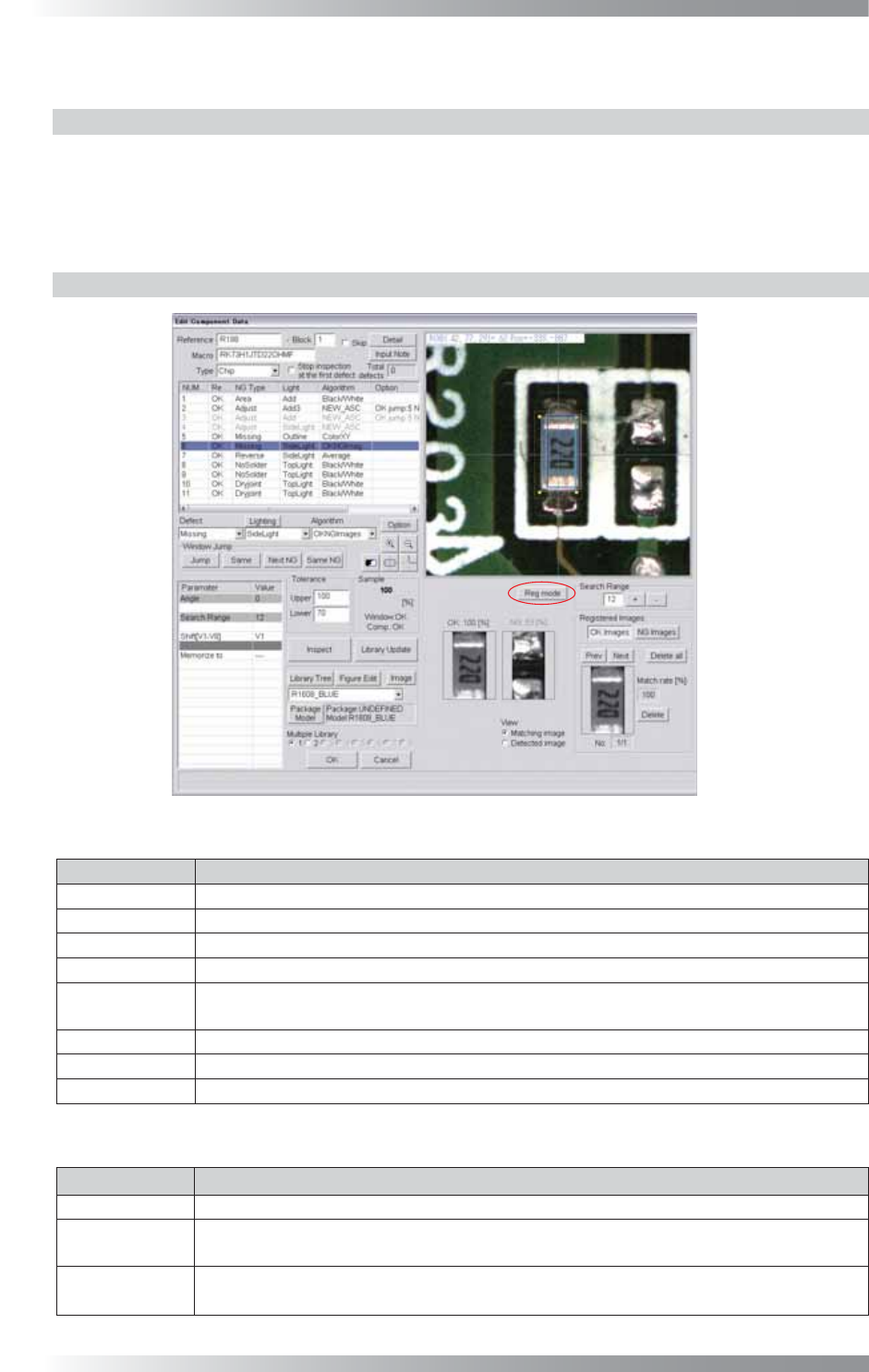
Figure 1-92 OKNGImages
Parameter Description
Lighting
Select a lighting which shows difference between the OK image and NG image.
Algorithm
Select OKNGImages.
Angle
-
Search Range No need for setting. Search Range shown in Table 1-36 is displayed.
Shift[V1-V8]
Enter the appropriate vector. Any value from V1 to V8 is available.
Select the vector according to the Memorize to fi eld of the Adjust window.
Memorize to
-
Upper, Lower Set upper and lower limit of the OK range.
Sample
Shows the match percentage. The match percentage of NG image is displayed as a negative value.
Table 1-35 Parameter of OKNGImages
Item Description
Reg mode
To register a template image, press Reg mode.
View
To display the highest match percentage template image, check Matching image.
To display a detected image, check Detected image. A pink window is an inspection window.
Search Range
Set a search range for images. Display the search range as the orange dotted line.
Enter the search range or press + and - to adjust the search range.
Table 1-36 Each Item of OKNGImages
III-77
Programming Manual
Part III Inspection Algorithm
1.23.3 Setting Procedure
Step1: Select a lighting that shows the difference between OK image and NG image from the
Lighting drop-down list.
Step2: Adjust the size of the inspection window to surround the target component.
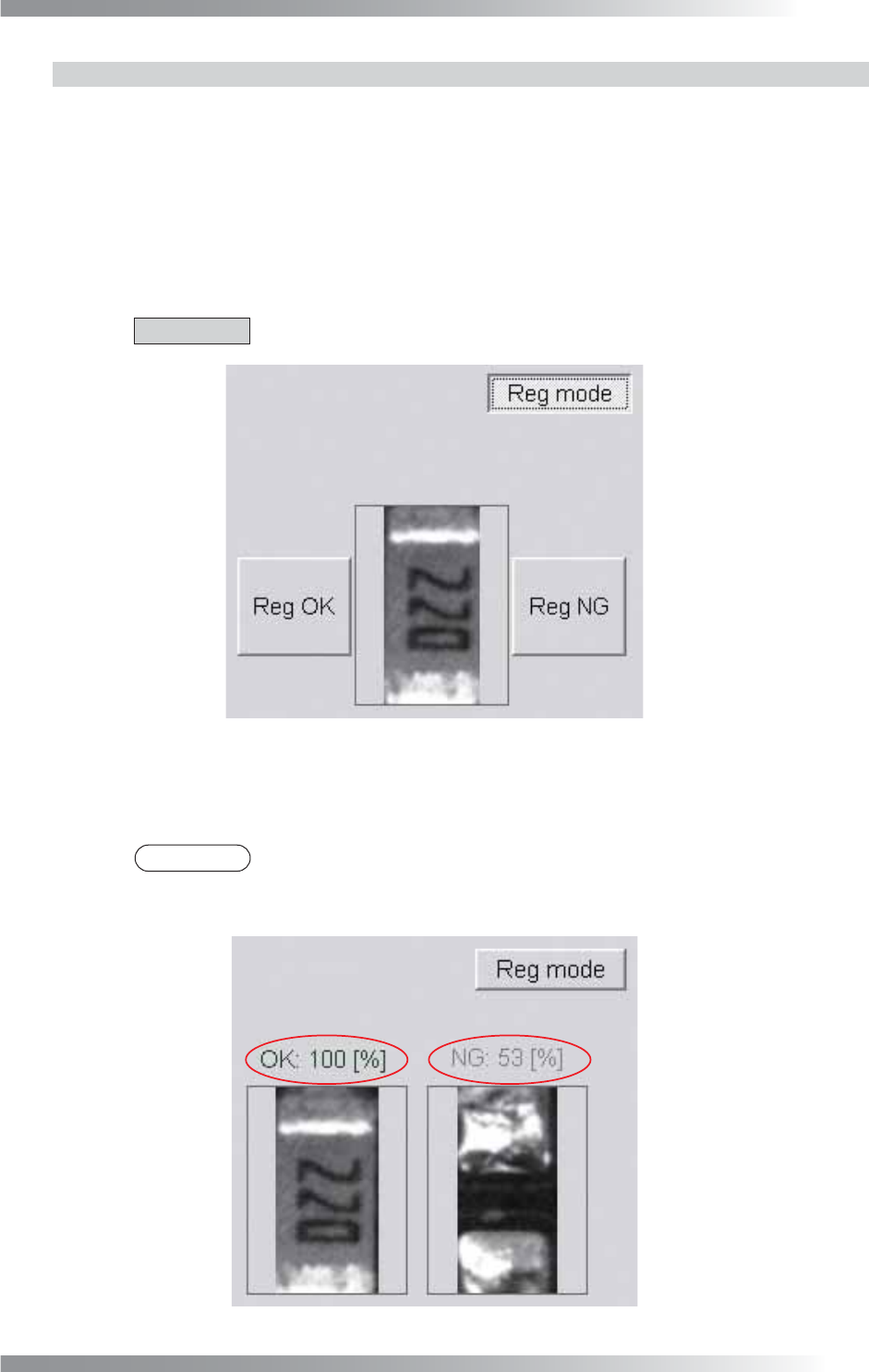
Step3: Register the template image. Press Reg mode. The image shown in Figure 1-93 appears.
Press Reg OK to register OK image. Press Reg NG to register NG image.
CAUTION
Ten template images to each OK and NG can be registered.
Figure 1-93 Reg mode
Step4: Press Reg mode. The inspection is operated. Display the highest match percentage OK
template image and NG template image.
NOTE
Display the match percentage in the upper side of OK image and NG image. The
higher value Larger match percentage is shown as sample value. The match
percentage of NG image is displayed as a negative value.
Figure 1-94 Inspect

III-78
Programming Manual
Part III Inspection Algorithm
Step5: Enter values in Upper fi eld and Lower fi eld.
NOTE
Standard values are 80 (Upper) and 0 (Lower).
NOTE
OKNGImages can register different images for OK and NG images and judge an
image is OK according to the setting. To set the algorithm to judge an image is OK
if the matching rate with the OK image is high, set Upper to around 100 and Lower
to around 70. To set the algorithm to judge an image is OK if the matching rate with
NG image is high, set Upper to around -70 and Lower to around -100.
Step6: Enter the appropriate vector into the Shift fi eld. Any value from V1 to V8 is available.
Select the vector according to the Memorize to fi eld of the Adjust window.
Step7: Press Inspect. Make sure that the inspection is completed properly.