Programming_mail.pdf - 第155页
III- 81 Programming Manual Part III Inspection Algorithm 2.1.3 Setting Procedur e Step1: Select a lighting that displays characters visually clear from the Lighting drop-down list. Step2: Adjust the size of the inspectio…
III-80
Programming Manual
Part III Inspection Algorithm
2 Optional Function
2.1 OCR_Pro
2.1.1 Inspection Overview
OCR_Pro is the algorithm to recognize characters.
This algorithm performs an inspection by the match rate between registered characters and detected
characters. Any kinds of fonts can be recognized.
OCR_Pro is suitable for the missing or miss-mounting component inspection.
2.1.2 Parameter Setting
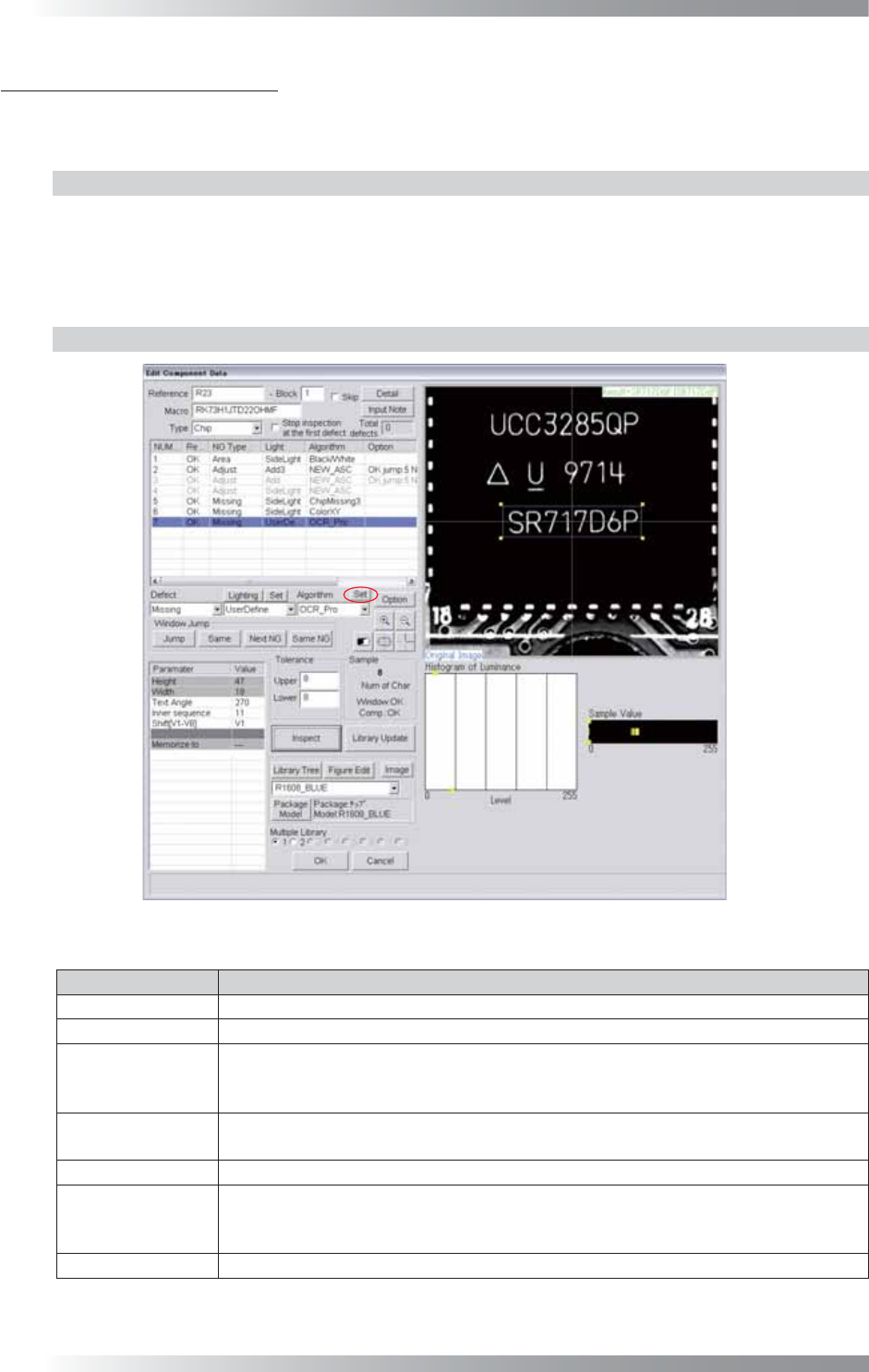
Figure 2-1 OCR_Pro
Parameter Description
Lighting Select a lighting that displays characters visually clear.
Algorithm Select OCR_Pro.
Height, Width,
Text Angle,
Inner Sequence
No need for setting.
Value will be applied to the dialog displayed by pressing Set.
Shift[V1-V8]
Enter the appropriate vector. Any value from V1 to V8 is available.
Select the vector according to the Memorize to fi eld of the Adjust window.
Memorize to -
Upper, Lower
Enter the number of characters to Upper fi eld and Lower fi eld.
The sample value shows the number of recognized characters.
If the registered characters and the recognized characters are matched, the result will be OK.
Sample Shows the number of recognized characters.
Table 2-1 Parameter of OCR_Pro
III-81
Programming Manual
Part III Inspection Algorithm
2.1.3 Setting Procedure
Step1: Select a lighting that displays characters visually clear from the Lighting drop-down list.
Step2: Adjust the size of the inspection window to surround the target characters.
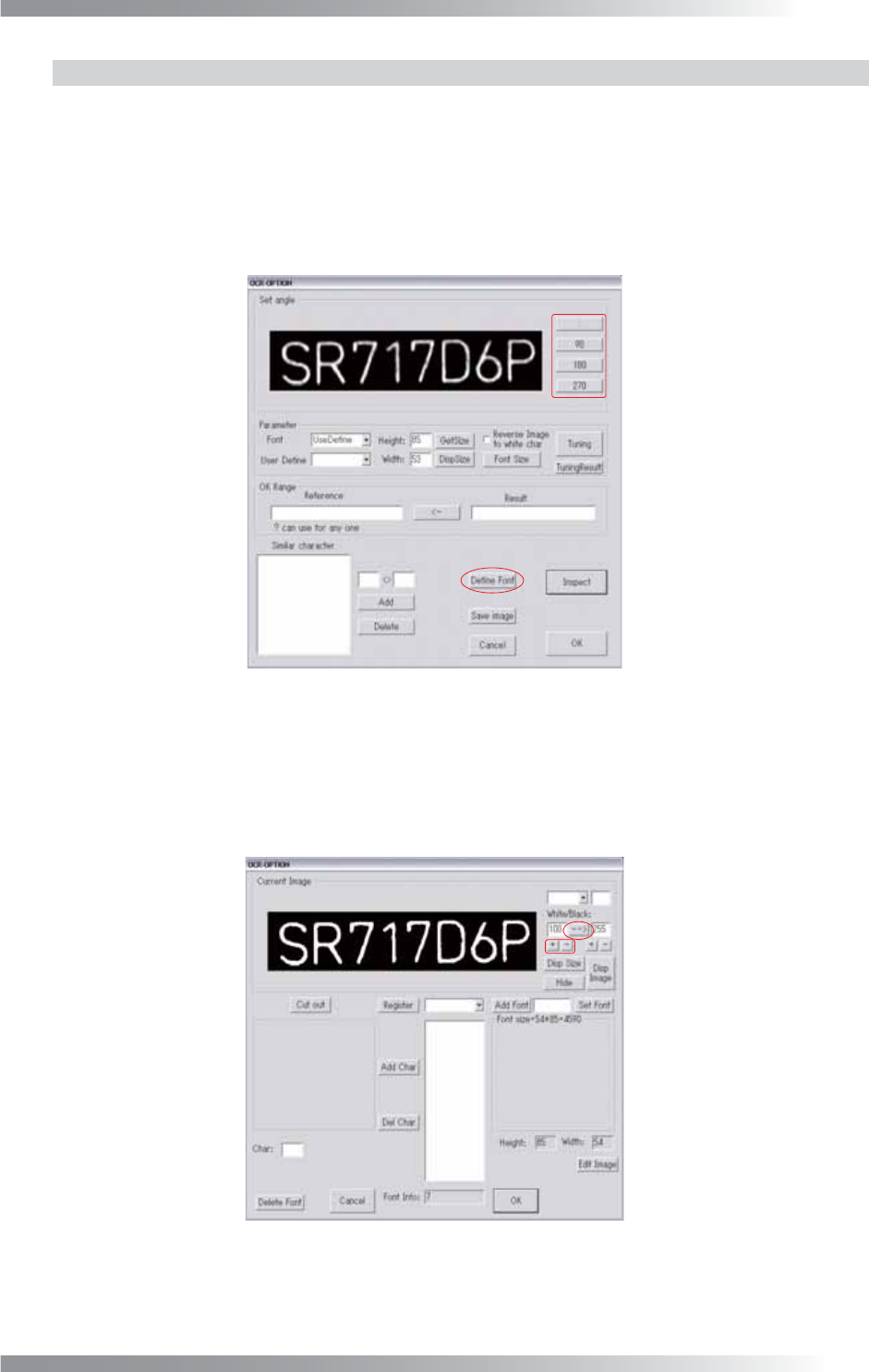
Step3: Press Set in the right side of Algorithm. The dialog shown in Figure 2-2 appears.
Figure 2-2 OCR_Pro 1
Step4: Adjust the character angle by Set angle if the character is not upright.
Step5: Press Defi ne Font. The dialog in Figure 2-3 appears. Change the character display setting
to Black/White by pressing --
>
.
Figure 2-3 OCR_Pro 2
III-82
Programming Manual
Part III Inspection Algorithm
Step6: Adjust the brightness level by pressing + and - in the lower left of --> until the characters are
displayed visually clear.
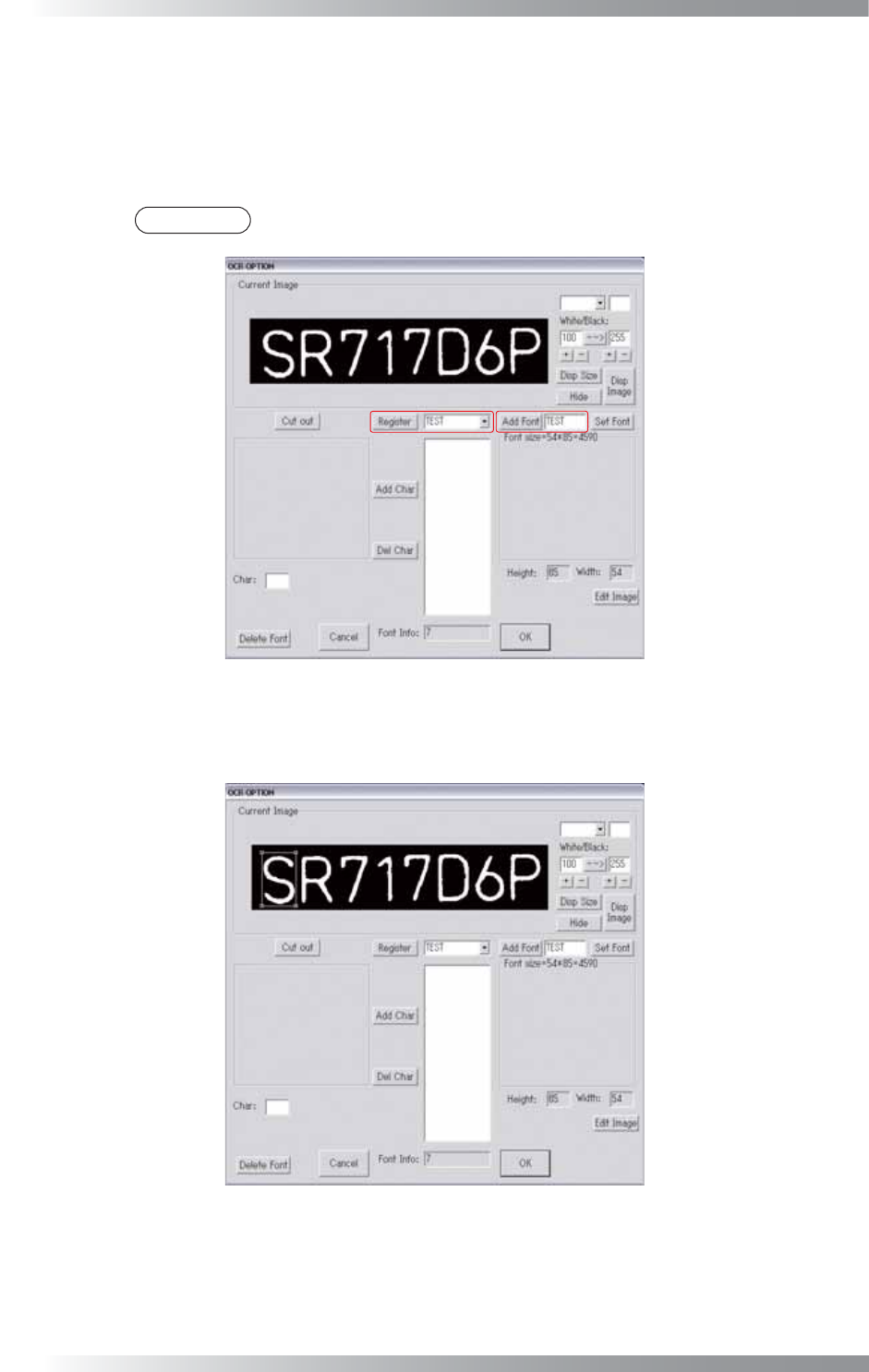
Step7: Enter the arbitrary font name to the text-box at the right of Add Font. Press Add Font. The
font name is displayed in the drop-down list in the right side of Register.
NOTE
Enter the font name within eight characters by single-byte alphanumeric characters.
Figure 2-4 OCR_Pro 3
Step8: Left-click in the upper left part of the fi rst character.
Adjust the window size by dragging the mouse to the lower right side of the fi rst character.
Figure 2-5 OCR_Pro 4