Programming_mail.pdf - 第58页
II- 14 Programming Manual Part II Inspection Data Step25: Make fi ducial mark data and press MARK1. The dialog shown in Figure 1-20 appears. NOTE If multiple CAD data are used, press the Append button shown in Figure 1-20…
II-13
Programming Manual
Part II Inspection Data
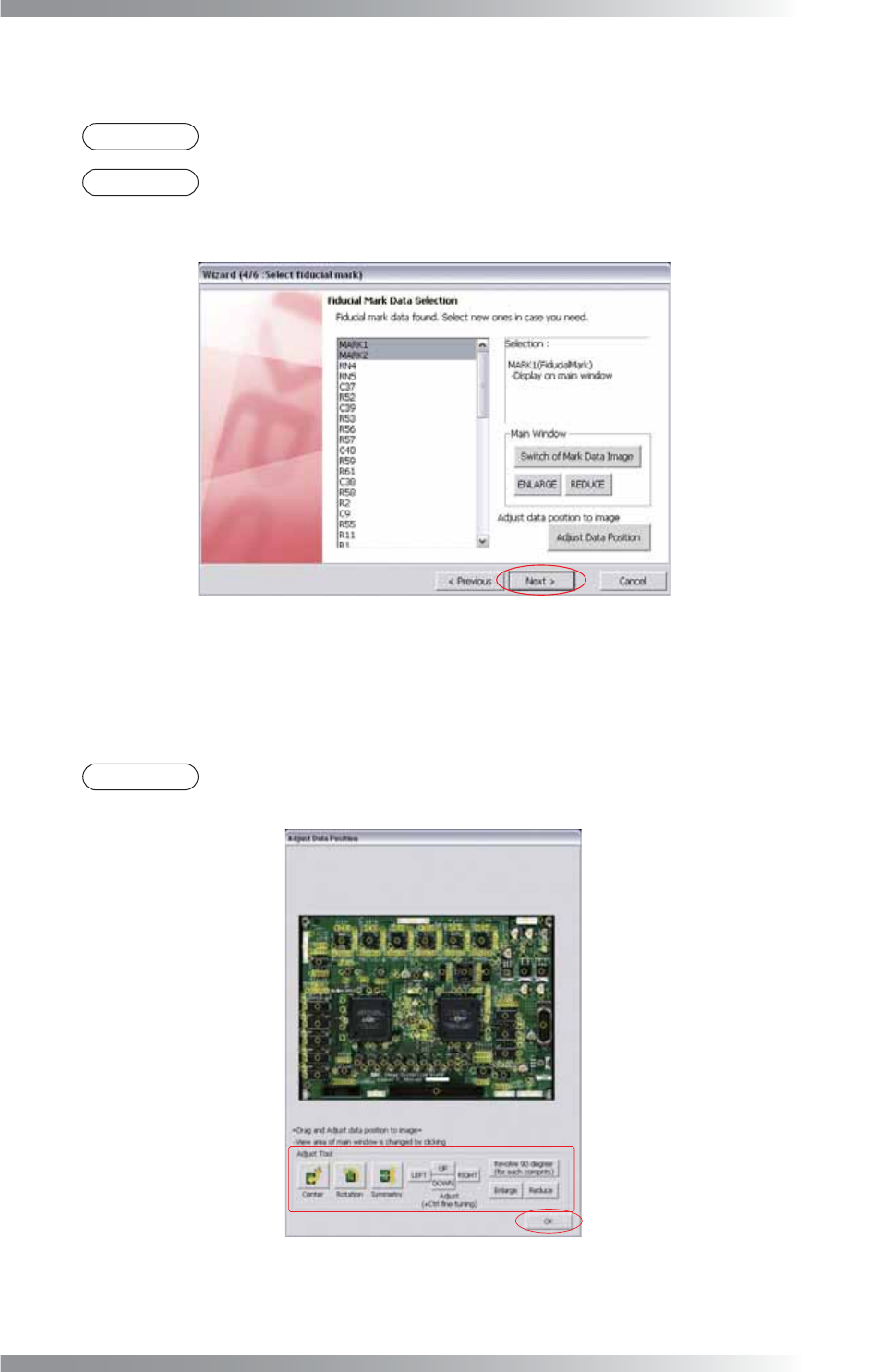
Step22: Select two fi ducial mark data from the list-box. The second selected fi ducial mark data is displayed.
Press Switch of Mark Data Image to display the other fi ducial mark data.
NOTE
Magnifi cation percentage of an image can be changed by pressing ENLARGE or REDUCE.
NOTE
As possible fi ducial mark data, the list-box shows 50 components data. These are top 50
of component data registered as fi ducial mark, component data including Mark, and
outlying component data from the center of a PCB.
Figure 1-18 Wizard 4
Step23: Press Adjust Data Position in Figure 1-18. The dialog shown in Figure 1-19 appears.
Press Adjust Tool to match the position of the component data with the image.
After all the adjustments are completed, press OK.
NOTE
The position of component data can be adjusted by dragging a mouse.
In addition, magnifi cation percentage can be changed by scrolling a wheel of a mouse.
Figure 1-19 Adjust Data Position
Step24: After all the settings are completed, press Next.
II-14
Programming Manual
Part II Inspection Data
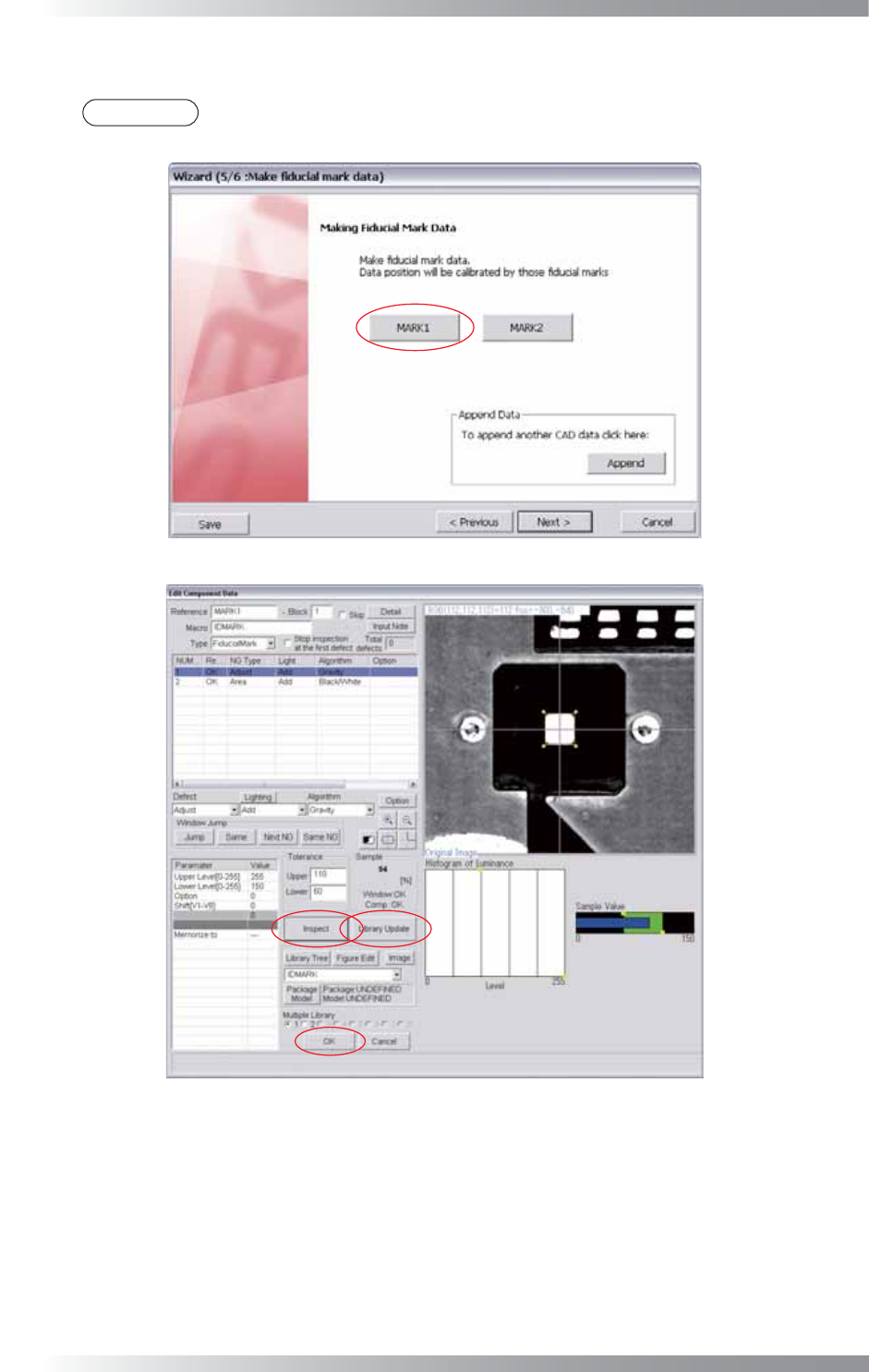
Step25: Make fi ducial mark data and press MARK1. The dialog shown in Figure 1-20 appears.
NOTE
If multiple CAD data are used, press the Append button shown in Figure 1-20 and refer to
Step3 and following steps.
Figure 1-20 Wizard 5
Figure 1-21 Fiducial Mark 1
Step26: Select Fiducial Mark from the Type drop-down list.
Step27: Right-click on the list and select Add New Window.
Step28: Select Adjust from the Defect drop-down list.
Step29: Select a lighting that a fi ducial mark is visually clear from the Lighting drop-down list.
II-15
Programming Manual
Part II Inspection Data
Step30: Select an algorithm from the Algorithm drop-down list.
Figure of Fiducial Mark Description
Square
Select
Gravity
.
Circle
Select
New_Circle
.
Table 1-9 Select Algorithm
Step31: Adjust the Adjust inspection window size to surround the fi ducial mark.
NOTE
Change Diameter to adjust inspection window size if New_Circle is used.
Step32: Enter Upper Level and Lower Level.
Brightness Level Description
Fiducial Mark > Surroundings
Enter
255
in the
Upper Level
fi eld and
150
in the
Lower Level
fi eld.
Fiducial Mark < Surroundings
Enter
150
in the
Upper Level
fi eld and
0
in the
Lower Level
fi eld.
Table 1-10 Upper Level and Lower Level setting
Step33: Right-click on Adjust and select Copy. The same parameter will be copied in 2 of NUM....
Step34: Select 2 of NUM... and select Area from the Defect drop-down list.
Step35: Adjust the size of the inspection window for Area to detect the fi ducial mark automatically.
Ideal window size is about three times bigger than the fi ducial mark size.
CAUTION
The larger inspection window can inspect the fi ducial mark even if it is out of the target
position. However, it takes longer time to inspect it and some PCB pattern might be
misjudged as a fi ducial mark.
Step36: Select Adjust and press Inspect. Pink lines crossing the center of the fi ducial mark appears if the
search is successful.
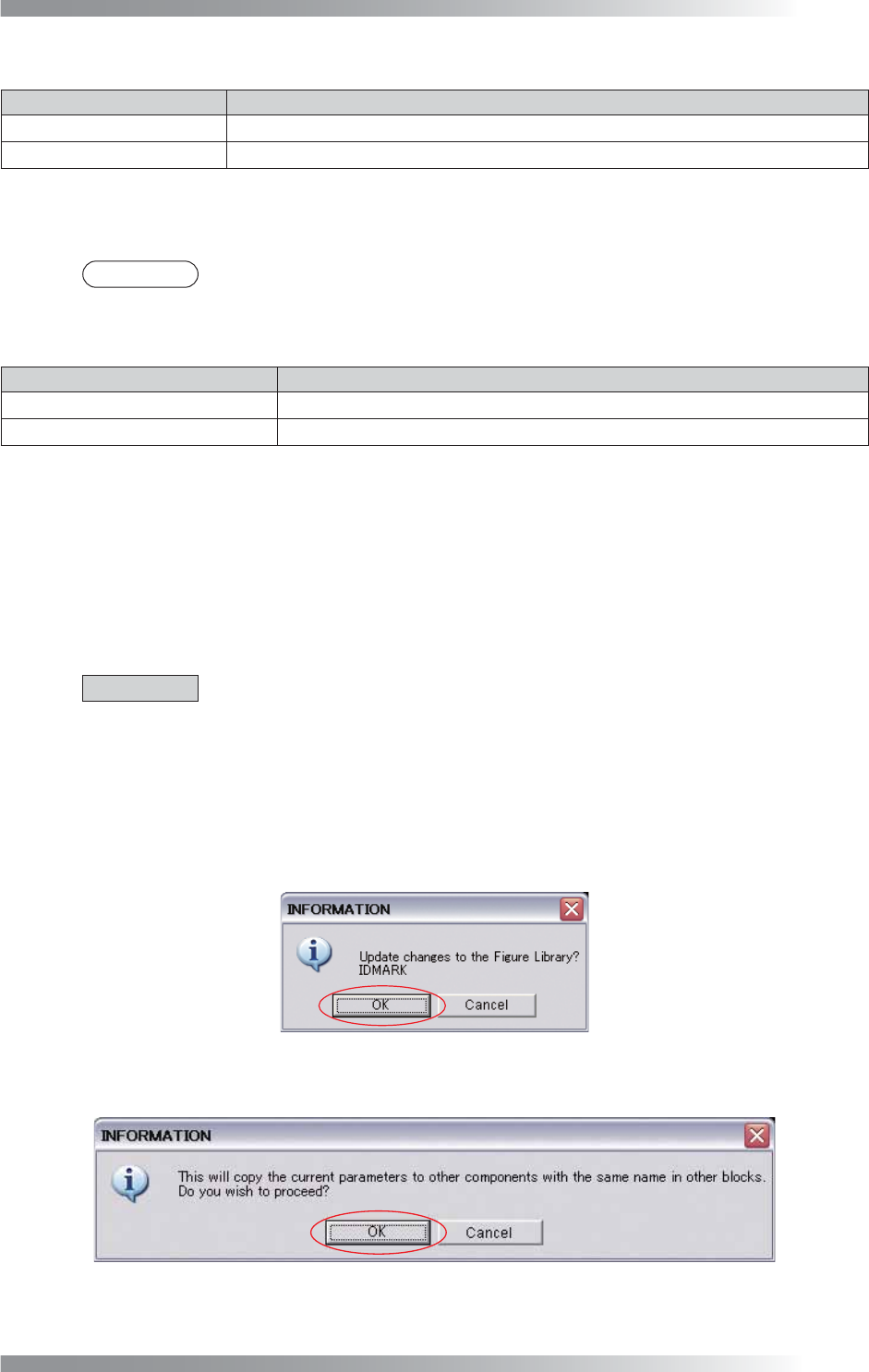
Step37: Press Update. The dialog shown in Figure 1-22 appears. Press OK.
Figure 1-22 Fiducial Mark 2
Step38: The dialog shown in Figure 1-23 appears. Press OK.
Figure 1-23 Fiducial Mark 3