Programming_mail.pdf - 第38页
I- 30 Programming Manual Part I Basic Operation 2.7.2 Registration Method of New User Here describes how to register a new user name. Only Administrator is authorized to use this function. Step1: Select Edit > System …
I-29
Programming Manual
Part I Basic Operation
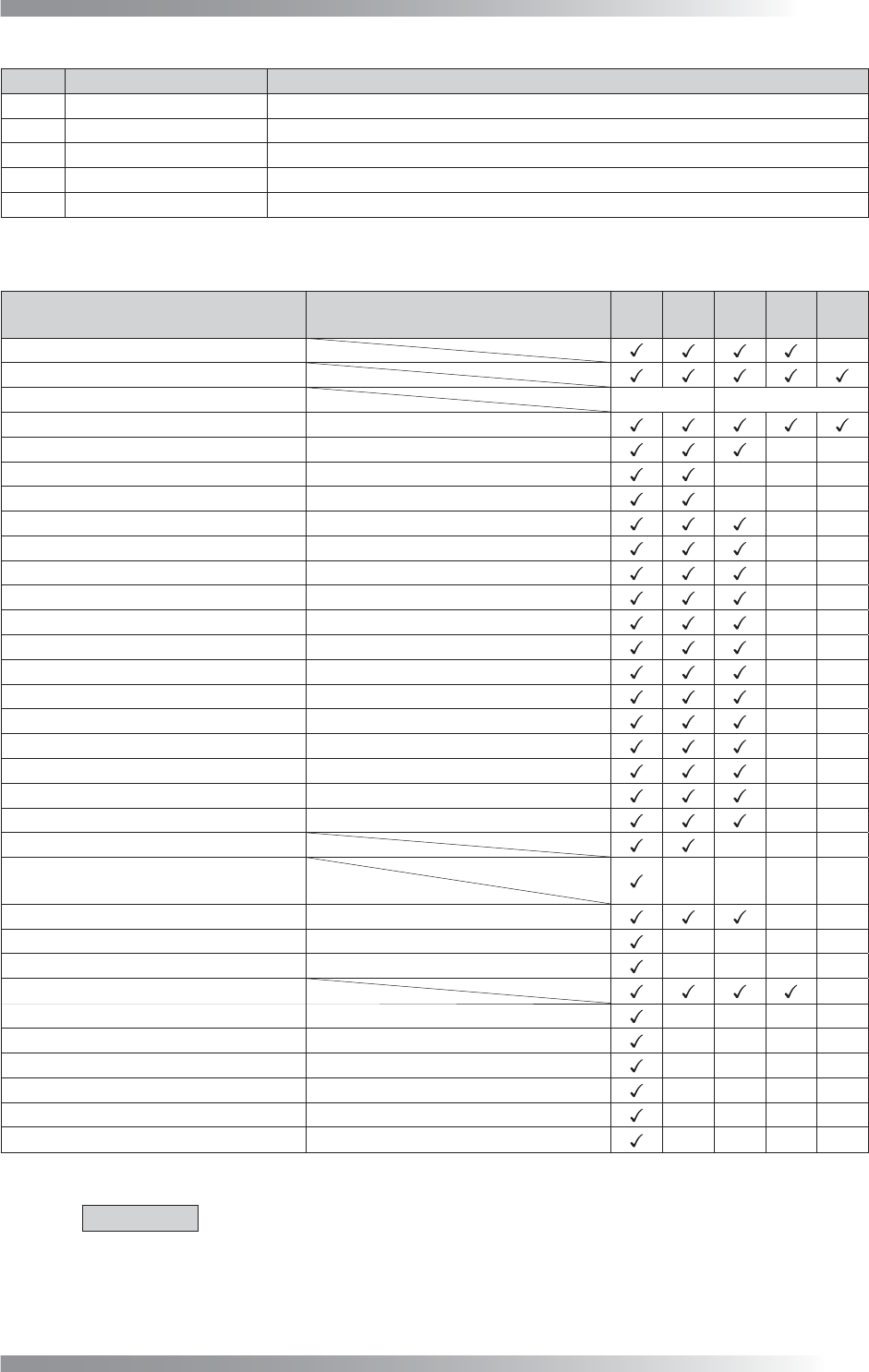
No. User Accessible Level Description
L1 Administrator
All functions and dialogs are available.
L2 System Engineer
Not allowed to change the privilege setting.
L3 Engineer
Not allowed to change the privilege setting and system setup.
L4 O_Leader
Not allowed to save inspection data.
L5 Operator
Allowed to select inspection data and run Auto Mode only.
Table 2-6 User accessible level and functions availability
Function
Items which can be changed the
accessible level in the advanced setting
L1 L2 L3 L4 L5
Edit Inspection Data
-
Auto Inspection
BF Termination
Return to OS
OS Shutdown
Menu-bar→File→Select Data File-
>
Select Data
Menu-bar→File→Save Data
File-
>
Save Data --
Menu-bar→File→Add Data
File-
>
Add Data
---
Menu-bar→File→Append CAD Data File-
>
Select CAD Data ---
Menu-bar→File→Select Image
File-
>
Select Image
--
Menu-bar→Edit→Search
Edit-
>
Search
--
Menu-bar→Edit→Add
Edit-
>
Add
--
Menu-bar→Edit→Input mode
Edit-
>
Input Mode --
Menu-bar→Edit→Delete
Edit-
>
Delete
--
Menu-bar→Edit→Edit NG
Edit-
>
Edit NG
--
Menu-bar→Edit→Block
Edit-
>
Block
--
Menu-bar→Edit→Offset
Edit-
>
Offset
--
Menu-bar→Edit→Reference List
Edit-
>
Reference List
--
Menu-bar→Edit→SubMark Edit-
>
SubMark --
Menu-bar→Edit→Edit Library
Edit-
>
Edit Library
--
Menu-bar→Edit→Link Library
Edit-
>
Link Library
--
Menu-bar→Edit→Unlink Library Edit-
>
Unlink Library --
Menu-bar→Edit→System Setup
---
Menu-bar→Edit→System Setup
→Privilege Setting
----
Menu-bar→View→Rename Component
View-
>
Rename Component --
Menu-bar→Auto→Lotnumber
Autorun-
>
Lotnumber
----
Menu-bar→Auto→Marking Autorun-
>
Marking pen ----
Menu-bar→Pass
-
Not used
BFRP1-
>
Delete OK Data
----
Not used
BFRP1-
>
Delete This Data
----
Not used
BFRP1-
>
Repaired
----
Not used
BFRP1-
>
All Repaired ----
Not used
BFRP1-
>
Show Current Offset
----
Not used
BFRP1-
>
Make Report
----
Table 2-7 User Accessible Level and restricted function
CAUTION
For diagonal items, an accessible level can not be changed.
If the password needs to be changed, please contact Saki Corporation.
I-30
Programming Manual
Part I Basic Operation
2.7.2 Registration Method of New User
Here describes how to register a new user name.
Only Administrator is authorized to use this function.
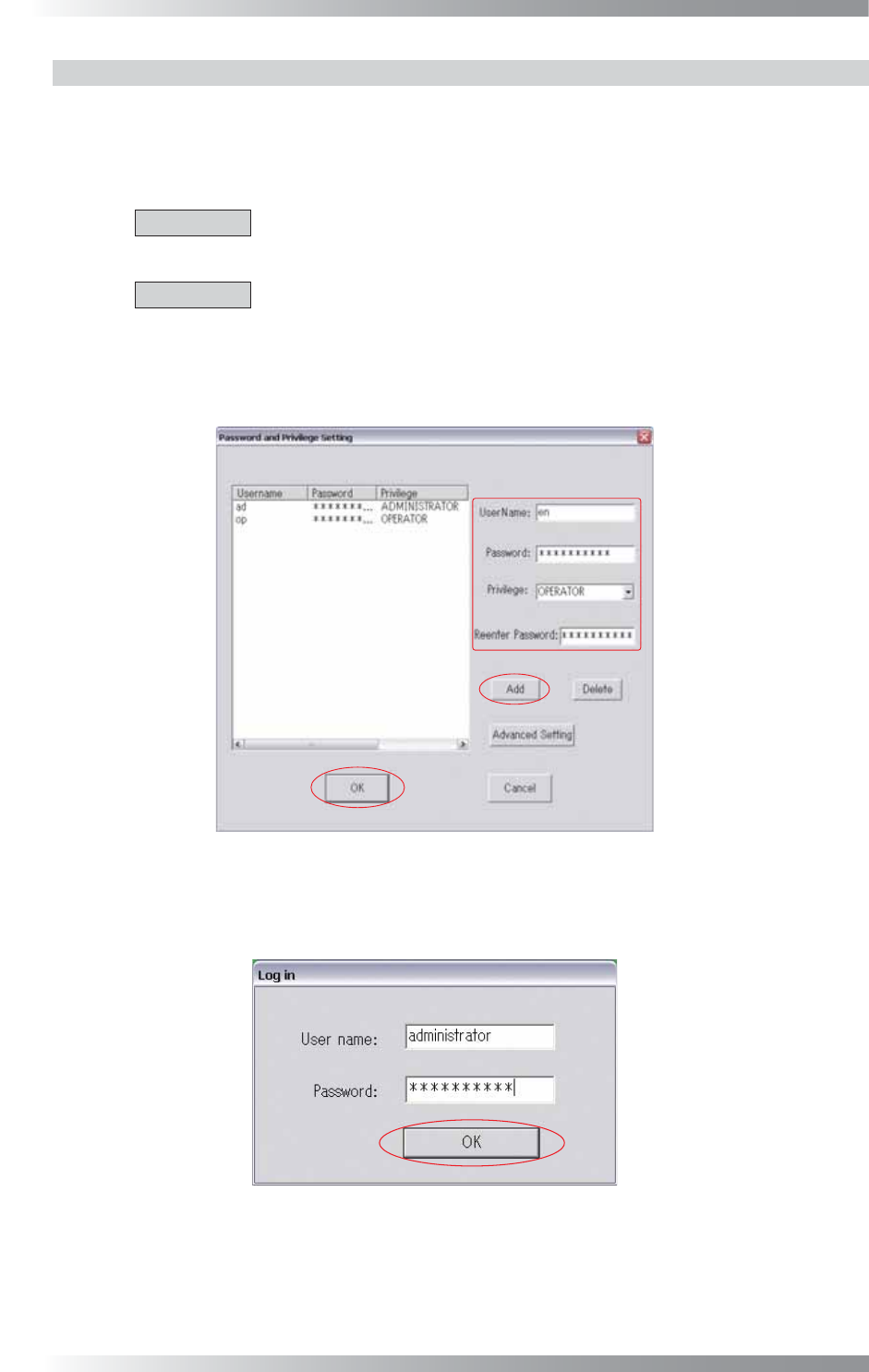
Step1: Select Edit > System Setting > Privilege Setting from the menu-bar.
CAUTION
Register Administrator fi rst as only Administrator can enter System Setting >
Privilege Setting and change settings.
CAUTION
If the password for Administrator is lost, please contact Saki Corporation.
Step2: Enter User name, Password, and Re-enter Password. Select a user accessible level in
Privilege and press Add. After all the settings are completed, press OK.
Figure 2-14 Privilege Setup Screen
Step3: The Log in dialog appears right after the system is activated. Enter a user name and
password. Press OK. Operation starts depending on the specifi ed user accessible level.
Figure 2-15 Log in
Step4: Select File > Log in to return to Figure 2-15 to change the user accessible level.
I-31
Programming Manual
Part I Basic Operation
2.8 Send_DB Setting
Not available.
2.9 Three LED Test
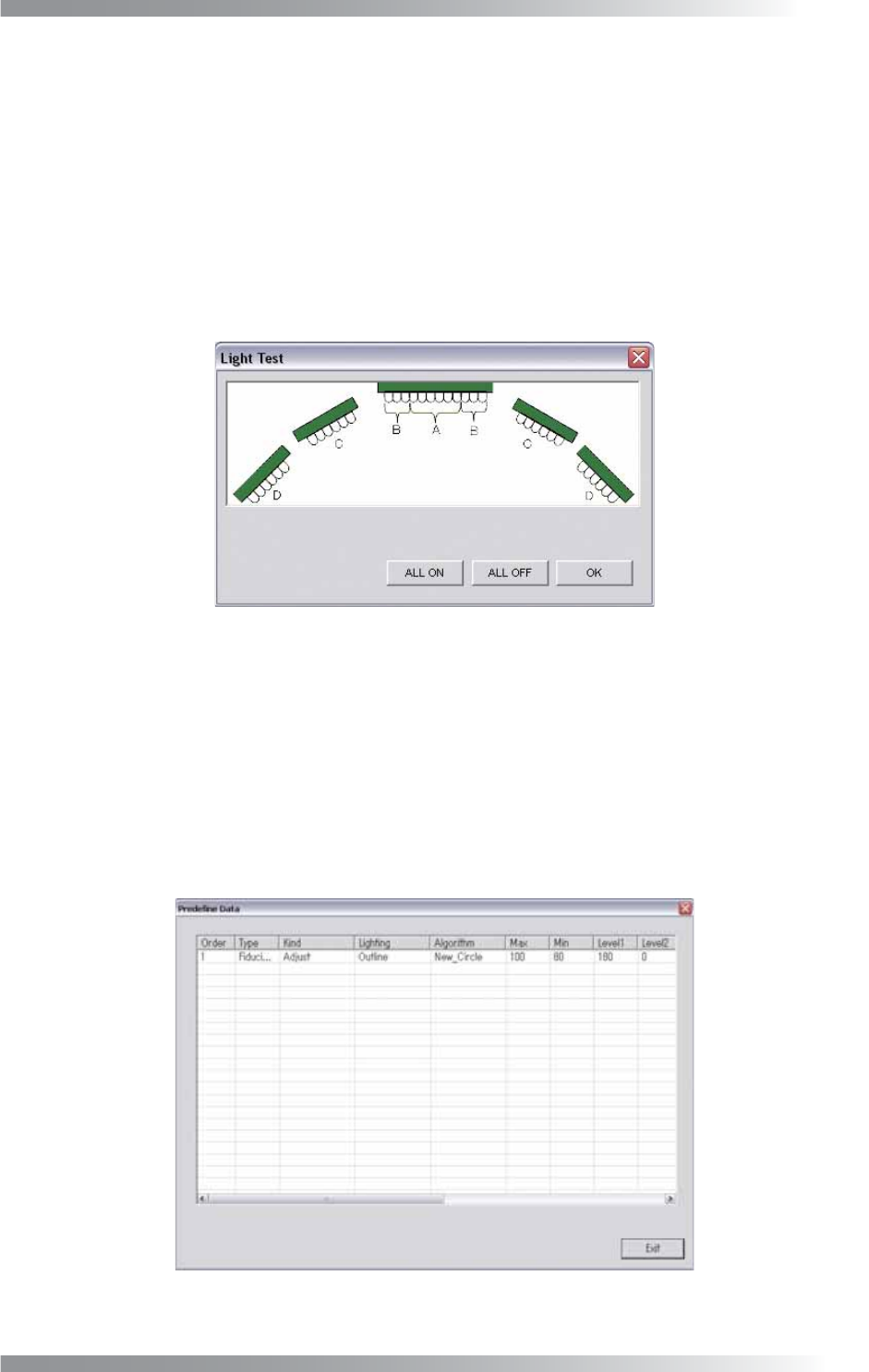
Test the lighting of LED’s. This function controls the lighting-up of the LEDs.
Press Three LED Test in Figure 2-1 Select System Setup.
The Light Test dialog shown in Figure 2-16 appears.
Press ALL ON and make sure that all lights are turned on.
Press ALL OFF and make sure that all lights are turned off.
All lights are turned off automatically in 15 seconds.
Figure 2-16 Light Test
2.10 Machine Layout
Not available.
2.11 Predefi ne Setting
This list displays the parameters, such as NG Type, Screen Selection, Judgement, saved in the Edit
Component Data dialog. Press Predefi ne Setting in Figure 2-1 Select System Setup.
The Predefi ne Setting dialog shown in Figure 2-17 appears.
Figure 2-17 Predefi ne Setting