Programming_mail.pdf - 第29页
I- 21 Programming Manual Part I Basic Operation 2.1.2 NG Type Modify the NG type name to appropriate ones. The analysis of the inspection result will be done effectively based on the proper NG type name. Step1: Press NG …
I-20
Programming Manual
Part I Basic Operation
Tab Item Description
Barcode
Option
Select the Board by Barcode
If using barcodes to select data, check Select the
Board by Barcode.
Compare Barcode
Makes comparison with registered barcode information.
Input Barcode on BF-RP1
Enter barcode information on BF-RP1.
Don’t Change Jump Value
To prevent changing the jump setting automatically if an
inspection item is added to or deleted from the data by
the jump function, check Don’t Change Jump Value.
Read Barcode While Loading
Reads barcodes while loading a PCB.
Wait for Barcode Recognition
Retries until a barcode-reader succeeds to read a
barcode.
Don’t Popup Input Dialog while
Read Barcode Error
Outputs the current date name NG fi le if barcode
reading is failed.
Show Skip Message
Displays Some components are skipped to
inspect on the lower left of the screen, if there is a
component to be skipped in an inspection.
Barcode on Two Sides
If managing a number of double-side PCBs by one
barcode, check Barcode on Two Sides.
Change abnormal char to *
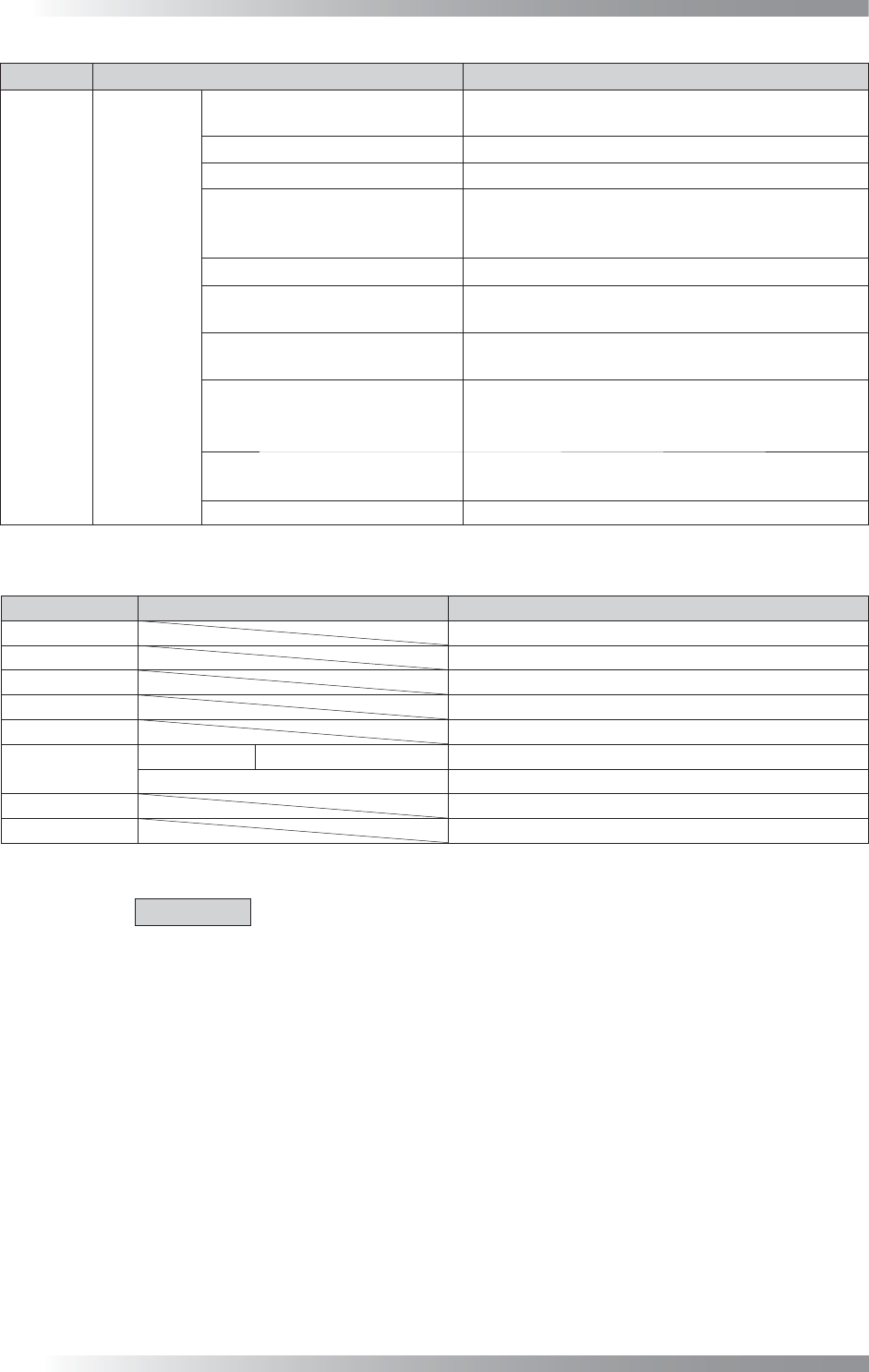
Table 2-1
System
Parameter List 1
Tab Item Description
Output File *
Machine *
Conveyor *
Calibration *
Origin *
Hardware1
Conveyor 2 Speed Conveyor
Use if validating a board delay sensor.
Other Items *
Hardware2 *
Camera *
Table 2-2
System
Parameter List 2
CAUTION
Regarding the items with *, these are for Saki engineer only.
I-21
Programming Manual
Part I Basic Operation
2.1.2 NG Type
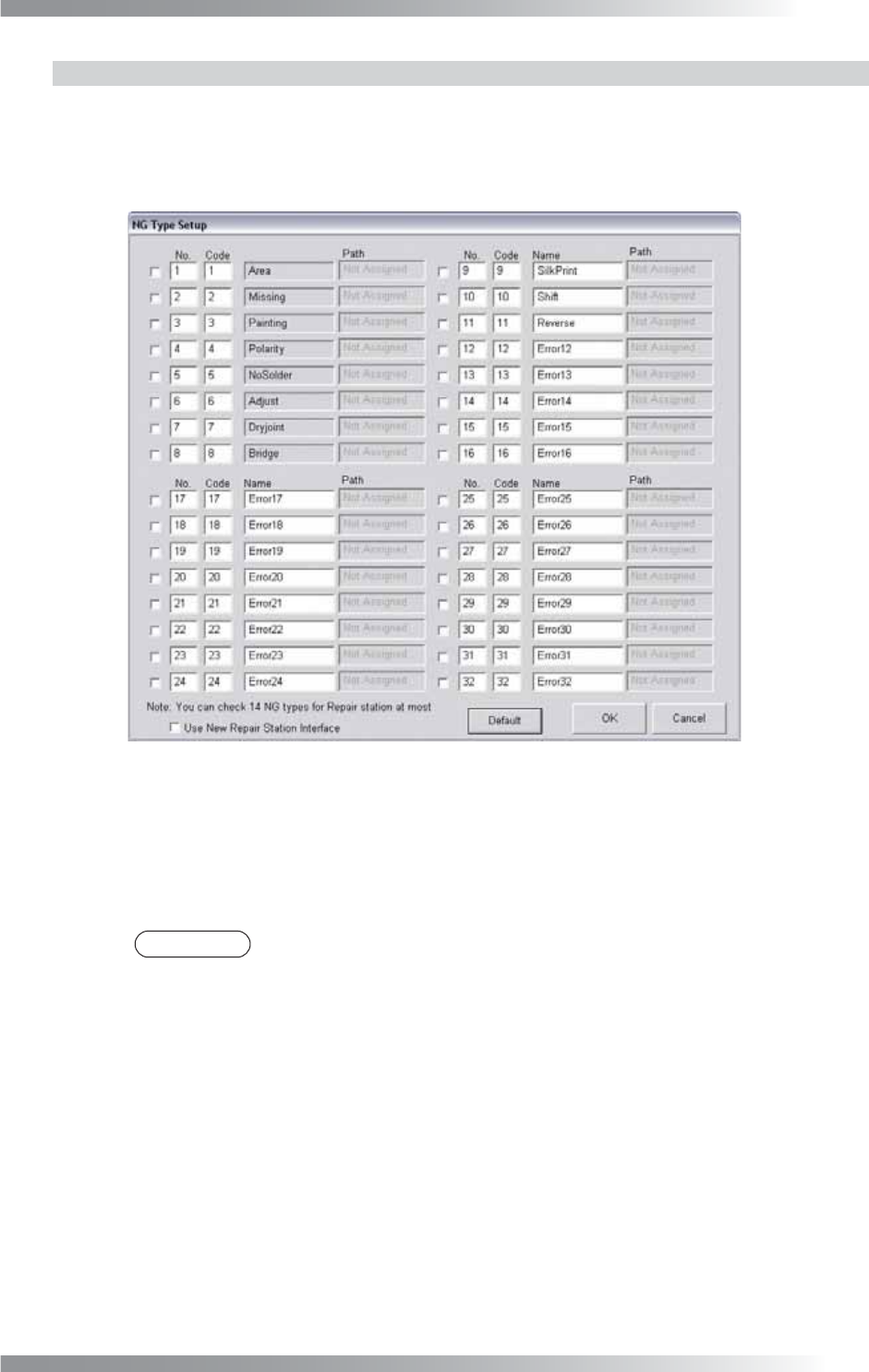
Modify the NG type name to appropriate ones. The analysis of the inspection result will be done
effectively based on the proper NG type name.
Step1: Press NG Type in Figure 2-2 System. The NG Type Setup dialog shown in Figure 2-3 appears.
Figure 2-3 NG Type Setup
Step2: 21 NG type names (from 12 to 32) can be modifi ed.
Enter an appropriate name in each Name text-box.
Step3: Press OK to update.
NOTE
Press Default and OK to back to the default setting.
I-22
Programming Manual
Part I Basic Operation
2.2 Operation Lamp
This section describes the settings of signal tower and buzzer.
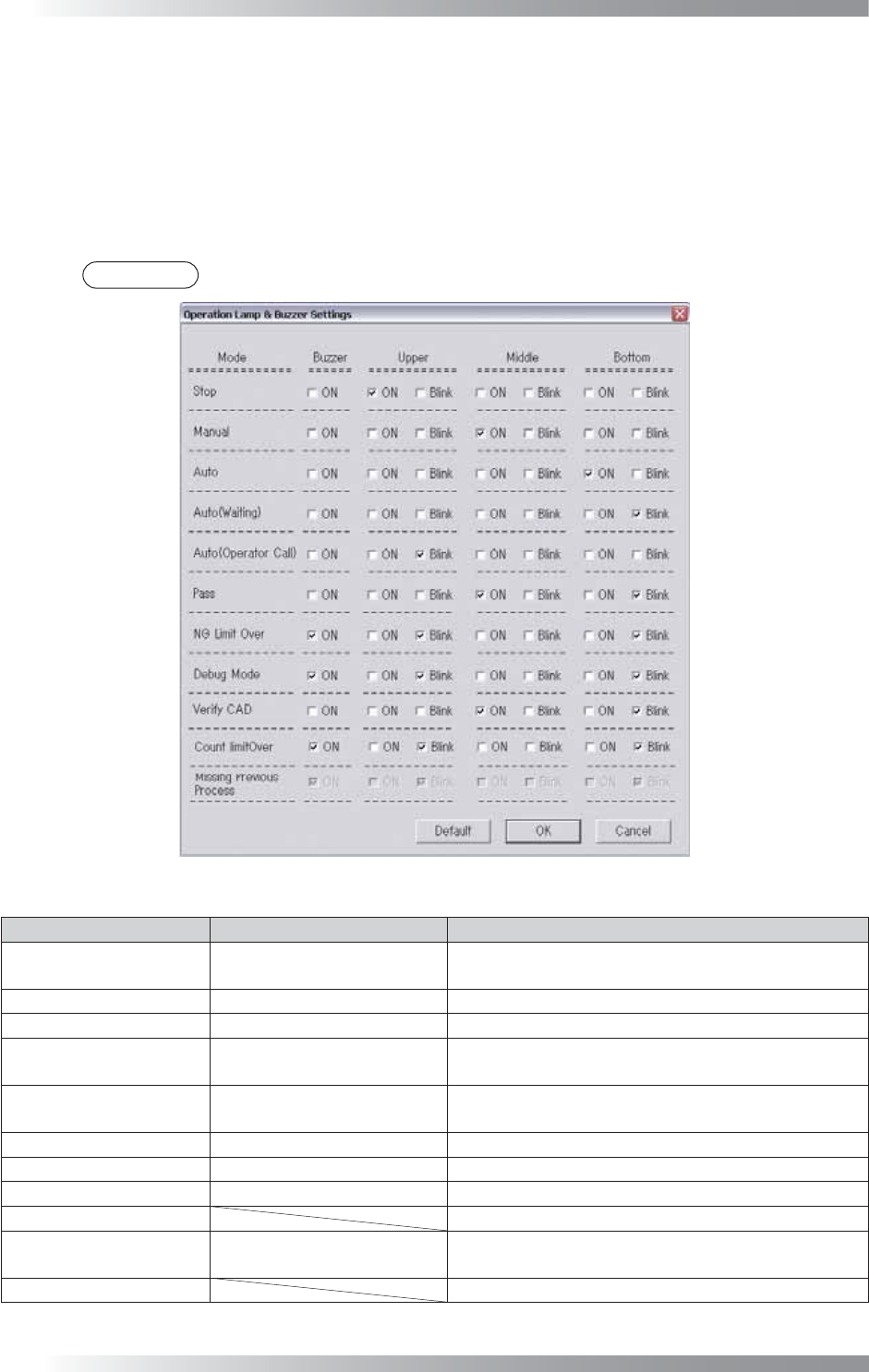
Operations of signal tower lightings and buzzers can be modifi ed in Operation Lamp according to the
operating condition of the machine.
Press Operation Lamp in Figure 2-1 Select System Setup.
The Operation Lamp and Buzzer Settings dialog shown in Figure 2-4 appears.
Check arbitrary boxes based on the operating condition of the machine.
NOTE
Press Default and OK to back to the default setting.
Figure 2-4 Operation Lamp and Buzzer Settings
Mode State Description
Stop Emergency Stop
Emergency stop switch is pressed or the front door
is opened.
Manual Manual Mode Running Normal operation under Manual Mode.
Auto Auto Mode Running
Normal operation under Auto Mode.
Auto (Waiting)
Waiting for the next PCB Stand-by status for PCB loading under Auto Mode.
Auto (Operator Call)
During Auto Mode Running
Defect Occurrence
Stand-by status for operator check on detected NG
under Auto Mode.
Pass Pass Mode Running
Normal operation in Pass Mode.
NG Limit Over Continuous NG Occurrence
A number of NG PCBs reached to a specifi ed value.
Debug Mode Debug Mode Running
Normal operation in Debug Mode.
Verify CAD Not available.
Count Limit Over
Reached limit number of
inspection
Completed a specifi ed number of PCB inspections.
Missing Previous Process
Not available.
Table 2-3
Operation Lamp and Buzzer Settings
Parameter List