Programming_mail.pdf - 第131页
III- 57 Programming Manual Part III Inspection Algorithm Figure 1-73 Number of Electrodes Step17: Enter the number of leads in Number of Electrodes and press OK . Step18: Enter the appropriate vector into the Shift fi eld…
III-56
Programming Manual
Part III Inspection Algorithm
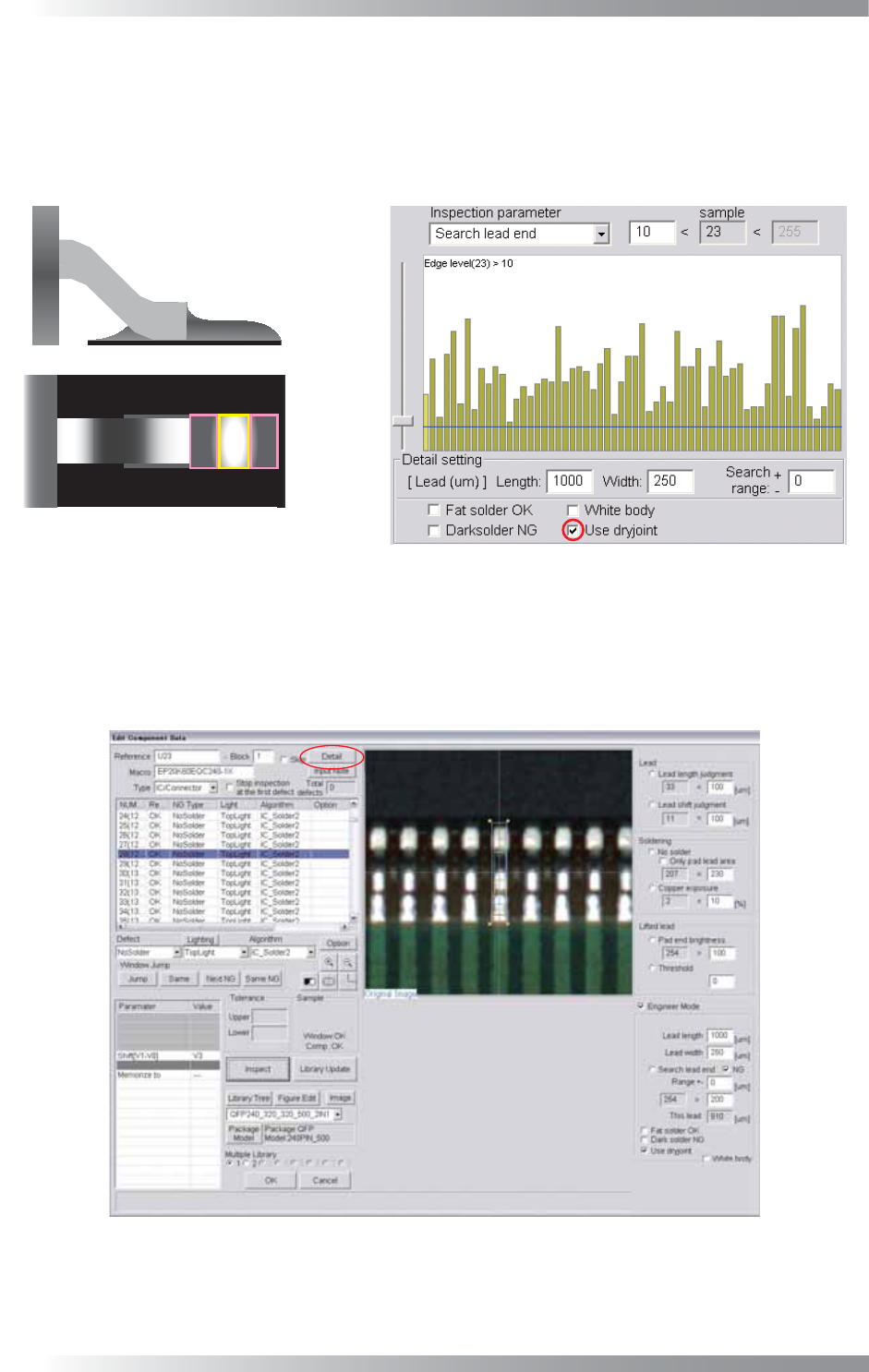
Step14: In case of dry joint, the brightness level in pad center area is brighter than pad lead and pad
end area. Check Use dryjoint if necessary. If Use dryjoint is checked and either of the
brightness level in pad end area minus pad center area or the brightness level in pad
end area minus pad lead area is failed, the result will be NG. In this case, the third
inspection, the brightness level in pad center area minus pad lead area, is skipped.
Dryjoint
Figure 1-71 Use dryjoint
Step15: Check White body in case the body is brighter than leads (e.g., Connectors).
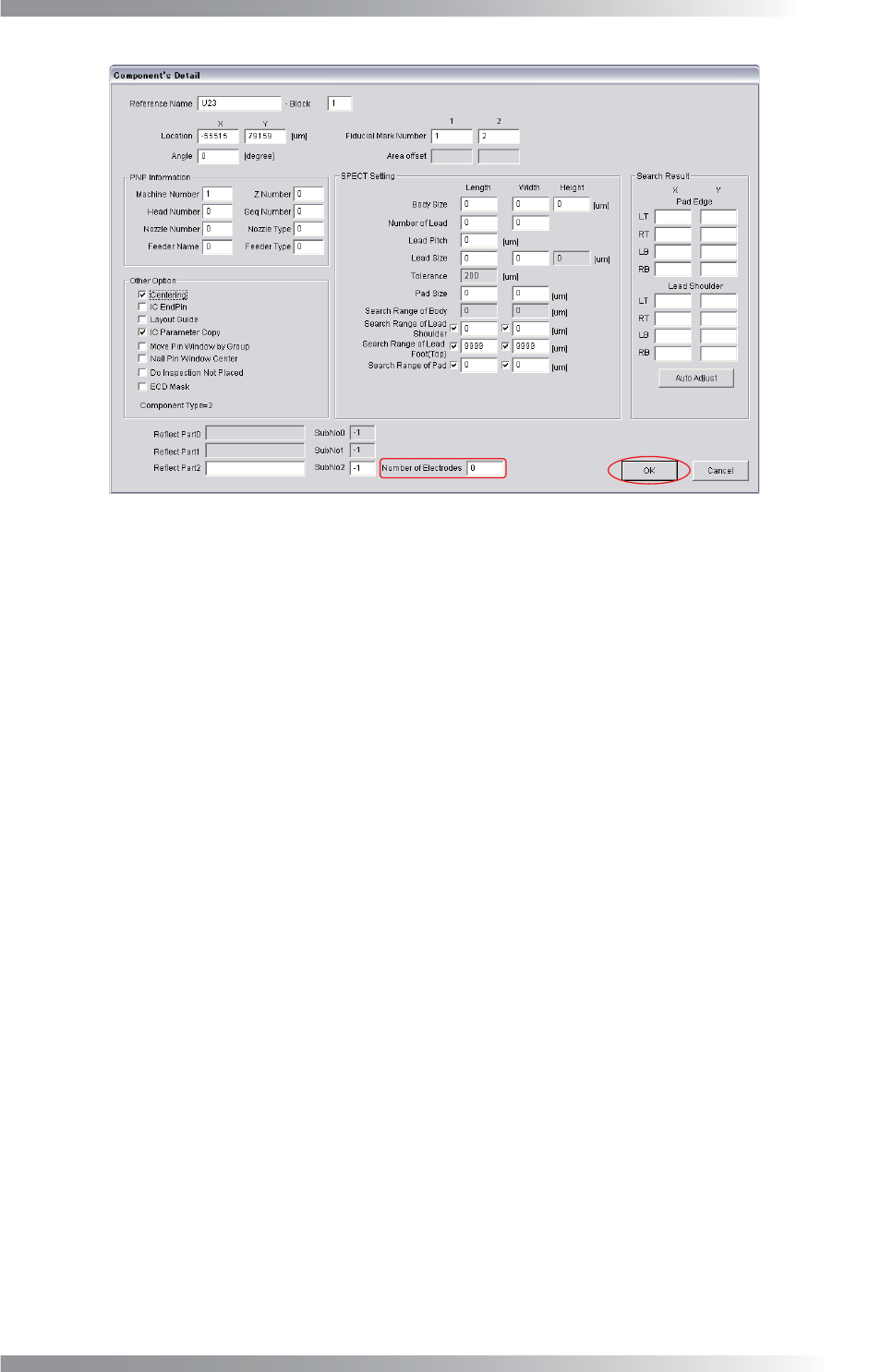
Step16: If a number of leads is changed, press Detail shown in Figure 1-72. The dialog shown in
Figure 1-73 appears.
Figure 1-72 Detail
III-57
Programming Manual
Part III Inspection Algorithm
Figure 1-73 Number of Electrodes
Step17: Enter the number of leads in Number of Electrodes and press OK.
Step18: Enter the appropriate vector into the Shift fi eld. Any value from V1 to V8 is available.
Select the vector according to the Memorize to fi eld of the Adjust window.
Step19: Press Inspect. Make sure that the inspection is completed properly.
III-58
Programming Manual
Part III Inspection Algorithm
1.15 AreaColor
1.15.1 Inspection Overview
AreaColor is the algorithm to inspect the percentage of specifi ed color in the inspection window.
Extract the component color from two places in consideration of color variability.
Specify any color as OK color. If the percentage of the specifi ed color exceeds a certain value, the
result will be OK. Specify any color as NG color. If the percentage of the specifi ed color falls below a
certain value, the result will be OK.
AreaColor is suitable for copper inspection or missing inspection of chip components.
1.15.2 Parameter Setting
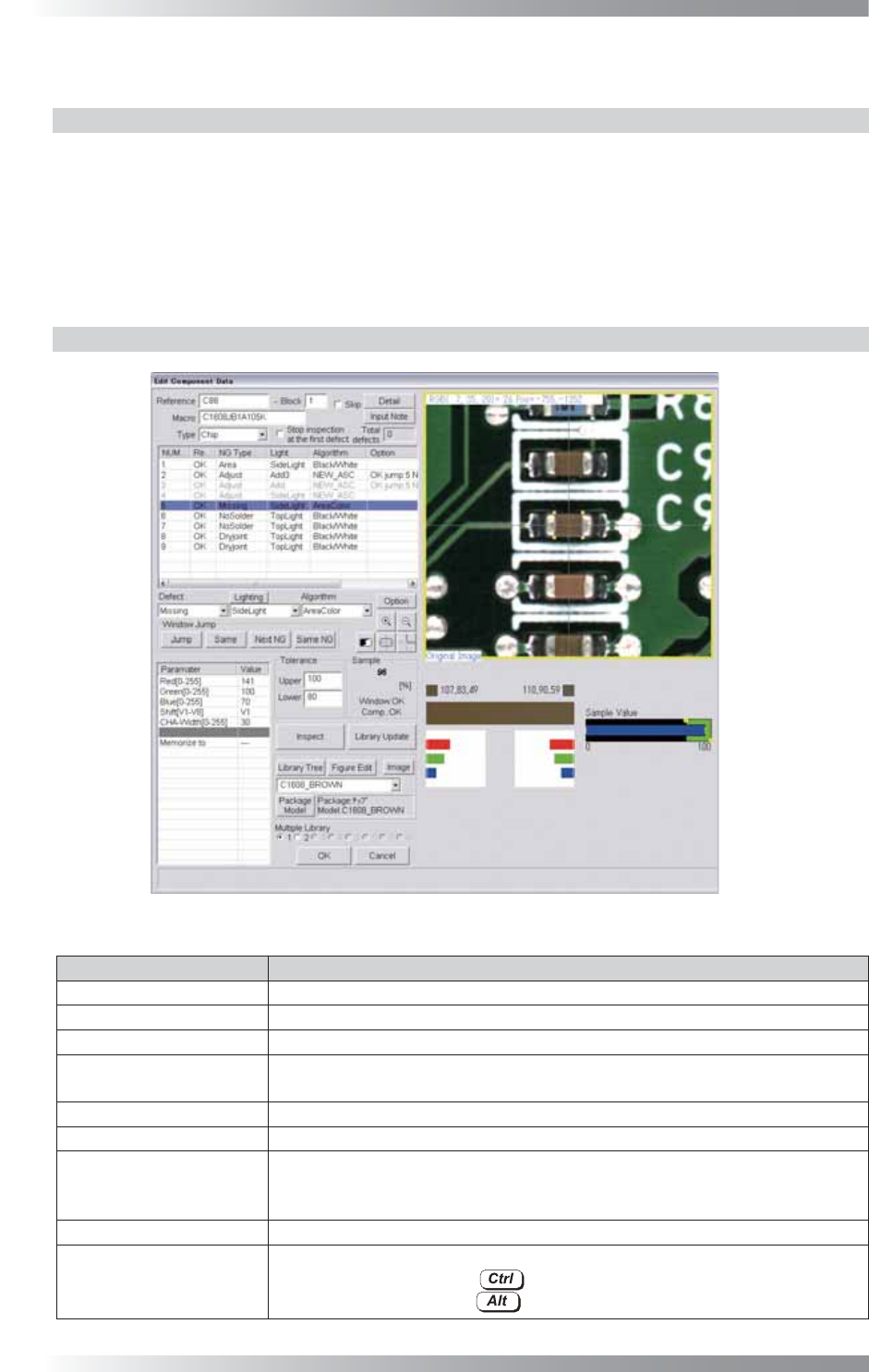
Figure 1-74 AreaColor
Parameter Description
Lighting Select SideLight.
Algorithm Select AreaColor.
Red, Green, Blue[0-255]
A value is automatically entered when component color is extracted.
Shift[V1-V8]
Enter the appropriate vector. Any value from V1 to V8 is available.
Select the vector according to the Memorize to fi eld of the Adjust window.
CHA-Width[0-255]
Default is 30. Enter the bigger value to enlarge the color OK range.
Memorize to -
Upper, Lower
If the specifi ed color is registered as OK color, enter 100 in Upper and arbitrarily
value in Lower. If the specifi ed color is registered as NG color, enter arbitrarily
value in Upper and 0 in Lower.
Sample Shows the percentage of specifi ed color in the inspection window.
The graph in the lower
right side of the dialog
Component RGB values are displayed.
By left-clicking with pressing , information is displayed on the left of the graph.
By left-clicking with pressing
,
information is displayed on the right of the graph.
Table 1-25 Parameter of AreaColor