Programming_mail.pdf - 第202页
V- 12 Programming Manual Part V Other Function 1.3 Adjust KPK Data 1.3.1 KPK Debug The KPK Debug dialog shown in Figure 1-17 appears after KPK data is extracted. Adjust KPK inspection data. Double-click the component to …
V-11
Programming Manual
Part V Other Function
Step5: When KPK data is opened in B-side for the double-side PCB, the check-box of Make new
macros and libraries for side B is displayed. Check Make new macros and libraries for
side B to have each macro and library data in each side. Macro and library name including
side information are assigned to components.
NOTE
For the component with 1000C of library and 123 of macro, a library named B_
KPK_123 is created and assigned. The existing library 1000C remains.
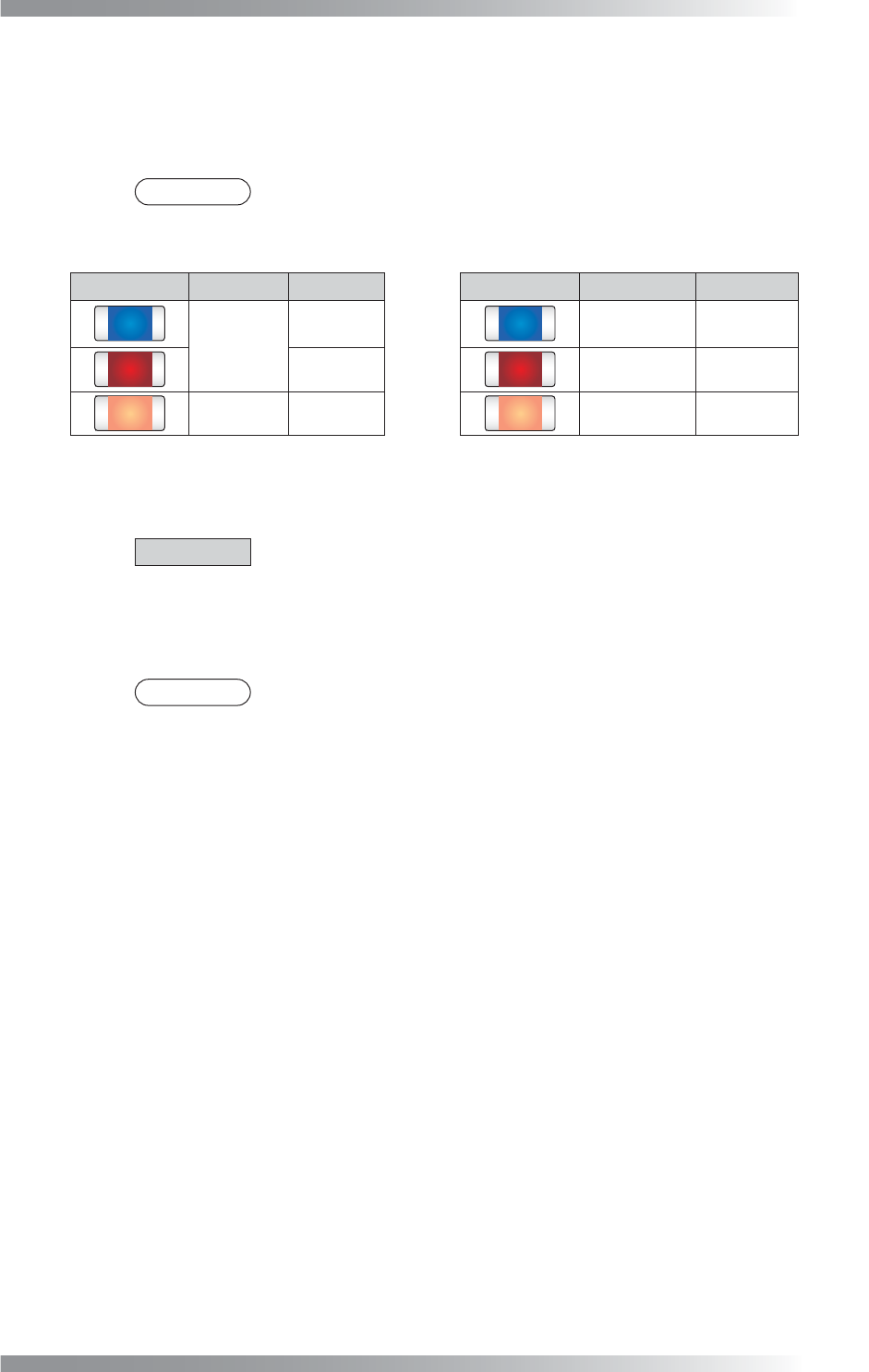
Component Library Macro Component Library Macro
1000C
123
B_KPK_123
B_123
456
B_KPK_456
B_456
1000R 789
B_KPK_789
B_789
Table 1-3 Library and Macro (Left Side: Before Changing, Right Side: After Selecting
Make new macros…
)
Step6: After all the settings are completed, press OK. KPK data will be automatically extracted.
CAUTION
This process might take a few minutes.
Step7: Inspect the data after extracting KPK data. KPK Debug dialog shown in Figure 1-17
appears. Refer to Part V 1.3.1 KPK Debug.
NOTE
KPK inspection window is extracted in second window (Type: Missing, Lighting:
OKNGColors, Algorithm: Black/White). If existing inspection data was extracted,
KPK window will be added in second window by interruption. Inspection window
shifts by one. Although, jump settings such as OKJump / NGJump will be
automatically updated in order properly by the inspection software.
V-12
Programming Manual
Part V Other Function
1.3 Adjust KPK Data
1.3.1 KPK Debug
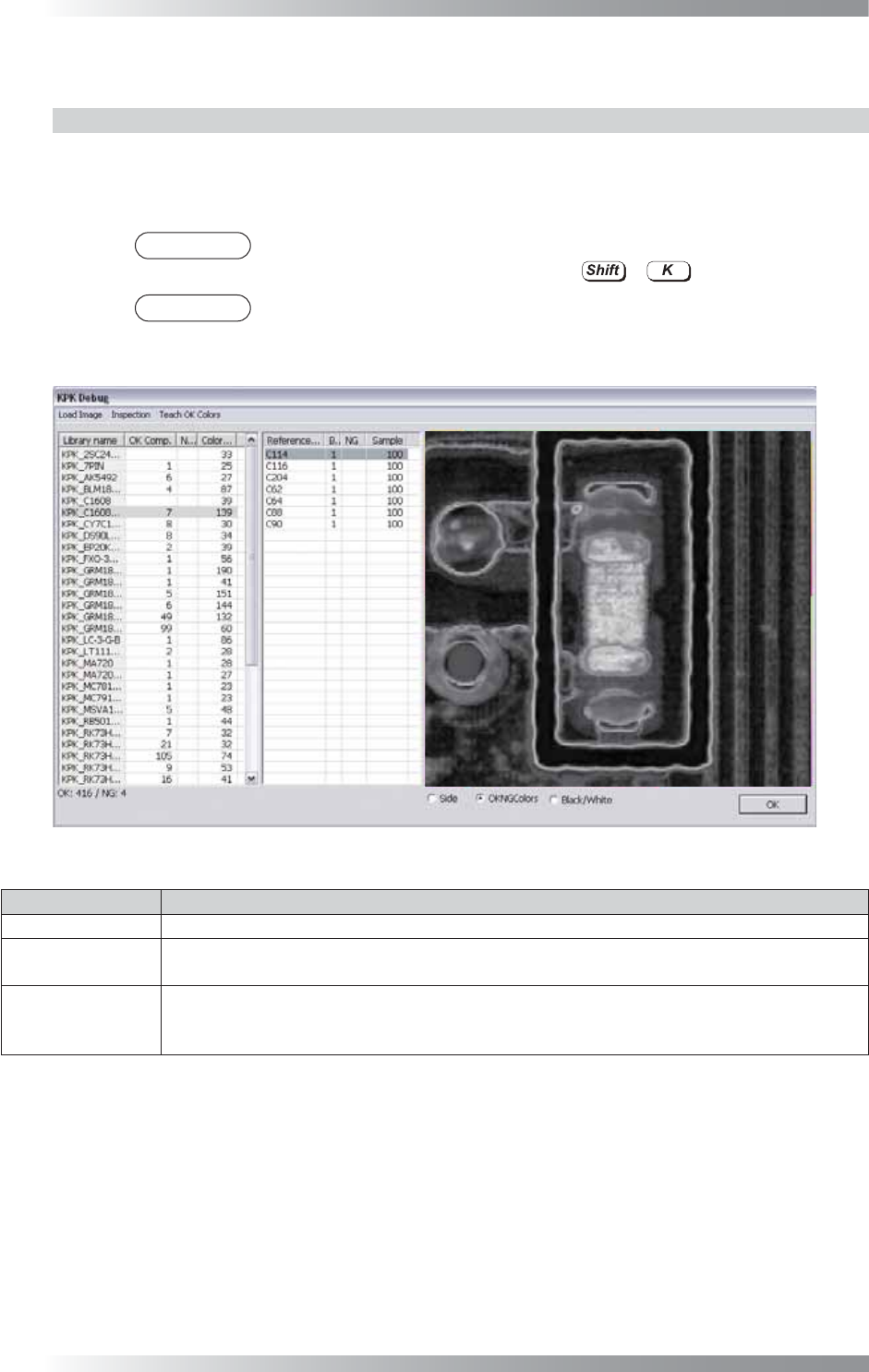
The KPK Debug dialog shown in Figure 1-17 appears after KPK data is extracted.
Adjust KPK inspection data. Double-click the component to open edit component dialog.
Refer to Part V 1.3.2 Edit Component Data Dialog.
NOTE
The same operation can be performed by selecting Edit > KPK Windows
Debugging from the menu-bar or pressing
+
.
NOTE
Select a component from the list-box and component image is displayed.
Magnifi cation percentage can be changed by scrolling wheel of mouse.
Figure 1-17 KPK Debug
Item Description
Load Image Opens images or switch images.
Inspection
Inspects opened images.
The inspection is automatically operated if the inspection data is changed.
Teach OK Colors
An OK component might be misjudged NG because of component color variation.
Combines the color which is misjudged as NG and the OK color to reduce the false call.
Select All NG components or Selected Library to fi nd the false call data.
Table 1-4 Menu-bar
V-13
Programming Manual
Part V Other Function
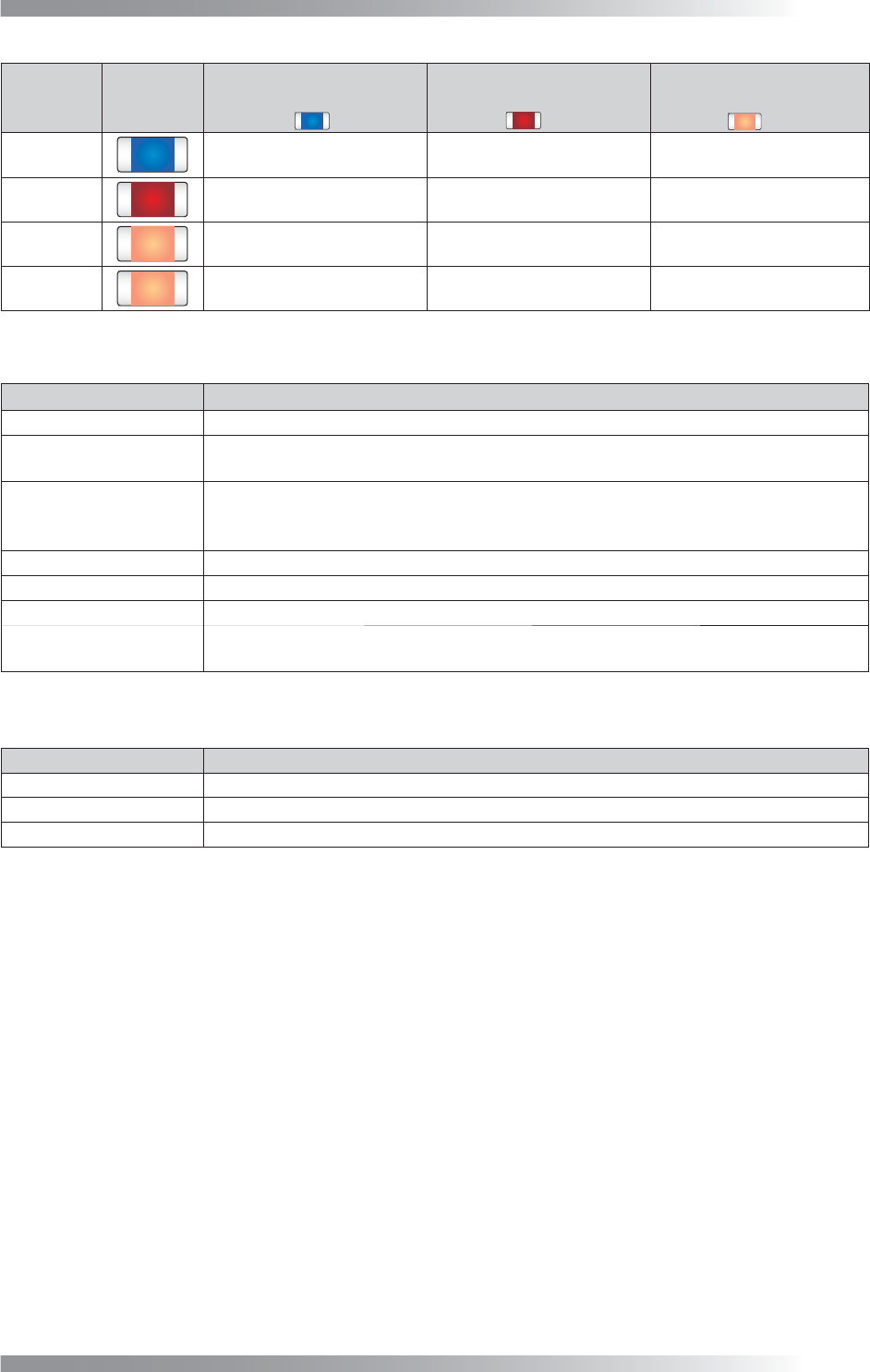
Component
Name
Component
Color
Inspection Result
before Adjustment
(Registered as OK color)
Inspection Result
after Adjustment 1
(Combine with OK color)
Inspection Result
after Adjustment 2
(Combine with OK color)
C1
OK OK OK
C2
NG (False Calls) OK OK
C3
NG (False Calls) NG (False Calls) OK
C4
NG (False Calls) NG (False Calls) OK
Table 1-5 The Example of Teach OK Colors
Item Description
Library Name
Library name.
OK Comp. / NG Comp.
Each numbers of the component OK/NG is displayed. If the inspection data is adjusted
properly, the result will be OK with OK PCB and the result will be NG with bare PCB.
Color distance
Extract two the most similar colors. One is from OK color, another is from NG color. The
distance of these two similar colors is displayed as a value. The smaller the value is, the
less color difference is between components and PCBs.
Reference Name
Component name.
Block number Sub board number.
NG
Displays NG when a component is judged as NG by KPK.
Sample
Sample values is the percentage of area which brightness level is over the specifi ed
value in the inspection window if the default algorithm Black/White is used.
Table 1-6 Each Item of Header
Item Description
Side
SideLight image is displayed.
OKNGColors
OKNGColors image is displayed.
Black/White
Monochrome image by algorithm Black/White is displayed.
Table 1-7 Select Lighting