Programming_mail.pdf - 第47页
II- 3 Programming Manual Part II Inspection Data Step3: Press Browse in CAD Data to specify the CAD data. Figure 1-3 Wizard 2 Step4: Select the format of the CAD data. Item Description SAKI Format If a CAD data is output…
II-2
Programming Manual
Part II Inspection Data
1 Make Inspection Data
Inspection data can be made by AOI machines and BF-Editor (optional system).
CAUTION
Do not use two-byte characters, space, tab, and symbolic characters (\ < > : “ / | ? * . , ; & % =) as
these characters may cause unexpected errors.
1.1 Make Inspection Data on AOI Machine
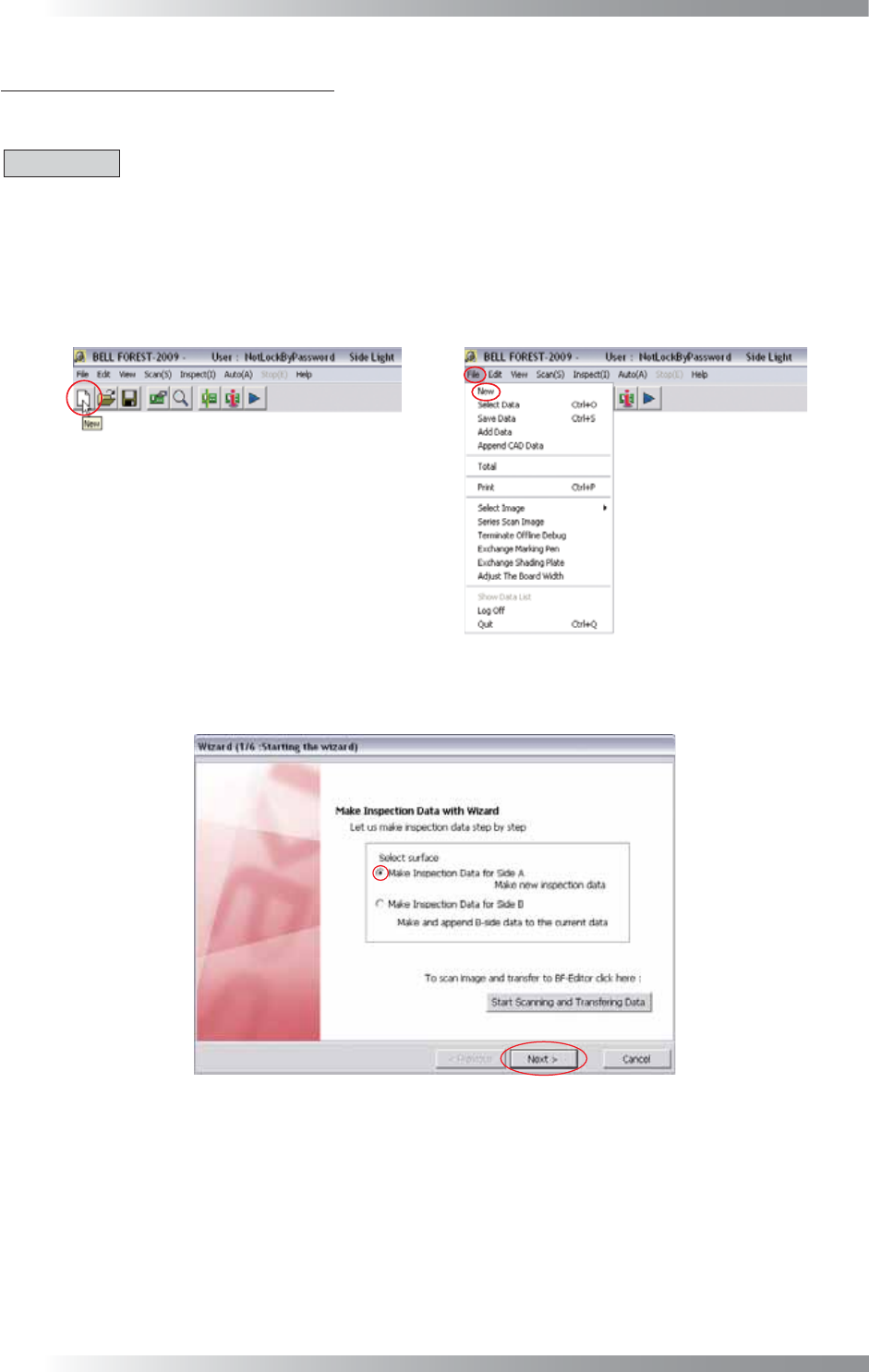
Step1: Press the New button on the tool-bar or select File > New from the menu-bar.
Figure 1-1 New
Step2: Check Make Inspection Data for Side A and press Next.
Figure 1-2 Wizard 1
II-3
Programming Manual
Part II Inspection Data
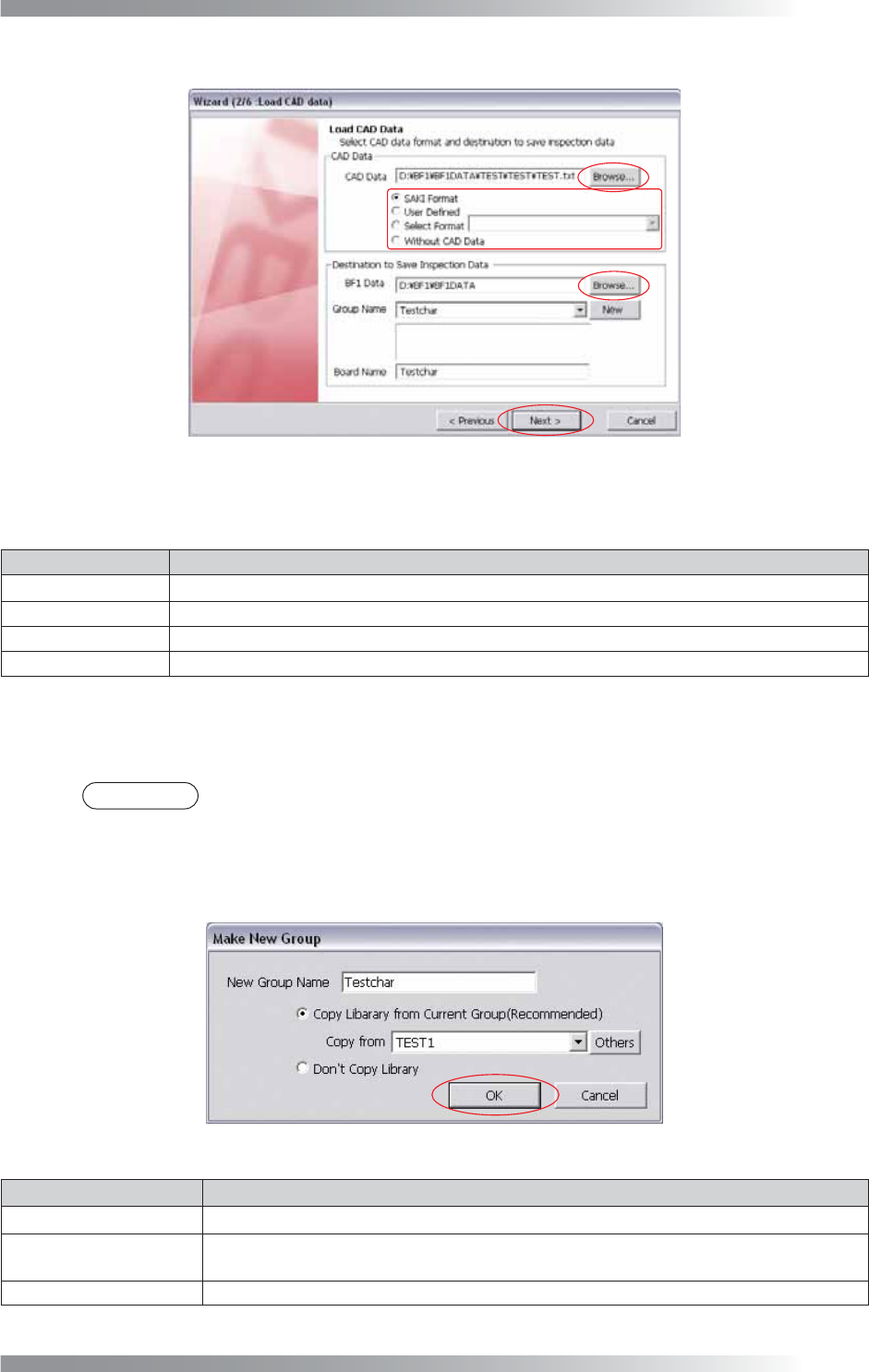
Step3: Press Browse in CAD Data to specify the CAD data.
Figure 1-3 Wizard 2
Step4: Select the format of the CAD data.
Item Description
SAKI Format
If a CAD data is output by Saki format, check
SAKI Format
.
User Defi ned
If a CAD data is output by another format, check User Defi ned.
Select Format
If a mount data is used, check Select Format.
Without CAD Data
If there is no CAD data, check Without CAD Data.
Table 1-1 Select the Format
Step5: Press Browse in BF1 Data to specify the
destination to save the inspection data.
NOTE
In the default setting, the inspection data is saved in D:\BF1\BF1DATA.
Step6: Select a group name from the Group Name drop-down list.
To add a new group, press New. The dialog shown in Figure 1-4 appears.
After all the settings are completed, press OK.
Figure 1-4 Make New Group
Item Description
New Group Name
Enter a new group name.
Copy Library from
Current Group
If using existing library data, check Copy Library from Current Group.
Select a library from the Copy from drop-down list.
Donʼt Copy Library If not using existing library data, check Donʼt Copy Library.
Table 1-2 Make New Group
II-4
Programming Manual
Part II Inspection Data
Step7: Enter Board Name of Destination to Save Inspection Data in Figure 1-3 and press Next. If User
Defi ned in Step4 is checked, the format should be made newly.
CAUTION
In case of a double-side PCB, both sides need each own user defi ne format.
NOTE
If SAKI Format or Select Format in Step4 is checked, CAD data will be automatically
extracted. Refer to after Step20 in Part II 1.1 Make Inspection data on AOI Machine.
NOTE
If Without CAD Data is checked, CAD data is not extracted. Make new inspection data
individually.
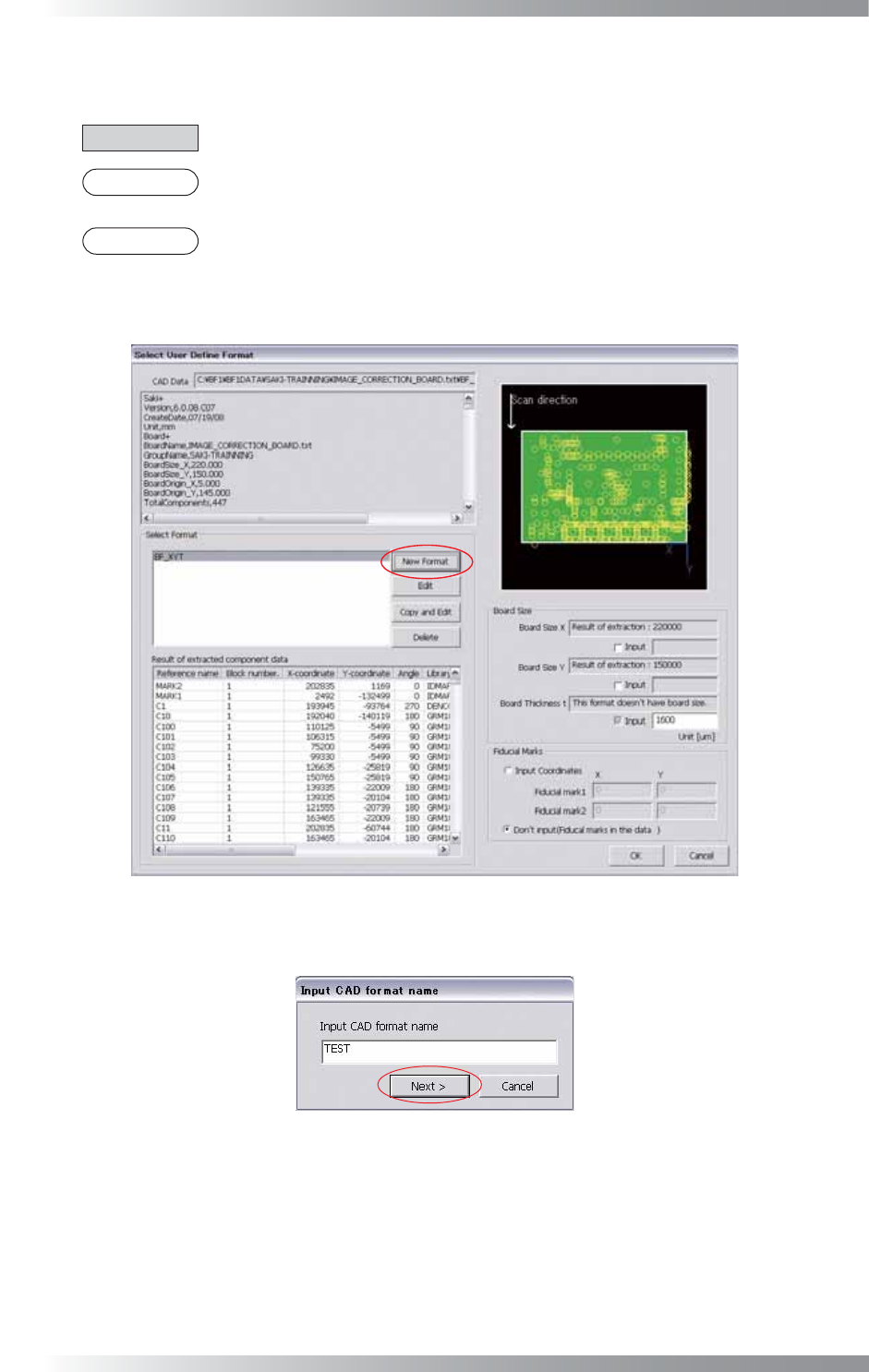
Step8: Press New Format to make a new format. If there is a similar format, press Copy and Edit.
Figure 1-5 User Defi ne Format
Step9: Enter a format name in the text-box and press Next.
Figure 1-6 Enter Format Name