Programming_mail.pdf - 第253页
V- 63 Programming Manual Part V Inspection Data Step3: The dialog shown in Figure 5-19 appears. Select the Inspection Selection setting from the Board Selection list-box and press Apply . Figure 5-19 Apply Step4: The dia…
V-62
Programming Manual
Part V Inspection Data
5.5 Select Inspection Selection
Here describes settings for Inspection Selection.
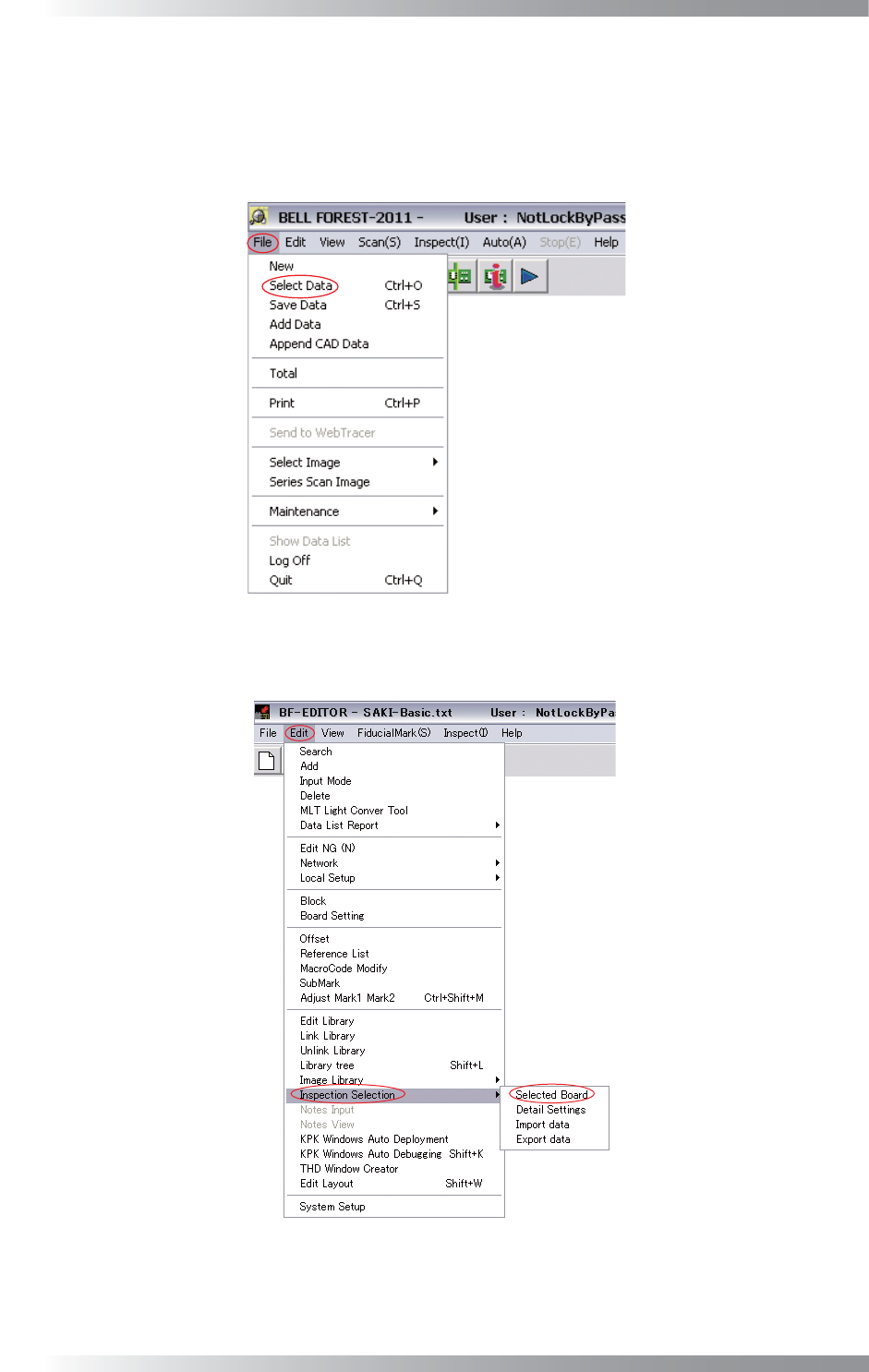
Step1: Select File > Select Data from the menu-bar.
Open the inspection data that Inspection Selection is applied.
Figure 5-17 Select Data
Step2: Select Edit > Inspection Selection > Selected Board from the menu-bar.
Figure 5-18 Selected Board
V-63
Programming Manual
Part V Inspection Data
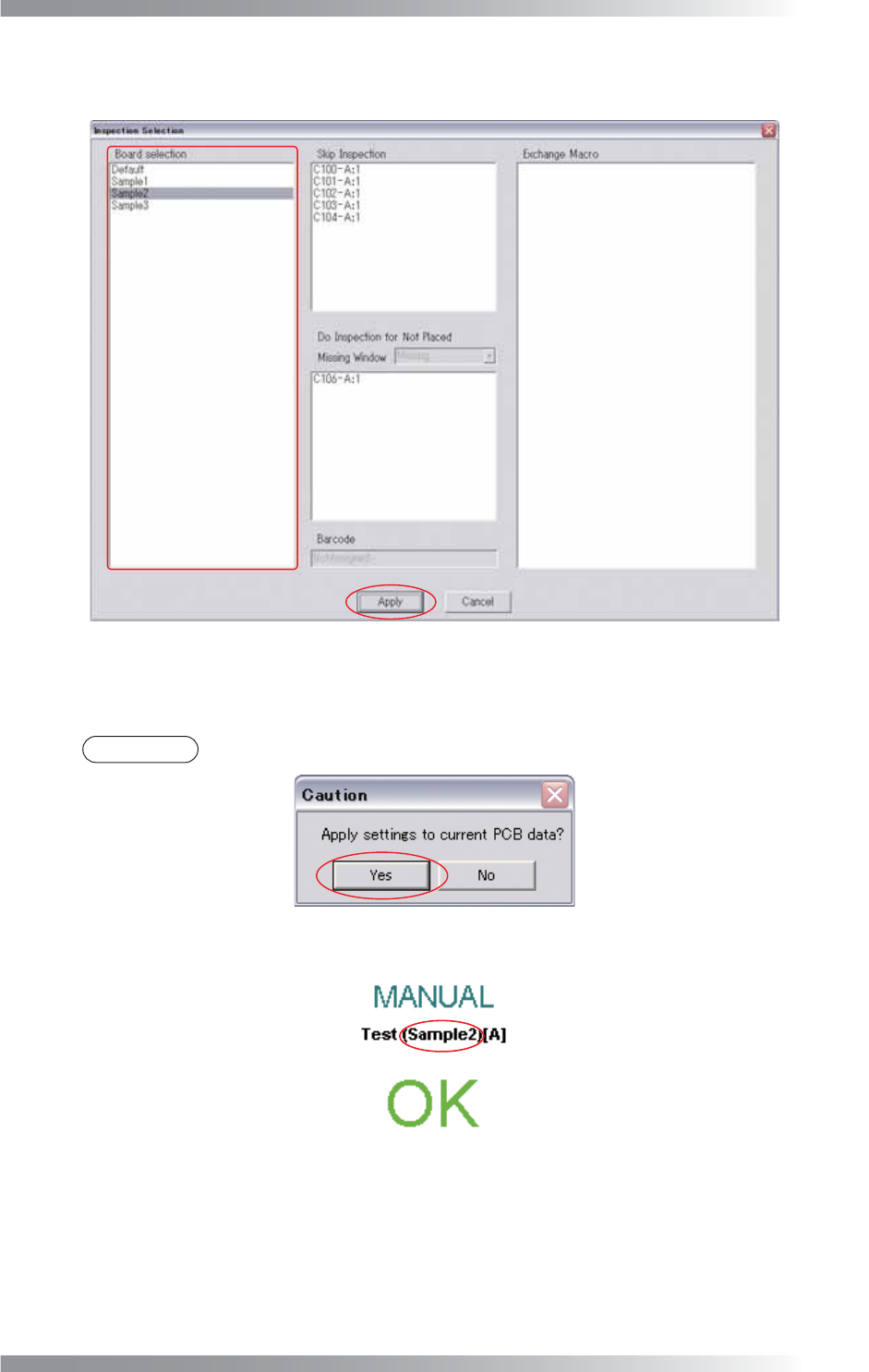
Step3: The dialog shown in Figure 5-19 appears.
Select the Inspection Selection setting from the Board Selection list-box and press Apply.
Figure 5-19 Apply
Step4: The dialog shown in Figure 5-20 appears. Press Yes.
NOTE
The item selected in Inspection Selection will be displayed after the PCB name.
Figure 5-20 Apply Settings
Figure 5-21 Inspection Selection Name
V-64
Programming Manual
Part V Inspection Data
5.6 Output Setting File for Inspection Selection
Inspection Selection settings of each inspection data can be output and saved as a text fi le.
If using several machines, inspection selection settings of a machine can be applied to other machines by
reading this output fi le.
5.6.1 Output Setting File for Inspection Selection
Step1: Select File > Select Data from the menu-bar.
Open the inspection data which Inspection Selection is applied.
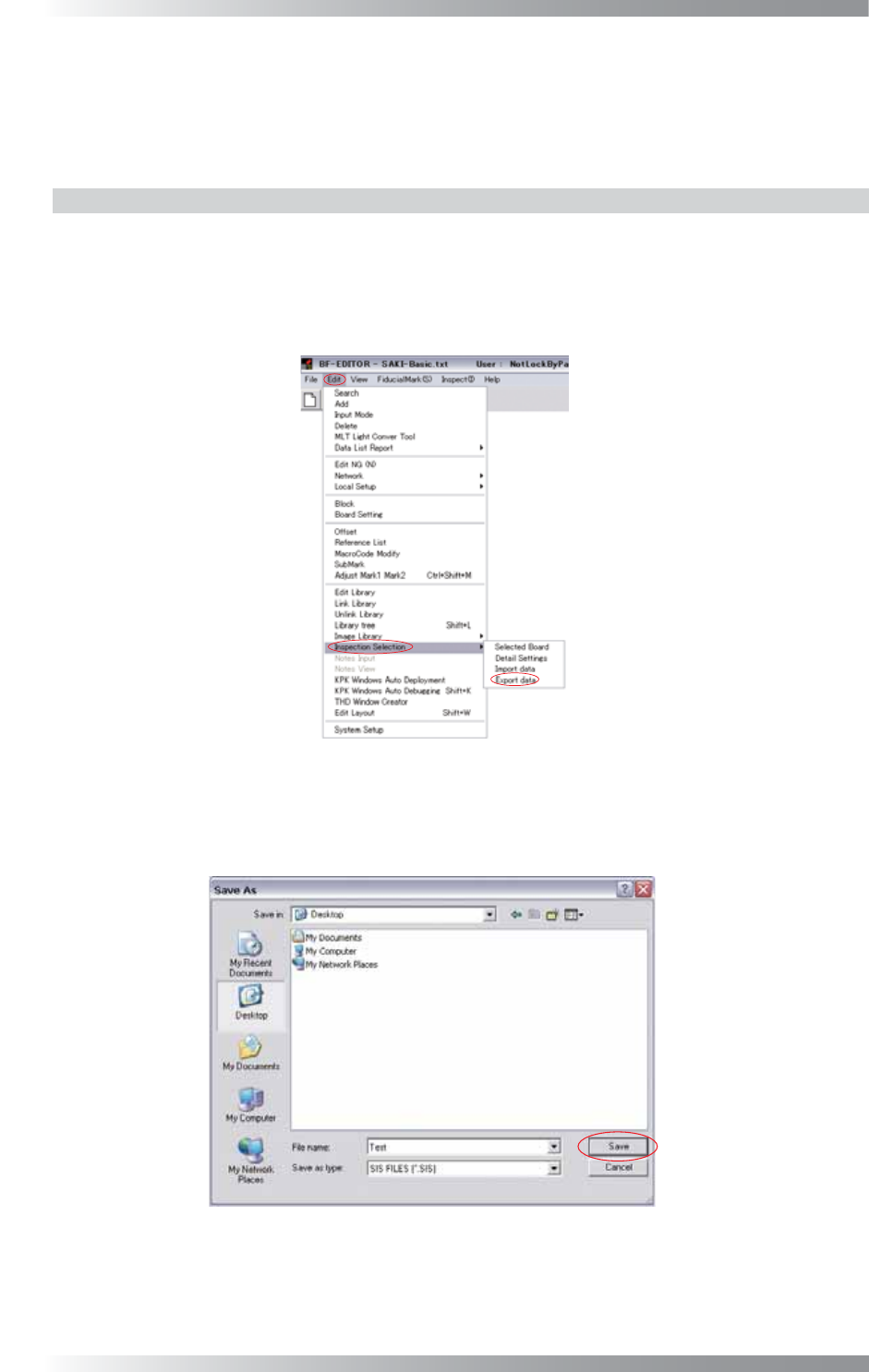
Step2: Select Edit > Inspection Selection > Export data from the menu-bar.
Figure 5-22 Export Data
Step3: The dialog shown in Figure 5-23 appears. Enter the fi le name.
Specify the directory to save and press Save.
Figure 5-23 Save