Programming_mail.pdf - 第194页
V- 4 Programming Manual Part V Other Function Step2: The dialog shown in Figure 1-5 appears. Register the PCB color as NG color. Procedures depend on the presence or absence of bare PCB. Figure 1-5 Specify PCB Color 1.2.…
V-3
Programming Manual
Part V Other Function
1.2 Make KPK Data
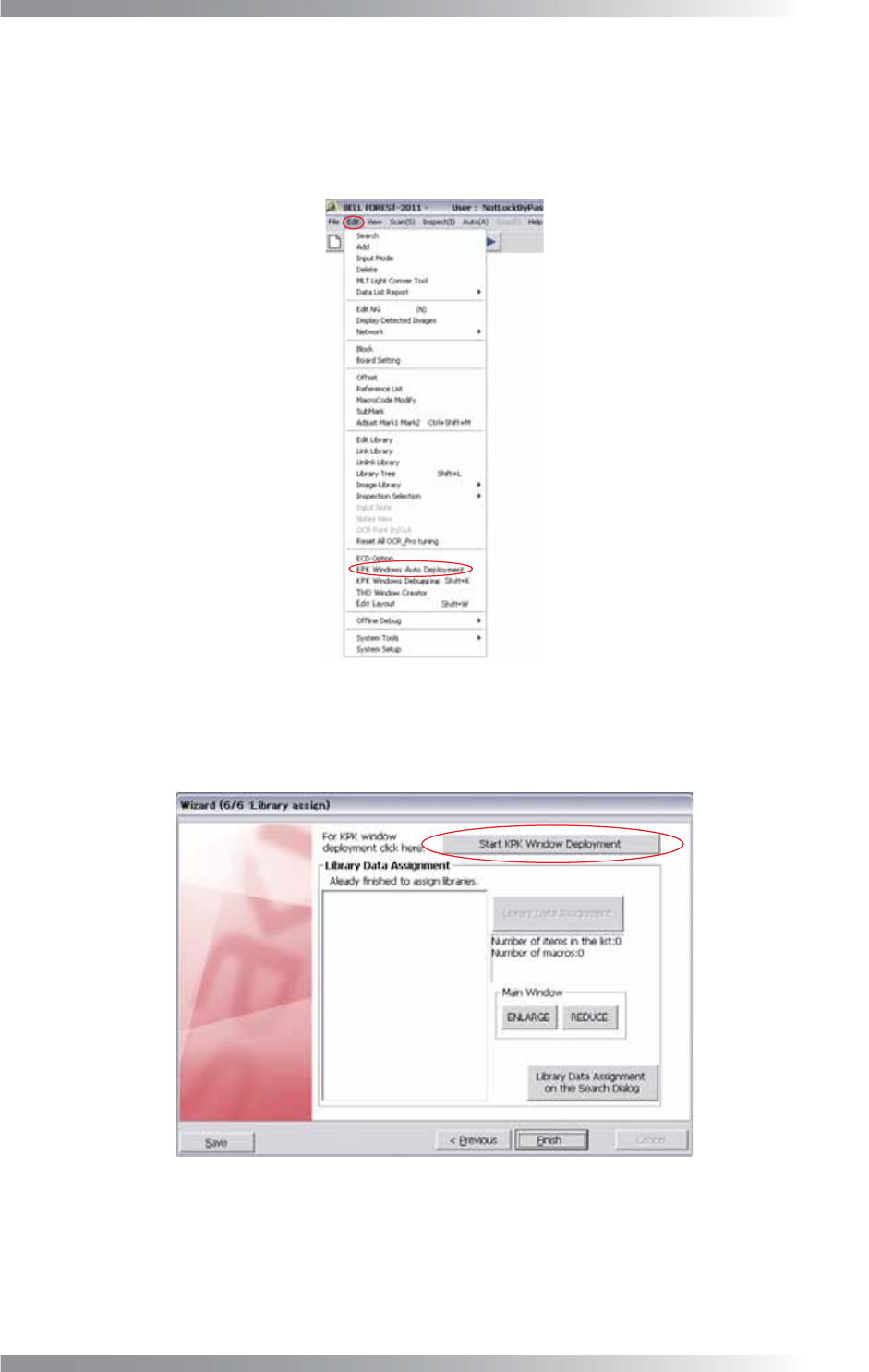
Step1: Open KPK setting dialog.
Select Edit > KPK Windows Auto Deployment from the menu-bar to add KPK in existing
inspection data.
Figure 1-3 KPK Windows Auto Deployment
Refer to Part II 1.1 Make Inspection Data on AOI Machine to make new inspection data and
press Start KPK Window Deployment in Step43.
Figure 1-4 KPK Deployment
V-4
Programming Manual
Part V Other Function
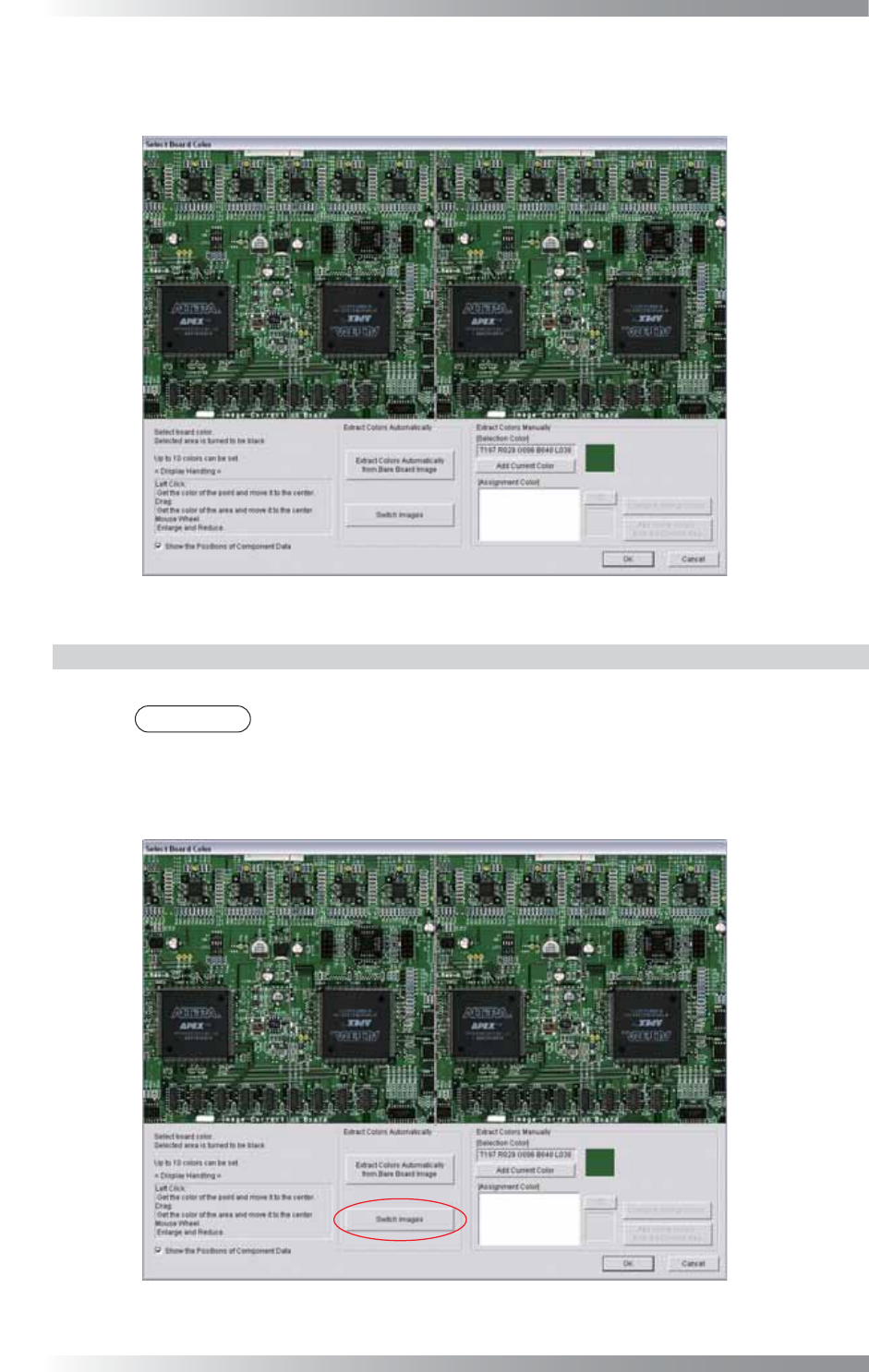
Step2: The dialog shown in Figure 1-5 appears. Register the PCB color as NG color.
Procedures depend on the presence or absence of bare PCB.
Figure 1-5 Specify PCB Color
1.2.1 With Bare PCB
Extracts a PCB color from a bare PCB and register it as an NG color.
NOTE
In the case of using KPK for post-refl ow inspection, it is recommended to use a bare
PCB after refl ow-oven. That is able to reduce color variation caused by fl ux and to
extract PCB color properly.
Step1: Press Switch Images.
Figure 1-6 Switch Images 1
V-5
Programming Manual
Part V Other Function
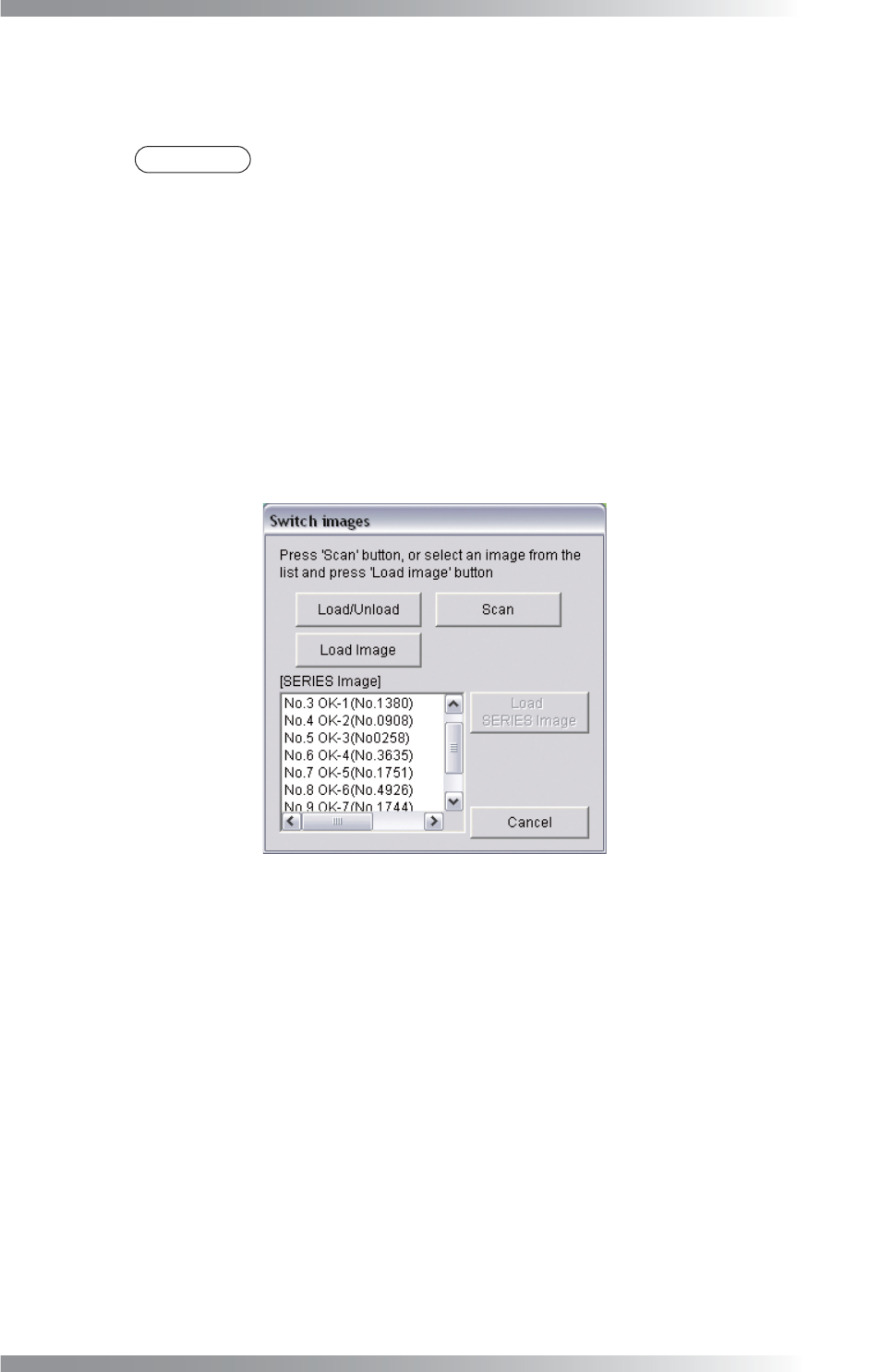
Step2: If bare PCBs are already scanned and saved, select the fi le from the SERIES Image list-
box, and press Load SERIES Image. If no series image is saved, procedures depend on
machine type benchtop machine, inline machine or BF-Editor.
NOTE
Series image indicates series of inspection images stored in the SERIES folder
under a board name folder.
In case of benchtop machines
Load the PCB to the machine and press Scan.
In case of inline machines
Adjust conveyor rail width and set the PCB on conveyor rail. Press Load / Unload.
Set the PCB in the machine and press Scan. To unload the PCB, press Load / Unload.
In case of BF-Editor
Press Load Image and select TOPLIGHT.BMP saved in arbitrary folder.
(e.g., D:\BF1\BF1DATA\Inspection Group Name\PCB Name folder)
Figure 1-7 Switch Images 2