Programming_mail.pdf - 第25页
I- 17 Programming Manual Part I Basic Operation T ab Item Description Family1 BF-Editor Connect BF-Editor Connects with BF-Editor (optional system). BF-Editor Speci fi es the saving destination of BF1DA T A in BF-Editor .…
I-16
Programming Manual
Part I Basic Operation
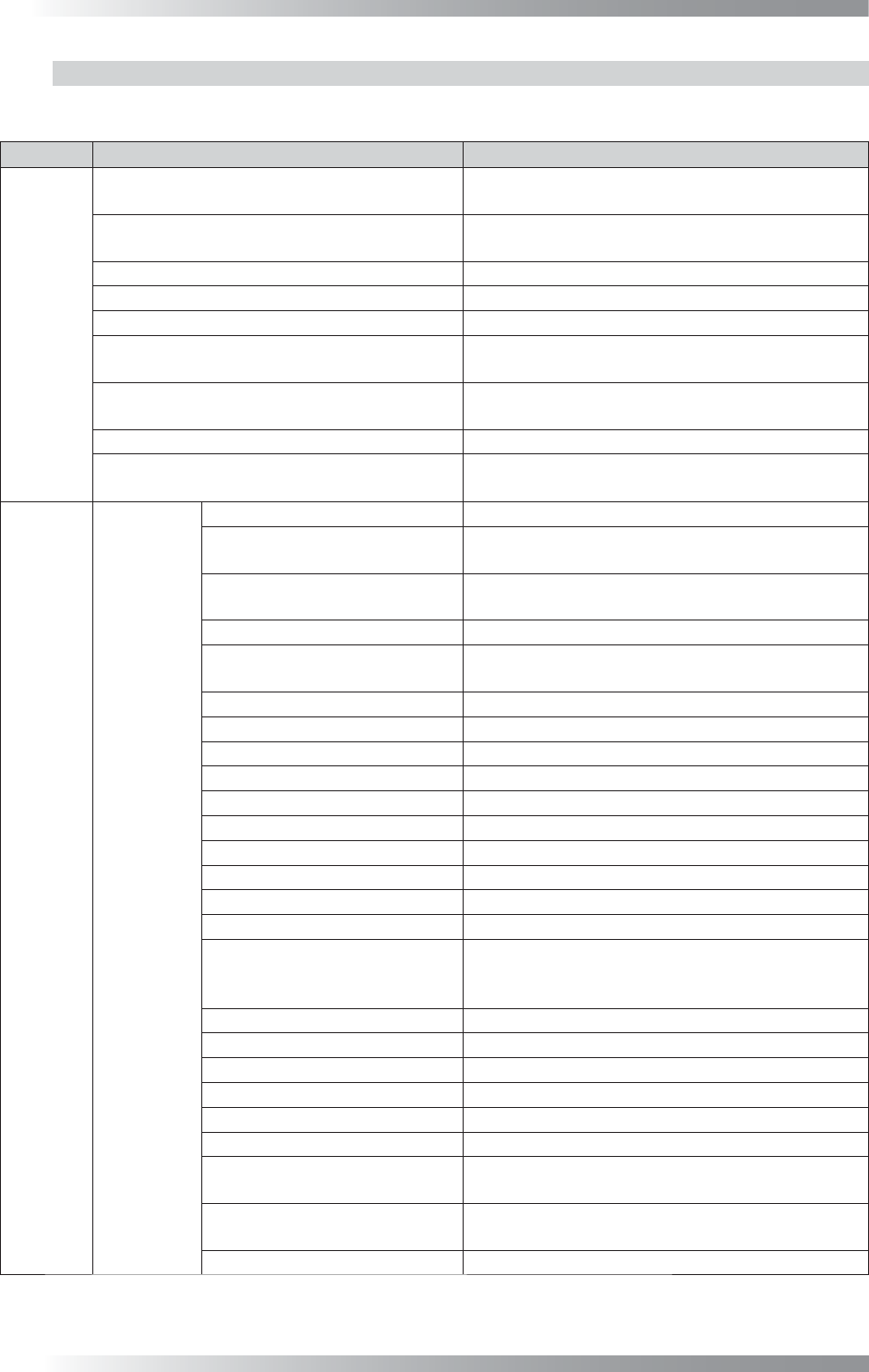
2.1.1 Contents of System
This table describes the contents of System.
Tab Item Description
System
BF-1 Data
Destination of the inspection data to save.
Default Setting: D:\BF1\BF1DATA
CAD/NC Data
Destination of the original CAD and NC data to
save. Default Setting: D:\BF1\NCDATA
Use Master Library
If using the master library, check Use Master Library.
Use Global Library
If using the global library, check Use Global Library.
Path Destination of the master library to save.
Auto Backup Data
Makes the backup fi le automatically. The confi rmation
dialog is displayed before making backup.
Internet Explorer
Links to the total report.
Default Setting: C:\Program Files\Internet Explorer
NG Type
Sets NG types. An NG type name can be modifi ed.
Running Mode
Switches the mode (Normal Mode/Test Mode/
Ignore Hardware).
Family1
BF-RP1
Connect BF-RP1
Connects to BF-RP1 (optional system).
BF-RP1
Specifi es the destination of the connected PC to
save in BF-RP1.
BF-RP1 Backup
Specifi es the master BF-RP1 PC in case of
connecting with several BF-RP1.
Export NG Files
Saves inspection results in the auto mode.
NG Limit
Specifi es the upper limit number of the NG
component per PCB.
NG File Specifi es the transferring destination of NG fi les.
NG File1
Specifi es the transferring destination of NG fi les (backup).
Date and Time
Saves the NG fi le name as inspection date and time.
Inspect Number
Saves the NG fi le name as inspection number.
Barcode
Saves the NG fi le name as barcode.
Use Lot Number
Manages NG fi les by a lot number.
Use Current Date to Lot Number
Creates a lot number folder with the current date.
Lot Number Required
A lot number must be entered in this setting.
Output only NG
Creates fi les with NG inspection results only.
Create False Call Data
Creates a false call data fi le.
Repair A/B Side by One Barcode
Reads the barcode to manage an inspection data
if a barcode is printed on a one side of a double-
side PCB.
Save BadMark Error
Outputs a badmark error to an NLT fi le.
Output Defect Images
Saves images of defect components.
Output False Images Saves images of components with false calls.
Output Wide Range Images
Transfers the wide range image to BF-RP1.
Output Side Light Images Transfers the images by SideLight.
jpeg
Saves images in JPEG format.
Image Limit
Specifi es the upper limit number of the NG image
to save per inspection.
Enable OK Button After Click
Component Images
Enables OK after clicking the image when a false
call occurs (benchtop machines only).
Disable OK component button Disables OK component.
I-17
Programming Manual
Part I Basic Operation
Tab Item Description
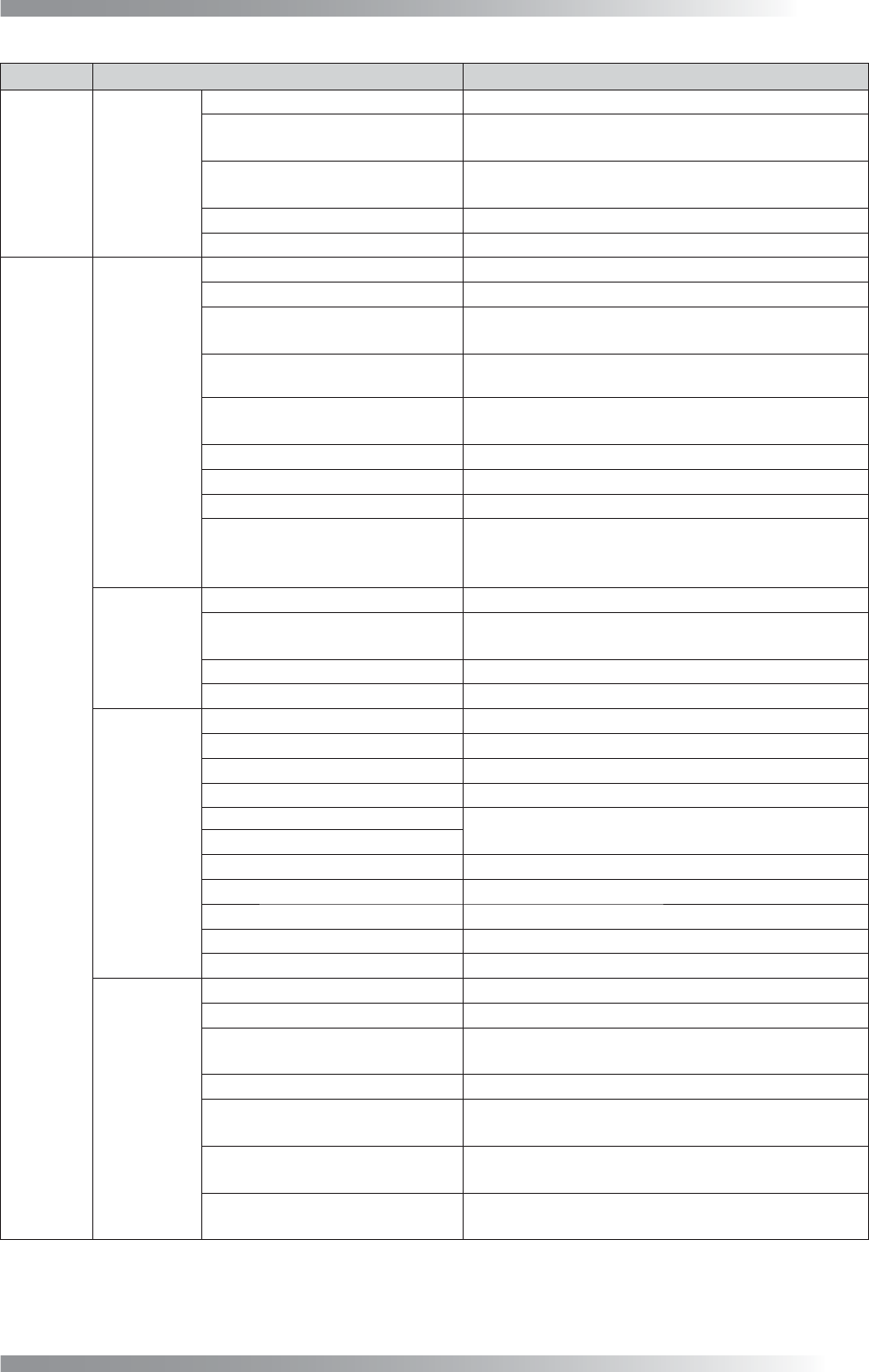
Family1
BF-Editor
Connect BF-Editor
Connects with BF-Editor (optional system).
BF-Editor
Specifi es the saving destination of BF1DATA in
BF-Editor.
Offl ine Debug
If using offl ine debug, specify the saving
destination of data.
Offl ine Debug : Always Active
Validates offl ine debug consistently.
Offl ine Debug : Don’t Send Library
Not to transfer library to BF-Editor.
Family2
BF-Monitor
Connect BF-Monitor
Connects with BF-Monitor (optional system).
BF-NET Command
Specifi es the folder of RAM disk of BF-Monitor.
BF-NET Data
Specifi es the saving destination of BF1DATA in
BF-Monitor.
Send Side Light Image to
BF-Monitor
Displays enlarged images in BF-Monitor.
Set Mouse Position in
BF-Monitor
The cursor of the mouse is automatically positioned
on the OK button when making judgements.
Send Enlarge Image to BF-Monitor
Transfers enlarged images of components to BF-Monitor.
Output OK Image to BF-NET
Transfers NG images and criterial OK images for judgements.
Show OK Image on BF-NET
Displays NG images and criterial OK images for judgements.
Send Image-Match and OCR
Reference
Displays an OK image along with an NG image when
using the character recognition algorithm.Check the
same item of BF-Monitor to use this function.
BF-View
Output log fi le for NetView
Connects with BF-View (optional system).
Image saved for NetView Limit
Specifi es the upper limit number of the NG image
to save per inspection.
Only Output NG Images
Transfers NG images only.
Only Output False Call Images
Transfers the images of false calls only.
BF-
WebTracer
/Logger
Connect BF-WebTracer Connects with BF-WebTracer (optional system).
Connect Logger Connects with Logger (optional system).
IP Address Not available.
Not Informed Time When Sendign Fail
Not available.
Output Component Information
Outputs inspection information when an inspection
result is OK.
Output OK Window Data
Output OCR log Transfers log information of OCR.
Only Output NG Images Transfers NG images only.
Only Output False Call Images
Transfers the images of false calls only.
Output whole Board Images
Transfers the whole PCB image.
Max Save Image Num Not available.
BF-
Manager
Connect BF-Manager
Connects with BF-Manager (optional system).
Read Barcode Before Load Board
Reads the barcode before loading the PCB.
Reading Barcode -
>
A side -
>
B side
Adds barcode information to inspection result of a
double-side PCB by reading barcode once.
Save Data Before Changing Model
Saves the inspection data before changing models.
Board Arrival Sensor
Uses a board arrival sensor (option) as a trigger of
barcode reading and model changing.
SMEMA Busy Signal
Uses a SMEMA Busy signal as a trigger of
barcode reading and model changing.
None
Retries the barcode reading and model changing
functions continuously without using any triggers.
I-18
Programming Manual
Part I Basic Operation
Tab Item Description
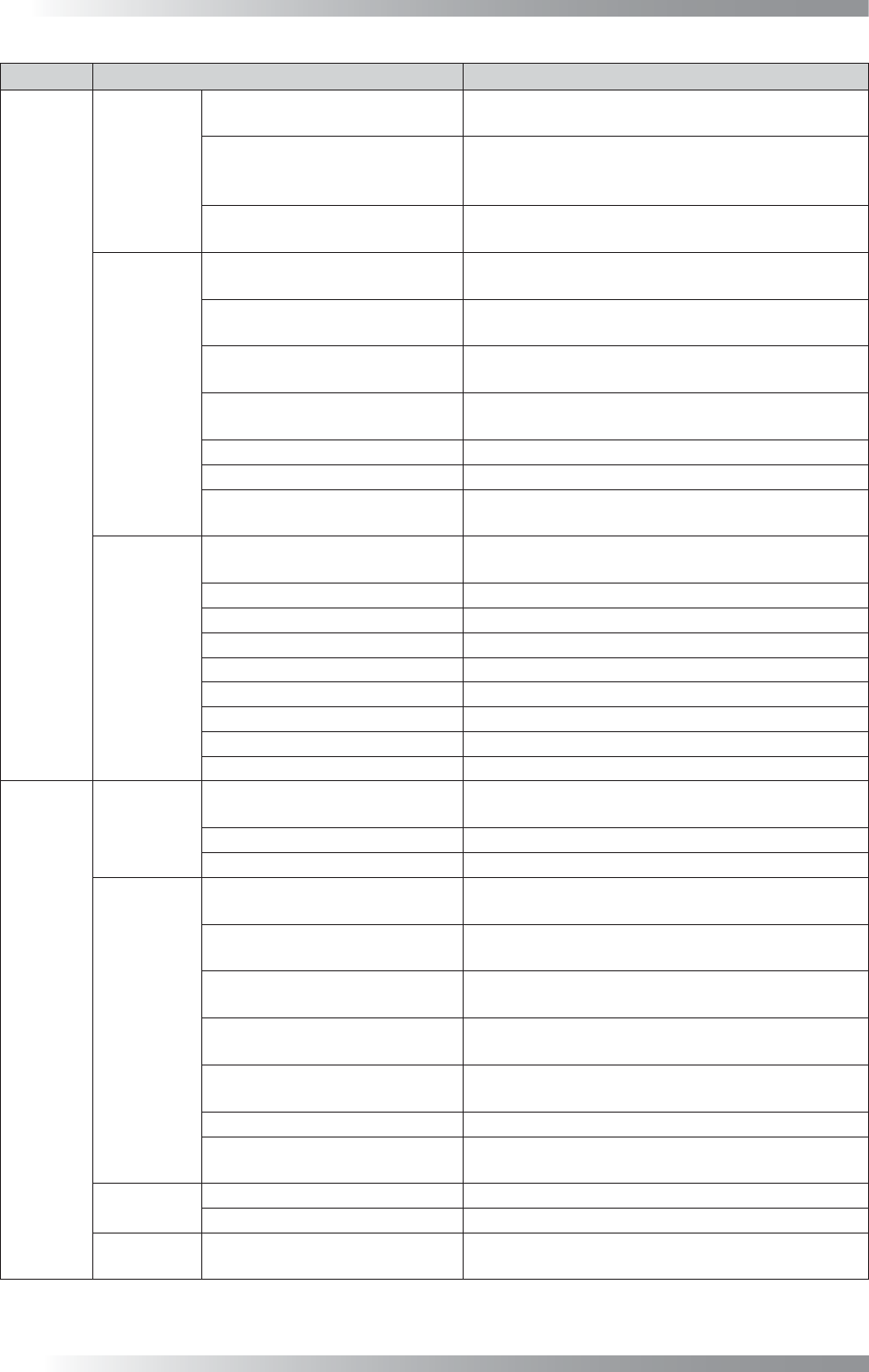
Auto
Warning
Operator Call at Mark Error
Conducts an operator call if a mark error occurs in
the auto mode.
Use Air Pressure Sensor
Conducts an operator call if air pressure of the
machine falls lower than the specifi ed level in the
auto mode.
Operator Call at Defects are
Detected
Conducts an operator call if NG is detected in the
auto mode.
Monitor Mode,
Debug Mode
Check Board After Exchanging
in Monitor Mode
The confi rmation dialog is displayed after PCB is
unloaded.
Check Board Inside in Monitor
Mode
At NG detection, the confi rmation dialog appears
with the PCB inside the machine.
Monitor Mode:
Buzzer Button Disable
Invalidates the function to stop an alarm if an NG
is detected.
Enable judgement button after
click component image
Enables OK after clicking the image if a false call
occurs (inline machine only).
Disable ALL OK button ALL OK is disabled.
Monitor Mode Automatically runs in the monitor mode.
Correcting OCR in Monitor Mode
Displays the registered characters of OCR and
current result.
Others
Screen Saver
The screen saver is activated after fi ve minutes
standby state.
Check Next Board
Check whether two PCBs are loaded.
Unload when Mark Error
Unloads the PCB if mark error occurs.
Save Detected Images Saves NG images in inspection data folder.
Auto Load Model Not available.
Continuous Drive in Pass Mode
Turns a motor consistently during the Pass mode.
Must input Model Name
Enter model name.
WinXP Super Thread
Unloads the PCB after scanning (Windows XP only).
Using Accelerating Method Accelerates processing speed of algorithm.
Display
Display
Set Scale 1:1 in Debug Mode
Displays debug mode images at the same
magnifi cation.
New Editor (Beginner mode)
Simplifi es Edit Mode.
Legacy display (Non BF+) Not available.
Programming
Display History Diagram
Displays sample graphs of Black/White in the
histogram.
Make Dry-joint Window
Automatically adds an inspection window for a
dryjoint if an IC inspection data extracted.
Set Binary Image on Upper/
Lower Level
Not available.
Display Statistic History
Diagram
Records the history of sample values of Black/
White and display in the histogram.
Link Library Automatically
Updates a library to the latest version
automatically when selecting inspection data.
Apply Library to the Bottom Side
Not available.
Use Multiple-Library
If multiple libraries need to be used, check Use
Multiple-Library.
System
Shutdown Windows Shutdowns Windows at BF1 termination.
Check Servo Not available.
Inspection
Data Selection
Don’t Show Folder Property
The folder property is not displayed when an
inspection data is selected.