Programming_mail.pdf - 第167页
IV - 3 Programming Manual Part IV Option Setting Item Description Jump Jumps to a corner pin having the same NG type with the selected inspection window . Same Moves to an inspection window having the same NG type with t…
IV-2
Programming Manual
Part IV Option Setting
1 Option Setting
1.1 Edit Component Data Setting
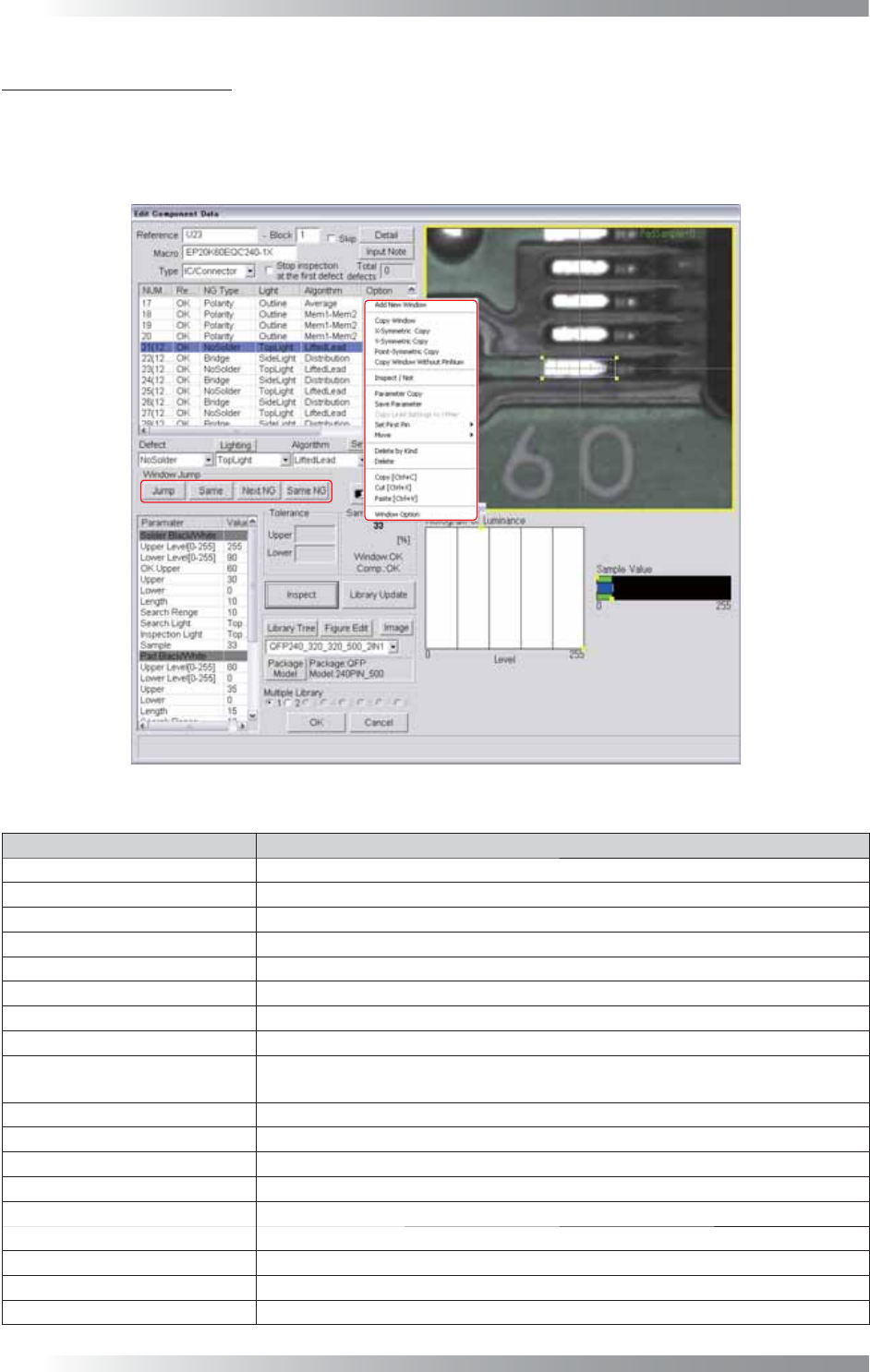
Right-click on the inspection item in Edit Component Data. The dialog shown in Figure 1-1 appears.
Figure 1-1 Edit Component Data
Item Description
Add New Window Makes a new inspection window.
Copy Window Copies the selected inspection window.
X-Symmetric Copy Copies the selected inspection window to the X-axis symmetric point.
Y-Symmetric Copy Copies the selected inspection window to the Y-axis symmetric point.
Point-Symmetric Copy Copies the selected inspection window to the point-symmetric point.
Copy Window Without PinNum Copies the selected inspection window excluding the lead pin number.
Inspect / Not Skips the inspection of the selected inspection window.
Parameter Copy
Copies the selected inspection window parameters to the same NG type inspection window.
Save Parameter
Saves inspection window parameters.
For details, refer to Part I 2.11 Predefi ne Setting.
Copy Lead Settings to Other Copies the lead setting of the selected inspection window to another lead.
Set First Pin Sets the lead of the selected inspection window as the start pin.
Move Changes the window position of the selected inspection.
Delete by Kind
Deletes inspection windows having the same NG type with the selected inspection window.
Delete Deletes the selected inspection window.
Copy Copies the selected inspection window.
Cut Cuts the selected inspection window.
Paste Pastes the copied/cut inspection window.
Window Option The dialog shown in Figure 1-2 appears.
Table 1-1 Edit Component Data
IV-3
Programming Manual
Part IV Option Setting
Item Description
Jump
Jumps to a corner pin having the same NG type with the selected inspection window.
Same Moves to an inspection window having the same NG type with the selected inspection window.
Next NG
Moves to the next NG window.
Same NG
Moves an NG window having the same NG type with the selected inspection window.
Table 1-2 Each Item of Window Jump
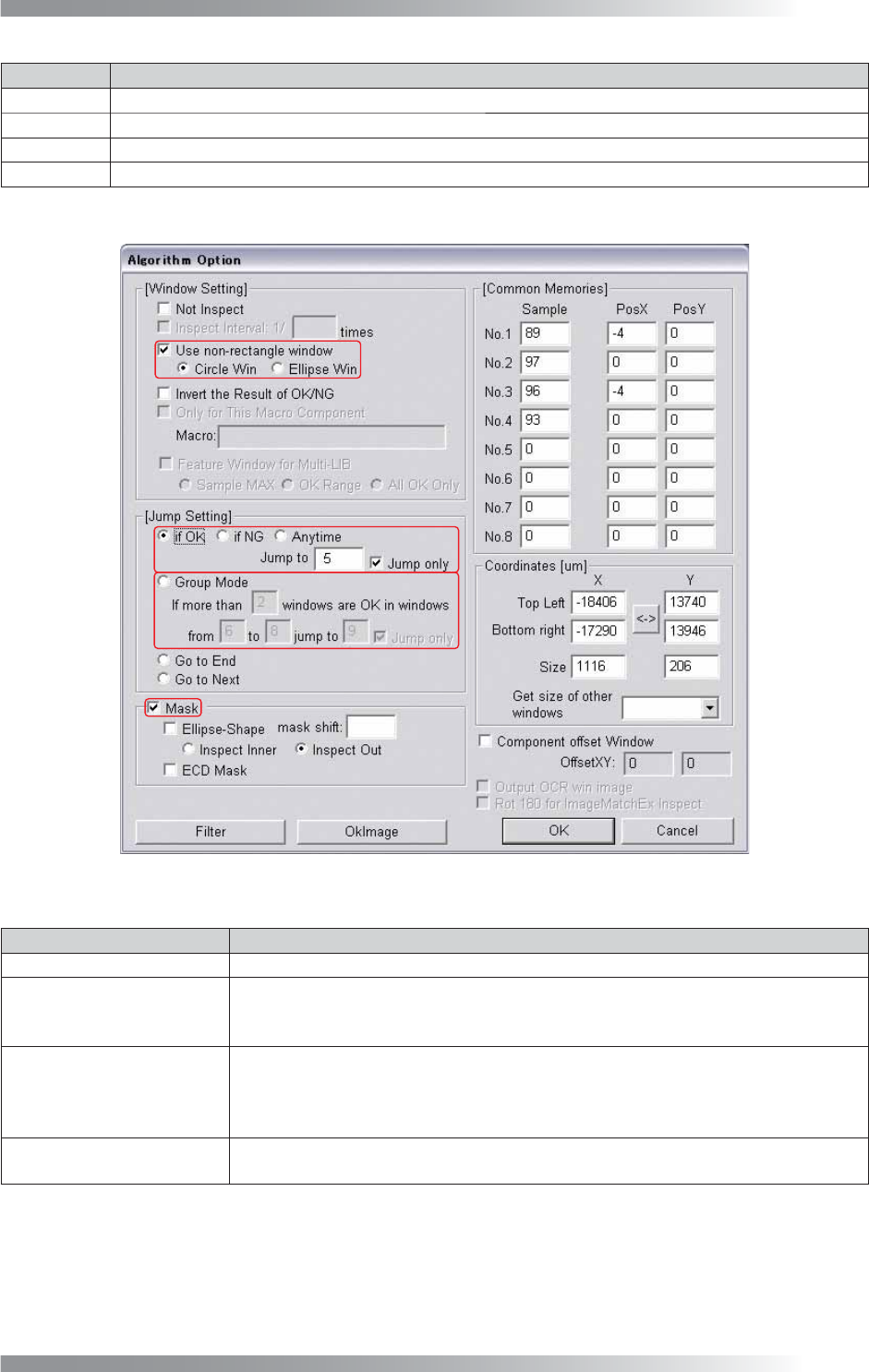
Figure 1-2 Algorithm Option
Item Description
Use non-rectangle window
Changes the inspection window shape to circle or ellipse.
If OK Jump to _
Jumps to the specifi ed inspection window if the selected window inspection result is OK.
Check If OK and Jump only and specify a jump point.
To reset to the default setting, check Go to Next.
Group Mode
Jumps to the specifi ed inspection window if a number of OK inspection windows are
bigger than specifi ed.
Check Group Mode and Jump only and specify the criteria.
To reset to the default setting, check Go to Next.
Mask
Excludes the masked area from the inspection. Press Using Mask on the upper
right corner of the dialog shown in Figure 1-2 to set a masked area.
Table 1-3 Algorithm Option
IV-4
Programming Manual
Part IV Option Setting
1.2 Inspection Skip Setting
1.2.1 Skip by Inspection Window
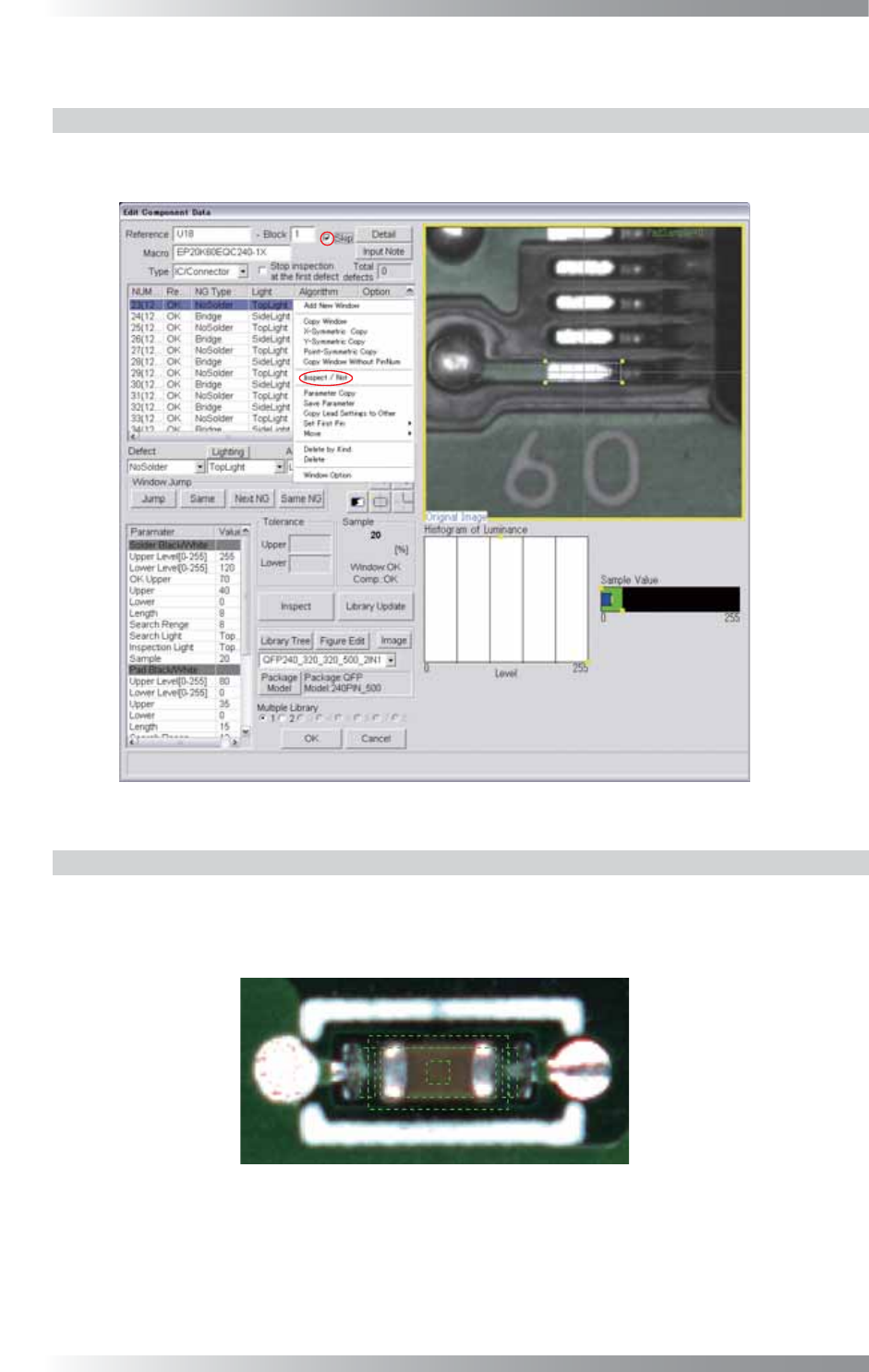
Right-click an inspection window item listed on the upper left side of Edit Component Data and
select Inspect / Not. To cancel the inspection skip setting, select Inspect / Not again.
Figure 1-3 Skip
1.2.2 Skip by Component
Check Skip on the upper side of the Edit Component Data dialog shown in Figure 1-3.
To cancel the inspection skip setting, un-check Skip.
If the inspection skip setting is applied, components are surrounded by green dotted lines.
Figure 1-4 Skip Inspection Component (Green Dotted Line)