Programming_mail.pdf - 第85页
III- 11 Programming Manual Part III Inspection Algorithm 1.4.3 Setting Procedur e Step1: Select SideLignt from the Lighting drop-down list. Step2: Make sure of the OK area’s average color. Adjust the window size smaller …
III-10
Programming Manual
Part III Inspection Algorithm
1.4 ColorXY
1.4.1 Inspection Overview
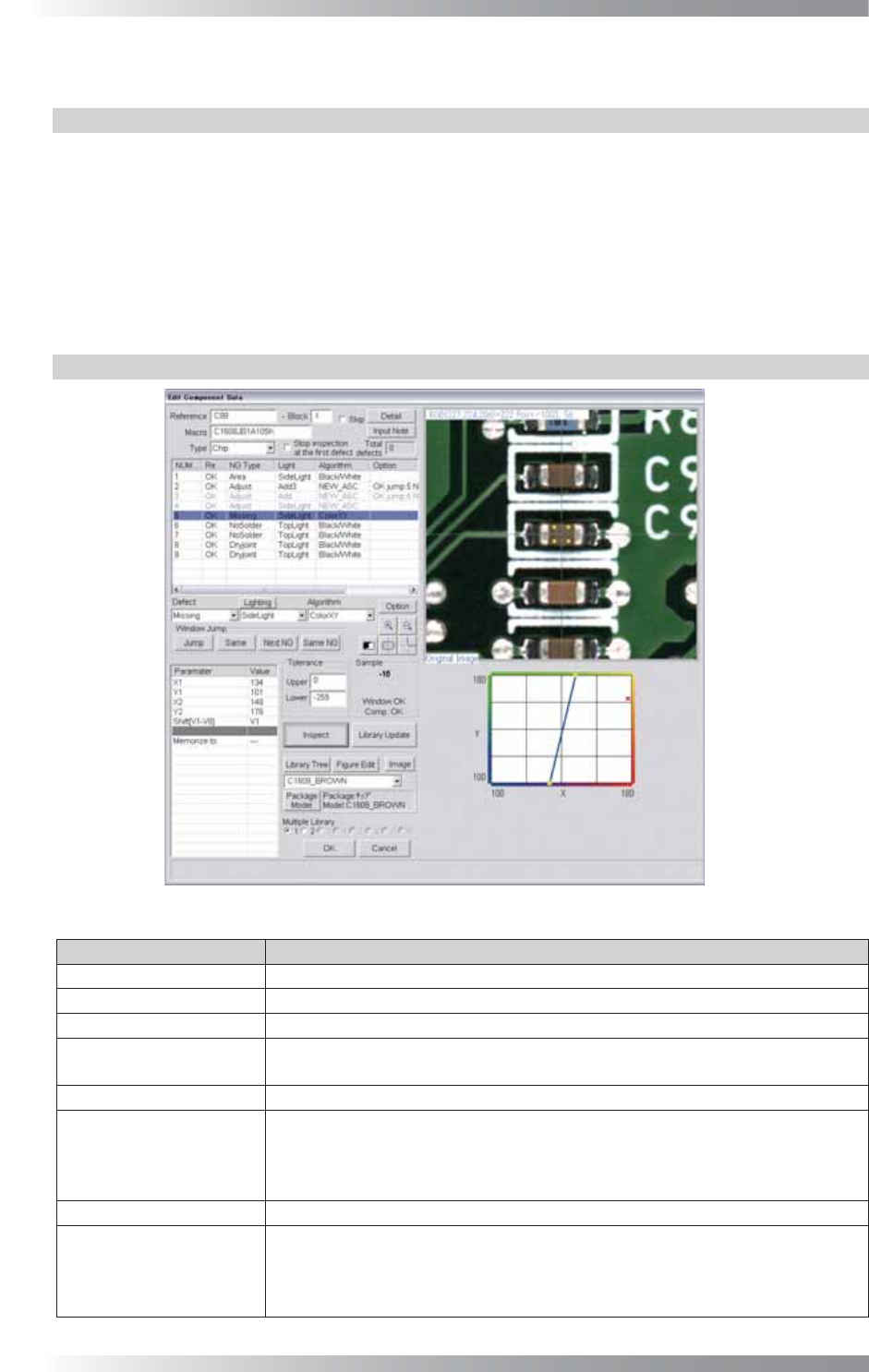
ColorXY is the algorithm to inspect the color of the component.
ColorXY calculates average color of the inspection window and display red x marking at the graph in
the lower right side of the dialog.
The average color of the area which is to be OK and the average color of the area which is NG are
displayed in the graph. Compare these two average colors and set the borderline between them.
ColorXY is suitable for missing, misalignment, and polarity inspection of the chip component by using
colors.
1.4.2 Parameter Setting
Figure 1-10 ColorXY
Parameter Description
Lighting Select SideLight.
Algorithm Select ColorXY.
X1, Y1, X2, Y2 This fi eld is automatically fi lled when the blue borderline is moved.
Shift[V1-V8]
Enter an appropriate vector by selecting from V1 to V8 according to the vector
used in the Memorize to fi eld in the Adjust window.
Memorize to -
Upper, Lower
If the average color of the area which is to be OK is in the left side of the blue
borderline, enter 255 in the Upper fi eld and 0 in the Lower fi eld. If the average
color of the area which is to be OK color is in the right side of the blue borderline,
enter 0 in the Upper fi eld and -255 in the Lower fi eld.
Sample Shows distance of x marking to blue borderline.
The graph in the lower
right side of the dialog
Average color in the window is displayed as red x marking. Green x marking is the
average color of other components which are sharing the same library. The
borderline can be moved by adjusting the yellow square points at the either end of
the blue borderline.
Table 1-4 Parameter of ColorXY
III-11
Programming Manual
Part III Inspection Algorithm
1.4.3 Setting Procedure
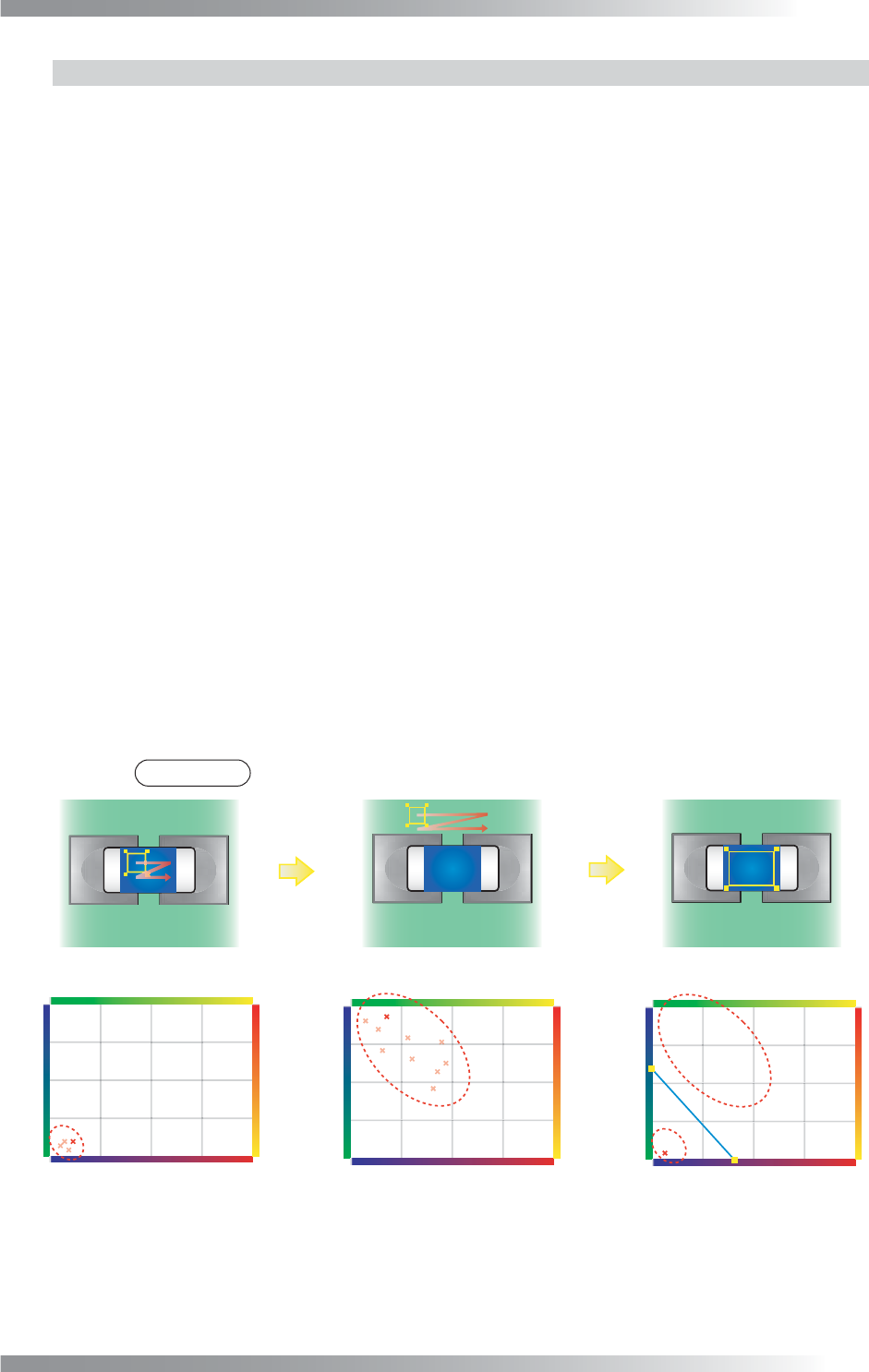
Step1: Select SideLignt from the Lighting drop-down list.
Step2: Make sure of the OK area’s average color. Adjust the window size smaller and make sure
of the x marking distribution in the graph in the lower right side of the dialog. The x marking
position is changed according to the window position.
Step3: Make sure of the NG area’s average color. Adjust the window size smaller and make sure
of the x marking distribution in the graph in the lower right side of the dialog. x marking
position is changed according to the window position.
Step4: Set an inspection window on the component.
Step5: Set the borderline between the position of the x marking if the window is in OK area and the
position of the x marking if the window is in NG area.
Step6: If the average color of the area which is to be OK is in the left side of the blue borderline, enter 255
in the Upper fi eld and 0 in the Lower fi eld. If the average color of the area which is to be OK color
is in the right side of the blue borderline, enter 0 in the Upper fi eld and -255 in the Lower fi eld.
Step7: Enter the appropriate vector into the Shift fi eld. Any value from V1 to V8 is available.
Select the vector according to the Memorize to fi eld of the Adjust window.
Step8: Press Inspect. Make sure that the inspection is completed properly.
NOTE
Sample value is the distance of x marking to blue borderline.
㪪㫋㪼㫇㪉 㪪㫋㪼㫇㪊 㪪㫋㪼㫇㪌
㪈㪇㪇 㪈㪏㪇
㪈㪇㪇
㪈㪏㪇
㪯
㪰
㪈㪇㪇 㪈㪏㪇
㪈㪇㪇
㪈㪏㪇
㪯
㪰
㪈㪇㪇 㪈㪏㪇
㪈㪇㪇
㪈㪏㪇
㪯
㪰
Figure 1-11 Setting Procedure of ColorXY
III-12
Programming Manual
Part III Inspection Algorithm
1.5 ChipMissing3
1.5.1 Inspection Overview
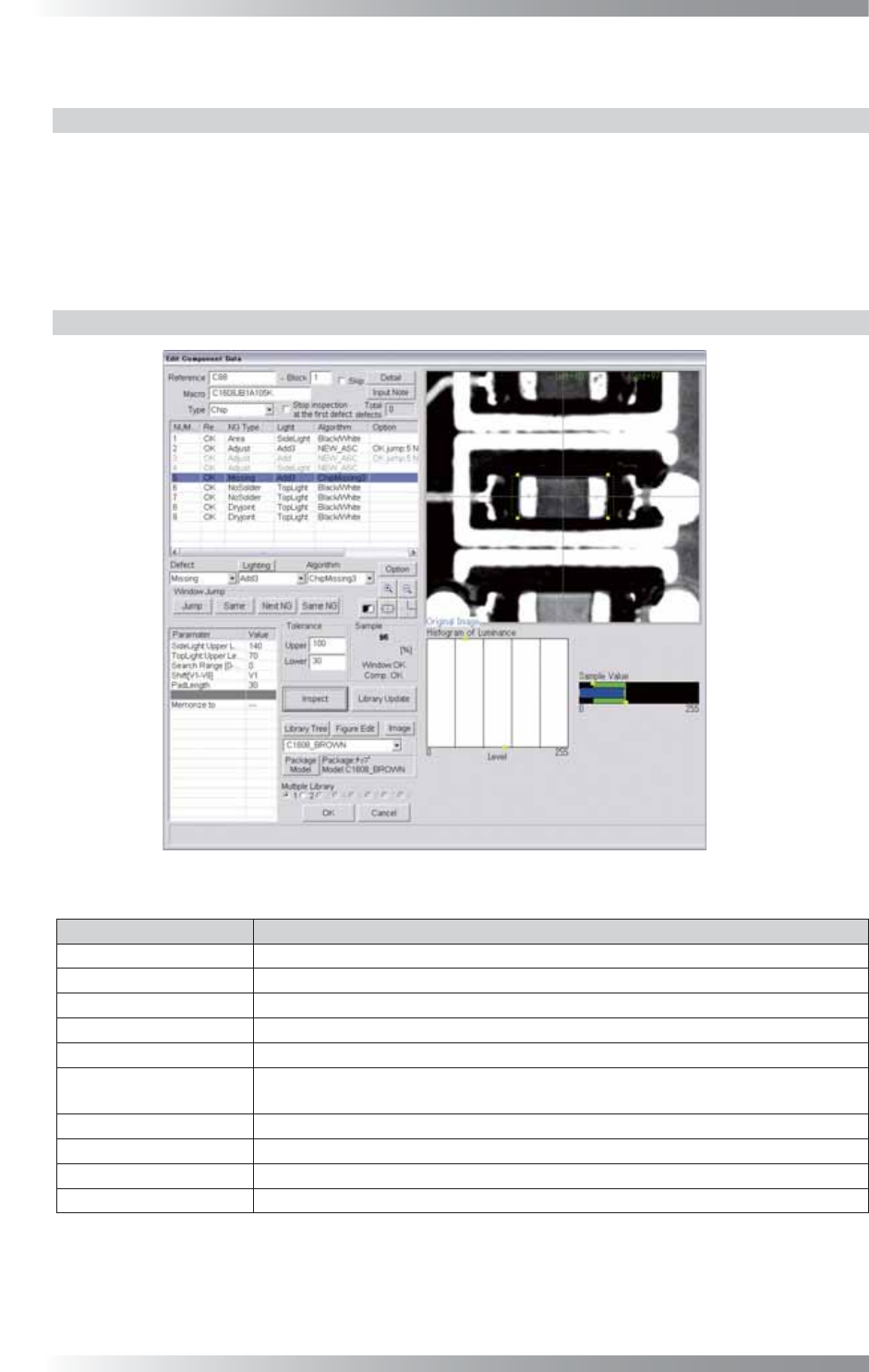
ChipMissing3 is the algorithm to inspect solder at either end of the chip component with TopLight and
SideLight used.
The brightness level of a solder is lower if a solder fi llet is formed. The brightness level of a solder is
higher if a solder fi llet is not formed, or a component is missing (refer to Figure 1-13).
ChipMissing3 is suitable for a chip missing inspection or solder inspection.
1.5.2 Parameter Setting
Figure 1-12 ChipMissing3
Parameter Description
Lighting Select SideLight.
Algorithm Select ChipMissing3.
SideLight Upper Level Upper limit of brightness level in OK range (SideLight).
TopLight Upper Level Upper limit of brightness level in OK range (TopLight).
Search Range[0-30] Enter 0.
Shift[V1-V8]
Enter the appropriate vector. Any value from V1 to V8 is available.
Select the vector according to the Memorize to fi eld of the Adjust window.
PAD Length Default is 30. Enter the bigger value to enlarge the inspection area.
Memorize to -
Upper, Lower Set the upper and lower limit of the OK range.
Sample Refer to Part III 1.5.4 Calculation of Sample Value.
Table 1-5 Parameter of ChipMissing3