Programming_mail.pdf - 第19页
I- 11 Programming Manual Part I Basic Operation 1.1.9 Mo ving Component Data Drag the component data to the target position. The Move Component dialog shown in Figure 1-15 appears. Select appropriate items. This function…
I-10
Programming Manual
Part I Basic Operation
1.1.8 Setting the Range
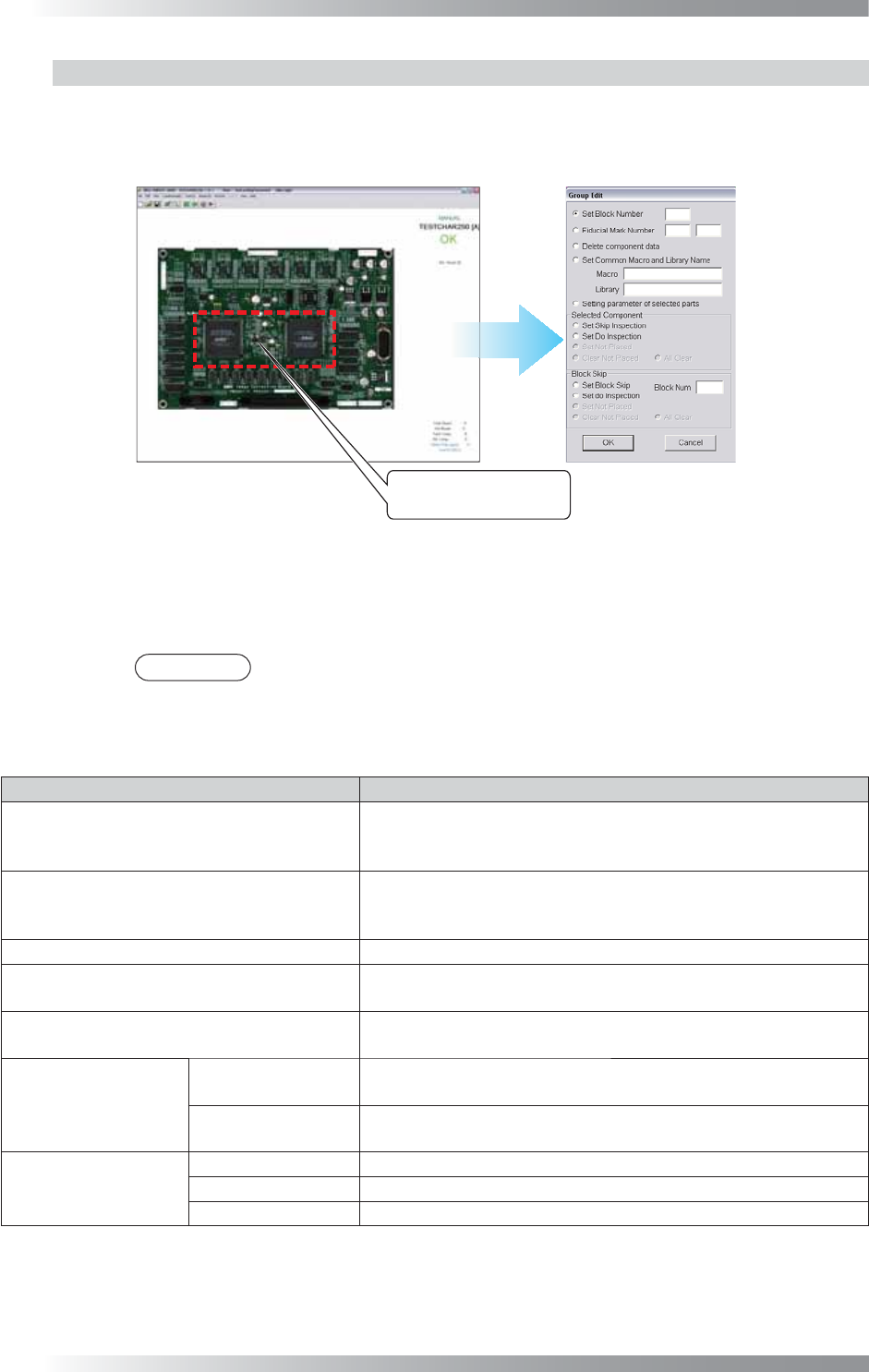
Surround an arbitrary area by mouse dragging. Inspection data of several components in the area
can be edited at once. This operation can be applied to both single and multiple components.
The Group Edit dialog shown in Figure 1-14 appears.
Surround an area with a
frame by mouse-dragging.
Figure 1-14 Group Edit
OK Applies changes and closes the dialog.
Cancel Cancels changes and closes the dialog.
NOTE
The above operation is available in Full View Screen and Enlarged View Screen.
The items on the Group Edit dialog are described in the table below.
Item Description
Set Block Number
If Sub number in the upper left side of the Edit Component Data
dialog (refer to Figure 1-10) needs to be changed, check Set Block
Number and enter an arbitrary value.
Fiducial Mark Number
If all data in the specifi ed area needs to be corrected with the fi ducial
marks, check Fiducial Mark Number and enter an arbitrary fi ducial
mark number.
Delete component data Deletes all components data in the specifi ed area.
Set common macro and library name
Unifi es macro names and library names of all components data in
a specifi ed area.
Setting parameter of selected parts
Sets the parameters of the inspection window of all components
data in a specifi ed area collectively.
Selected Component
Set skip inspection
Excludes all components in a specifi ed area from the target of the
inspection.
Set do inspection
Designates all components in a specifi ed area as the target of the
inspection.
Block Skip
Set skip inspection
Excludes a given sub board from the target of the inspection.
Set do inspection
Designates a given sub board as inspection target.
Block Num Inputs the sub board number.
Table 1-3 Each Item of
Group Edit
I-11
Programming Manual
Part I Basic Operation
1.1.9 Moving Component Data
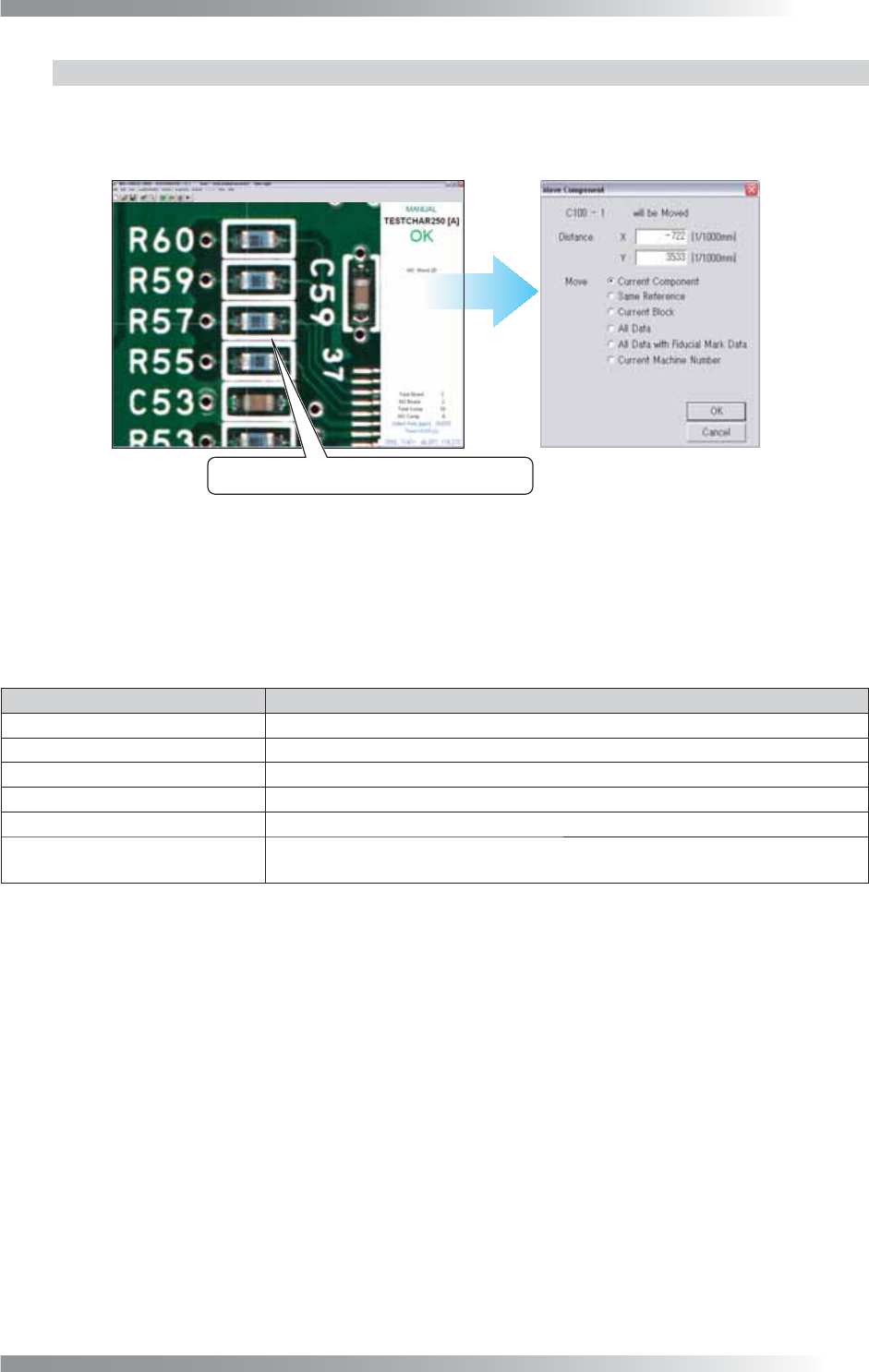
Drag the component data to the target position. The Move Component dialog shown in Figure 1-15
appears. Select appropriate items. This function is used to set CAD data on the actual position of a
component or to operate the ECD function.
Drag the component data to the target position.
Figure 1-15 Move Component
OK Applies changes and closes the dialog.
Cancel Cancels changes and closes the dialog.
The items on the Move Component dialog are described in the table below.
Item Description
Current Component
Moves only the selected components data.
Same Reference
Moves all components with the same reference name.
Current Block
Moves all components in the sub board with the selected component.
All Data
Moves all components data on a PCB together with the selected component.
All Data with Fiducial Mark Data
Moves all components data together with fi ducial marks data.
Current Machine Number
Moves all components data that uses the same mounter data as the selected
data. This function can also be used when updating data per mounters.
Table 1-4 Each Item of
Move Component
I-12
Programming Manual
Part I Basic Operation
1.1.10 Edit Layout
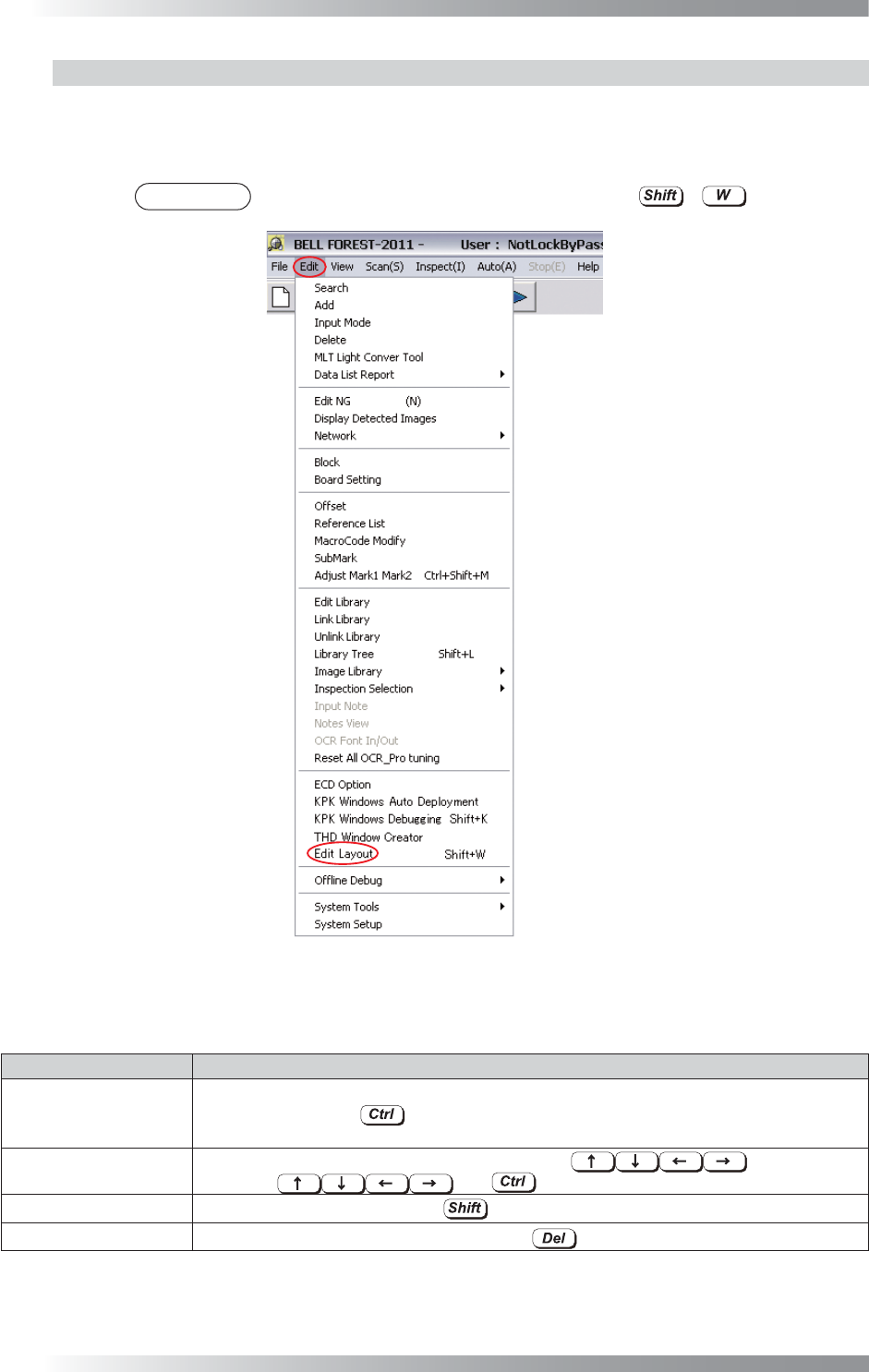
Edit Layout is a tool which enables to easily align components and assign a library and macro.
Edit Layout can be used in fare-paying software.
Select Edit > Edit Layout from the menu-bar. The dialog shown in Figure 1-18 appears.
NOTE
The same operation can be performed by pressing + .
Figure 1-16 Edit Layout
Operations using a mouse and keyboard are different from usual while the Layout Edit dialog is displayed.
Item Description
Select Components
Left-click a component or surround a component with a frame by mouse-dragging.
Select with pressing
to select multiple components.
Selected components are displayed with an orange window.
Move Components
Select a component by mouse-dragging or press
to move.
Pressing
with shortens the move length.
Copy Components When moving components with
pressed, these components are copied.
Remove Components Select components to be deleted and press
.
Table 1-5 Operations of
Edit Layout