Programming_mail.pdf - 第215页
V- 25 Programming Manual Part V Other Function Step10: Press and the dialog shown in Figure 2-13 appears. Check Activate ECD Function and press Sampling . Figure 2-13 Sampling Mode Step11: The dialog shown in Figure 2-14…
V-24
Programming Manual
Part V Other Function
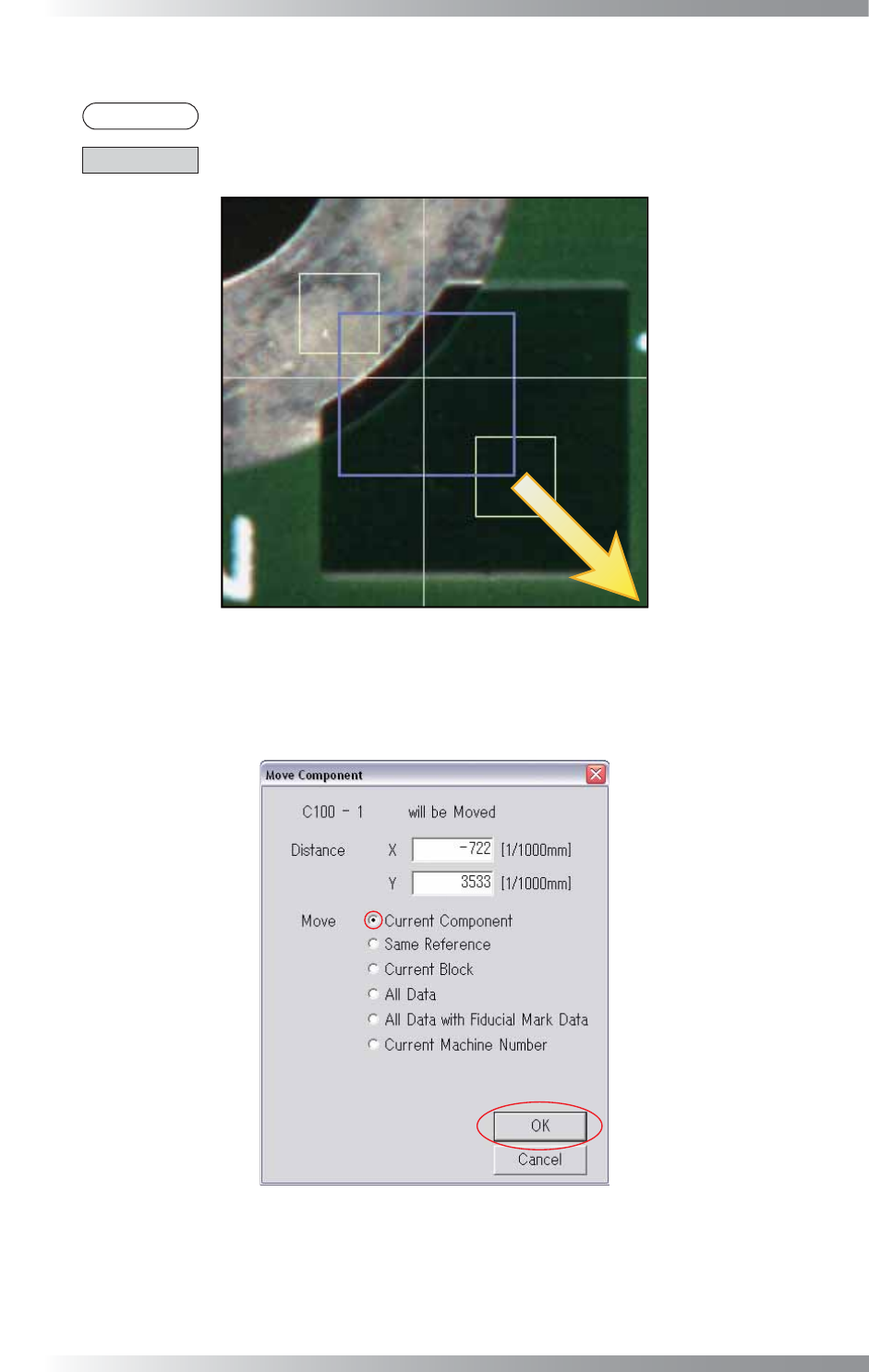
Step8: Yellow and purple windows are displayed. Drag the yellow window to adjust inspection area.
NOTE
Purple window shows inspection area.
CAUTION
Be sure to set an inspection area inside of fi ducial marks.
Figure 2-11 Enlarge Inspection Area
Step9: After dragging the yellow window, the dialog shown in Figure 2-12 appears.
Check Current Component and press OK.
Figure 2-12 Move Component Data
V-25
Programming Manual
Part V Other Function
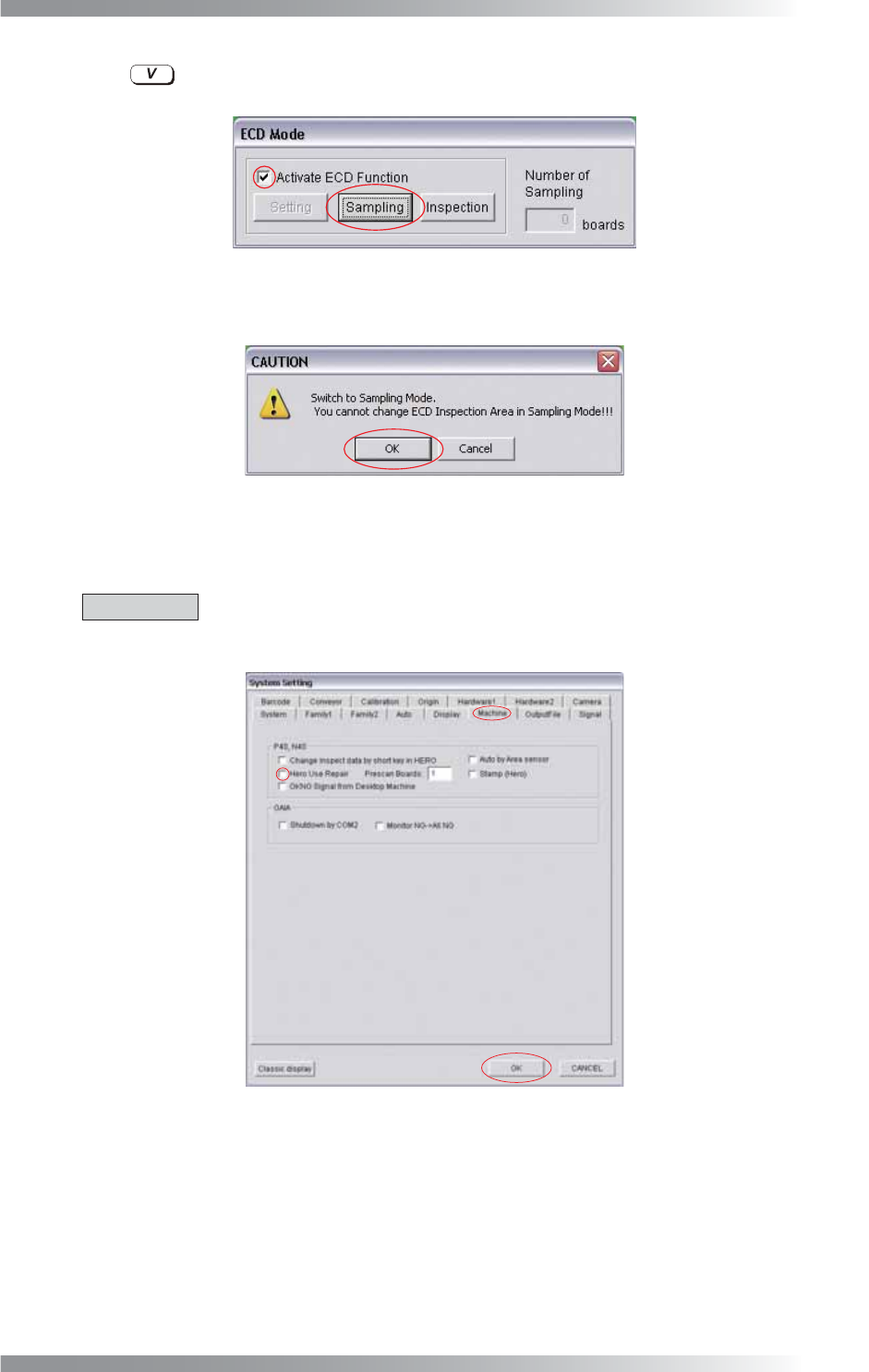
Step10: Press and the dialog shown in Figure 2-13 appears. Check Activate ECD Function and
press Sampling.
Figure 2-13 Sampling Mode
Step11: The dialog shown in Figure 2-14 appears. Press OK.
Figure 2-14 Switch to Sampling Mode
Step12: Select Edit > System Setup > System > Machine tab from the menu-bar. If Hero Use Repair is
checked, uncheck Hero Use Repair. After all the settings are completed, press OK.
CAUTION
If Hero Use Repair is checked before setting, check Hero Use Repair after ECD inspection
is completed.
Figure 2-15 Hero Use Repair
V-26
Programming Manual
Part V Other Function
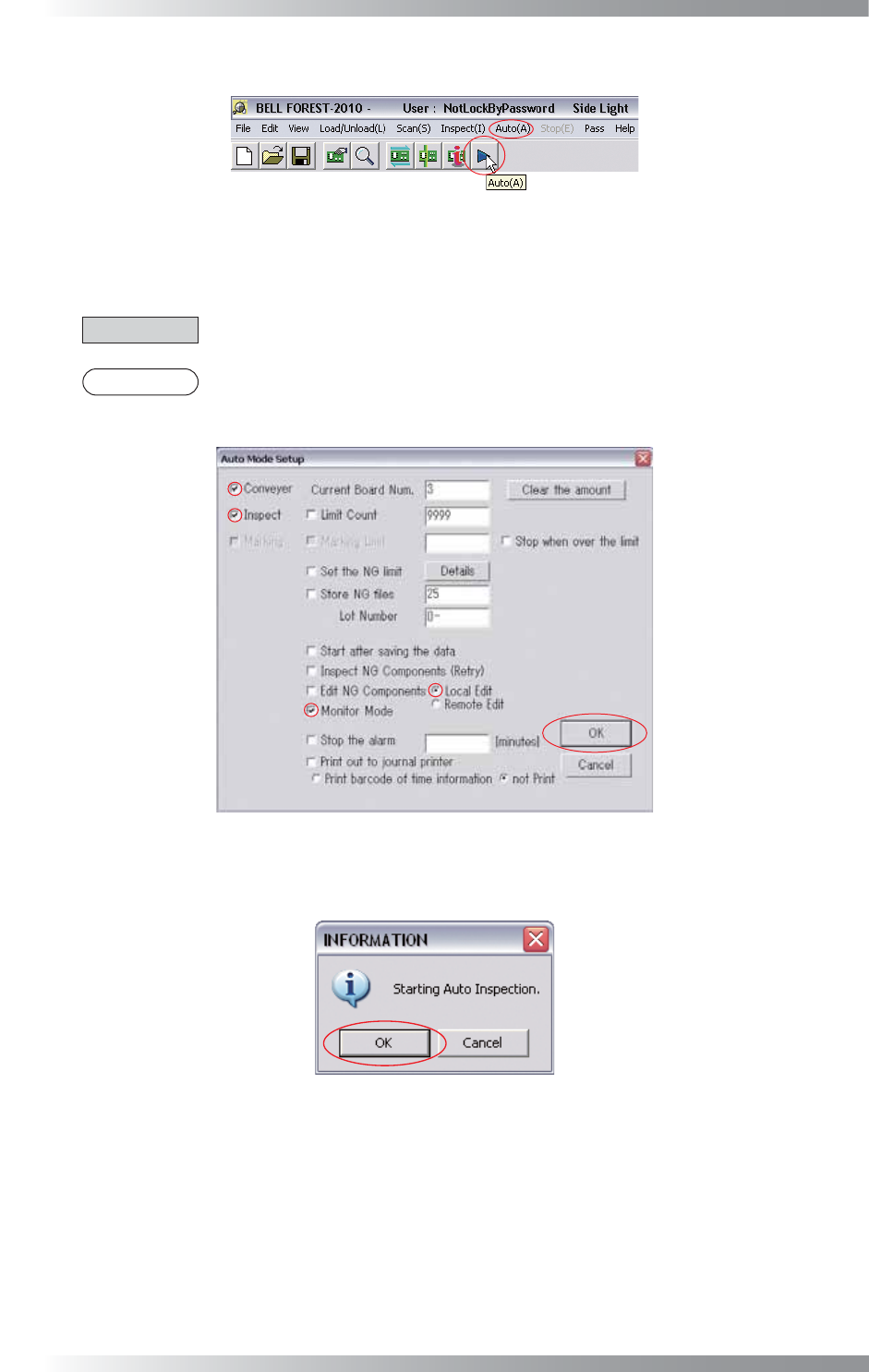
Step13: Press Auto button on the tool-bar or select Auto from the menu-bar.
Figure 2-16 Auto
Step14: Check Conveyor, Inspect, and Monitor Mode. Press OK. Sampling will be executed in Monitor
Mode.
CAUTION
No Conveyor box in benchtop machine.
NOTE
In case of sampling in Debug mode, uncheck Monitor Mode. Check Edit NG Components
and Local Edit.
Figure 2-17 Auto Mode Setting
Step15: The dialog shown in Figure 2-18 appears. Press OK.
Figure 2-18 Start Auto Inspection