Programming_mail.pdf - 第204页
V- 14 Programming Manual Part V Other Function 1.3.2 Edit Component Data Dialog Double-click the component in KPK Debug dialog and the dialog shown in Figure 1-18 appears. The second inspection window is KPK window . Fig…
V-13
Programming Manual
Part V Other Function
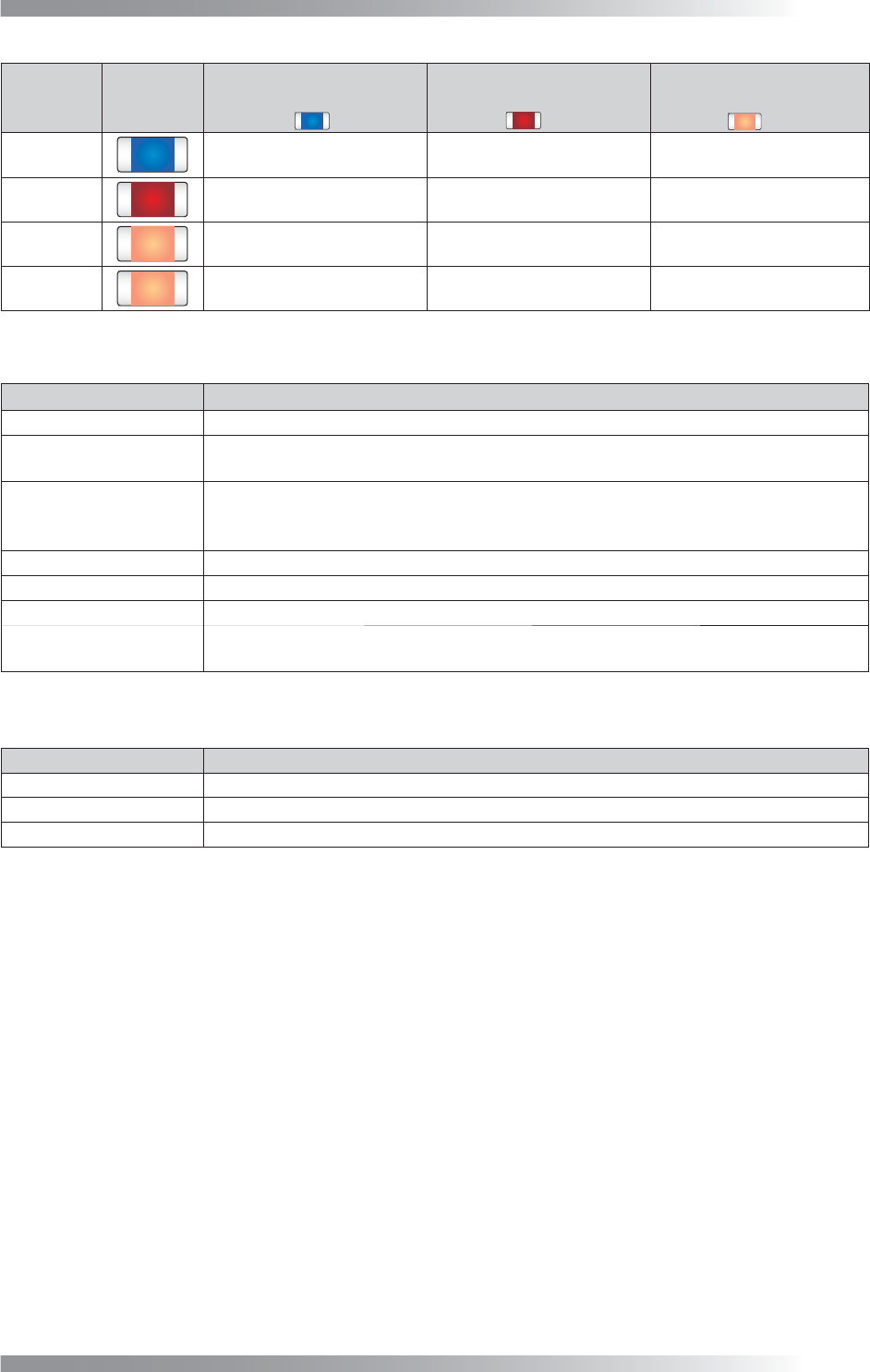
Component
Name
Component
Color
Inspection Result
before Adjustment
(Registered as OK color)
Inspection Result
after Adjustment 1
(Combine with OK color)
Inspection Result
after Adjustment 2
(Combine with OK color)
C1
OK OK OK
C2
NG (False Calls) OK OK
C3
NG (False Calls) NG (False Calls) OK
C4
NG (False Calls) NG (False Calls) OK
Table 1-5 The Example of Teach OK Colors
Item Description
Library Name
Library name.
OK Comp. / NG Comp.
Each numbers of the component OK/NG is displayed. If the inspection data is adjusted
properly, the result will be OK with OK PCB and the result will be NG with bare PCB.
Color distance
Extract two the most similar colors. One is from OK color, another is from NG color. The
distance of these two similar colors is displayed as a value. The smaller the value is, the
less color difference is between components and PCBs.
Reference Name
Component name.
Block number Sub board number.
NG
Displays NG when a component is judged as NG by KPK.
Sample
Sample values is the percentage of area which brightness level is over the specifi ed
value in the inspection window if the default algorithm Black/White is used.
Table 1-6 Each Item of Header
Item Description
Side
SideLight image is displayed.
OKNGColors
OKNGColors image is displayed.
Black/White
Monochrome image by algorithm Black/White is displayed.
Table 1-7 Select Lighting
V-14
Programming Manual
Part V Other Function
1.3.2 Edit Component Data Dialog
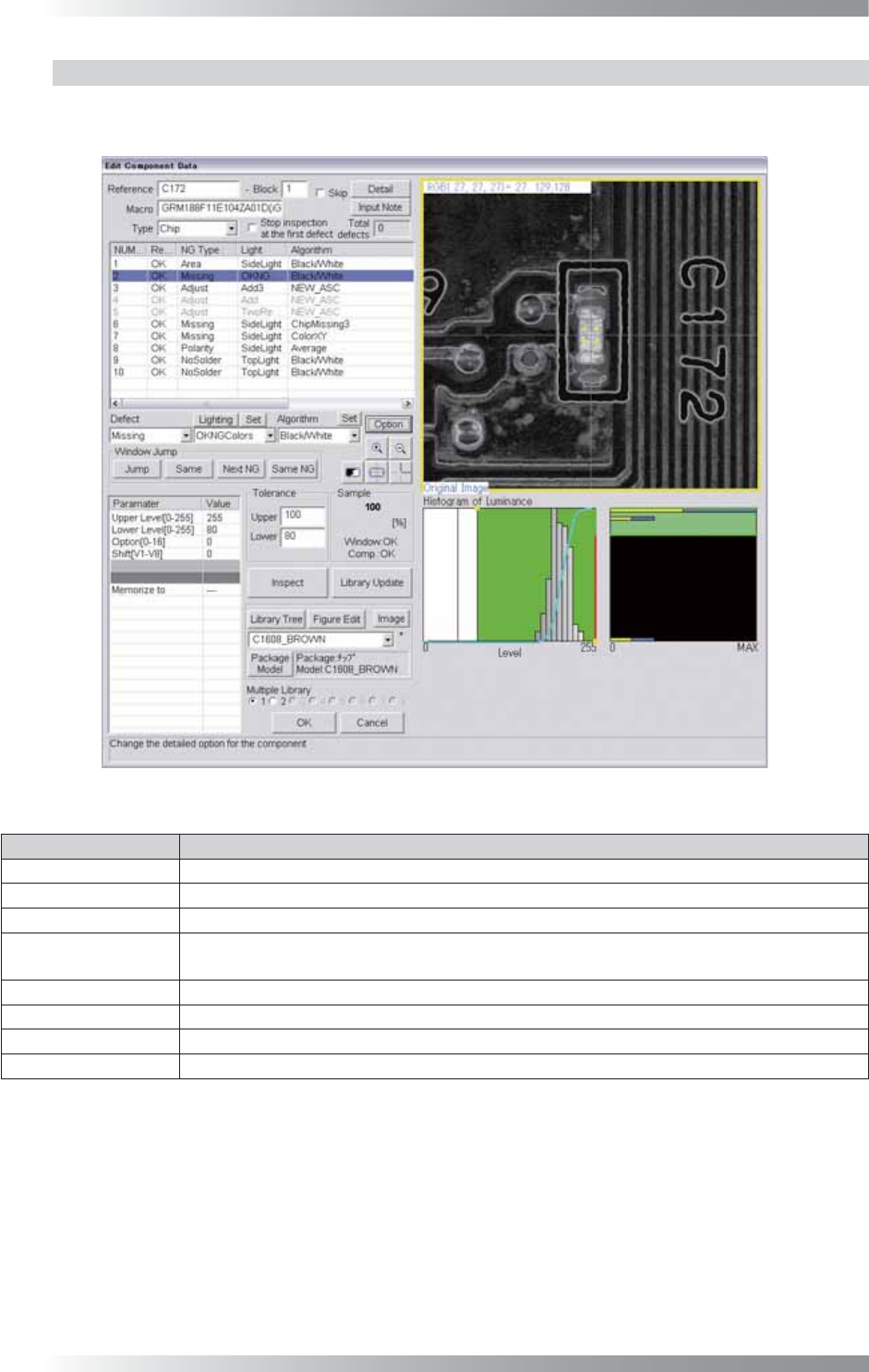
Double-click the component in KPK Debug dialog and the dialog shown in Figure 1-18 appears.
The second inspection window is KPK window.
Figure 1-18 KPK Window
Parameter Description
Defect Select Missing.
Lighting Select OKNGColors. Press Set in the right side of Lighting to set details.
Algorithm Select Black/White.
Upper Level[0-255],
Lower Level[0-255]
Upper Level is upper limit of brightness level. Lower Level is lower limit of brightness level.
Enter 255 in Upper Level fi eld. Press Set in the right side of Algorithm to adjust Lower Level.
Option[0-16] Enter 0.
Shift[V1-V8] Enter 0.
Memorize to -
Upper, Lower
Set the OK range. Enter 100 in Upper fi eld and arbitrarily value in Lower fi eld.
Table 1-8 Parameter of KPK
V-15
Programming Manual
Part V Other Function
1.3.3 Detail Settings of OKNGColors Lighting
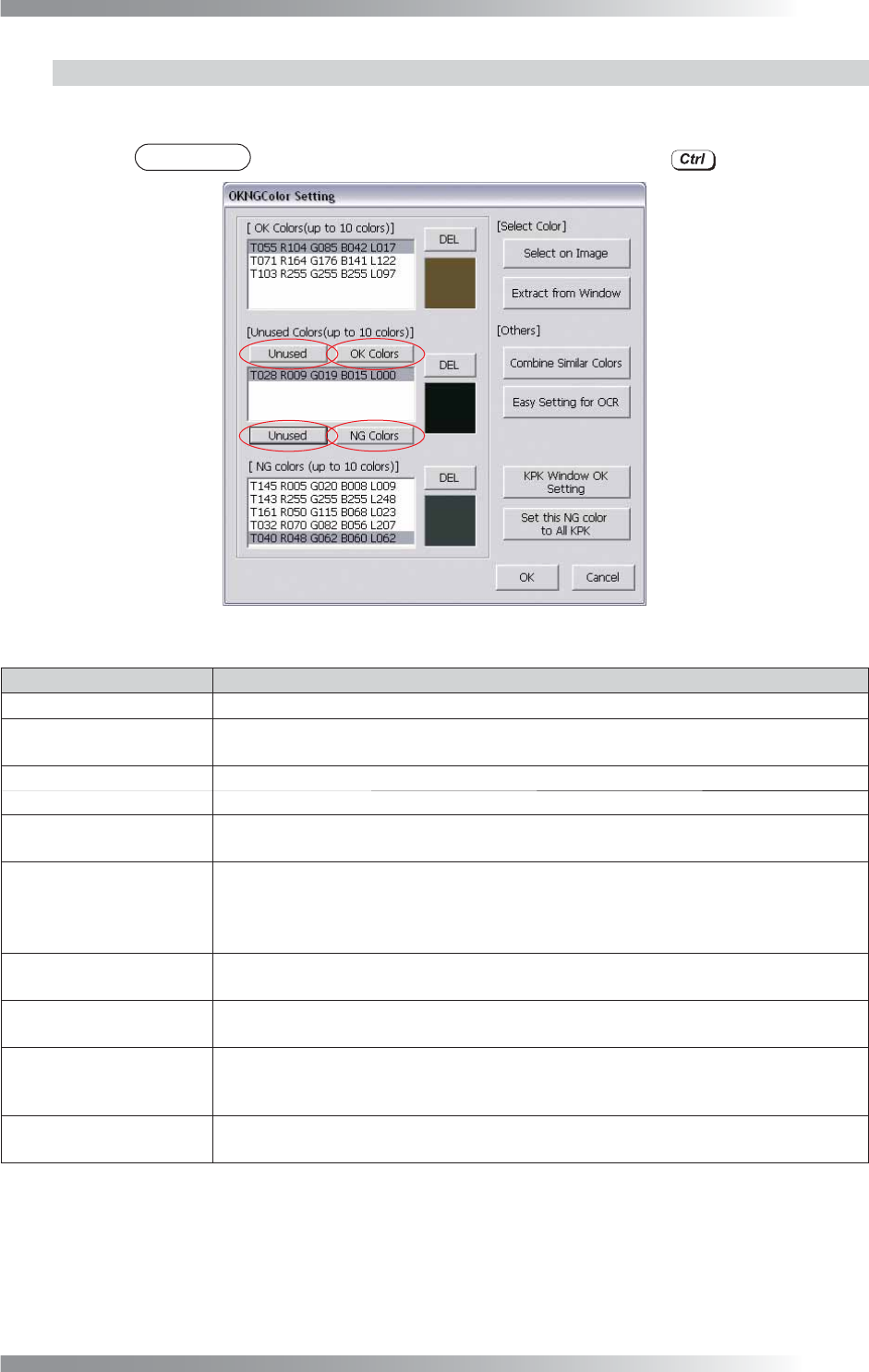
Press Set in the right side of Lighting in Figure 1-18. The dialog shown in Figure 1-19 appears. Press OK
Colors, Unused, or NG Colors to move colors to the list of OK Colors, Unused Colors, or NG Colors.
NOTE
Press OK Colors, Unused, or NG Colors by pressing to copy colors.
Figure 1-19 OKNGColors Lighting
Parameter Description
OK Colors
The top list is OK color list. Maximum 10 colors can be registered.
Unused Colors
The middle list is to save data for temporary purpose.
Colors listed here can be referred from any other components or libraries.
NG Colors
The bottom list is NG color list. Maximum 10 colors can be registered.
DEL
Deletes the selected color.
Select on Image
Extracts selected colors manually. Component dialog appears (refer to Figure 1-20).
Left-click colors and press Select as OK color or Select as NG color.
Extract from Window
Extracts colors from the window automatically. The dialog shown in Figure 1-21
appears. Press OK (the dialog shown in Figure 1-22 appears). Check Set as OK
Color, Set as NG Color, or No Setting. Press OK. This setting is suitable for if PCB
and component colors are very similar.
Combine similar Colors
Combines the closest colors between OK/NG colors to reduce the number of colors
(refer to Figure 1-23). Press OK to combine the selected colors.
Easy Setting for OCR
Registers OK colors and NG colors automatically to recognize characters on the
component.
KPK Window OK Setting
Extracts component colors from the window automatically and register as OK Color.
The dialog shown in Figure 1-24 appears. Press OK. This setting is suitable for if
component color changed by a change to lot.
Set this NG Color to All KPK
Extracts the selected NG color of the current window and refl ect this NG color all KPK
windows. This setting is suitable for if PCB color changed by a change to lot.
Table 1-9 Detail Settings of OKNGColors Lighting