Programming_mail.pdf - 第55页
II- 11 Programming Manual Part II Inspection Data Step16: Press Next to enter PCB size and PCB thickness manually. Enter necessary conditions to extract these data automatically. Make sure that necessary data is correctl…
II-10
Programming Manual
Part II Inspection Data
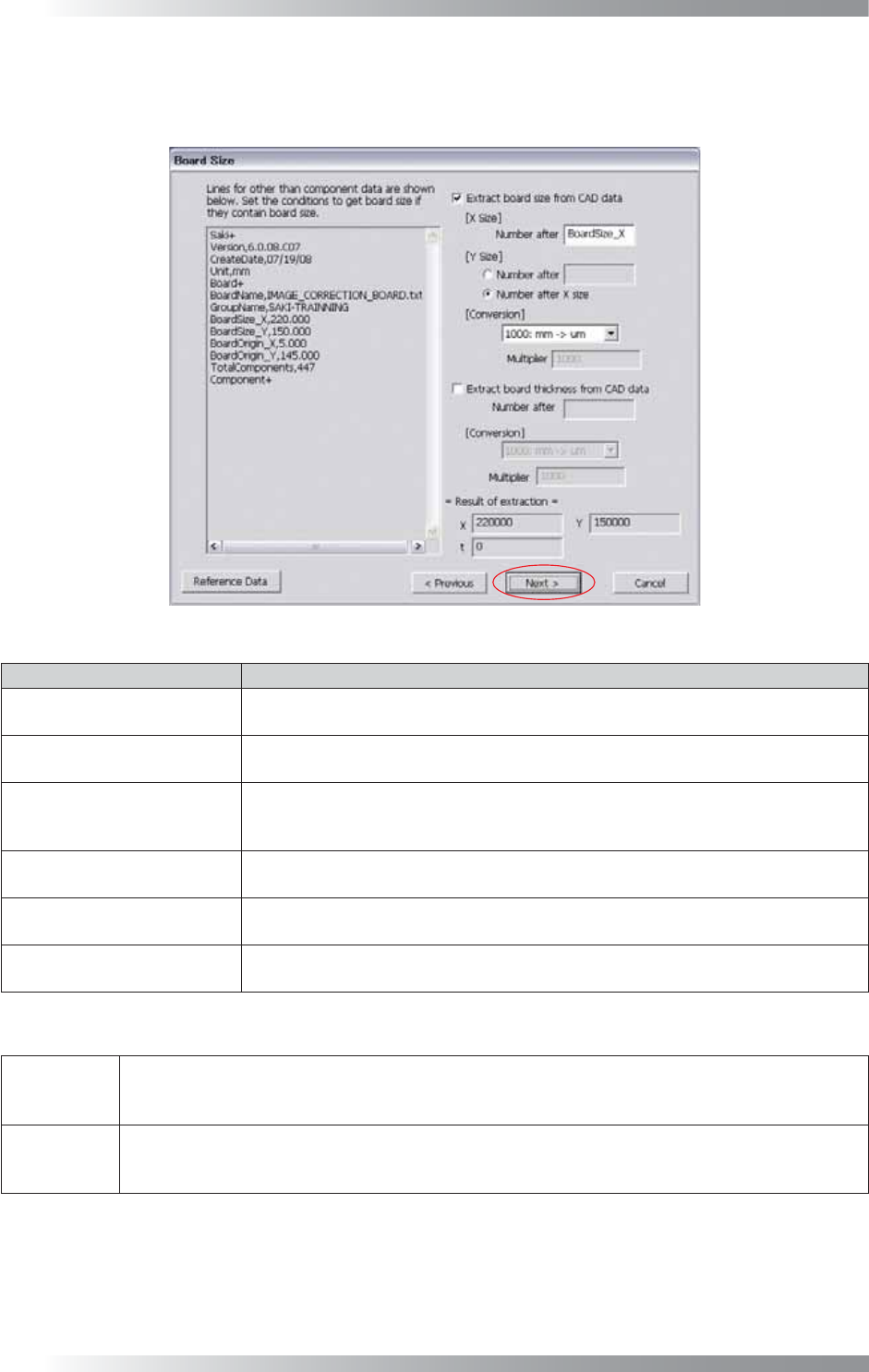
Step15: The part of CAD data which is not specifi ed as component data is displayed. Specify conditions to
extract PCB size and PCB thickness from data. These data will be automatically extracted from the
next time.
Figure 1-14 Extract PCB Size
Item Description
Extract board size from
CAD data
To extract lengths of the X direction and Y direction of a PCB, check Extract
board size from CAD data.
X Size
Enter the character preceding the number which shows the X direction length of a
PCB. The extracted value is displayed in Result of extraction.
Y Size
Enter the character preceding the number which shows the Y direction length of a
PCB. Check Number after X size if lengths of X direction and Y direction are
continuing. The extracted value is displayed in Result of extraction.
Conversion
Select conversion conditions from the drop-down list. Select Other from the drop-
down list and enter a multiplier in the Multiplier fi eld.
Extract board thickness from
CAD data
To extract PCB thickness, check Extract board thickness from CAD data.
Enter the character preceding the number which shows the PCB thickness.
Conversion
Select conversion conditions from the drop-down list. Select Other from the drop-
down list and enter a multiplier in the Multiplier fi eld.
Table 1-7 Description of Parameters
CAD Data
Board+
BoardSize_X,220.000
(Next value of BoardSize_X is always the length of the X direction of the PCB)
BoardSize_Y,150.000
(Next value of BoardSize_Y is always the length of the Y direction of the PCB)
Settings
Enter BoardSize_X in the X Size fi eld.
Enter BoardSize_Y in the Y Size fi eld (It can be substituted by checking Number after X size).
Select mm→μm from the drop-down list of Conversion.
Table 1-8 Example
II-11
Programming Manual
Part II Inspection Data
Step16: Press Next to enter PCB size and PCB thickness manually. Enter necessary conditions to extract
these data automatically. Make sure that necessary data is correctly extracted in Result of
extraction, and press Next.
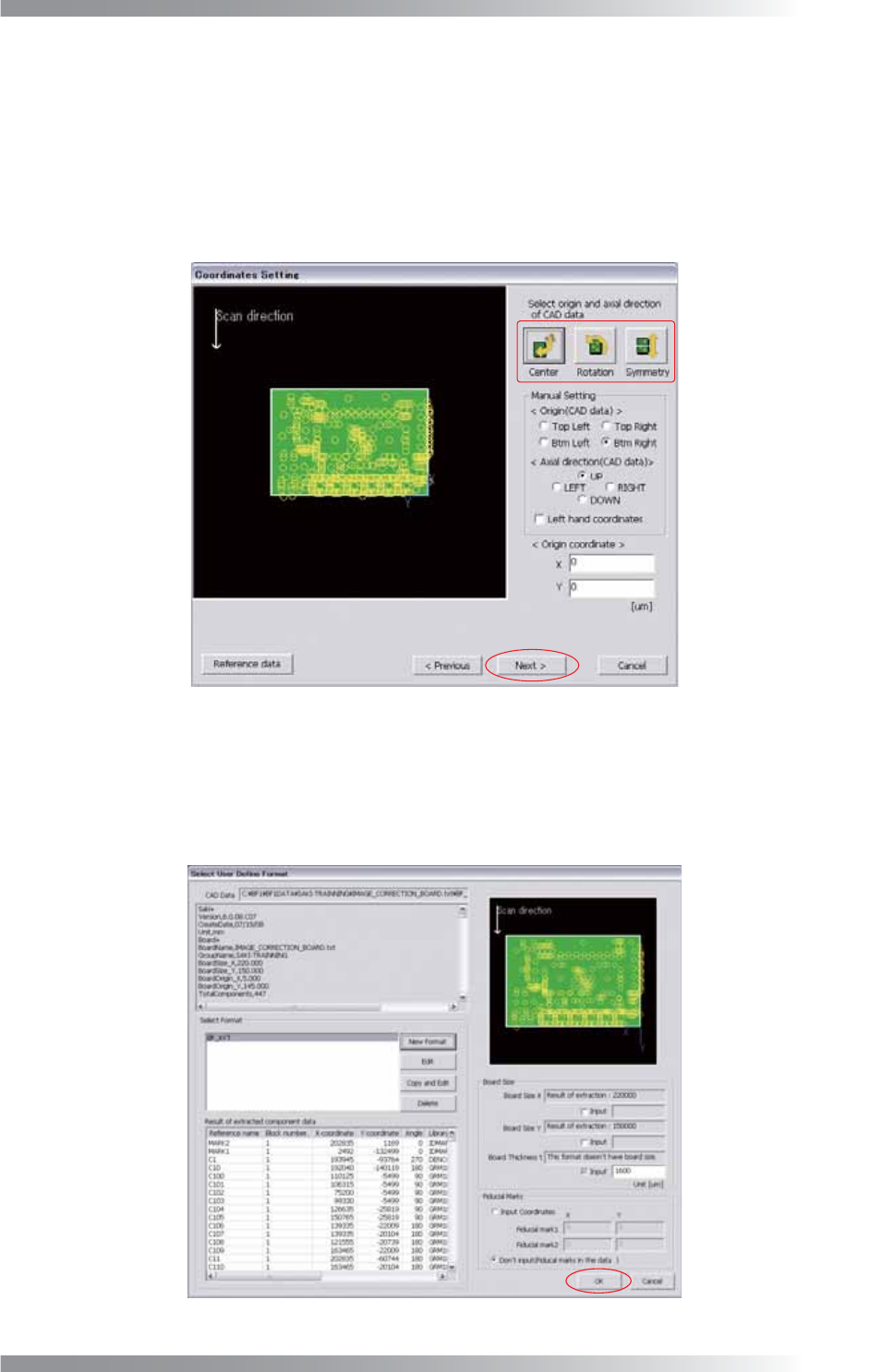
Step17: Press three buttons to match a CAD data origin with a machine origin. Starting from the left, Place
all data position inside of the PCB, Rotate all data 90° in counterclockwise direction, Flip all
data vertical. After all the settings are completed, press Next.
Figure 1-15 Coordinates Setting
Step18: Make sure that the component data is shown on the PCB image and Board Size is displayed.
If the data is not automatically extracted, enter the PCB size manually.
If the fi ducial mark data is not in the data, check Input coordinates and enter arbitrary
coordinates. After all the settings are completed, press OK.
Figure 1-16 User Defi ne Format
II-12
Programming Manual
Part II Inspection Data
Step19: The CAD data will be extracted automatically.
NOTE
Once user defi ne format is registered, extracting CAD data is easy if the same format is
used from the next time. Select the relevant format from Select Format. Set Board Size
and Fiducial Marks. Press OK.
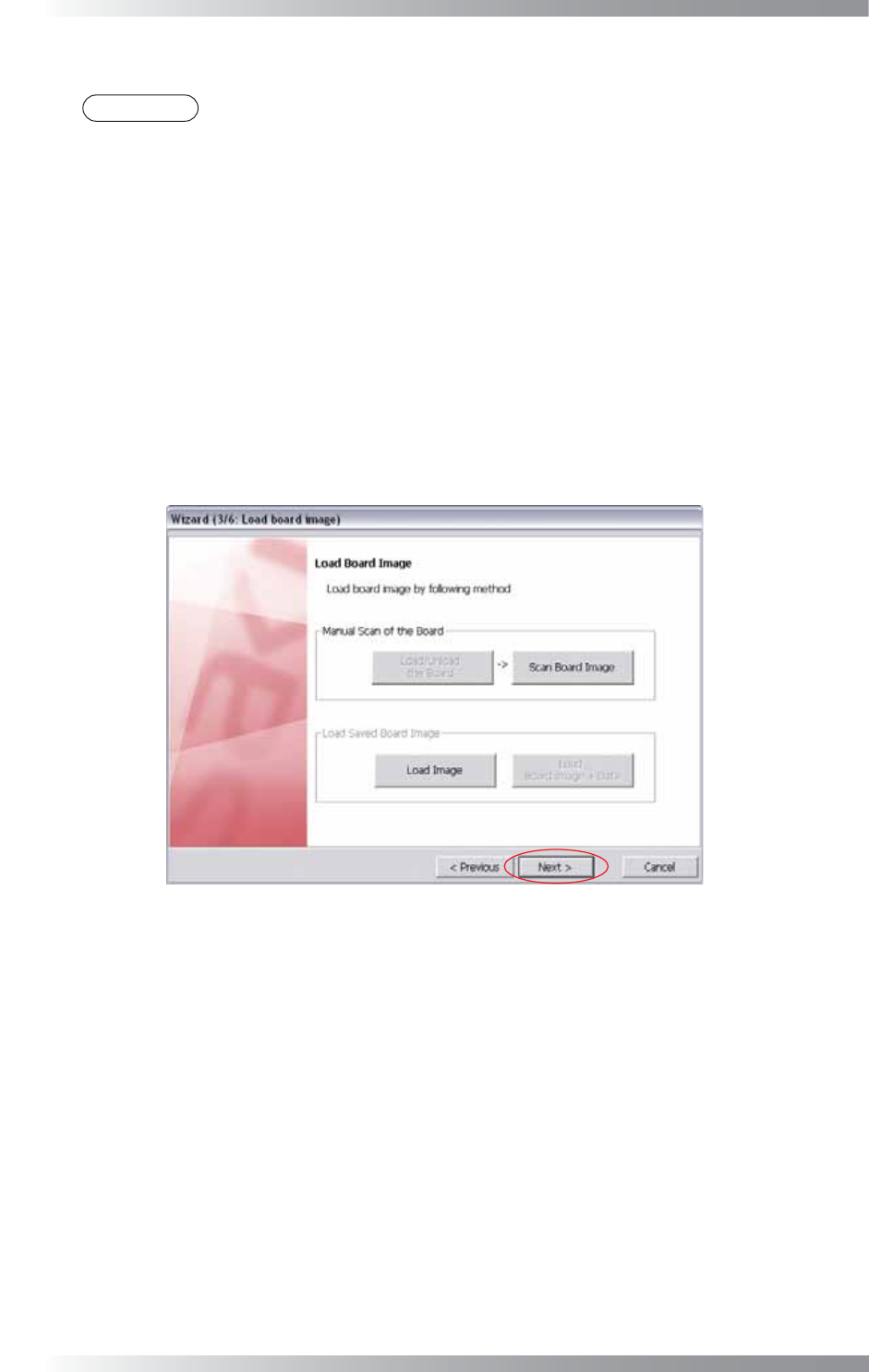
Step20: After CAD data is extracted, open the image. Press Load Image and specify the image fi le to open
the reserved image. The procedure to scan a PCB differs between benchtop machines and inline
machines.
In case of a benchtop machine
Set the PCB in the machine and press Scan Board Image.
In case of an inline machine
Adjust the conveyor rail width and set the PCB on conveyor rail. Press Load/Unload the Board.
Set the PCB in the machine and press Scan Board Image.
To unload the PCB, press Load / Unload the Board.
Figure 1-17 Wizard 3
Step21: Make sure that the PCB is scanned properly, and press Next.