Programming_mail.pdf - 第250页
V- 60 Programming Manual Part V Inspection Data 5.4 Sav e Inspection Da ta Set Inspection Selection to Default when saving the inspection data. Step1: Select Edit > Inspection Selection > Detail Settings form the m…
V-59
Programming Manual
Part V Inspection Data
5.3.3 Exchange Macro
Apply arbitrarily macro to arbitrarily selected components. Because libraries can be made for each
macro, multiple libraries can be applied to the same component.
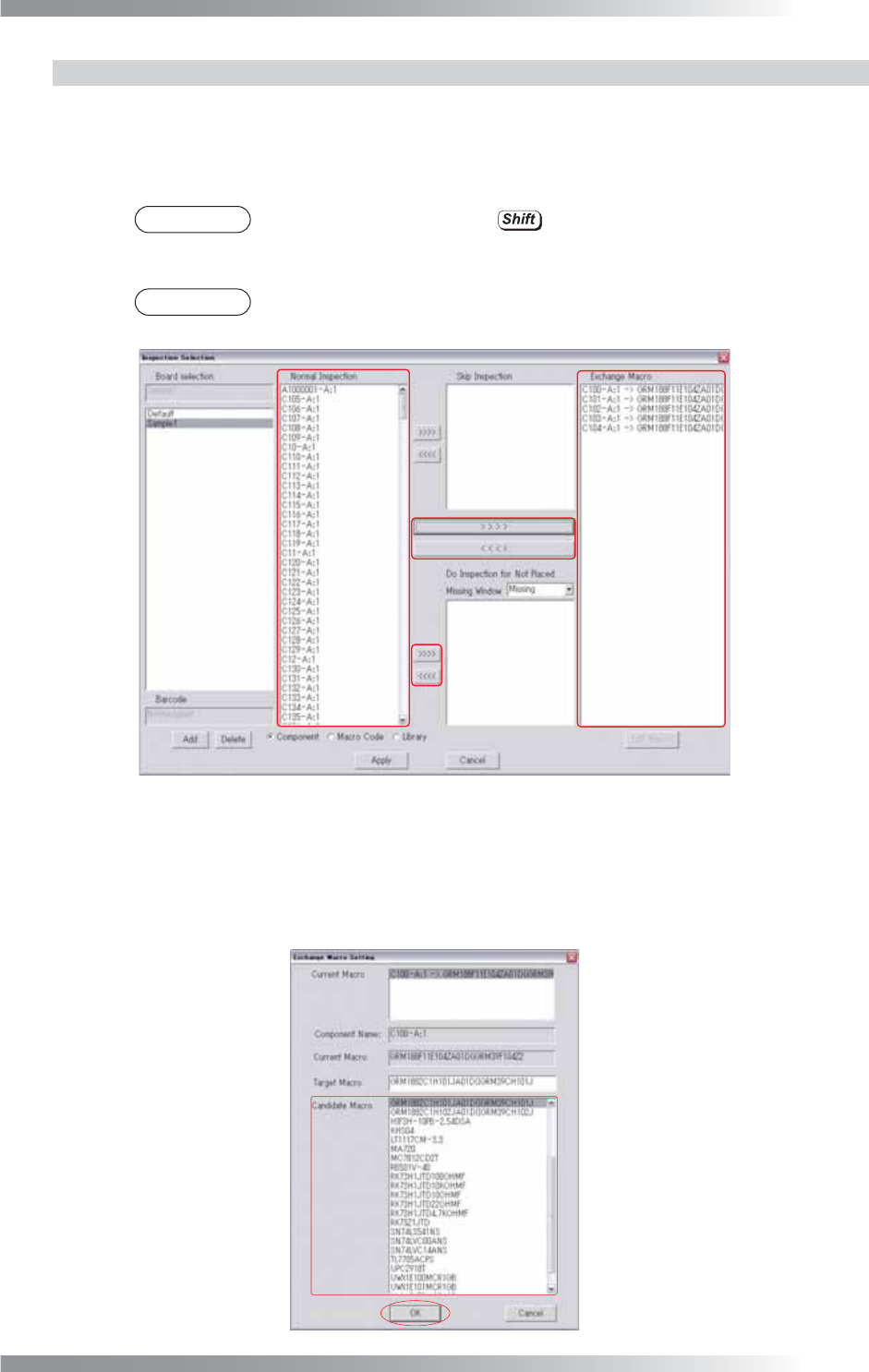
Step1: Select a component whose macro should be changed from the Normal Inspection list-box.
NOTE
Select components by pressing to select a number of components.
Step2: Press > > > > to move components to the Exchange Macro list-box.
NOTE
Select components from the Exchange Macro list-box and press < < < < to release
the Exchange Macro setting.
Figure 5-11 Exchange Macro Setting
Step3: Select a macro from the Exchange Macro list-box and press Edit Macro.
Step4: The dialog shown in Figure 5-12 appears. Select a macro from the Candidate Macro list-
box and press OK.
Figure 5-12 Exchange Macro Setting
V-60
Programming Manual
Part V Inspection Data
5.4 Save Inspection Data
Set Inspection Selection to Default when saving the inspection data.
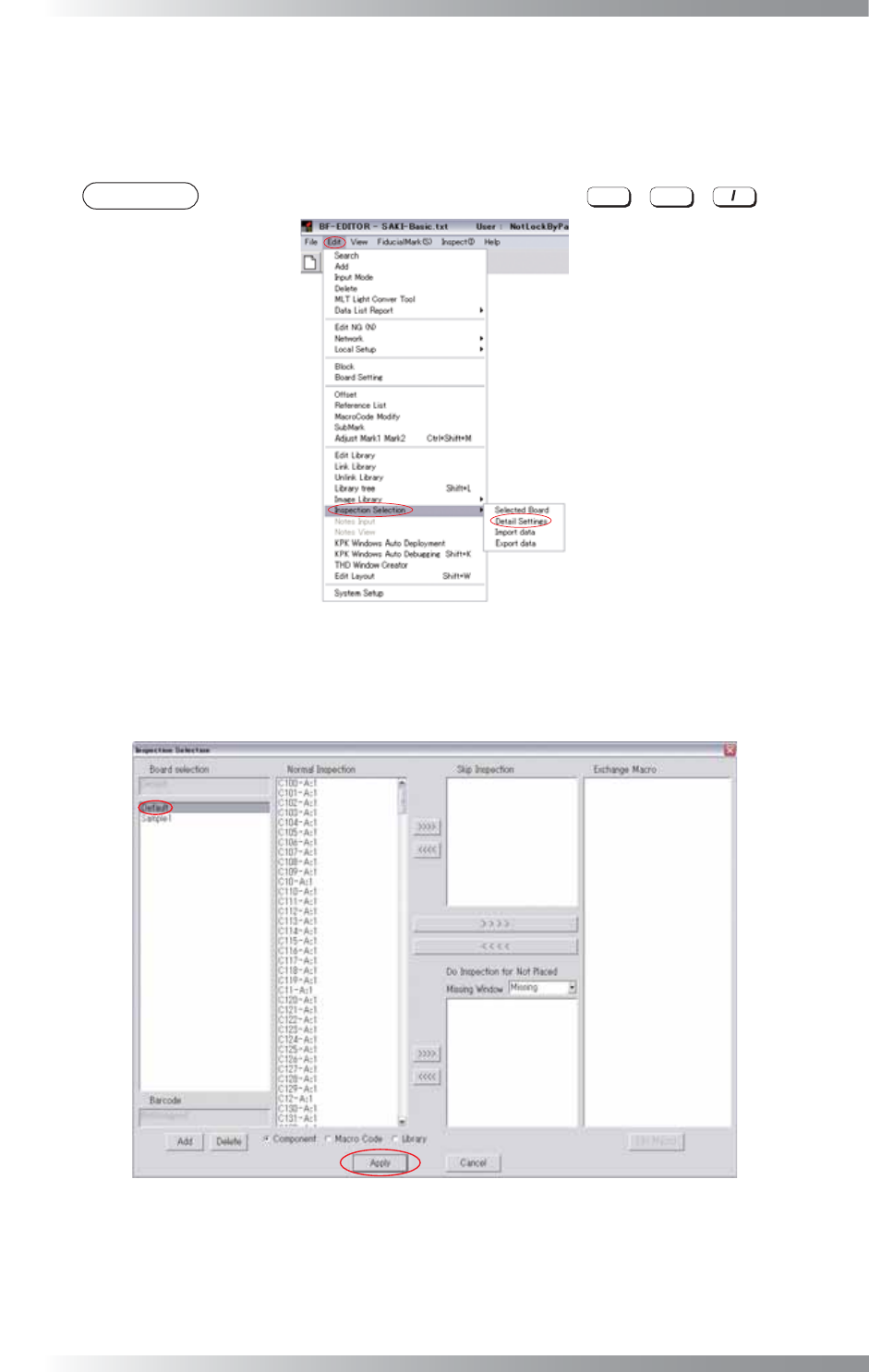
Step1: Select Edit > Inspection Selection > Detail Settings form the menu-bar.
NOTE
The same operation can be performed by pressing
Ctrl
+
Alt
+ .
Figure 5-13 Detail Settings
Step2: The dialog shown in Figure 5-14 appears.
Select Default from the Board Selection and press Apply.
Figure 5-14 Default
V-61
Programming Manual
Part V Inspection Data
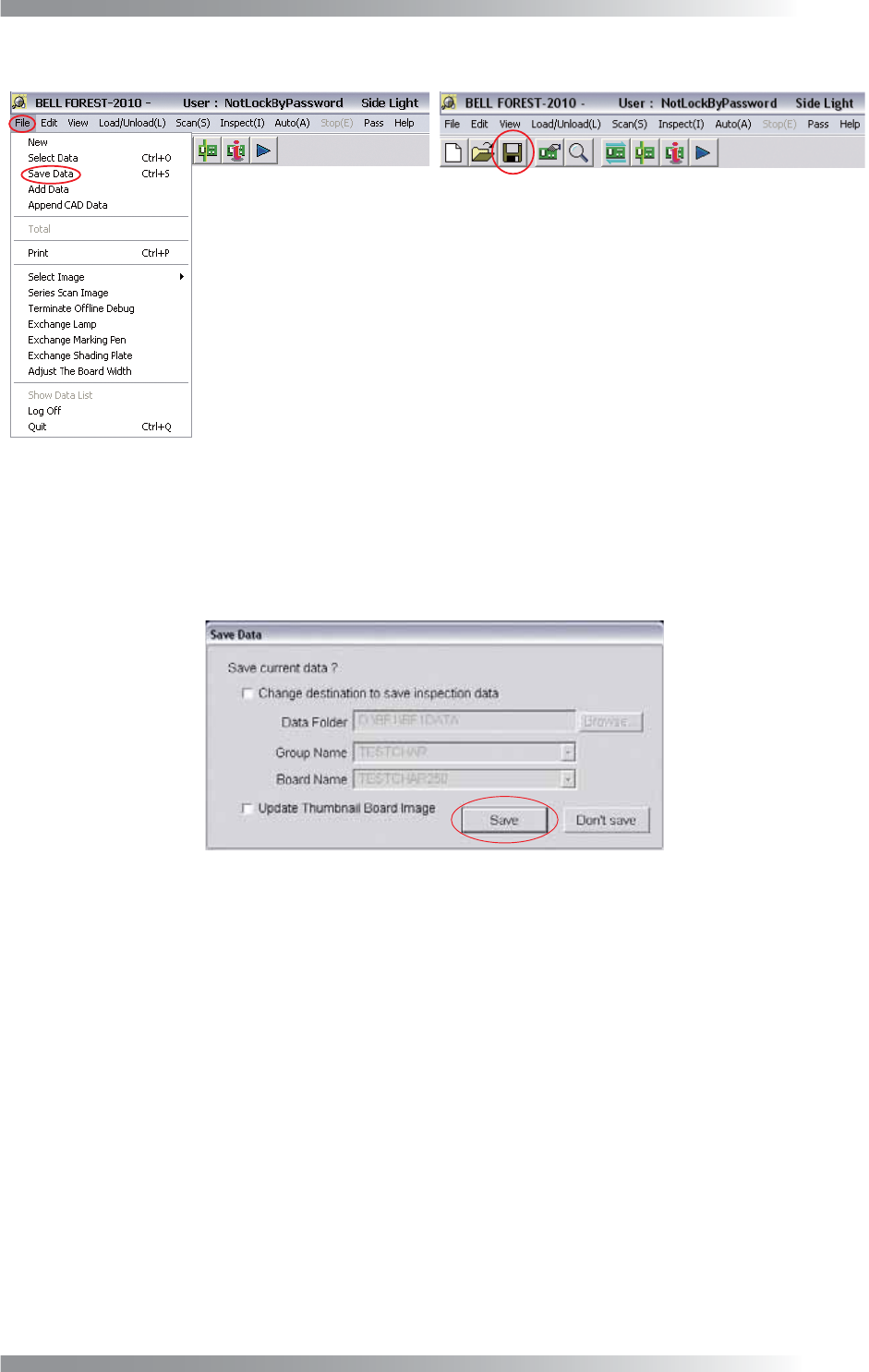
Step3: Press the Save Data button on the tool-bar or select File > Save Data from the menu-bar.
Figure 5-15 Save Data
Step4: The dialog shown in Figure 5-16 appears. Press Save to save the inspection data.
In the default setting, the inspection data is saved in D:\BF1\BF1DATA.
To save the data in another destination, check Change destination to save inspection data and
specify the directory to save.
Figure 5-16 Save Inspection Data