Programming_mail.pdf - 第51页
II- 7 Programming Manual Part II Inspection Data Step12: The lines speci fi ed as component data in Step10 are displayed. Specify the de fi nition type to classify the data according to the type such as names or coordinate…
II-6
Programming Manual
Part II Inspection Data
CAD
Data
Board+
BoardSize_X,220.000
BoardSize_Y,150.000
Component+ (Component data line always starts from the following line of Component+)
Num,REF,Macro,Lib,X,Y,Theta,Sub,Flg
(The title line should be also considered as line of component data)
1,MARK2,IDMARK,IDMARK-1,6.577,-143.371,0,1,98
2,MARK1,IDMARK,IDMARK-1,206.920,-9.703,0,1,98
…
Settings
Check First line is.
Enter Component+ in the text-box. Check the next of the line and that includes.
Check First line is the title.
Table 1-4 Example 1
CAD
Data
BSIZEX150000Y300000
ORX5000Y5000
C”R101”X101223Y050234T090 (Component data always starts by C)
C”C202”X059526Y189256T270
…
C”IC5”X033564Y253654T000
END (The last line is not component data)
Settings
Check First line is.
Enter C in the text-box. Check the line and that starts with.
Check Last line is.
Enter C in the text-box. Check the line and that starts with.
Table 1-5 Example 2
CAD
Data
…
374,U35,DS90LV031ATM,SOP8PIN,152.467,-27.459,90,1,2
(The line of component data always include
“
,
”
)
375,U35,DS90LV031ATM,SOP8PIN,152.467,-27.459,90,1,2
<PAGE4> (The line which is not component data exists and it does not include “,”.)
376,U4,TL7705ACPS,SOP4PINS,36.094,-99.379,180,1,1
377,U5,TL7705ACPS,SOP4PINS,172.382,-101.121,0,1,2
…
Settings
Check Component data block has invalid lines.
Enter “,” in the text-box. Check that donʼt include.
Table 1-6 Example 3
Step11: Make sure that all lines of component data are highlighted in white and other lines in gray.
Press Next.
NOTE
If the title line is specifi ed, the title line is highlighted in blue.
II-7
Programming Manual
Part II Inspection Data
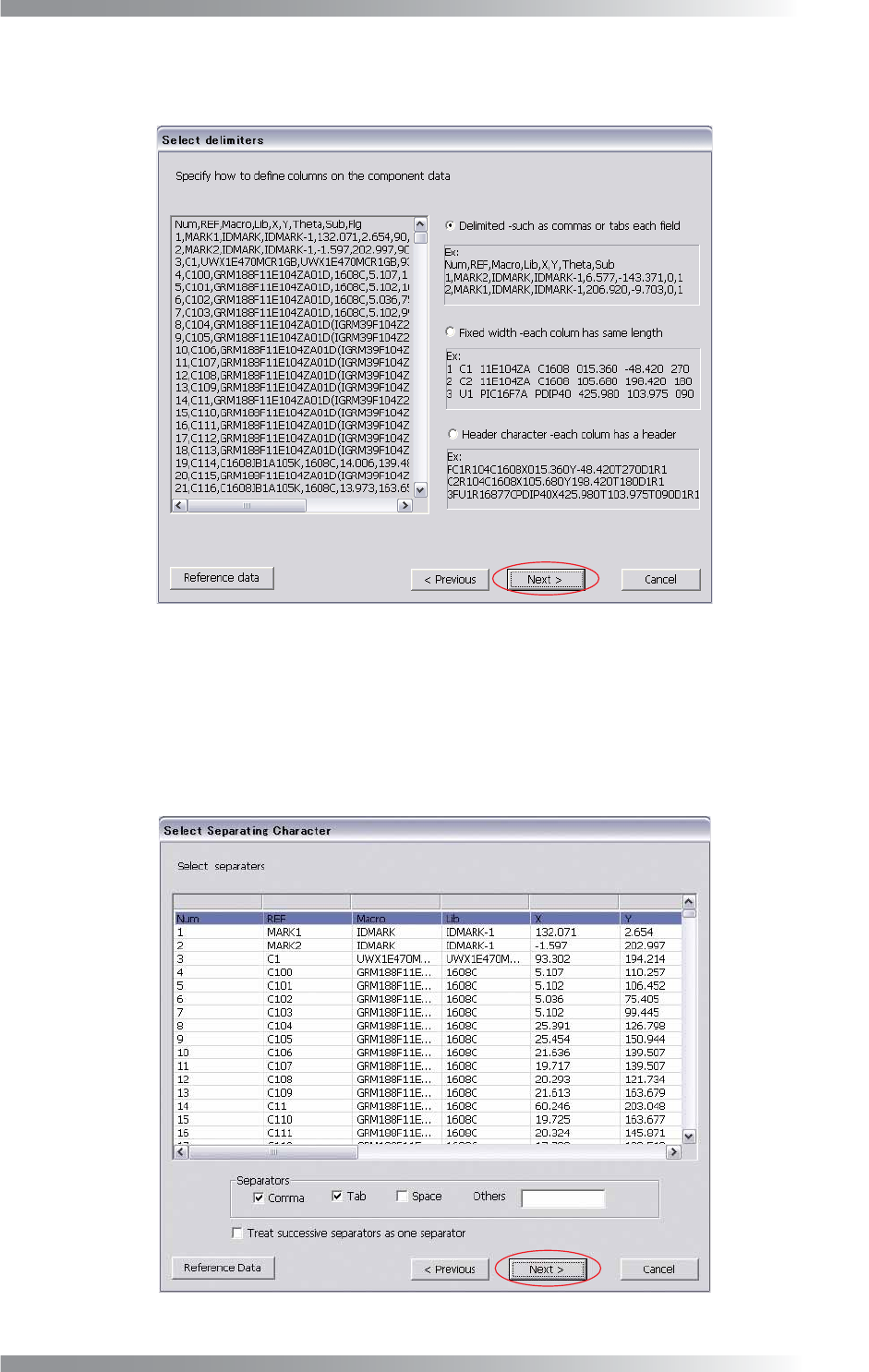
Step12: The lines specifi ed as component data in Step10 are displayed. Specify the defi nition type to
classify the data according to the type such as names or coordinates of components.
Figure 1-8 Select Delimiters
Delimited (such as commas or tabs each fi eld)
Check Delimited in Figure 1-8 and press Next if parameters are separated by comma, tab, or
space. Check the item of Separators in Figure 1-9. Each parameter is automatically separated.
Check Treat successive separators as one separator if more than one space or tab are
contained. After all the settings are completed, press Next.
Figure 1-9 Delimited (such as commas of tabs each fi eld)
II-8
Programming Manual
Part II Inspection Data
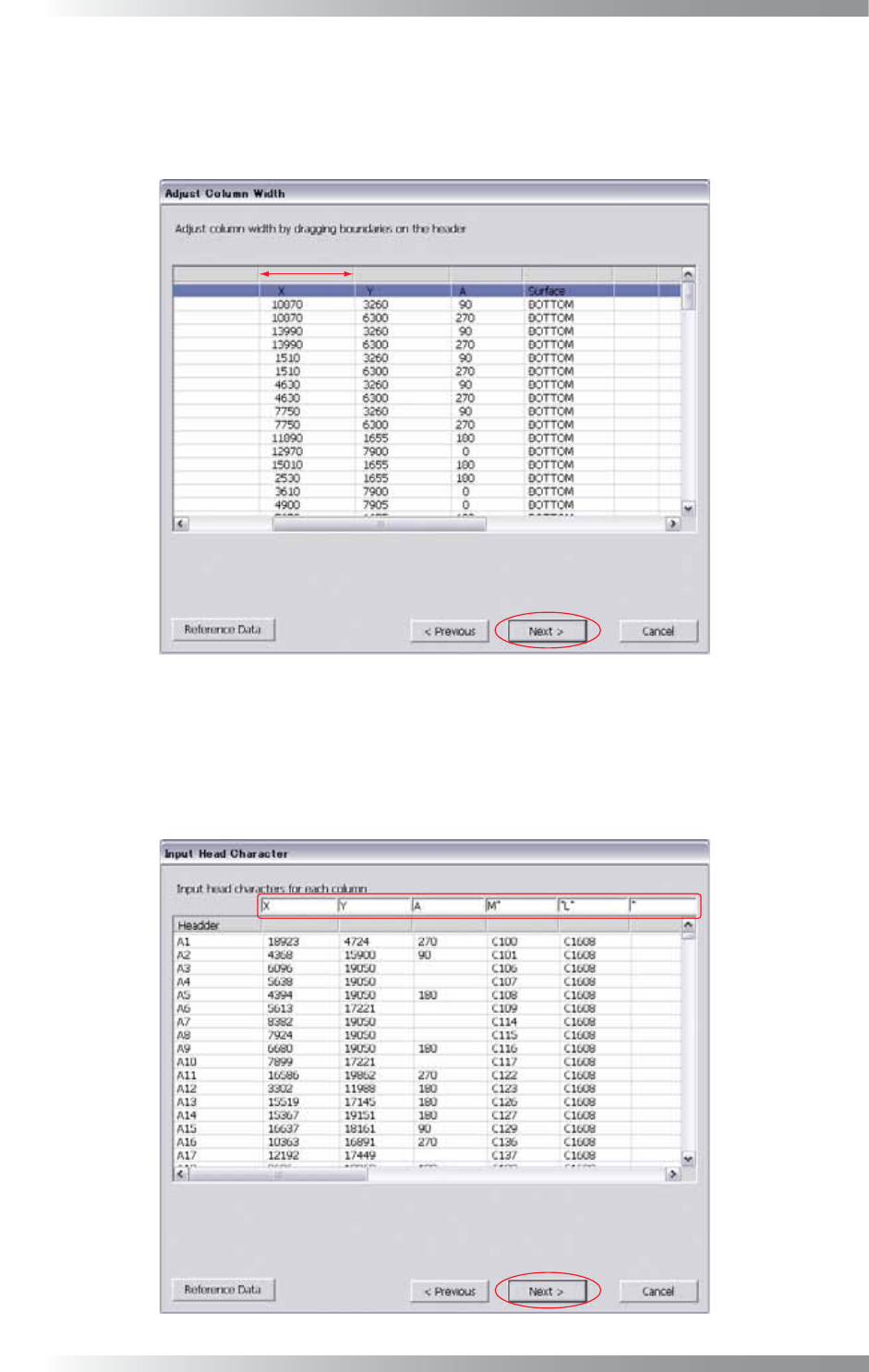
Fixed width (each column has same length)
Check Fixed width in Figure 1-8 and press Next if parameters are separated by fi xed width.
Adjust column widths by dragging the boundary of the header in Figure 1-10.
After all the settings are completed, press Next.
Figure 1-10 Fixed Width (each column has same length)
Header character (each column has a header)
Check Header character in Figure 1-8 and press Next if parameters are separated by a header
character. Enter header character of a parameter in the text-box of each column in Figure 1-11.
After all the settings are completed, press Next.
Figure 1-11 Header Character (each column has a header)