Programming_mail.pdf - 第160页
III- 86 Programming Manual Part III Inspection Algorithm Step15: Adjust the window size to surround a character by pressing Font Size . Press GetSize . Height and Width are automatically calculated. Figure 2-13 OCR_Pro 1…
III-85
Programming Manual
Part III Inspection Algorithm
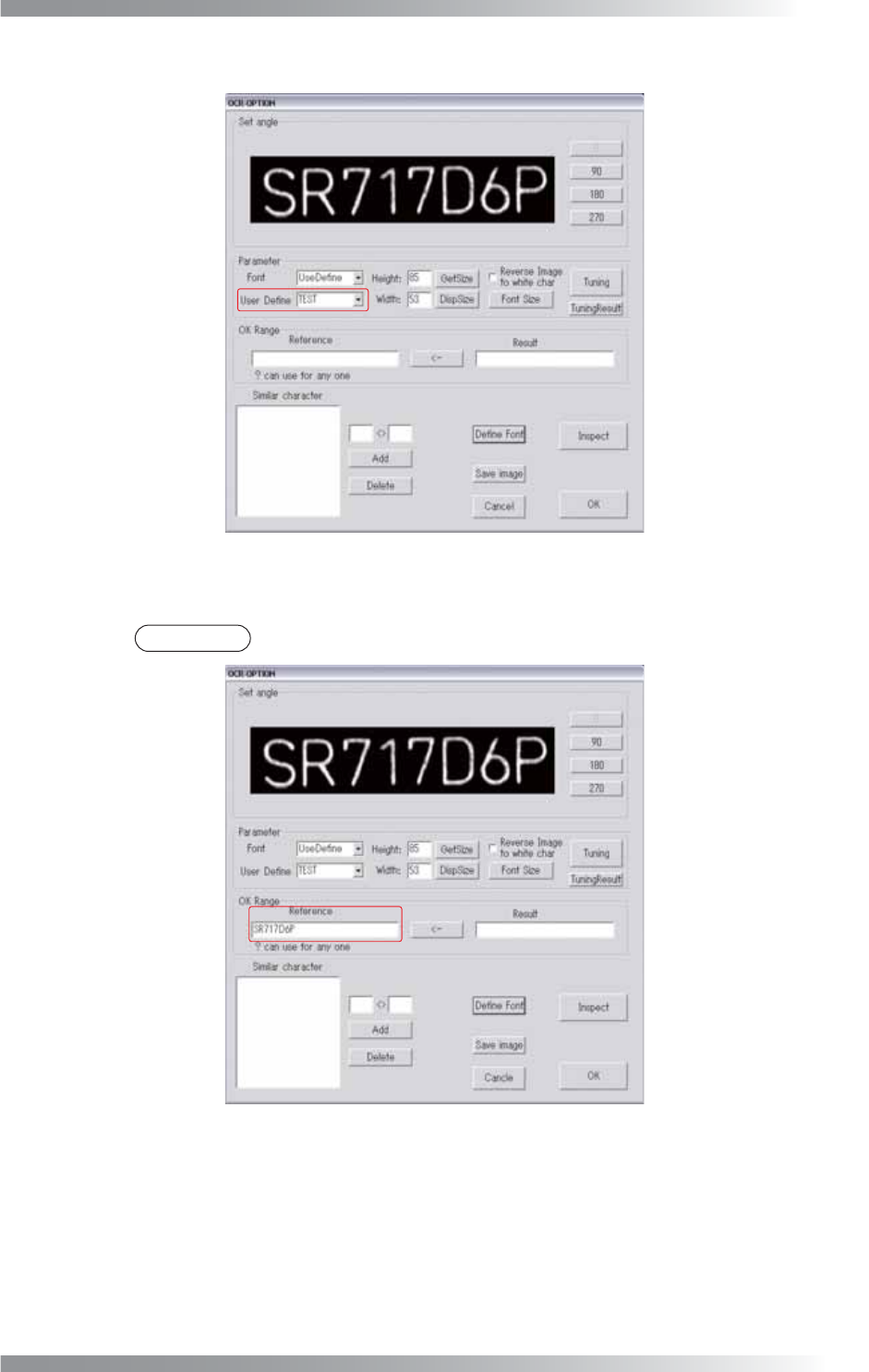
Step13: Select the font added in Step7 from the User Defi ne drop-down list.
Figure 2-11 OCR_Pro 10
Step14: Enter all target characters in the Reference text-box.
NOTE
If “?” is entered, any character is judged OK.
Figure 2-12 OCR_Pro 11
III-86
Programming Manual
Part III Inspection Algorithm
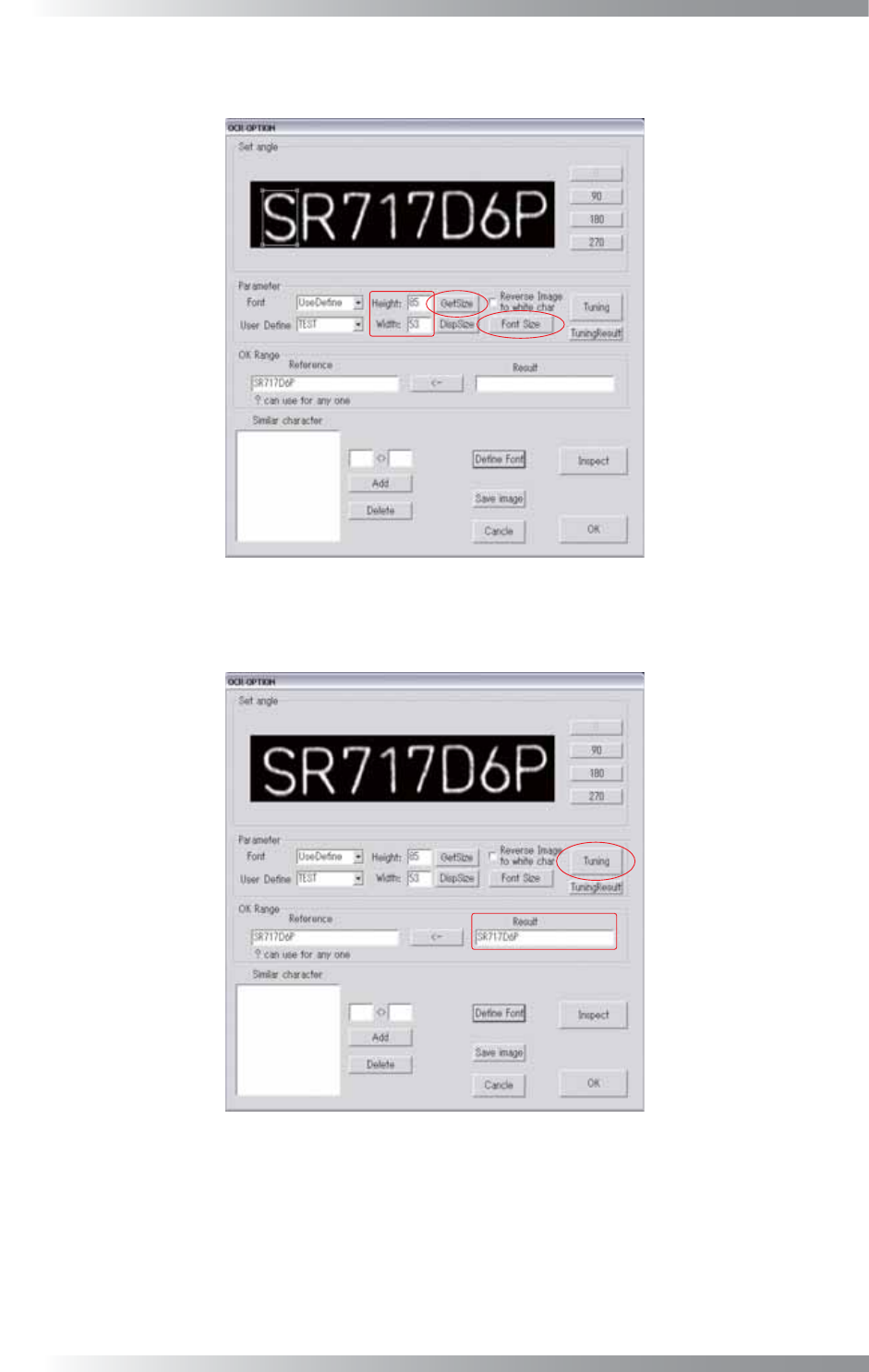
Step15: Adjust the window size to surround a character by pressing Font Size. Press GetSize.
Height and Width are automatically calculated.
Figure 2-13 OCR_Pro 12
Step16: Press Tuning. The recognized characters are displayed in the Result text-box.
Figure 2-14 OCR_Pro13
III-87
Programming Manual
Part III Inspection Algorithm
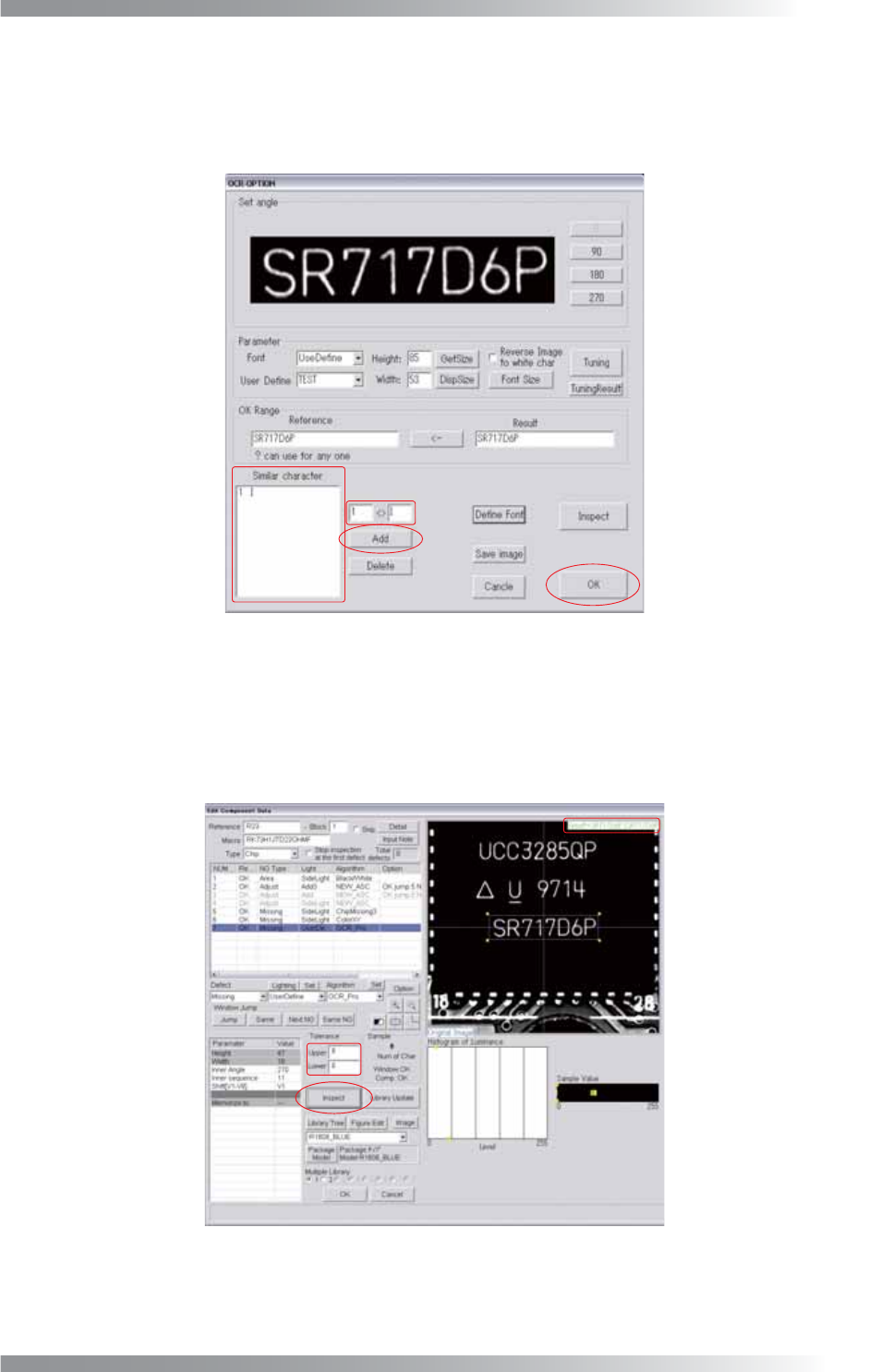
Step17: If similar characters such as 1 and I or 0 and O are mis-recognized, enter these
characters into the two text boxes on the right side of Similar character, and press Add.
Once the characters are registered, the result will be OK if either of characters is
recognized. To delete the registered item, select the item and press Delete.
Figure 2-15 OCR_Pro14
Step18: If all target characters are correctly displayed in Result fi eld. Press OK.
Step19: The dialog shown in Figure 2-16 appears.
Enter the number of characters to Upper fi eld and Lower fi eld.
Figure 2-16 OCR_Pro15
Step20: Press Inspect. Make sure that all target characters are correctly displayed in the upper right
side of the dialog shown in Figure 2-16.