Programming_mail.pdf - 第225页
V- 35 Programming Manual Part V Other Function Step5: Drag the white window in the upper left side and the lower right side of area window. The dialog shown in Figure 3-5 appears. Check Current Component and press OK . F…
V-34
Programming Manual
Part V Other Function
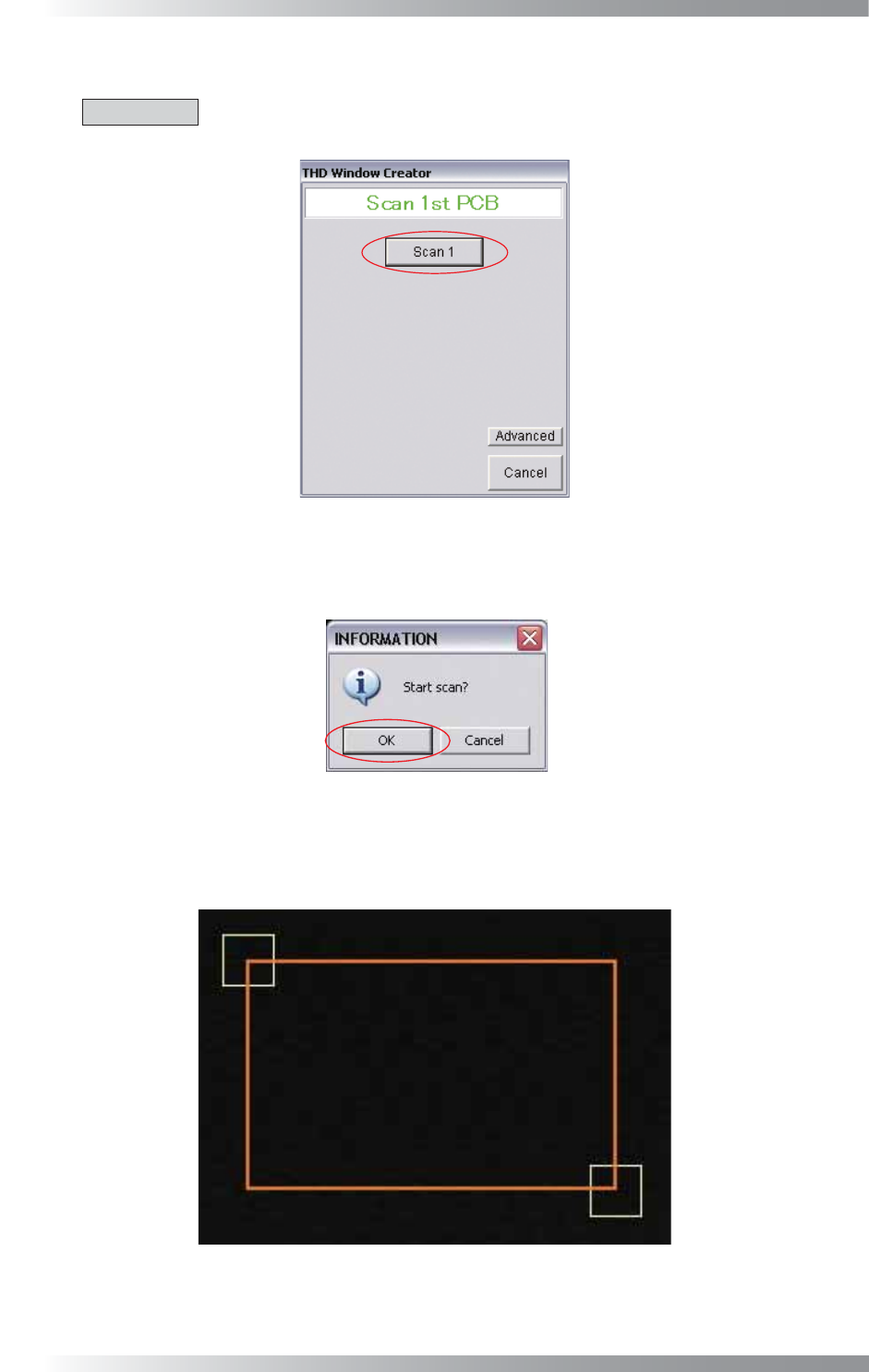
Step2: The dialog shown in Figure 3-2 appears. Load the bare board and press Scan1.
CAUTION
If there is no fi ducial mark in the inspection data, make a fi ducial mark. Refer to Step25 and
following steps in Part II 1.1 Make Inspection Data on AOI Machine.
Figure 3-2 Scan1
Step3: The dialog shown in Figure 3-3 appears. Press OK. Orange area window will be automatically
extracted after scanning.
Figure 3-3 Start Scan
Step4: Drag the white window in the upper left side and the lower right side of the area window to surround
the area which extracted inspection data in the area window.
Figure 3-4 Adjust Area Window
V-35
Programming Manual
Part V Other Function
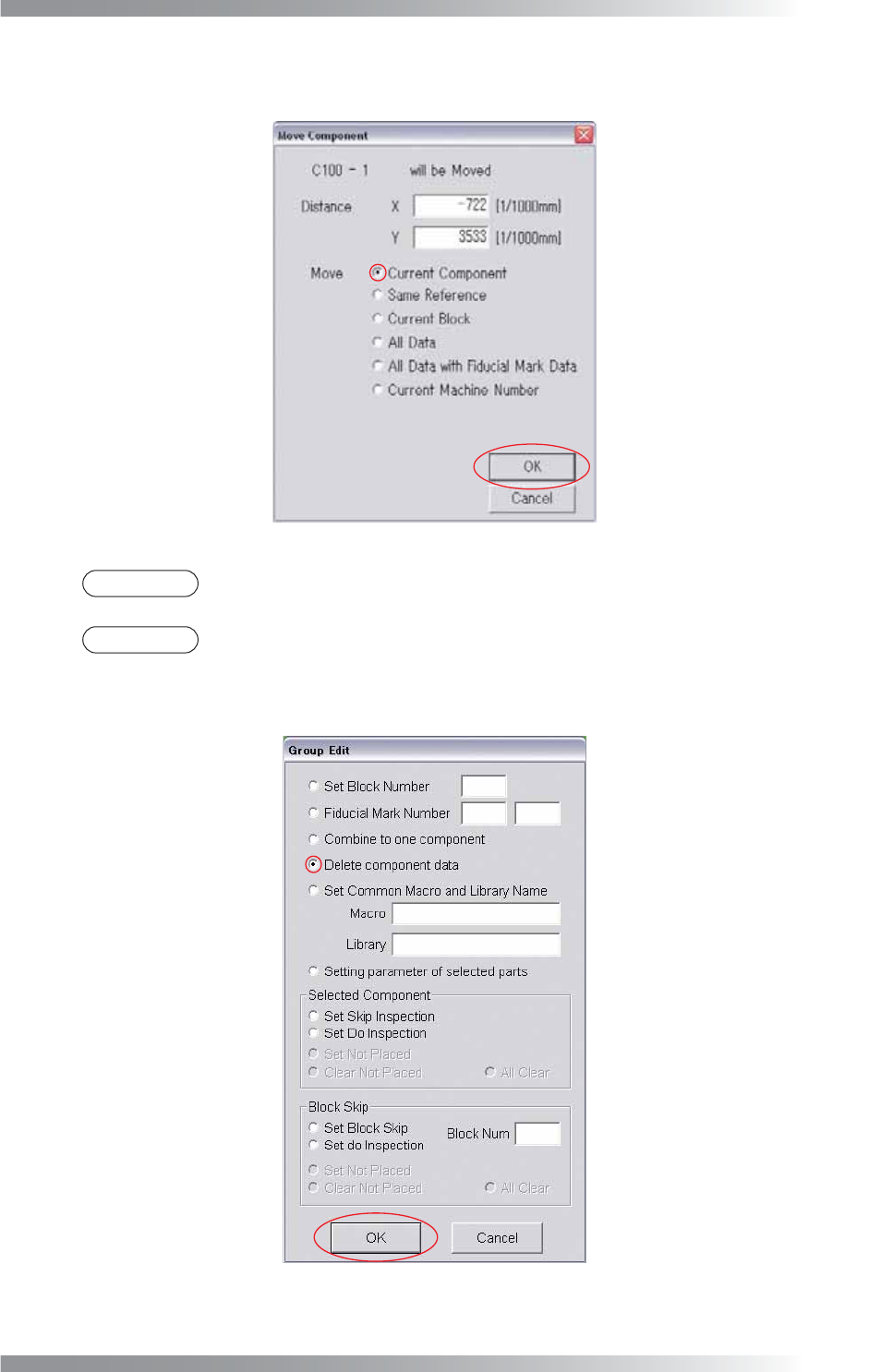
Step5: Drag the white window in the upper left side and the lower right side of area window. The dialog
shown in Figure 3-5 appears. Check Current Component and press OK.
Figure 3-5 Current Component
NOTE
Press Add in Figure 3-7 to add area window. Add Area window to the center of the screen.
NOTE
Drag the mouse to surround rectangles in the upper left side or the lower right side of area
window to delete area. The dialog shown in Figure 3-6 appears. Check Delete component
data and press OK.
Figure 3-6 Delete Component Data
V-36
Programming Manual
Part V Other Function
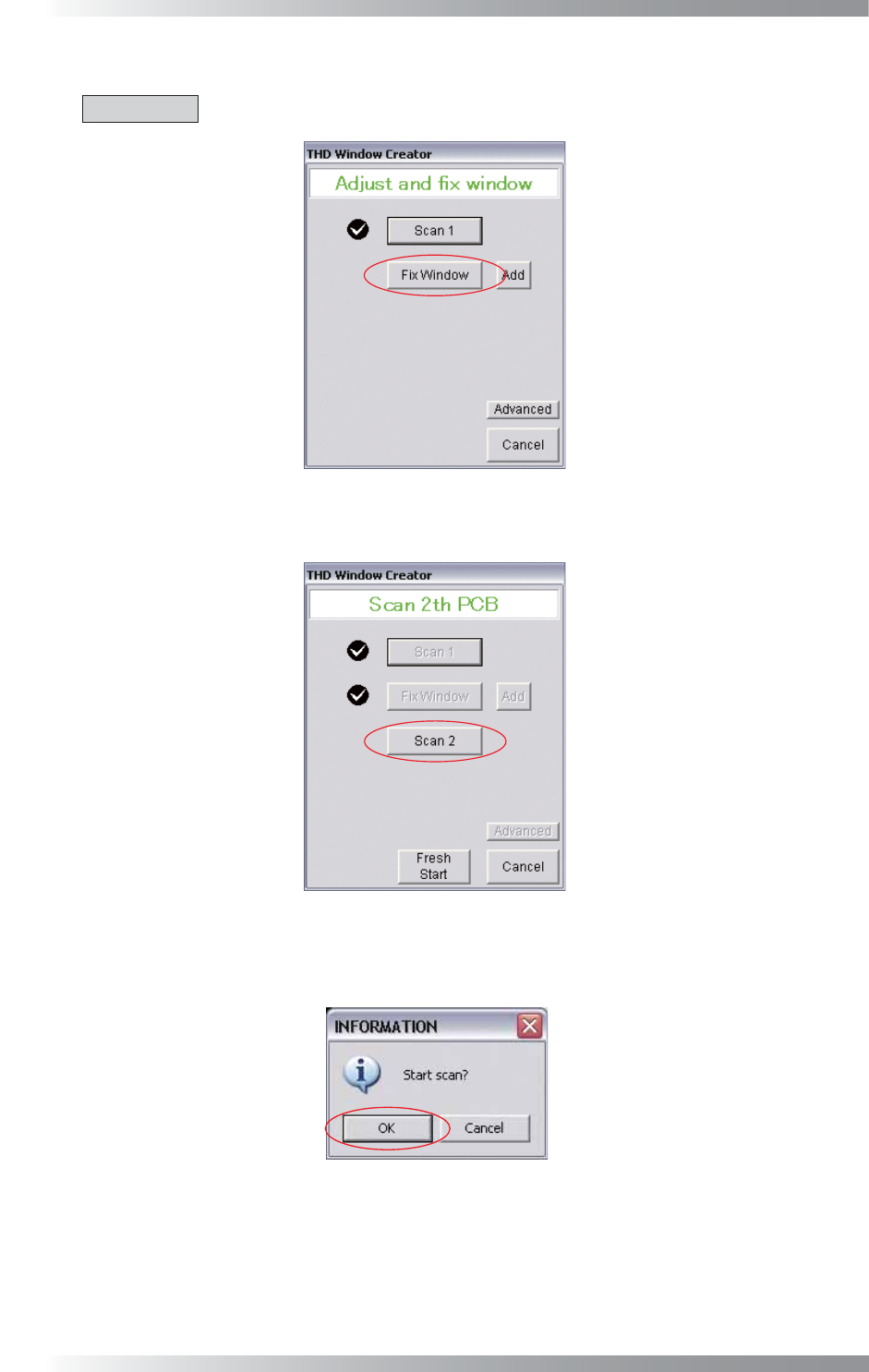
Step6: Press Fix Window after the adjustment of the area window is completed.
CAUTION
Area windows cannot be adjusted after pressing Fix Window.
Figure 3-7 Fix Window
Step7: Load the PCB and press Scan2.
Figure 3-8 Scan2
Step8: The dialog shown in Figure 3-9 appears. Press OK.
Figure 3-9 Start Scan