Programming_mail.pdf - 第143页
III- 69 Programming Manual Part III Inspection Algorithm 1.19.3 Setting Procedur e Step1: Select a lighting that displays the characters visually clear from the Lighting drop-down list. Step2: Adjust the size of the insp…
III-68
Programming Manual
Part III Inspection Algorithm
1.19 New_OCR
1.19.1 Inspection Overview
New_OCR is the algorithm to recognize character.
Register target the character before inspection. The sample value is number of characters matched
with the target characters. New_OCR can recognize alphanumeric characters.
New_OCR is suitable for missing and miss-mounting of any components inspection.
1.19.2 Parameter Setting
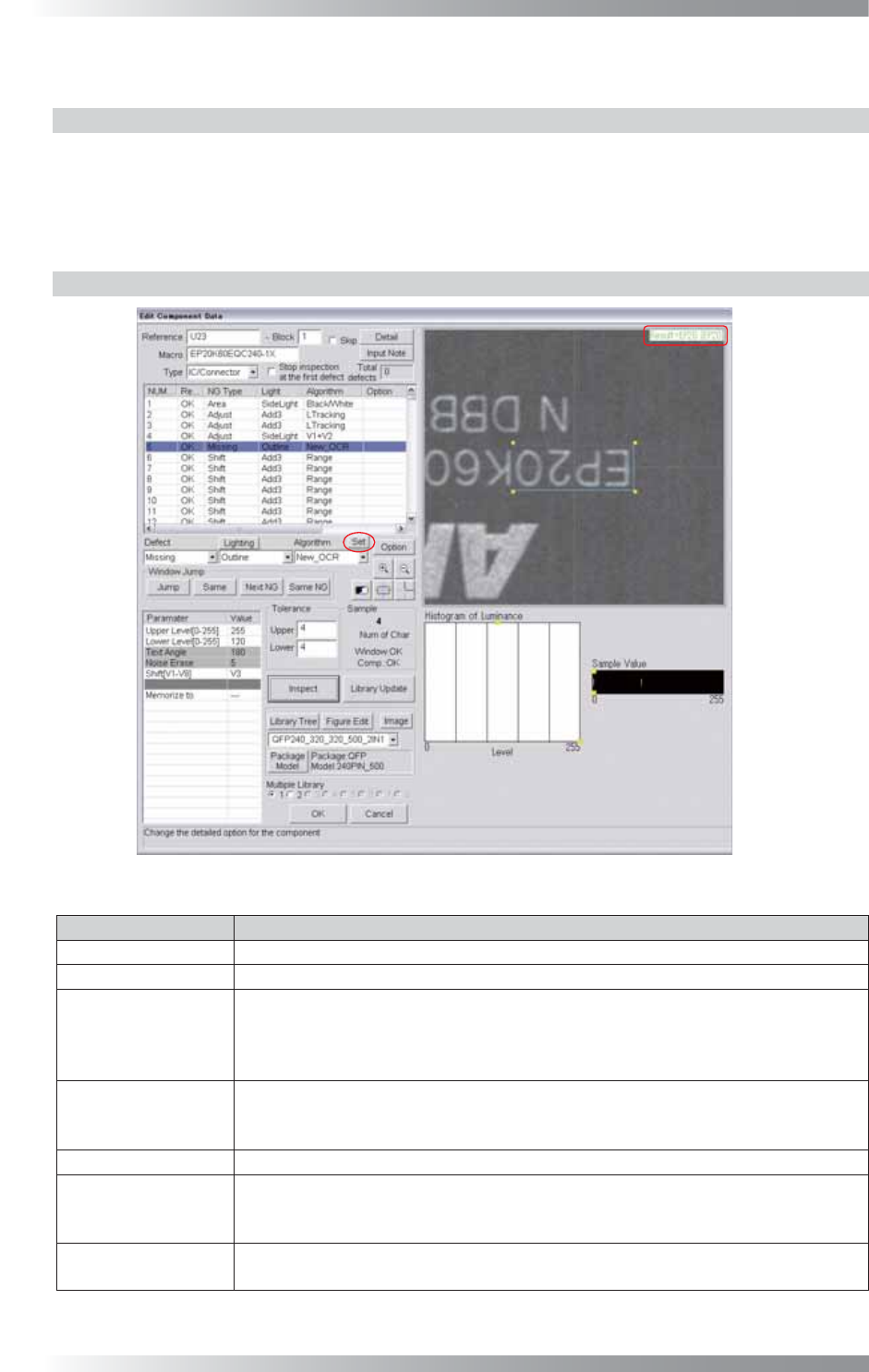
Figure 1-83 New_OCR
Parameter
Description
Lighting
Select a lighting that displays characters visually clear.
Algorithm Select New_OCR.
Upper Level[0-255],
Lower Level[0-255],
Text Angle,
Noise Erase
No needs to setting.
The entered parameter values in Figure 1-77 dialog will be applied.
Shift[V1-V8]
Enter the appropriate vector. Any value from V1 to V8 is available.
Select the vector according to the Memorize to fi eld of the Adjust window.
Enter V4 to apply the misalignment amount calculated by ImageMatchEx.
Memorize to
-
Upper, Lower
After setting parameters in another dialog, the recognized number of characters is
refl ected in the Upper value and Lower value. If the number of target characters
recognized characters are the same, the result will be OK.
Sample
This parameter shows number of matches between the registered and recognized
characters.
Table 1-31 Parameter of New_OCR
III-69
Programming Manual
Part III Inspection Algorithm
1.19.3 Setting Procedure
Step1: Select a lighting that displays the characters visually clear from the Lighting drop-down list.
Step2: Adjust the size of the inspection window to surround the target characters.
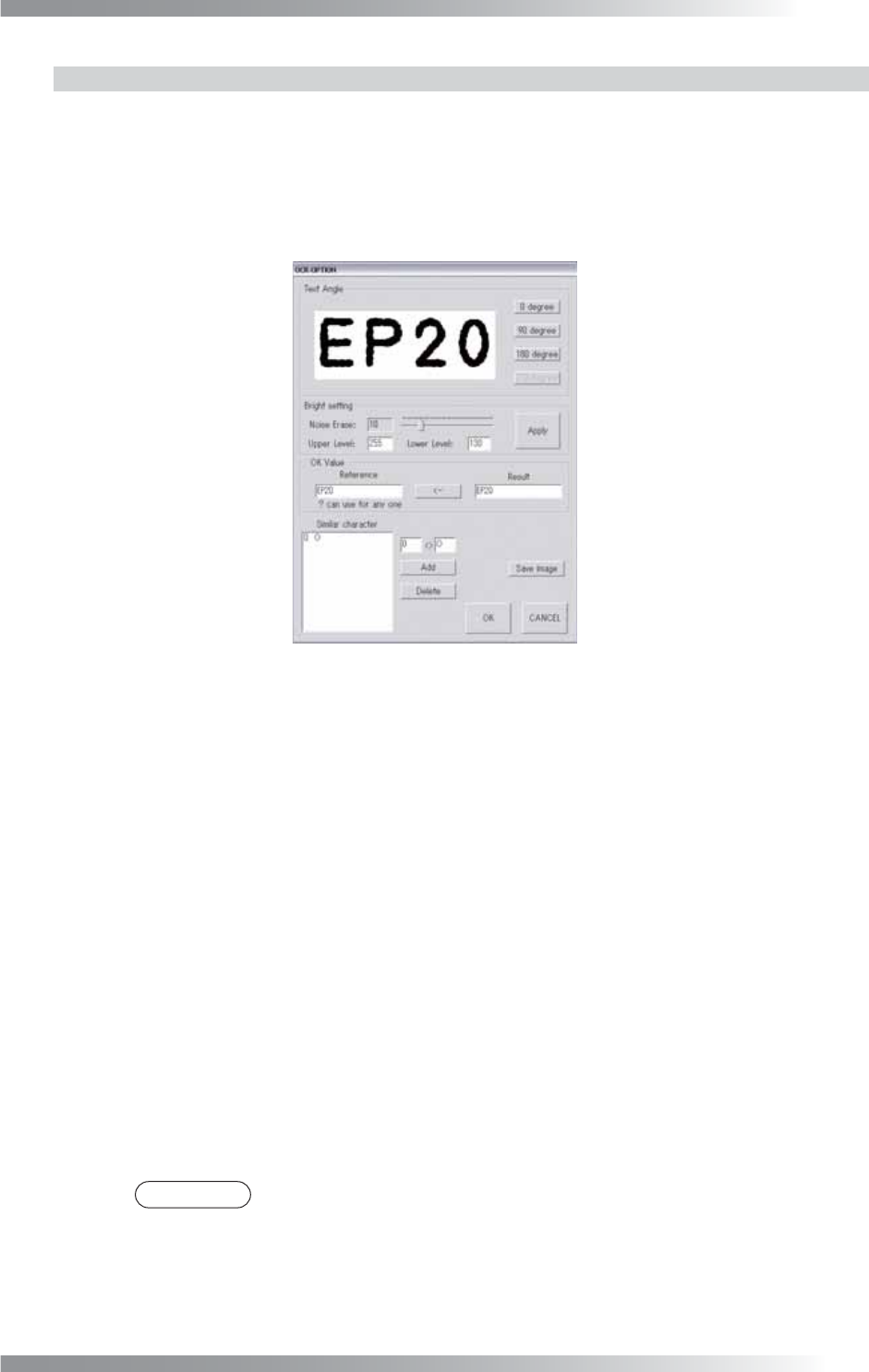
Step3: Press Set in the right side of Algorithm. The dialog shown in Figure 1-84 appears.
Figure 1-84 Setting Dialog of New_OCR
Step4: Adjust the character angle by Text Angle if the character is not upright.
Step5: Adjust the luminosity and the noise to recognize a character clearly. Adjust the Bright setting
of Upper Level and Lower Level then press Apply, recognition Result will be displayed in the
right side of OK Value. Adjust the parameter to recognize characters correctly. If the recognized
characters are noisy, reduce the noise with slide-bar in the right side of Noise Erase.
Step6: If the similar characters such as 1 and I or 0 and O are miss-recognized, enter them into
the two text boxes on the right of Similar character and press Add.
In the inspection, the result will be OK if either of the characters is recognized.
To remove the characters from the list, select an item and press Delete.
Step7: If the character is recognized correctly, press <
-
to copy Result to Reference and then
press OK.
Step8: Enter the appropriate vector into the Shift fi eld. Any value from V1 to V8 is available.
Select the vector according to the Memorize to fi eld of the Adjust window.
NOTE
Enter V4 to apply the misalignment calculated by ImageMatchEx. For details, refer
to Part III 1.17 ImageMatchEx.
Step9: Press Inspect. Make sure that the recognized characters are displayed correctly on the
upper right side of the dialog shown in Figure 1-83.
III-70
Programming Manual
Part III Inspection Algorithm
1.20 Barcode
1.20.1 Inspection Overview
Barcode is the algorithm to recognize 1D barcode. Register the target barcode.
The result will be OK digit number of recognized barcode is in tolerance.
Barcode is suitable for PCBs traceability.
NOTE
Refer to Part III 2.2 Barcode_Pro for 2D barcode inspection.
1.20.2 Parameter Setting
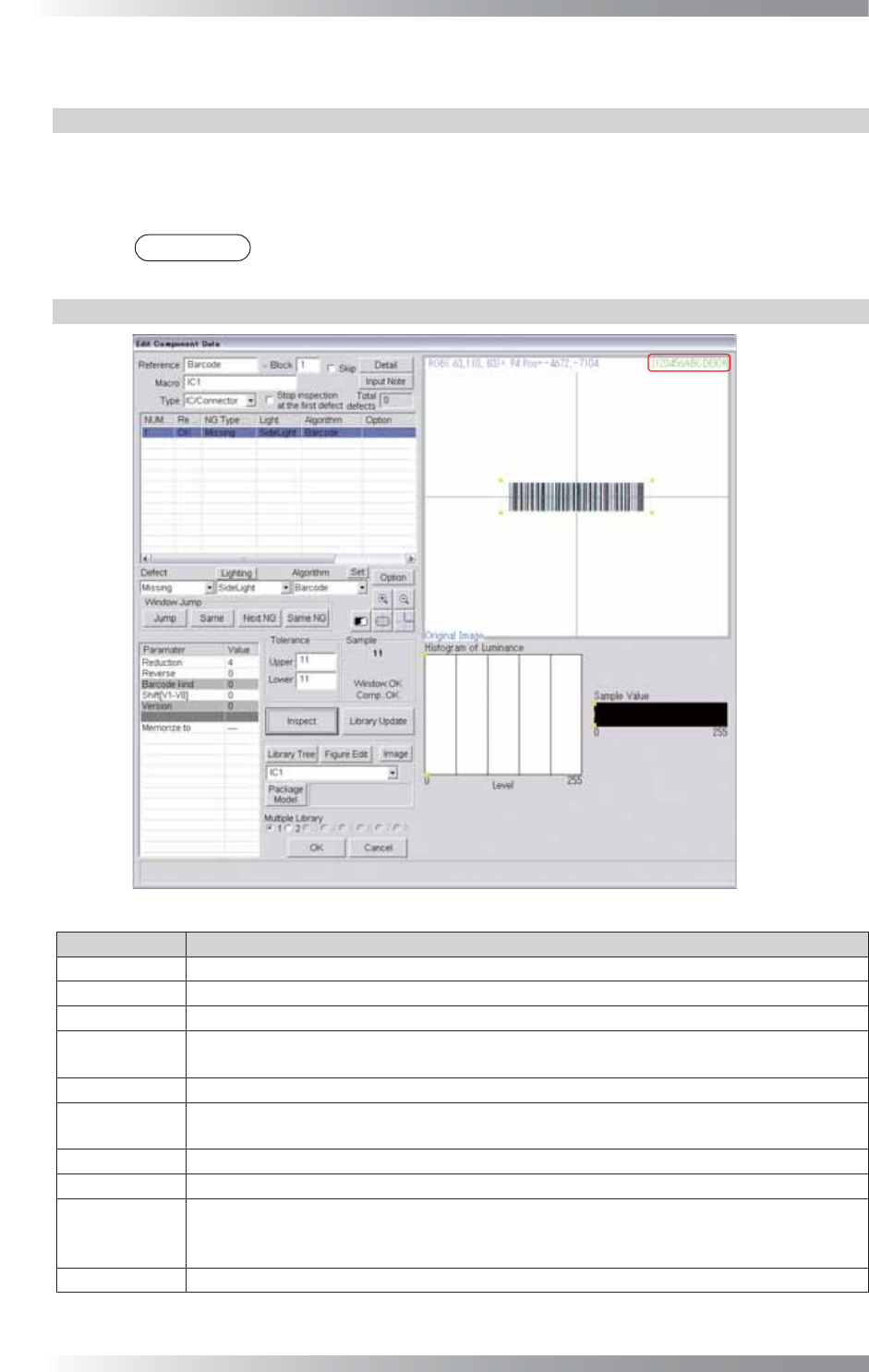
Figure 1-85 Barcode
Parameter Description
Lighting
Select a lighting that displays barcodes visually clear.
Algorithm Select Barcode.
Reduction Enter 4.
Reverse
Enter 0 if the brightness level of the barcode is lower than surrounding brightness.
Enter 1 if it is higher.
Barcode kind -
Shift[V1-V8]
Enter the appropriate vector. Any value from V1 to V8 is available.
Select the vector according to the Memorize to fi eld of the Adjust window.
Version -
Memorize to -
Upper, Lower
Enter the barcode digit number in
Upper
fi eld and Lower fi eld. The sample value is the
digit number of recognized barcode. If the target digit and recognized digit number is the
same, the result will be OK.
Sample
This parameter shows the digit number of the recognized barcode.
Table 1-32 Parameter of Barcode