Programming_mail.pdf - 第138页
III- 64 Programming Manual Part III Inspection Algorithm 1.18 OCV 1.18.1 Inspection Ov er view OCV is the algorithm to inspect for pattern matching inspection. Register characters of component as font. Scanned image is i…
III-63
Programming Manual
Part III Inspection Algorithm
1.17.3 Setting Procedure
Step1: Select a lighting that displays the characters visually clear from the Lighting drop-down list.
Step2: Adjust the size of the inspection window to surround the target characters.
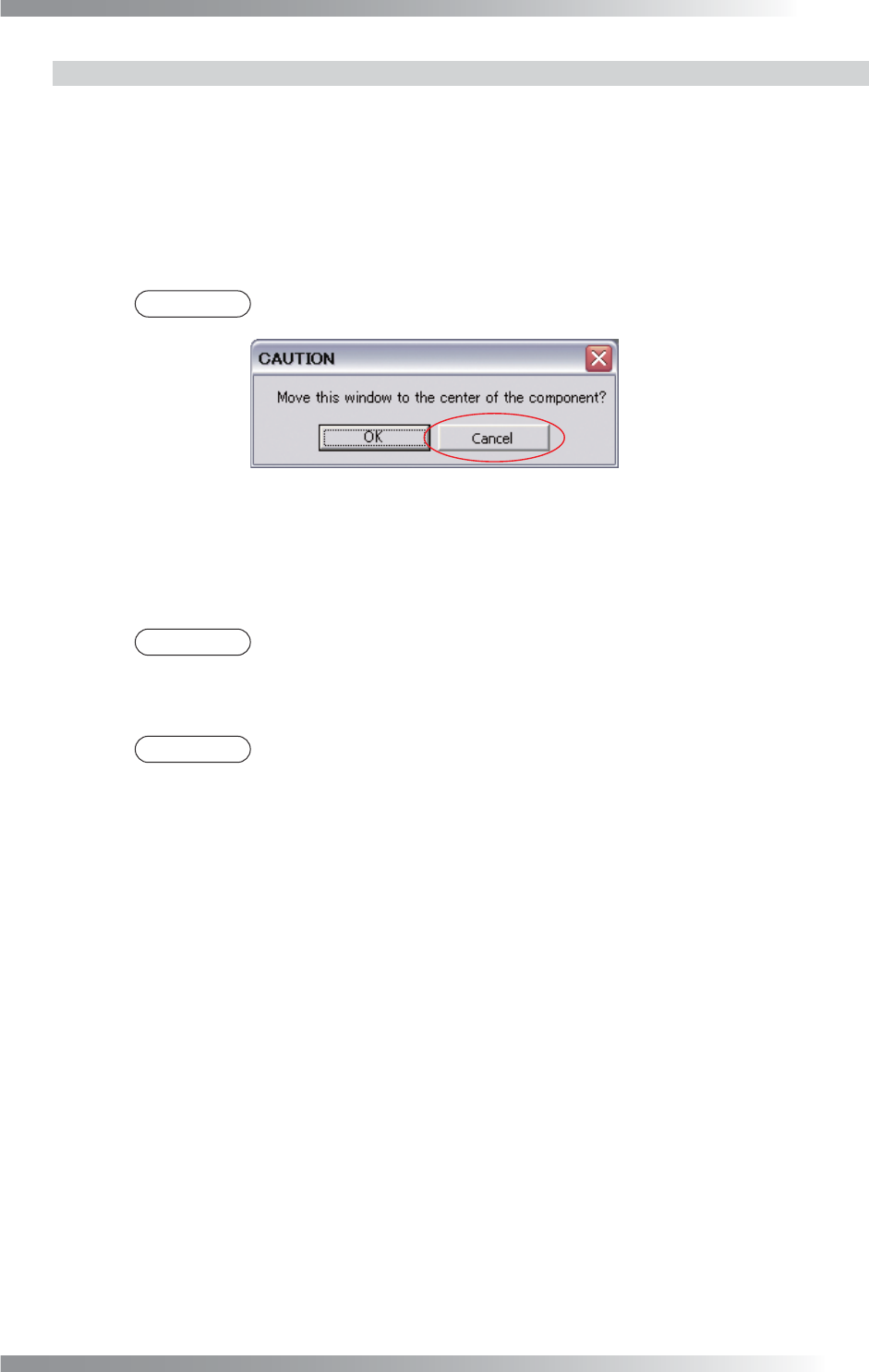
Step3: Press Add in the lower side of the dialog. The dialog shown in Figure 1-78 appears and
press Cancel. The image surrounded by inspection window appears.
NOTE
Press Delete and Inspect, then the reference image is deleted.
Figure 1-78 Dialog of ImageMatchEx
Step4: Adjust the value of SearchRangeX and SearchRangeY to defi ne the search range.
Step5: Enter values in the Upper and Lower fi eld.
NOTE
Standard values are 80 (Upper) and 0 (Lower).
Step6: Enter 99999 in the X fi eld and Y fi eld in the lower right side of the dialog.
NOTE
To use ImageMatchEx for position alignment, enter the tolerance of misalignment
value to X fi eld and Y fi eld.
Step7: Enter the appropriate vector into the Shift fi eld. Any value from V1 to V8 is available.
Select the vector according to the Memorize to fi eld of the Adjust window.
Step8: Enter V4 in Memorize to to refl ect this amount of misalignment to other algorithms.
Step9: Press Inspect. Make sure that the inspection is completed properly.
III-64
Programming Manual
Part III Inspection Algorithm
1.18 OCV
1.18.1 Inspection Overview
OCV is the algorithm to inspect for pattern matching inspection.
Register characters of component as font.
Scanned image is inspected by pattern matching with registered image as font.
OCV is suitable for missing and miss-mounting of any components inspection.
1.18.2 Parameter Setting
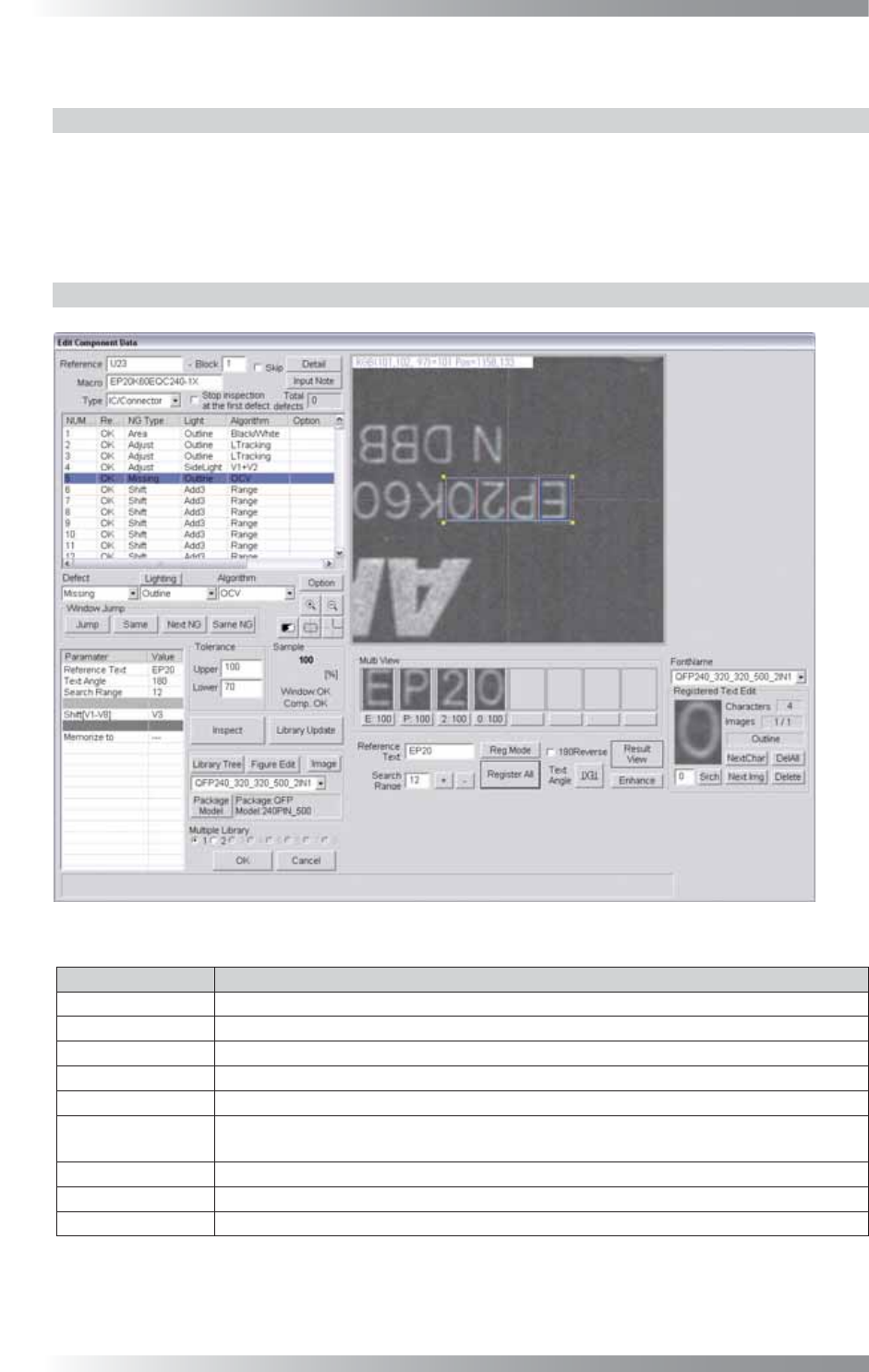
Figure 1-79 OCV
Parameter Description
Lighting
Select a lighting that displays characters visually clear.
Algorithm Select OCV.
Reference Text
No need for setting. Reference Text shown in Table 1-29 is displayed.
Text Angle No need for setting. Text Angle shown in Table 1-29 is displayed.
Search Range No need for setting. Search Range shown in Table 1-29 is displayed.
Shift[V1-V8]
Enter the appropriate vector. Any value from V1 to V8 is available.
Select the vector according to the Memorize to fi eld of the Adjust window.
Memorize to -
Upper, Lower
Set the upper and lower limit of the OK range.
Sample
Shows the match percentage.
Table 1-28 Parameter of OCV
III-65
Programming Manual
Part III Inspection Algorithm
Item Description
Multi View
Displays recognized characters.
Match percentage for each character is displayed below each character.
Sample value refers the lowest match percentage of inspected characters.
Reference Text Enter characters to read.
Search Range
Search range for characters. Display the search range as the yellow dotted line.
Enter the search range or press + and - to adjust the search range.
Reg Mode
Registers characters one by one.
Register All
Registers all characters.
180 Reverse
For components with no polarity, check 180 Reverse.
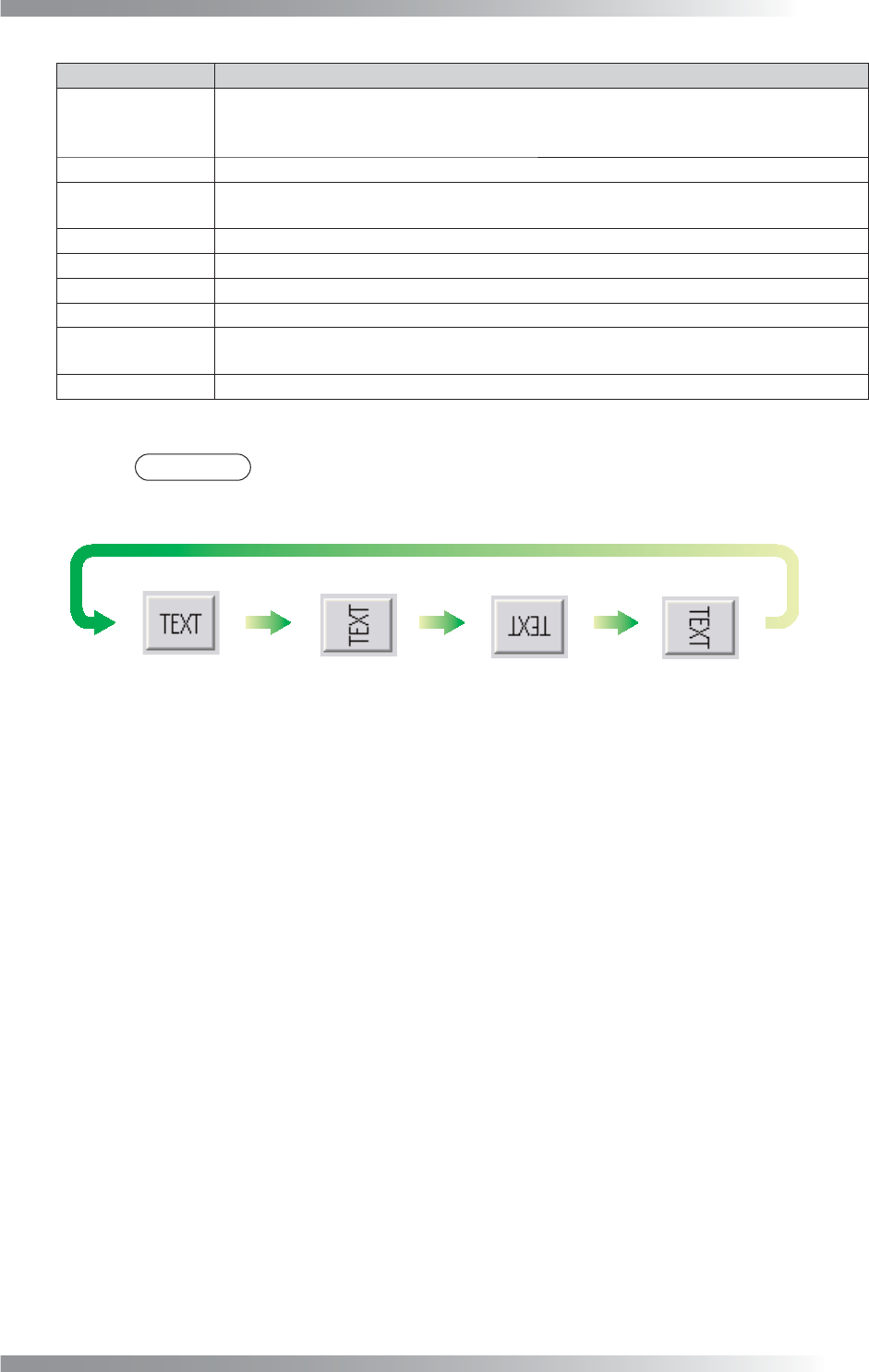
Text Angle Adjusts a direction of a text by pressing TEXT.
Result View
Display is changed Result View (=scanned image)
>
Font View (=registered image)
>
Source View (=search image) by pressing Result View.
Enhance
Displays a contrast enhanced image by Black/White.
Table 1-29 Each Item of OCV
NOTE
Adjust the inspection window direction by pressing TEXT to become the same
direction as the target.
Figure 1-80 Text Angle