Programming_mail.pdf - 第135页
III- 61 Programming Manual Part III Inspection Algorithm 1.16.3 Setting Procedur e Step1: Select SideLight from the Lighting drop-down list. NOTE Change the lighting to LowLight , if fl ux is detected as bridge with SideL…
III-60
Programming Manual
Part III Inspection Algorithm
1.16 Distribution
1.16.1 Inspection Overview
Distribution is the algorithm to detect a solder bridge between leads of IC components.
Set the inspection window between leads of IC components. If a solder bridge exists between leads,
a bright line is laid across the inspection window because the solder is brighter than PCB.
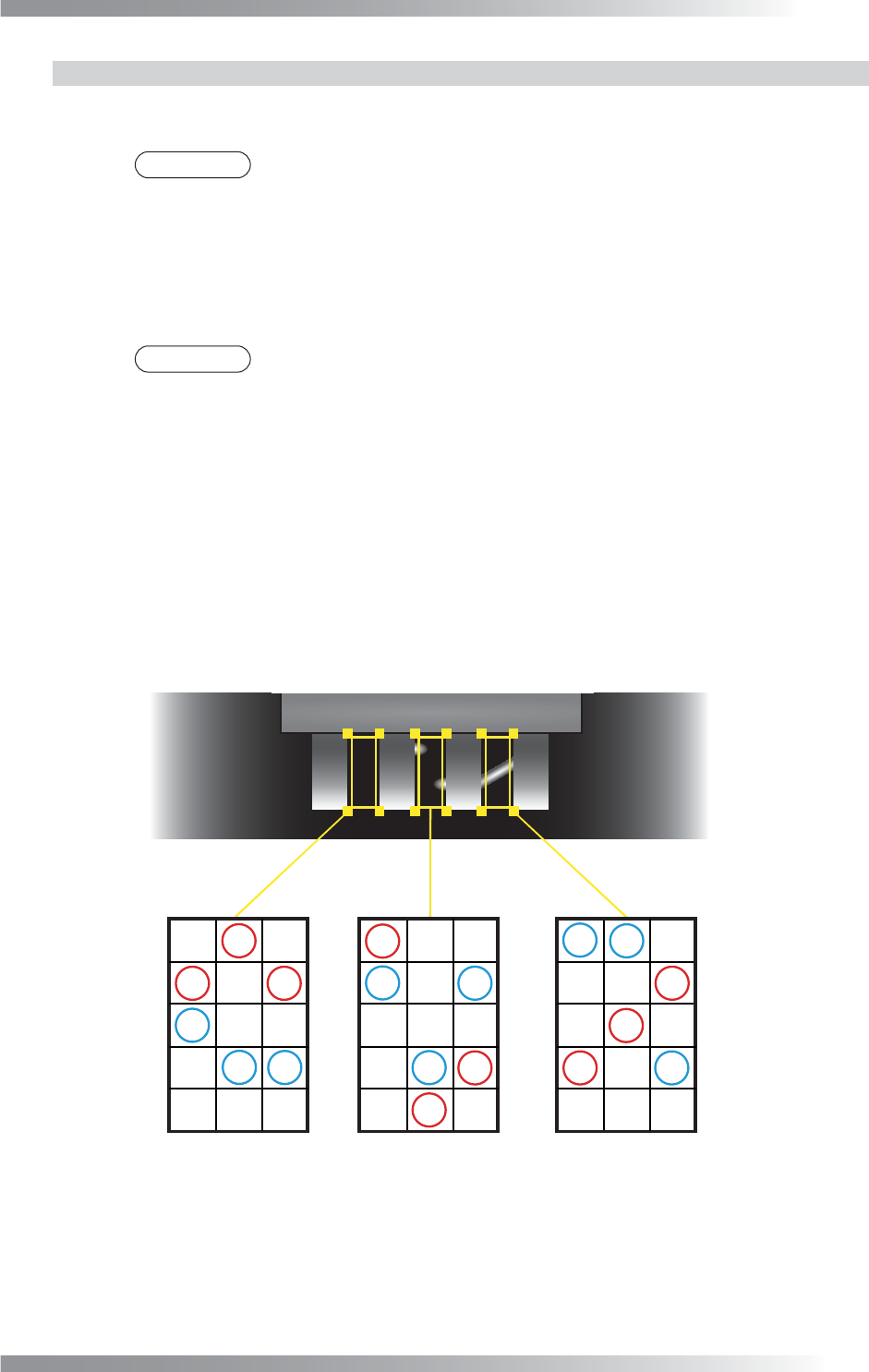
The inspection window will be separated to several windows in longitudinal direction. The differences
between maximum minus minimum brightness level in each separated windows are calculated.
The sample value is the minimum value calculated among separated window (refer to Figure 1-76).
1.16.2 Parameter Setting
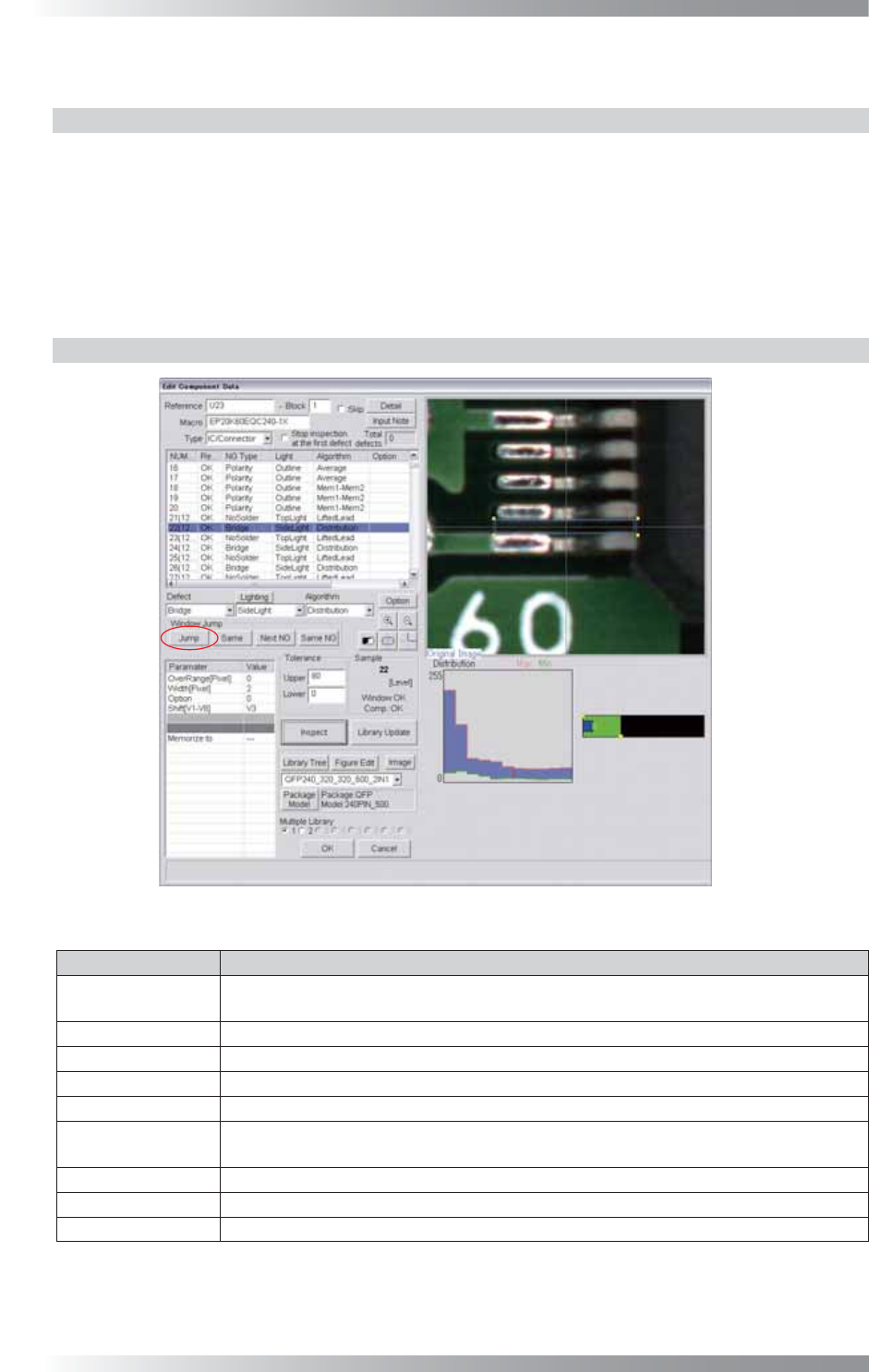
Figure 1-75 Distribution
Parameter Description
Lighting
Select SideLight. Change the lighting to LowLight, if fl ux is detected as bridge with
SideLight.
Algorithm Select Distribution.
OverRange[Pixel] Enter 0.
Width[Pixel] Default is 2. Set the bigger value to reduce noise.
Option Enter 0.
Shift[V1-V8]
Enter the appropriate vector. Any value from V1 to V8 is available.
Select the vector according to the Memorize to fi eld of the Adjust window.
Memorize to -
Upper, Lower Set upper and lower limit of the OK range.
Sample Refer to Figure 1-76.
Table 1-26 Parameter of Distribution
III-61
Programming Manual
Part III Inspection Algorithm
1.16.3 Setting Procedure
Step1: Select SideLight from the Lighting drop-down list.
NOTE
Change the lighting to LowLight, if fl ux is detected as bridge with SideLight.
Step2: Change the inspection window size to surround the area from the lead base to the pad end.
Align its width to the lead pitch.
Step3: Enter values in the Upper fi eld and the Lower fi eld.
NOTE
Standard values are 80 (Upper) and 0 (Lower).
Step4: Enter the appropriate vector into the Shift fi eld by selecting from V1 to V8 according to the
vector used in the Memorize to fi eld in the Adjust window.
Step5: Right-click on Distribution in the inspection item list and select Parameter Copy to copy
parameter to the other leads.
Step6: Lead pitch is adjusted automatically by pressing Jump in the upper left side of the dialog.
Step7: Press Inspect. Make sure that the inspection is completed properly.
㪉㪇
㪋㪇㪊㪇
㪌㪇 㪊㪇
㪋㪇
㪍㪇㪋㪇
㪌㪇㪌㪇
㪊㪇
㪋㪇
㪎㪇
㪌㪇
㪍㪇
㪌㪇
㪉㪊㪇㪍㪇
㪋㪇 㪍㪇
㪉㪉㪇
㪉㪇㪊㪇
㪊㪇㪌㪇
㪊㪇
㪎㪇
㪉㪈㪇
㪌㪇
㪋㪇
㪉㪇
㪊㪇㪍㪇
㪊㪇 㪋㪇
㪌㪇
㪌㪇㪉㪇㪇
㪍㪇㪋㪇
㪉㪉㪇
㪎㪇
㪊㪇
㪍㪇
㪌㪇
㪉㪇
㪋㪇 㪋㪇 㪈㪎㪇 㪋㪇 㪈㪐㪇 㪈㪐㪇 㪈㪐㪇 㪈㪏㪇
(a) Normal (c) Bridge
(b) Bleeding
(It is not bridge)
Divide inspection window into several blocks.
Calculate maximum brightness level minus minimum brightness level in each column.
Minimum value is sample value.
(Sample Value is higher)
Figure 1-76 Bridge Inspection by Distribution
III-62
Programming Manual
Part III Inspection Algorithm
1.17 ImageMatchEx
1.17.1 Inspection Overview
ImageMatchEx is the algorithm to inspect for pattern matching inspection.
ImageMatchEx compares registered image and actual image inside the inspection window and
calculate matching rate.
ImageMatchEx can be recognized not only alphanumeric character but also symbol.
ImageMatchEx is suitable for missing or miss-mounting of any components inspection.
NOTE
ImageMatchEx can be used for Adjust. This algorithm corrects the amount of
misalignment of CAD data with the actual position on the components.
1.17.2 Parameter Setting
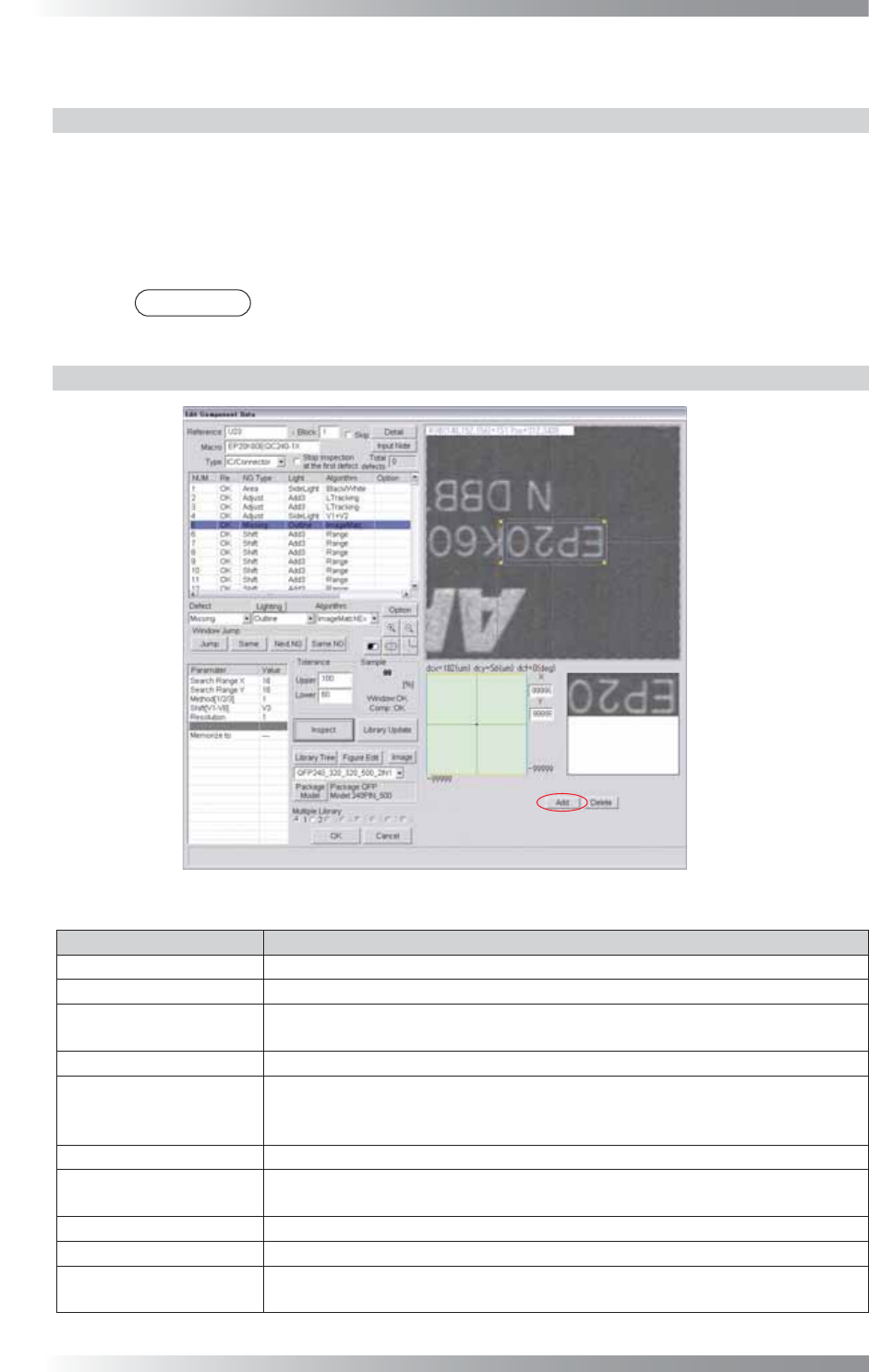
Figure 1-77 ImageMatchEx
Parameter Description
Lighting Select a lighting that displays characters visually clear.
Algorithm Select ImageMatchEx.
Search Range X,
Search Range Y
Set search range (=yellow dotted line). Enter the bigger value to enlarge the search
range. If the search range is not appropriate, the calculation time might be long.
Method[1/2/3]
Enter 1.
Shift[V1-V8]
Enter the appropriate vector. Any value from V1 to V8 is available.
Select the vector according to the Memorize to fi eld of the Adjust window.
If using ImageMatchEx for misalignment adjustment, enter 0.
Resolution Enter 1.
Memorize to
Enter V4 in Memorize to to refl ect this amount of misalignment to other
algorithm.
Upper, Lower
Set the upper and lower limit of the OK range.
Sample
Shows the match percentage.
The X and Y in the lower
right side of the dialog
Enter 99999.
If using ImageMatchEx for Adjust, enter the OK range in the X fi eld and Y fi eld.
Table 1-27 Parameter of ImageMatchEx