Programming_mail.pdf - 第249页
V- 59 Programming Manual Part V Inspection Data 5.3.3 Exc hange Macro Apply arbitrarily macro to arbitrarily selected components. Because libraries can be made for each macro, multiple libraries can be applied to the sam…
V-58
Programming Manual
Part V Inspection Data
5.3.2 Do Inspection for Not Placed
Only inspect missing component for arbitrarily selected components. If there is no component, the
result will be OK. This is used when inspecting whether components which do not have to be mounted
on certain versions of PCB are mounted or not.
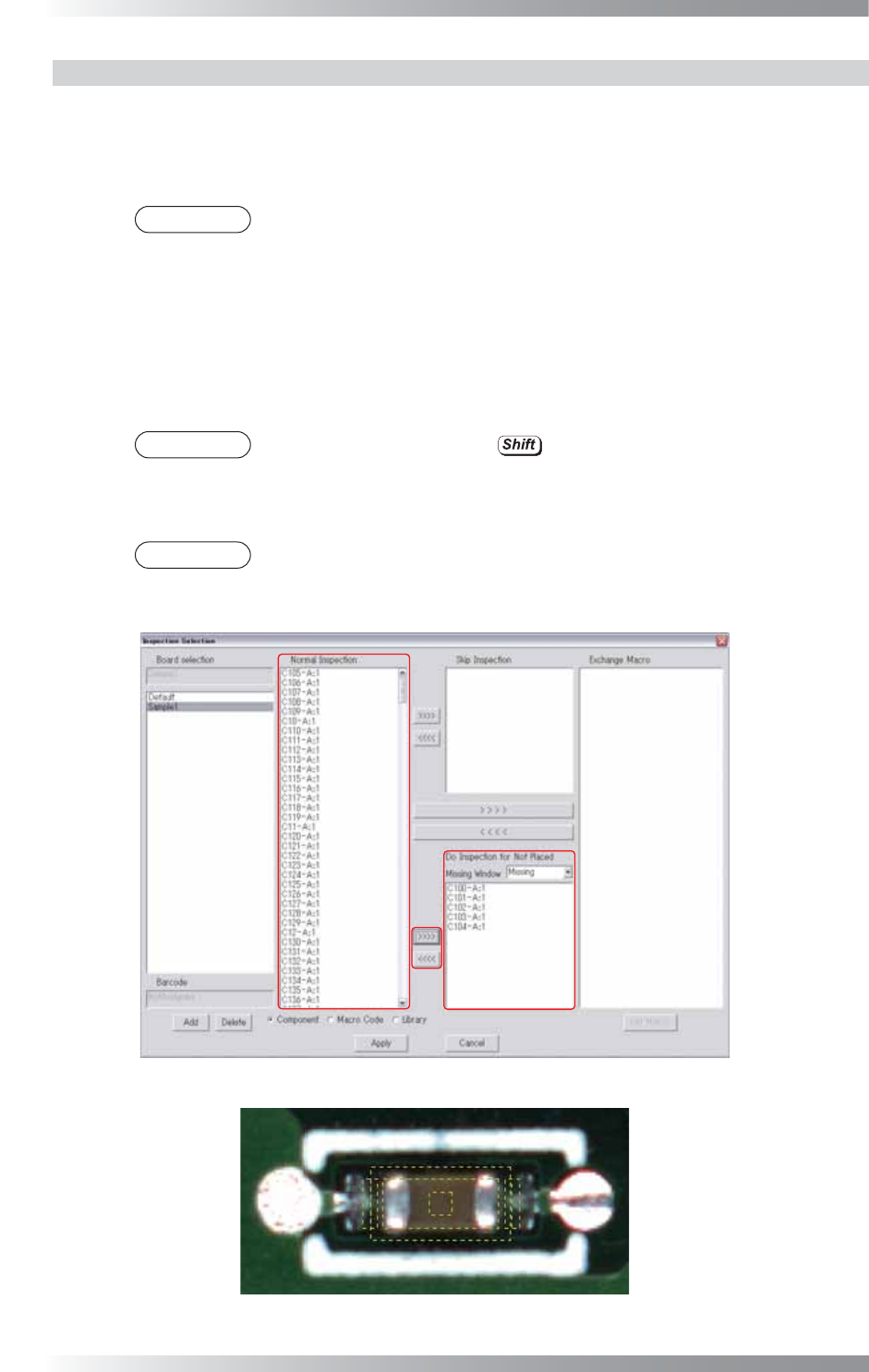
Display the Do Inspection for Not Placed component as the yellow dotted line.
NOTE
If BF-RP1 (optional system) is used, NG will be reported to BF-RP1 as the inspection
result when detecting components are mounted through the Do Inspection for Not
Placed inspection (NG type: Not Placed).
Step1: Select Missing from the Missing Window drop-down list.
Step2: Select a component to apply Do Inspection for Not Placed from the Normal Inspection
list-box.
NOTE
Select components by pressing to select a number of components.
Step3: Press >>>> to move components to the Do Inspection for Not Placed list-box.
NOTE
Select components from the Do Inspection for Not Placed list-box and press <<<<
to release the Do Inspection for Not Placed setting.
Figure 5-9 Do Inspection for Not Placed Setting
Figure 5-10 Do Inspection for Not Placed Component (Yellow Dotted Line)
V-59
Programming Manual
Part V Inspection Data
5.3.3 Exchange Macro
Apply arbitrarily macro to arbitrarily selected components. Because libraries can be made for each
macro, multiple libraries can be applied to the same component.
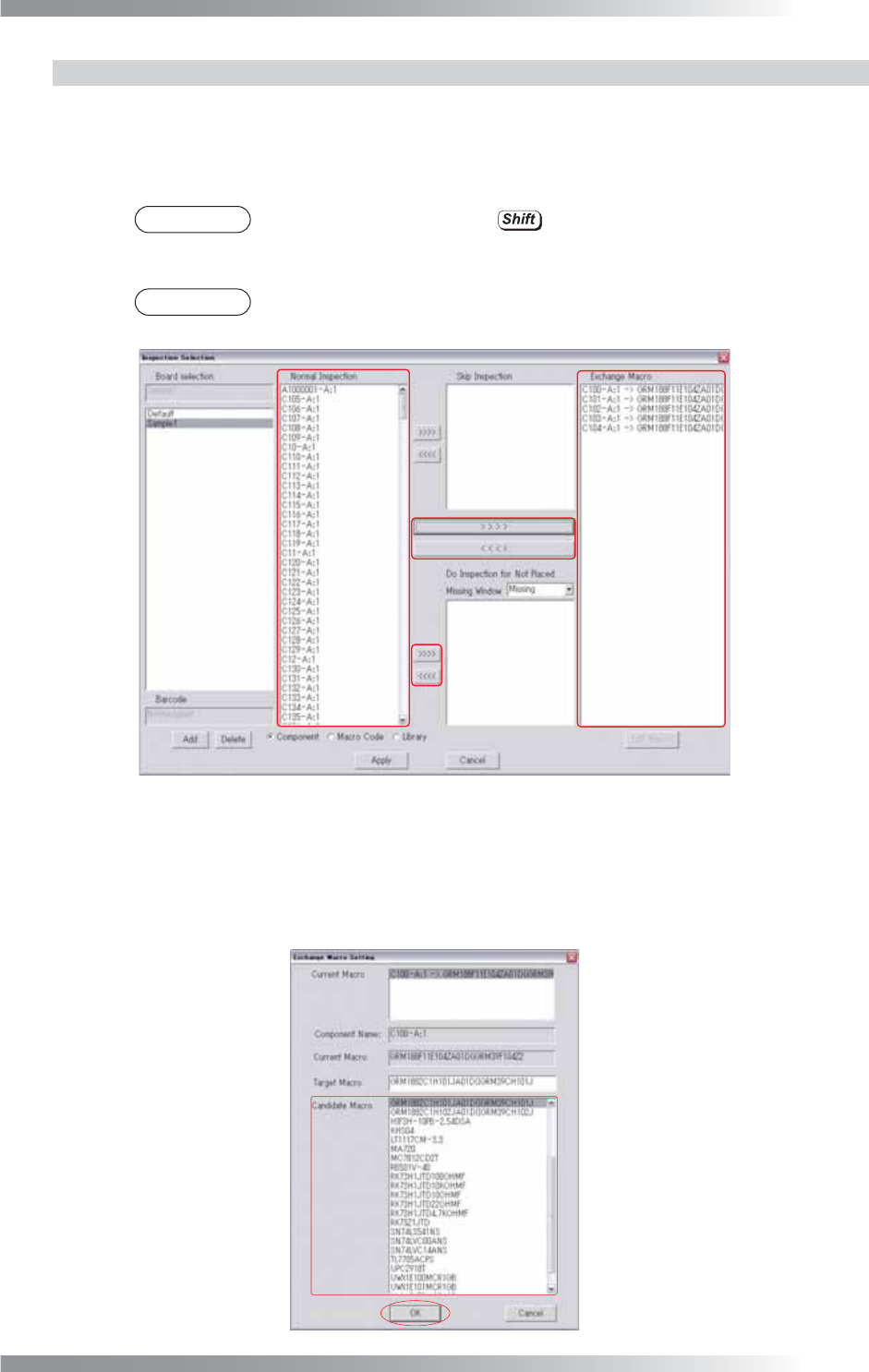
Step1: Select a component whose macro should be changed from the Normal Inspection list-box.
NOTE
Select components by pressing to select a number of components.
Step2: Press > > > > to move components to the Exchange Macro list-box.
NOTE
Select components from the Exchange Macro list-box and press < < < < to release
the Exchange Macro setting.
Figure 5-11 Exchange Macro Setting
Step3: Select a macro from the Exchange Macro list-box and press Edit Macro.
Step4: The dialog shown in Figure 5-12 appears. Select a macro from the Candidate Macro list-
box and press OK.
Figure 5-12 Exchange Macro Setting
V-60
Programming Manual
Part V Inspection Data
5.4 Save Inspection Data
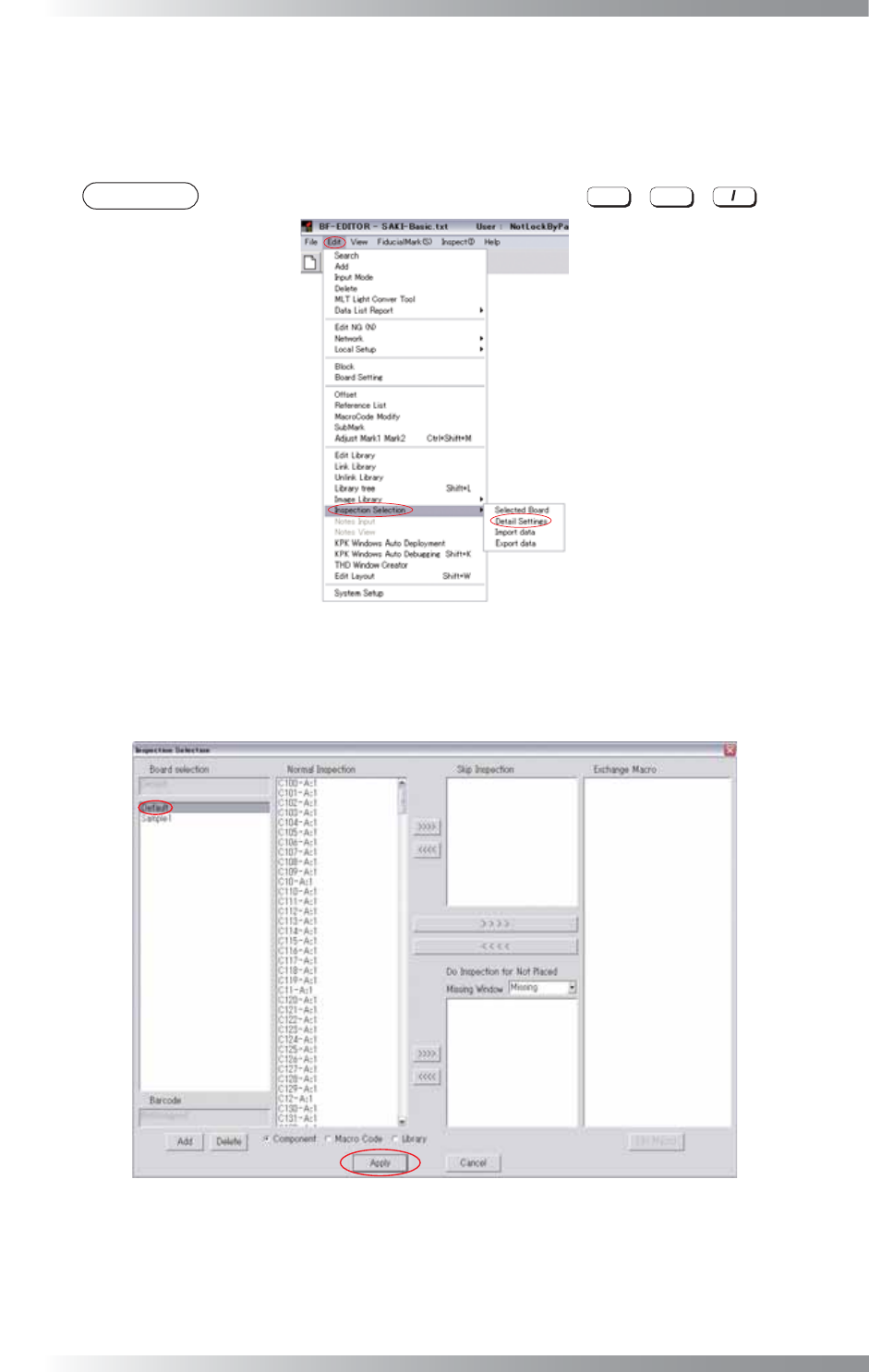
Set Inspection Selection to Default when saving the inspection data.
Step1: Select Edit > Inspection Selection > Detail Settings form the menu-bar.
NOTE
The same operation can be performed by pressing
Ctrl
+
Alt
+ .
Figure 5-13 Detail Settings
Step2: The dialog shown in Figure 5-14 appears.
Select Default from the Board Selection and press Apply.
Figure 5-14 Default