Programming_mail.pdf - 第16页
I- 8 Programming Manual Part I Basic Operation The following three ways are available to open the Edit Component Data dialog. Search the component and open the Edit Component Data dialog Press Ctrl + Alt + F concurrently…
I-7
Programming Manual
Part I Basic Operation
1.1.7 Display the Edit Component Data Dialog
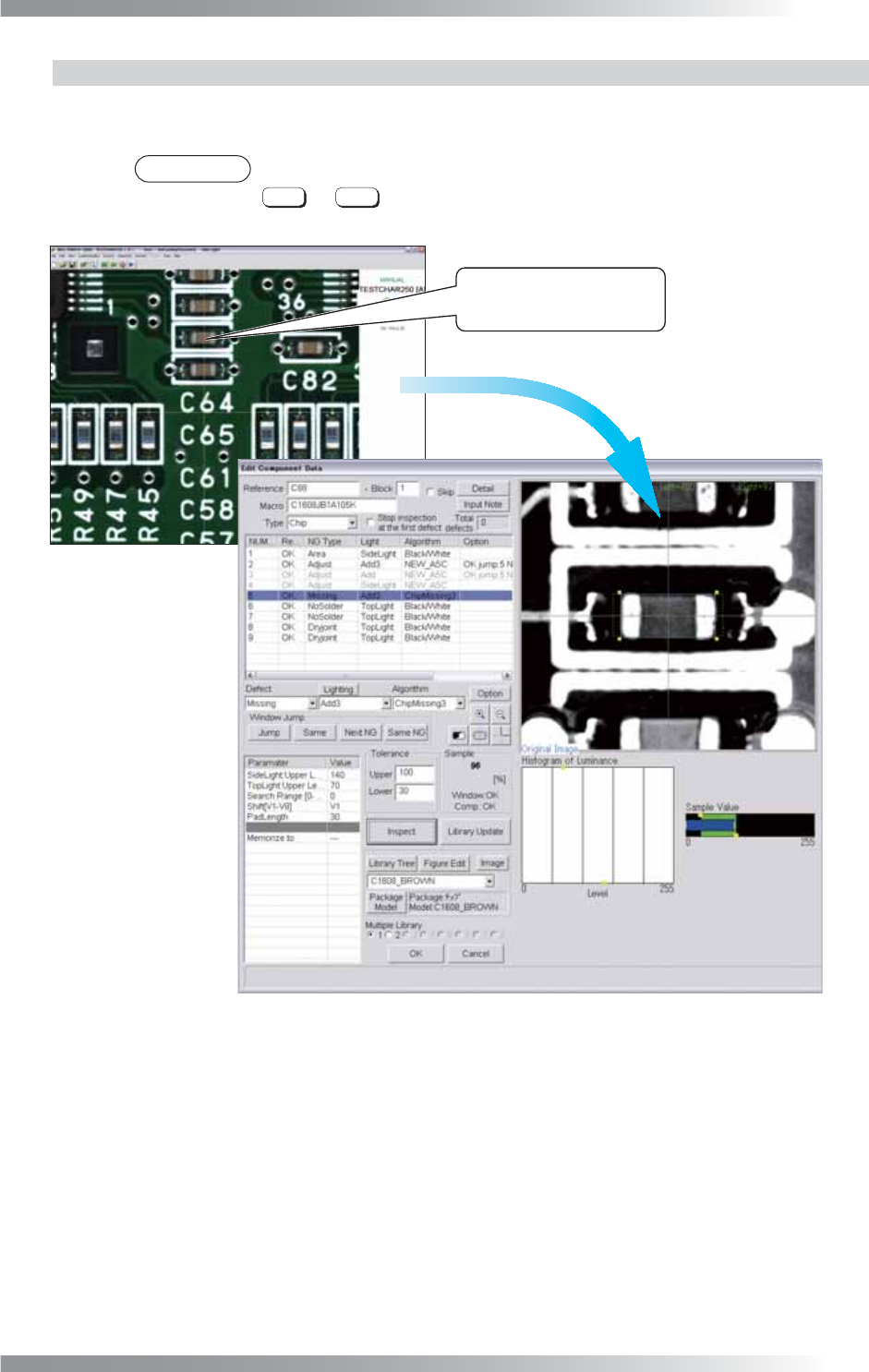
If there are many false calls, the inspection data should be readjusted. Right-click the target component,
open the Edit Component Data dialog shown in Figure 1-10 and adjust the inspection data.
NOTE
Inspection data switches to another data in order of its created date by pressing
←
or
→
.
The above operation is also available in Full View Screen and
Enlarged View Screen.
Right-click on the target
inspection window to edit.
Figure 1-10 Edit Component Data
I-8
Programming Manual
Part I Basic Operation
The following three ways are available to open the Edit Component Data dialog.
Search the component and open the Edit Component Data dialog
Press
Ctrl
+
Alt
+
F
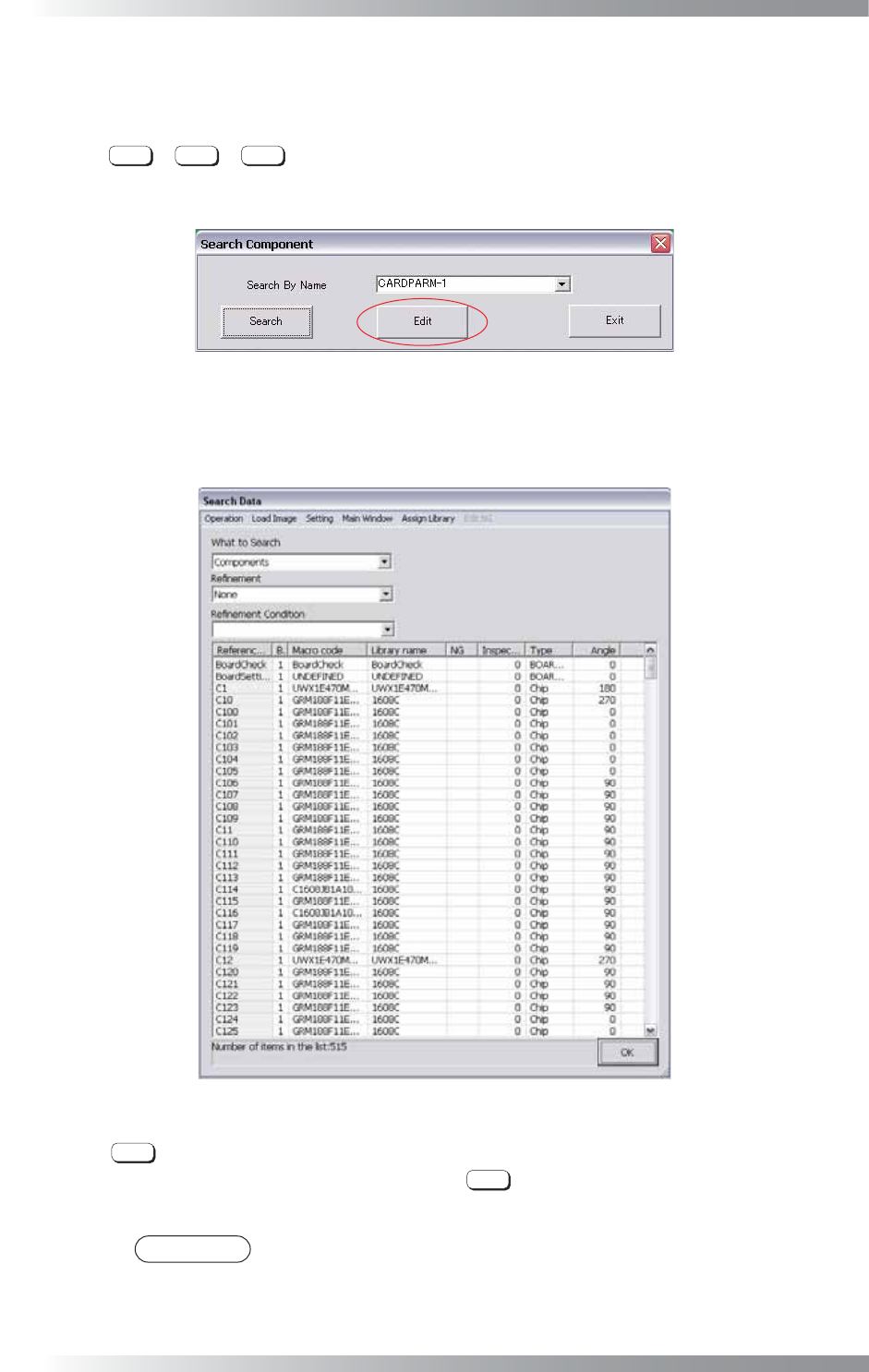
concurrently and the Search Component dialog shown in Figure 1-11
appears. Enter the component name and press Edit. The Edit Component Data dialog for the
component appears.
Figure 1-11 Search Component
In another way, select Edit > Search from the menu-bar and the Search Data dialog shown in Figure
1-12 appears. Double-click the component. The Edit Component Data dialog for the component appears.
Figure 1-12 Search Data
Press
Enter
to open the Edit Component Data dialog
Click an arbitrary position on the image and press
Enter
.
The NG component data that is in the closest to the clicked position is displayed.
NOTE
This operation is available in Full View Screen and Enlarged View Screen.
I-9
Programming Manual
Part I Basic Operation
Select Edit NG to open the Edit Component Data dialog
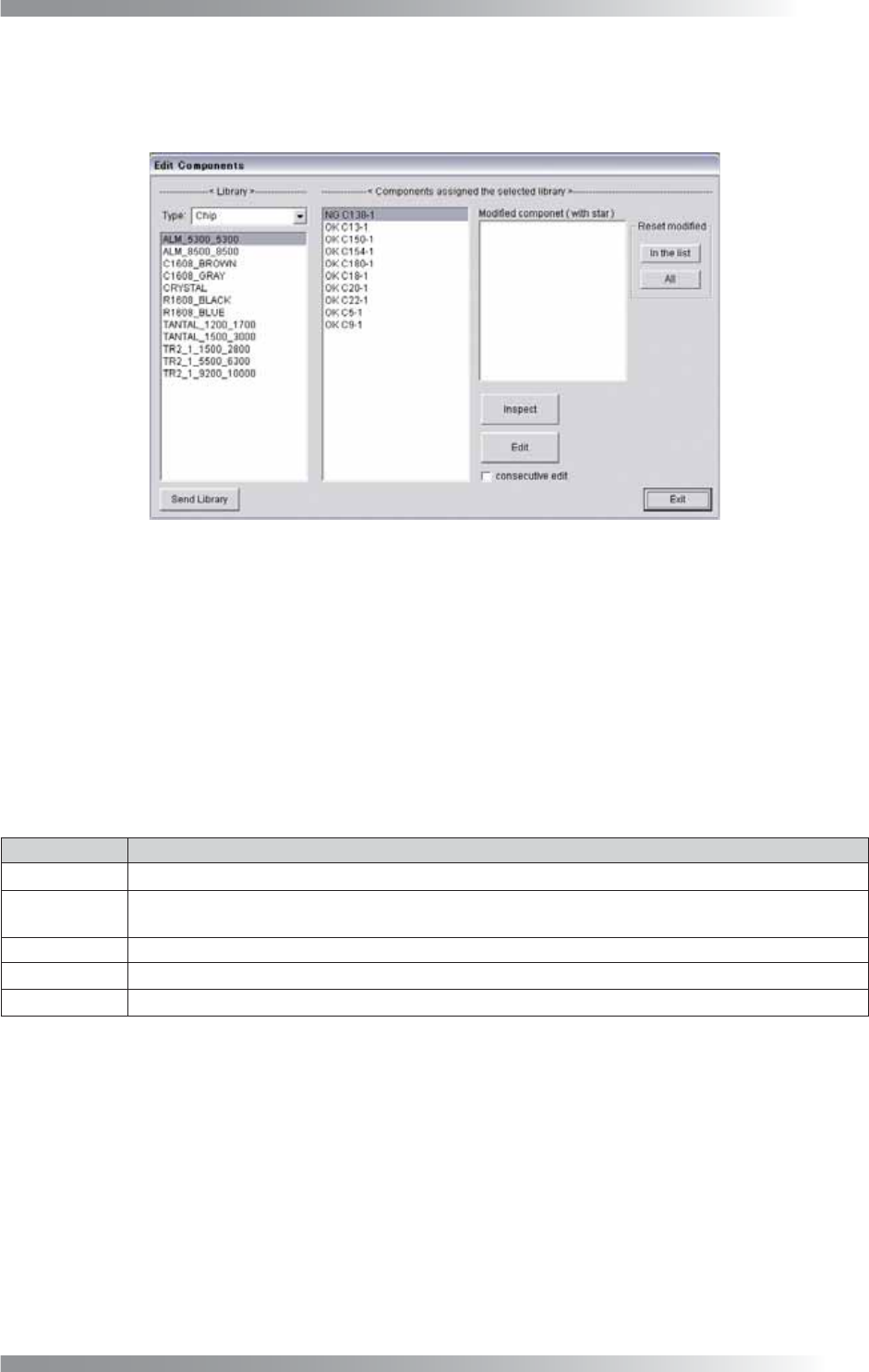
Step1: Select Edit > Edit NG from the menu-bar and the Edit Components dialog shown in Figure
1-13 appears.
Figure 1-13 Edit Components
Step2: Select the type of the component from the library.
Step3: Select the library name of the component and select the target component from Library
assigned.
Step4: Press Edit and the corresponding Edit Component Data dialog appears.
The display items of the Edit Components dialog are described in the table below.
Item Description
Send Library Transfers the specifi ed library data to BF-Editor (optional system).
Inspect
Re-inspects all components that the selected library is used and displays the inspection result on
the Edit Components dialog.
Edit Opens the Edit Component Data dialog.
Consecutive The next component is automatically selected after closing the Edit Component Data dialog.
Exit Returns to the original inspection dialog.
Table 1-2 Each Item of
Edit Components