Programming_mail.pdf - 第180页
IV - 16 Programming Manual Part IV Option Setting 2.4 Delete Components data can be deleted. Select Edit > Delete from the menu-bar . The dialog shown in Figure 2-8 appears. Select the component to be deleted and then…
IV-15
Programming Manual
Part IV Option Setting
2.3 Input Mode
The selected inspection data can be copied continuously.
Step1: Left-click the component to be copied.
Step2: Select Edit > Input Mode from the menu-bar.
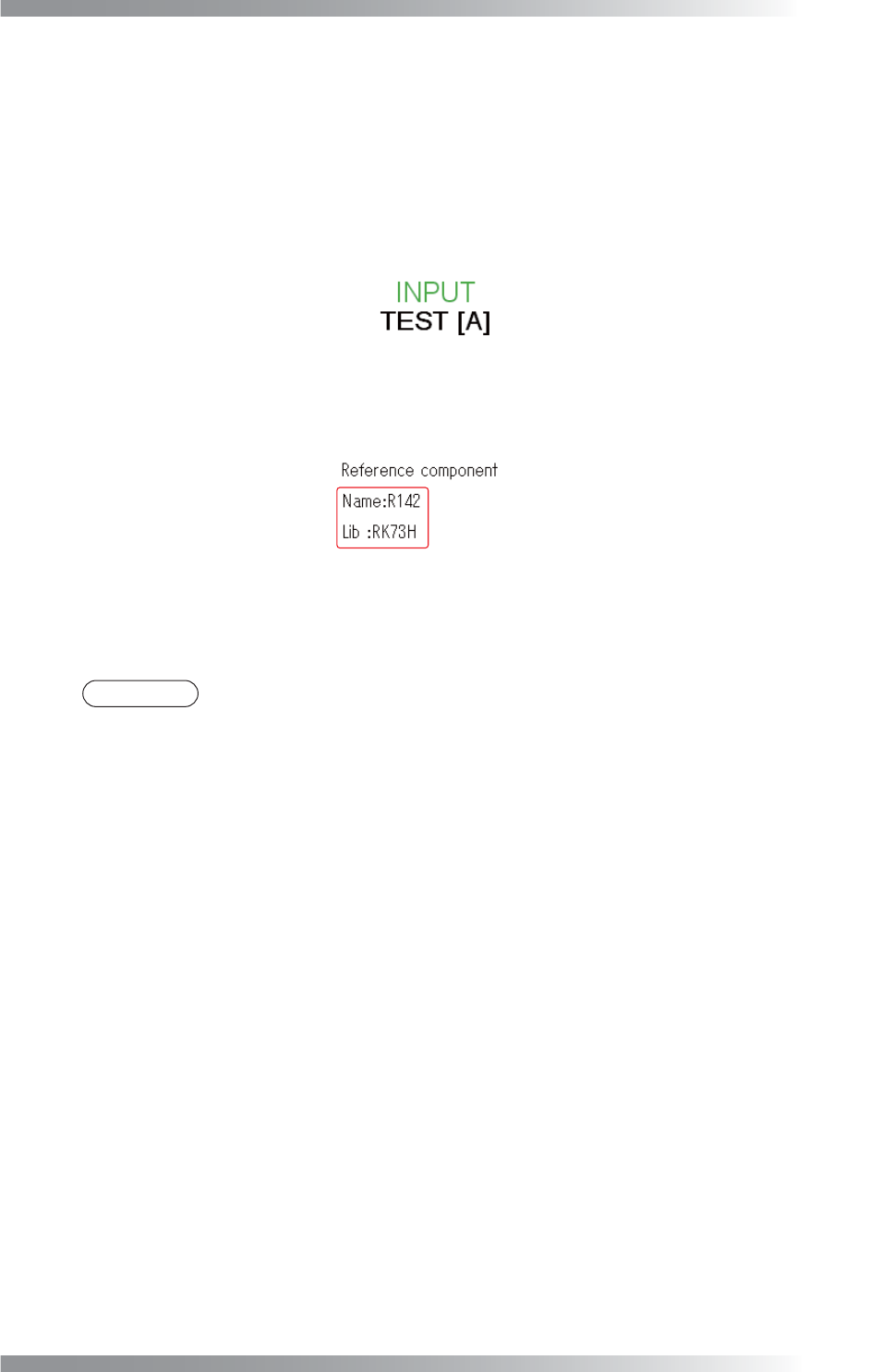
The component name and library name will appear on the right side of the screen.
Figure 2-7 Input Mode
Step3: Left-click the point to be copied.
The inspection data will be copied from the center of the clicked point.
NOTE
If components are copied by Input Mode, reference names are set automatically:
On Side A, those will be A10000001, A10000002...
On Side B, those will be B10000001, B10000002...
IV-16
Programming Manual
Part IV Option Setting
2.4 Delete
Components data can be deleted.
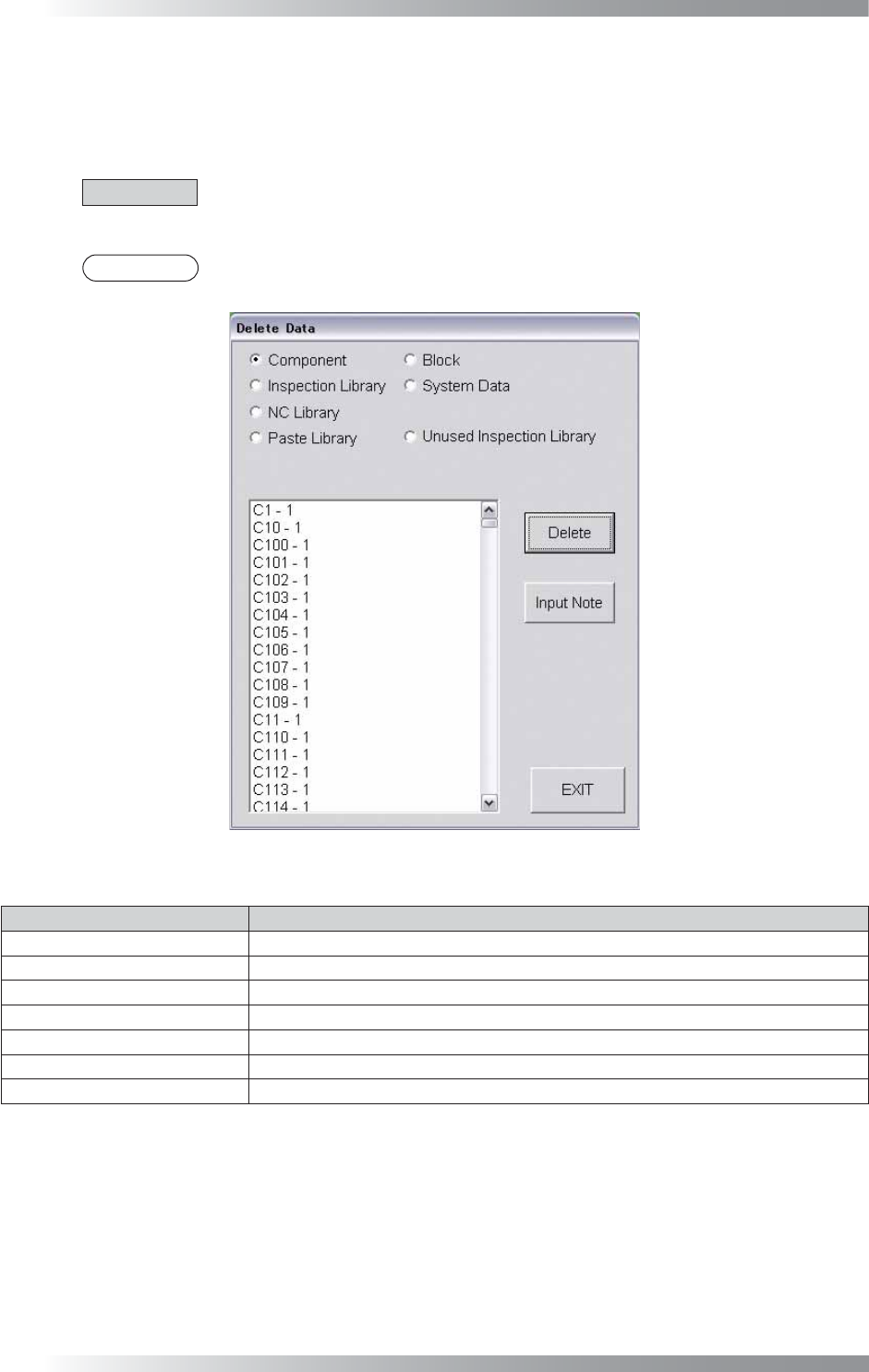
Select Edit > Delete from the menu-bar. The dialog shown in Figure 2-8 appears.
Select the component to be deleted and then press Delete.
CAUTION
To delete a library of a component whose Type is IC/Connector, delete the libraries from
Inspection Library and NC Library.
NOTE
To leave a note and a person who deleted data, press Input Note.
Figure 2-8 Delete
Item Description
Component
Displays a component data.
Inspection Library
Displays an inspection library.
NC Library Displays an NC library.
Paste Library
Displays a Paste library.
Block
Displays a sub-board data.
System Data
Displays a fi ducial mark and sub mark data.
Unused Inspection Library
Displays an unused inspection library.
Table 2-6 Delete
IV-17
Programming Manual
Part IV Option Setting
2.5 Edit NG
Inspection data of NG components can be edited.
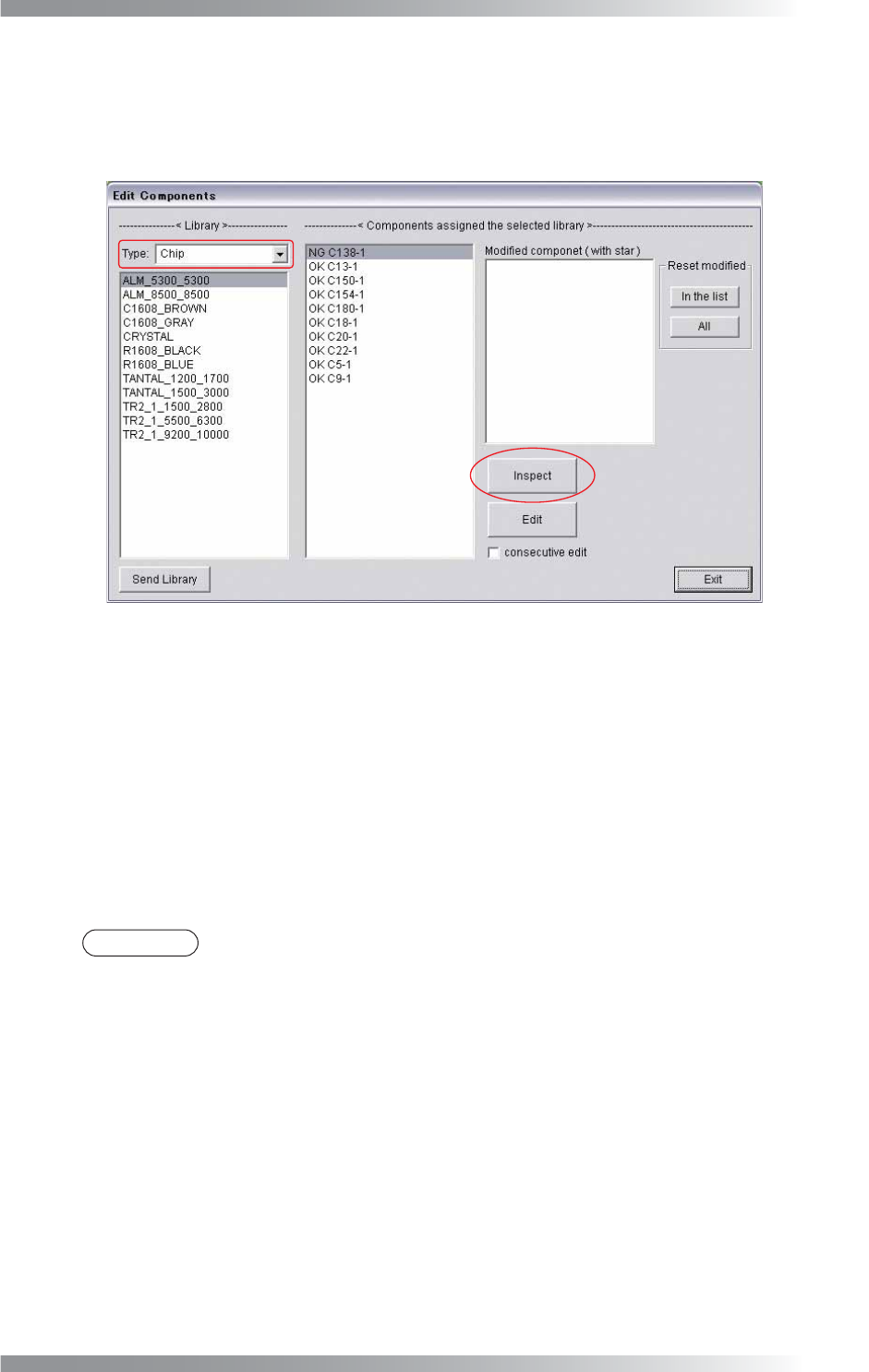
Step1: Select Edit > Edit NG from the menu-bar. The dialog shown in Figure 2-9 appears.
Figure 2-9 Edit NG
Step2: Select the component type from the Type drop-down list.
Step3: Select the library data to be edited from the list-box.
Step4: Double-click the NG component or press Edit to display the Edit Components window.
Step5: Edit the inspection data.
Step6: Press Inspect. Make sure that NG has been changed to OK.
NOTE
In Modifi ed component, individually registered components are displayed.
To register a component individually, press OK instead of Library Update in Edit Components.
To cancel the individual registration, select a component and press In the list.
If All is pressed, all individual registration will be canceled.