Programming_mail.pdf - 第46页
II- 2 Programming Manual Part II Inspection Data 1 Mak e Inspection Da ta Inspection data can be made by AOI machines and BF-Editor (optional system). CAUTION Do not use two-byte characters, space, tab, and symbolic char…

II-
1
Programming Manual
Part II Inspection Data
Inspection Dat
a
II-2
Programming Manual
Part II Inspection Data
1 Make Inspection Data
Inspection data can be made by AOI machines and BF-Editor (optional system).
CAUTION
Do not use two-byte characters, space, tab, and symbolic characters (\ < > : “ / | ? * . , ; & % =) as
these characters may cause unexpected errors.
1.1 Make Inspection Data on AOI Machine
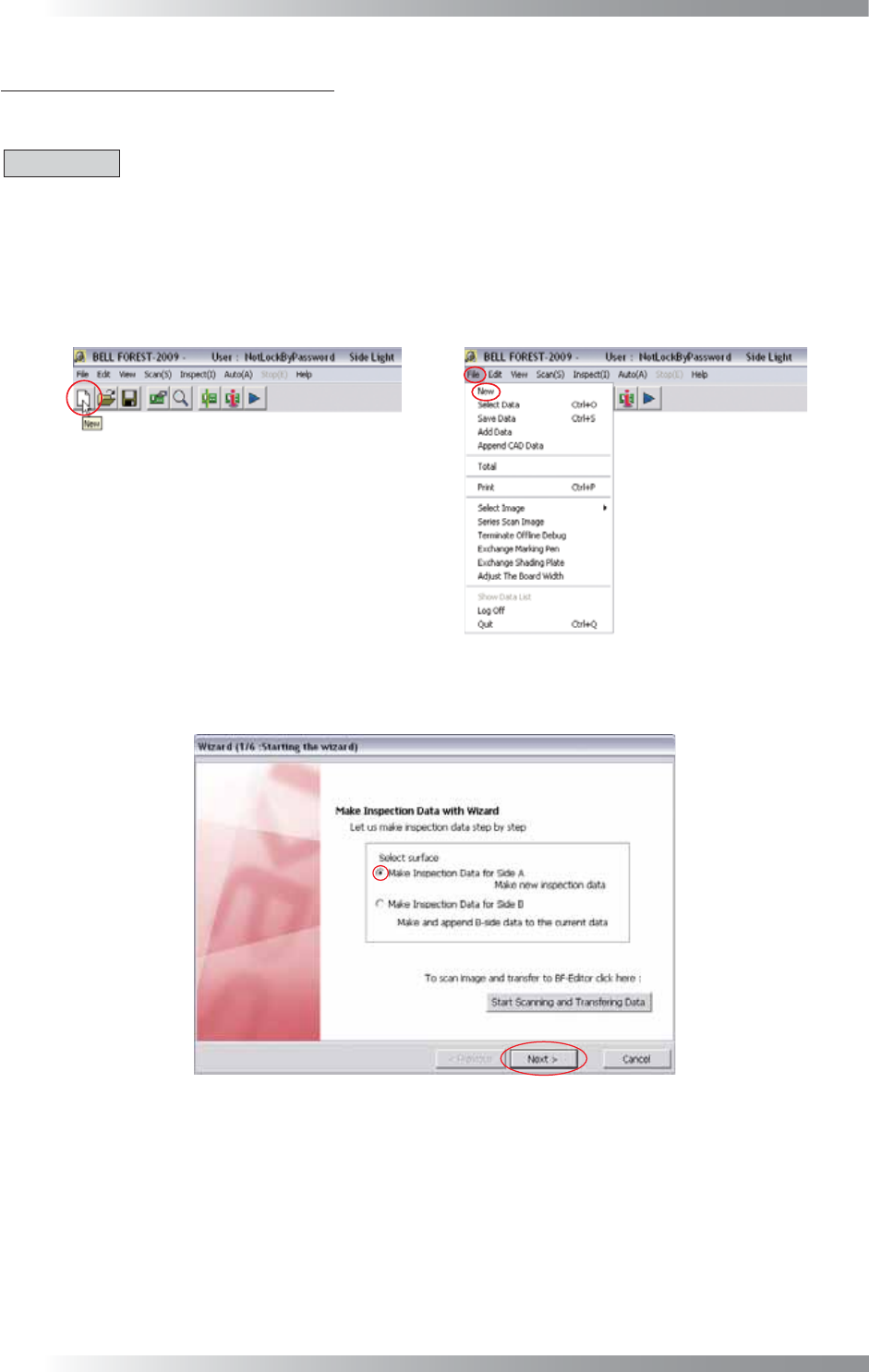
Step1: Press the New button on the tool-bar or select File > New from the menu-bar.
Figure 1-1 New
Step2: Check Make Inspection Data for Side A and press Next.
Figure 1-2 Wizard 1
II-3
Programming Manual
Part II Inspection Data
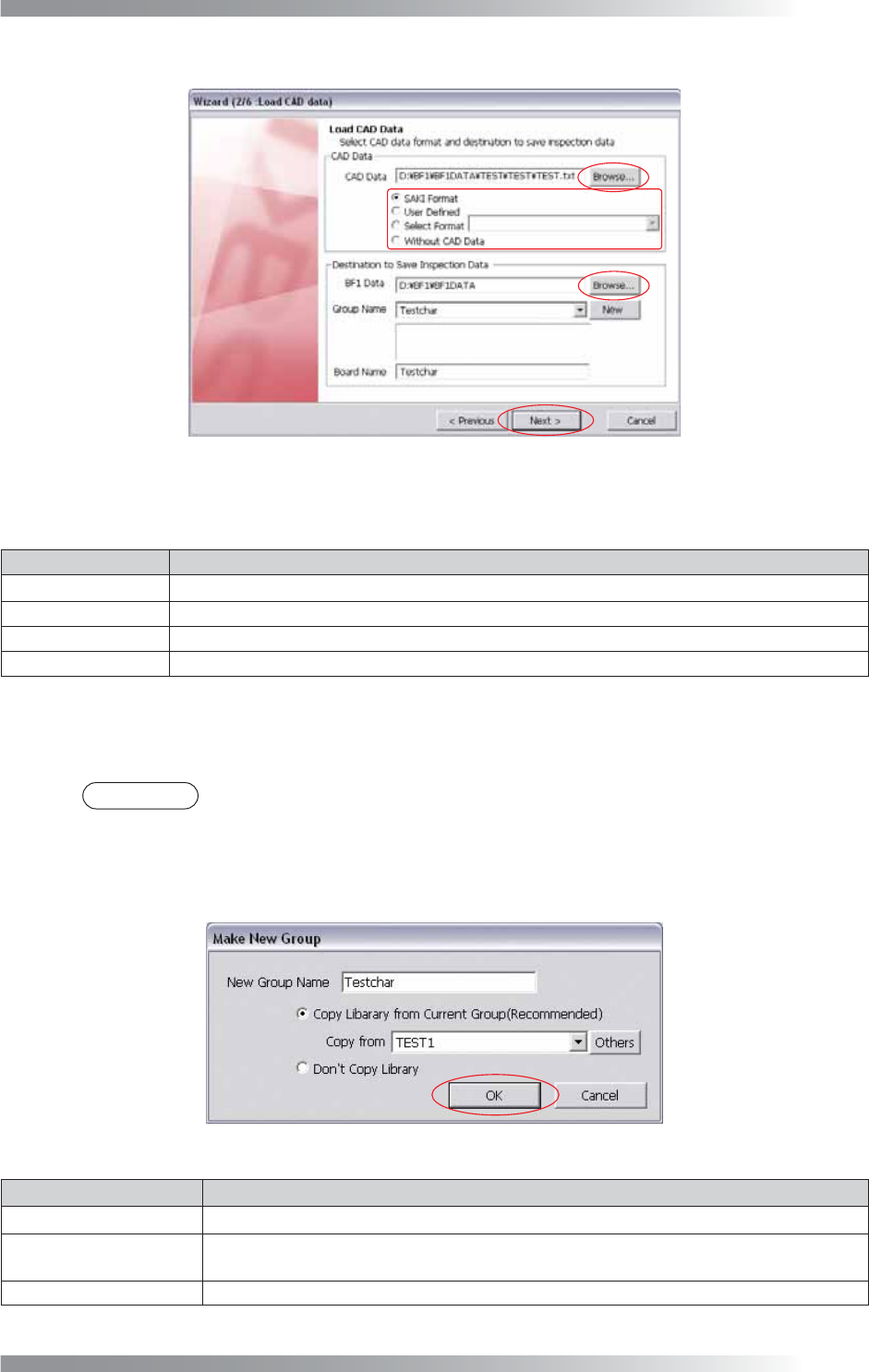
Step3: Press Browse in CAD Data to specify the CAD data.
Figure 1-3 Wizard 2
Step4: Select the format of the CAD data.
Item Description
SAKI Format
If a CAD data is output by Saki format, check
SAKI Format
.
User Defi ned
If a CAD data is output by another format, check User Defi ned.
Select Format
If a mount data is used, check Select Format.
Without CAD Data
If there is no CAD data, check Without CAD Data.
Table 1-1 Select the Format
Step5: Press Browse in BF1 Data to specify the
destination to save the inspection data.
NOTE
In the default setting, the inspection data is saved in D:\BF1\BF1DATA.
Step6: Select a group name from the Group Name drop-down list.
To add a new group, press New. The dialog shown in Figure 1-4 appears.
After all the settings are completed, press OK.
Figure 1-4 Make New Group
Item Description
New Group Name
Enter a new group name.
Copy Library from
Current Group
If using existing library data, check Copy Library from Current Group.
Select a library from the Copy from drop-down list.
Donʼt Copy Library If not using existing library data, check Donʼt Copy Library.
Table 1-2 Make New Group