SM482PLUS_Admin(Eng_Ver2.8).pdf - 第134页
6-16 Multi-Functional Placer SM482( L) PLUS Administrator’s Guide <Drag-W ork> option box After this option box is selected if the small PCBs displayed on the ‘PCB Array Layout’ dialog box are selected by draggin…
6-15
Board Definition
<No.> column
Set the offset value of Array PCB from the “Place Origin” of the PCB. Lines
corresponding to the number of small PCBs in the array PCB setup in <4. Set
Array (Regular Type)> are made.
<Skip.> column
Used to select the small PCB that will not be worked on among those in the Array
PCB. The machine continues to work without working on the small PCB selected
here.
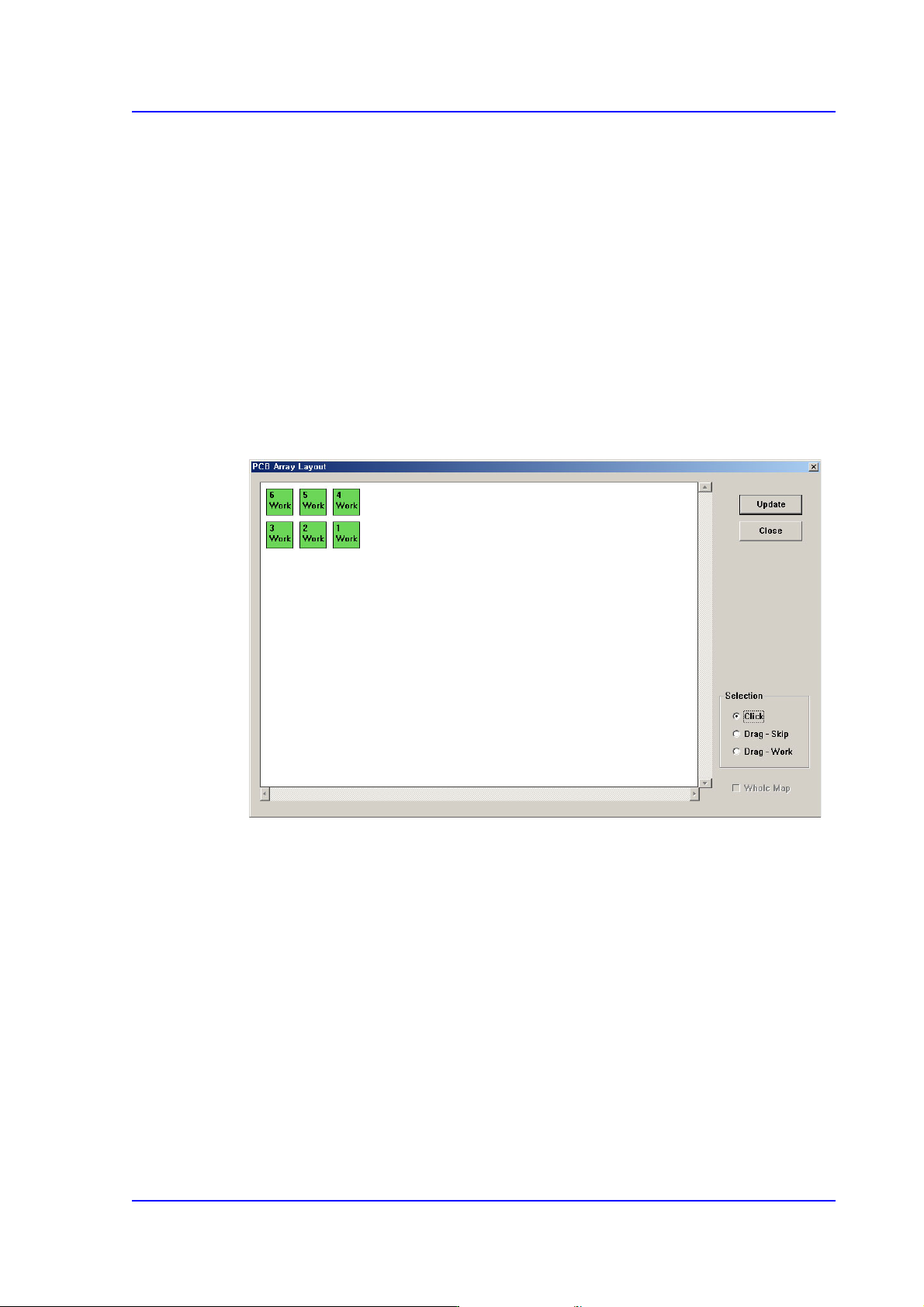
<PCB Array Layout> button
Used to determine whether to work on the corresponding PCB while watching the
arrangement of small PCBs in the Array PCB when selecting the small PCB that will
not be worked on among small PCBs in the Array PCB.
<Selection> option box group
[‘Work’ –Work on the PCB; ‘Skip’ –Not to work on the PCB]
<Click> option box
If the small PCB displayed on the ‘PCB Array Layout’ dialog box is selected
using the mouse with this option box selected, the setup of the corresponding
small PCB is changed.
If the small PCB set to ‘Work’ is selected, ‘Work’ is changed to ‘Skip’. If the
small PCB set to ‘Skip’ is selected, ‘Skip’ is changed to ‘Work’.
<Drag-Skip> option box
After this option box is selected if the small PCBs displayed on the ‘PCB
Array Layout’ dialog box are selected by dragging the mouse, the setup of the
selected small PCBs is changed to ‘Skip’. It is useful when selecting several
small PCBs at once.
6-16
Multi-Functional Placer SM482(L) PLUS Administrator’s Guide
<Drag-Work> option box
After this option box is selected if the small PCBs displayed on the ‘PCB
Array Layout’ dialog box are selected by dragging the mouse, the setup of the
selected small PCBs is changed to ‘Work’. It is useful when selecting several
small PCBs at once.
<Update> button
Applies the changed setup.
<Close> button
Close the corresponding dialog box without applying the changed setup.
<2. Teach> group
Used for moving the selected object from the Combo Box to the position of assigned
coordinates, or for obtaining the present coordinates by rotating the XY, R axis driving
motor.
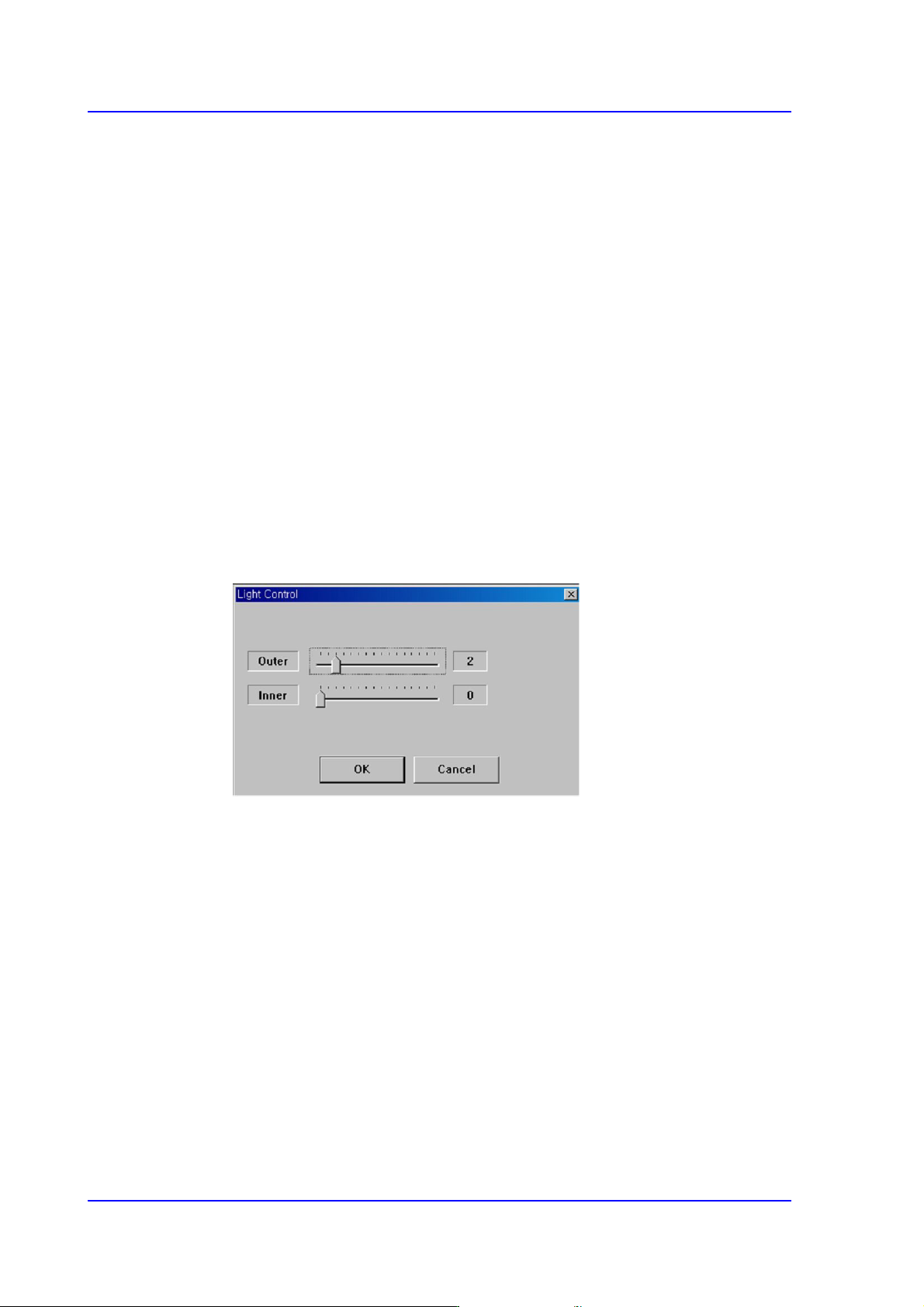
<Light> button
Setup the illumination of fiducial camera. When this Button is clicked on, the
following dialog box is displayed.
Combo Box
Select the camera to be used to teach the array coordinates. The cameras that can
be selected are as follows ;
Fid Cam1: Select the fiducial camera on the front gantry.
<Move> button
Move the object selected in the Combo Box to the position of the assigned
coordinates. Before executing <Move> button, the cell in the grid (Coordinates of
origin for small PCB’s in the array PCB) corresponding to the desired position
must be clicked on with a mouse.
<Get> button
Obtain coordinates for XY, Z axis with reference to the object selected in the
Combo Box. At this time, the objects (Coordinates of origin for small PCB’s in the
array PCB) related with coordinates must first be clicked with the mouse before
clicking on the <Get> button.
6-17
Board Definition
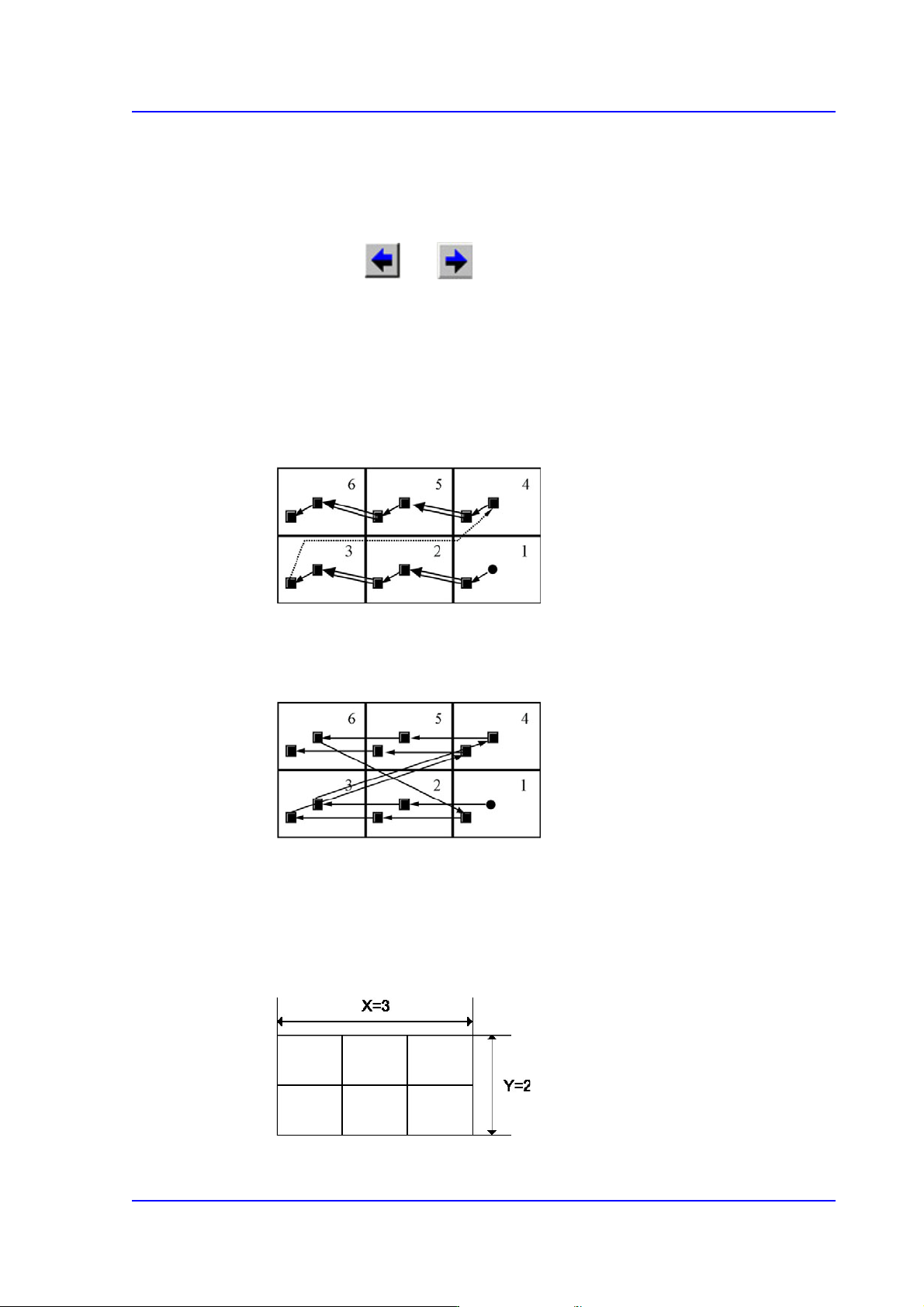
<Array Move>
It is used to check if the teaching has been performed properly by moving the
corresponding device to the array position step by step according to the order set
in the grid cell area in the above figure.
Clicking the and Buttons will select the origin of the previous or the
next origin of the small PCB selected currently.
<3. Sequence> group
Select the Array PCB operation method.
<By PCB> option Button
A method of completing one Array PCB operation and then executing the next
Array PCB operation.
<By Point> option Button
A method of completing an operation cycle to all array PCBs and then executing
the next cycle operation.
<4. Set Array (Regular Type)> group
Initializes the Array PCB. This function sets the offset value of each Array PCB
automatically when the arrangement of array PCB is regular.
<Number> edit box group
Enter the number of Array PCBs as follows.