SM482PLUS_Admin(Eng_Ver2.8).pdf - 第522页
16-2 Multi-Functional Placer SM482( L)P PLUS Administrator’s Guide 16.1. I/O [F2] The <I/O> submenu sets or displays the status of various I/O (input/output) sensors on th e equipment. Figure16. 3 “I/O Status “d ia…
16-1
Diagnosis
Chapter16. Diagnosis
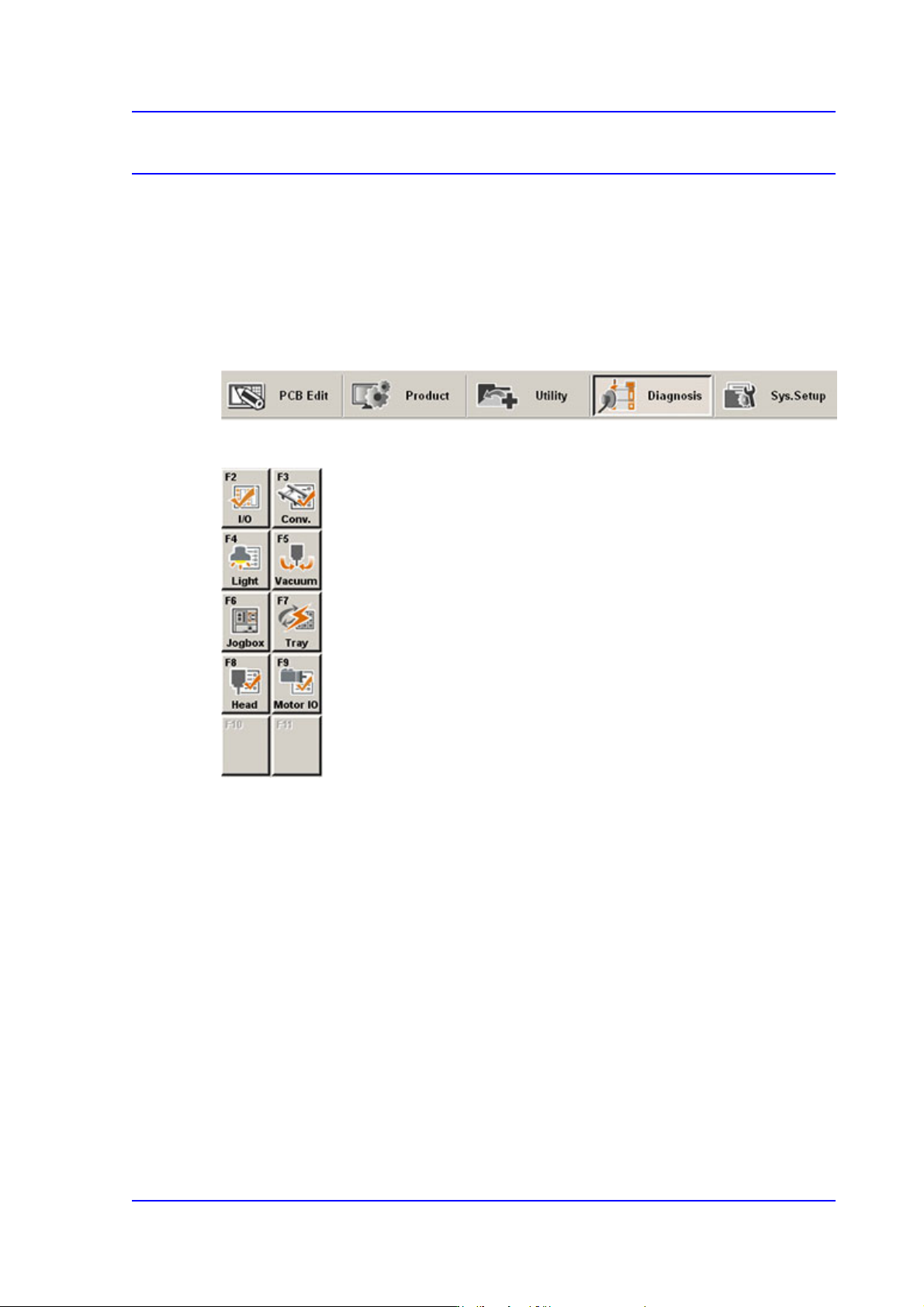
The Diagnosis menu is composed of 6submenus: I/O, Conveyor, Light, Vacuum, Jog box,
Tray, Head, Motor IO. This menu performs a module test on each part.
When a submenu of the <Diagnosis> menu is selected, the corresponding dialog box is
displayed on the screen. While the corresponding dialog box of the submenu is displayed,
selecting the menu again activates the dialog box.
Figure16.1 When the Diagnosis menu is selected
Figure16.2 Submenus of the Diagnosis menu
16-2
Multi-Functional Placer SM482(L)P PLUS Administrator’s Guide
16.1. I/O [F2]
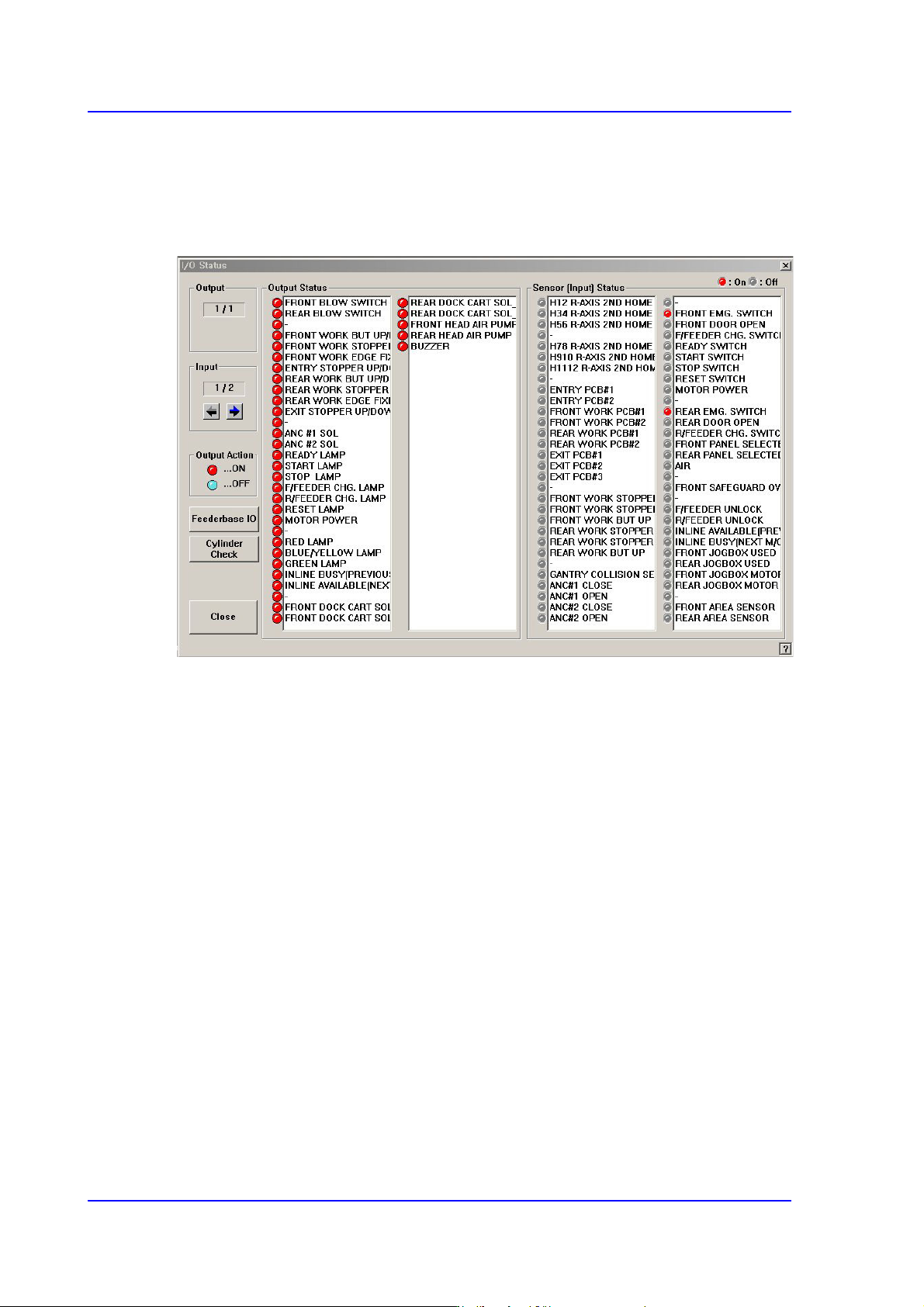
The <I/O> submenu sets or displays the status of various I/O (input/output) sensors on the
equipment.
Figure16.3 “I/O Status “dialog box
<Output> group
Indicates the status of output devices.
<Input> group
Indicates the status of input devices.
<Output Status> group
Indicates the status of the selected output devices. Red indicates on status, and blue
indicates off status.
Double clicking the mouse’s left button or pressing the space bar after selecting the
device to be set will allow the output status to be reversed.
<Seneor (Input) Status> group
Indicates the status of the selected input sensor. Red indicates on status, and blue
indicates off status.
16-3
Diagnosis
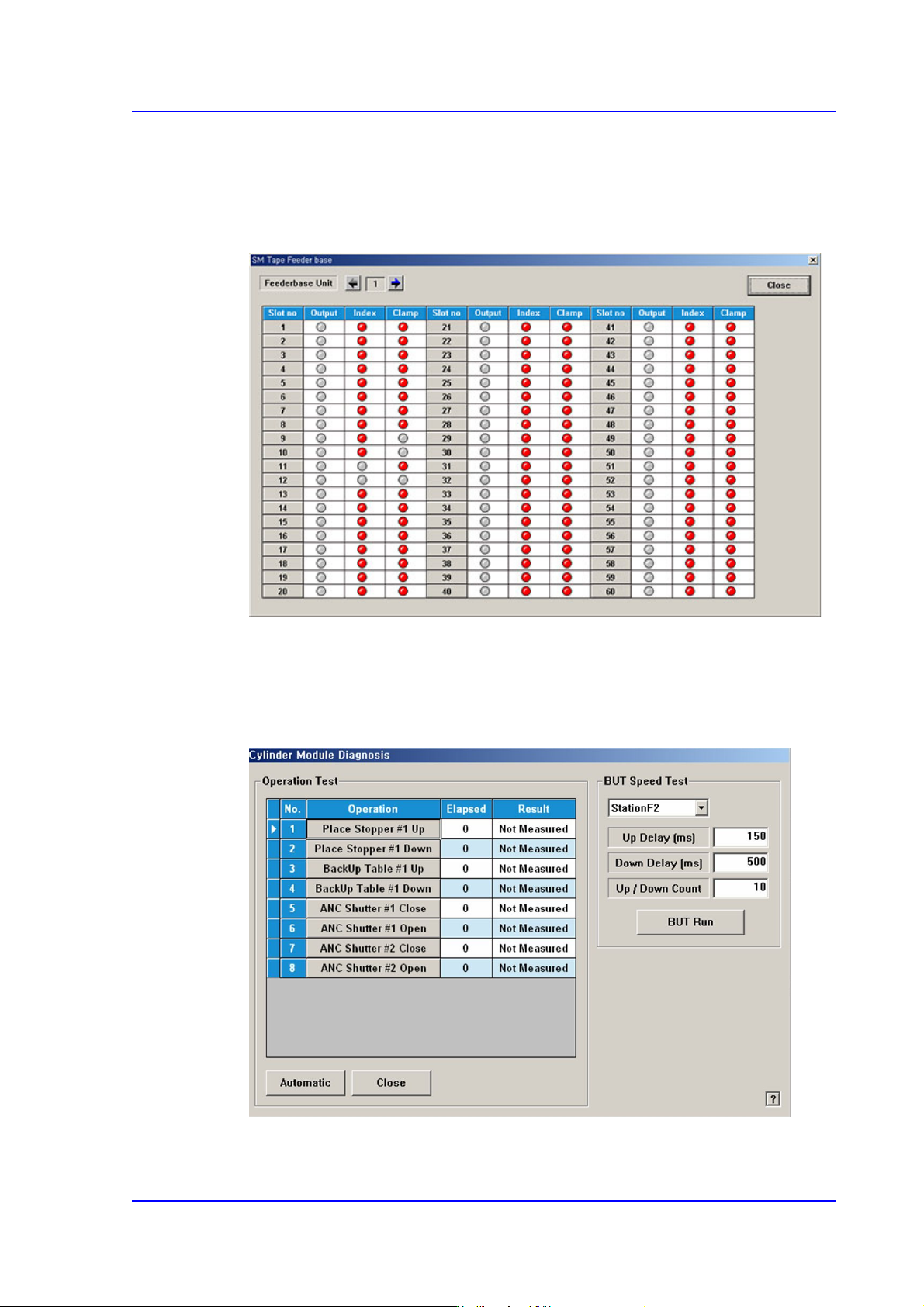
<Feederbase I/O> button
The user can confirm if the corresponding feeder is installed in the feeder base slot and
check the feeder output status.
Figure16.4 “SM Tape Feeder base” dialog box
<Cylinder Check> button
Check the state of the cylinder movement. When this button is clicked on, the
following dialog box is displayed.
Figure16.5 “Diagnosis: Cylinder Module Diagnosis” dialog box