SM482PLUS_Admin(Eng_Ver2.8).pdf - 第91页
4-3 Tools Shortcut Menu Memo By double clicking on the display win dow area with the left side Button of the mo use while pressing th e ‘shift’ Button of the keyboard, the mode is changed to ‘super compact’. Minimizes …
4-2
Multi-Functional Placer SM482(L) PLUS Administrator’s Guide
4.2. Show SMVision
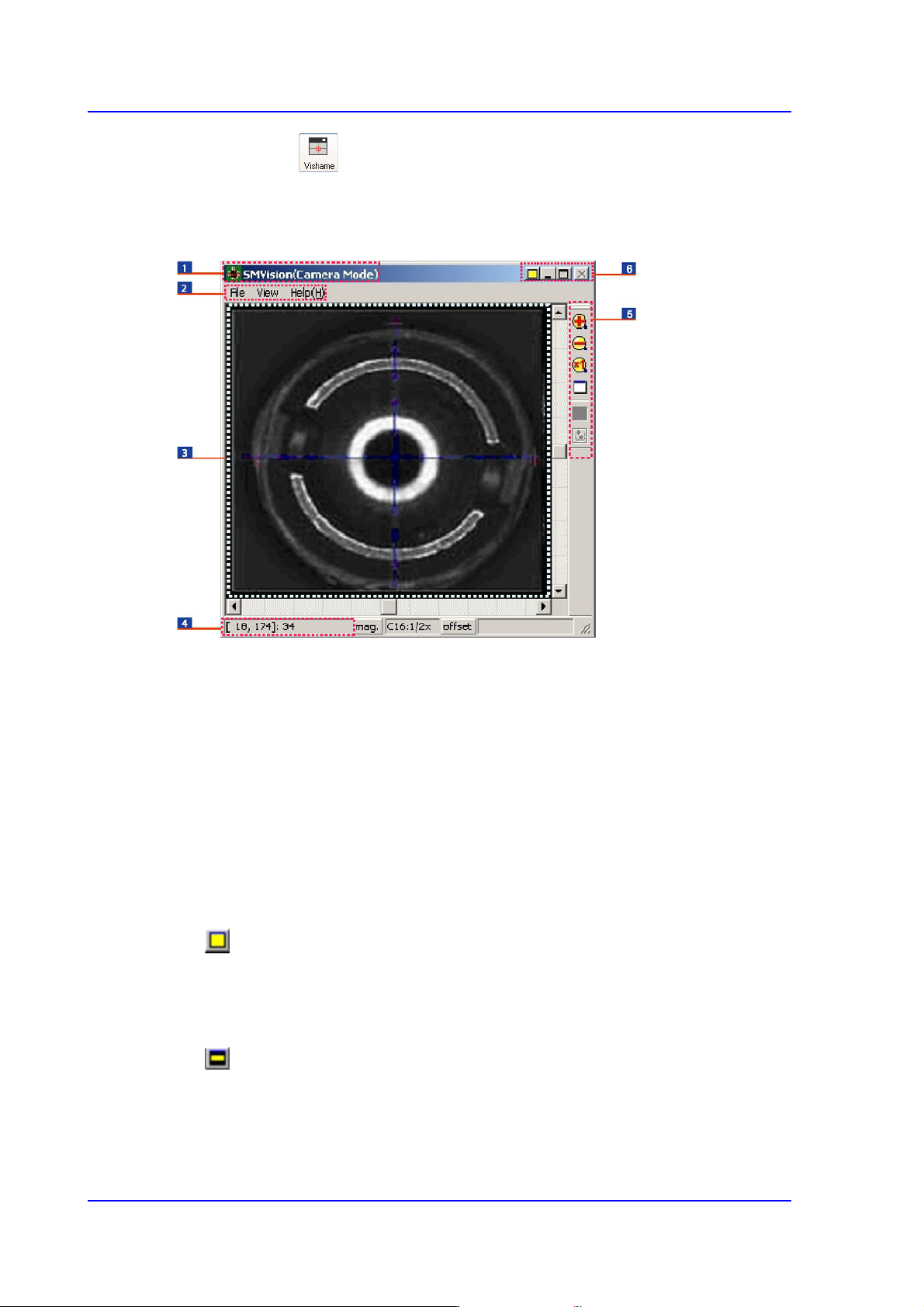
4.2.1. SMVision Structure
Figure4.2 SMVision window
1: Titlebar
2: Menu
3: Display window
4: Status bar
5: Toolbar
6: System menu
4.2.1.1. Titlebar
Describes the mode status of the SMVision.
4.2.1.2. System menu
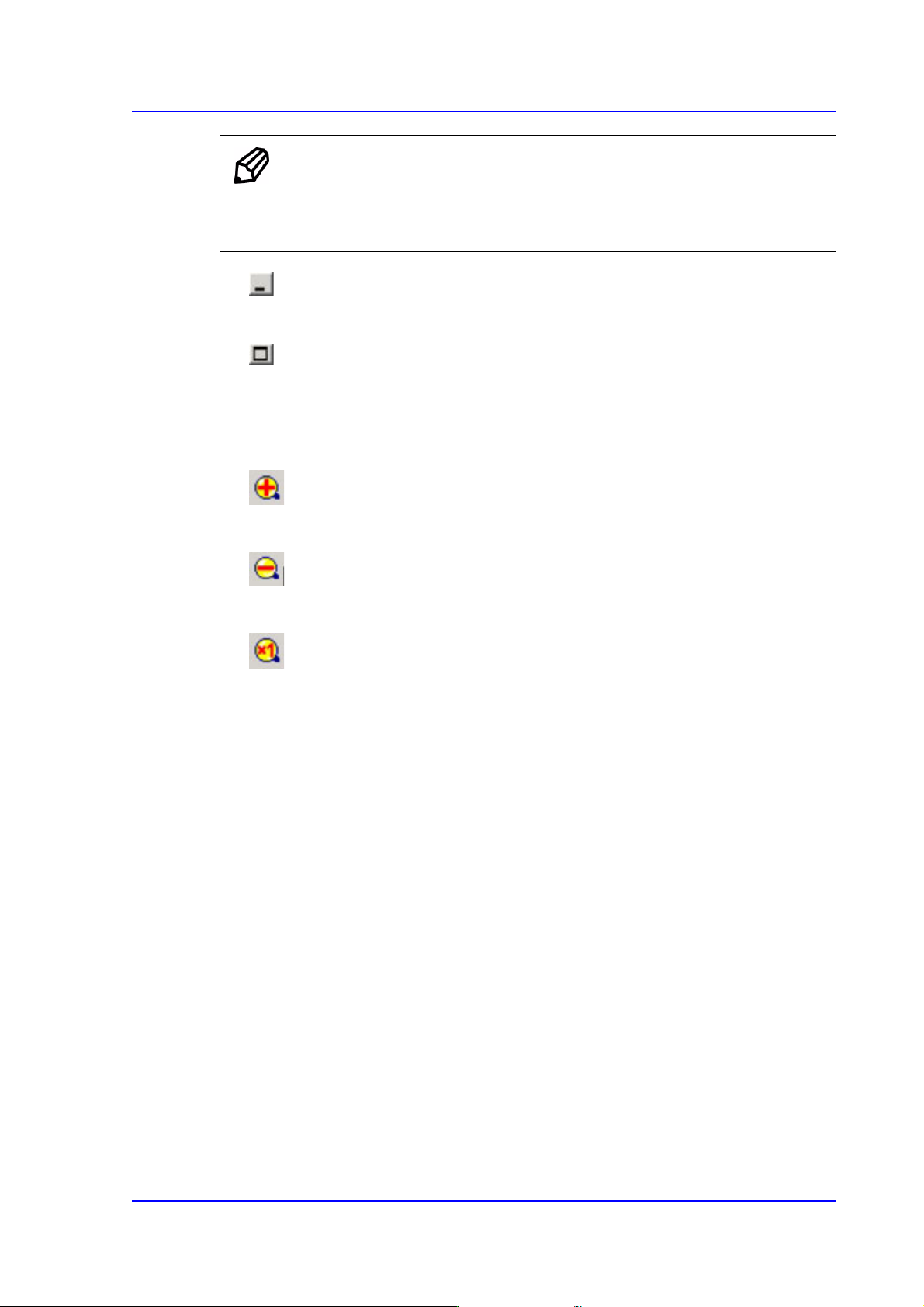
Displays the ‘Normal mode’ status of the SMVision. Clicking the Button will change
the move of the SMVision into the ‘Compact mode’. In normal mode, the size of
SMVision is changed or minimized according to the MMI screen.
Displays ‘Compact mode’ of the SMVision. Clicking the Button will change the move
of the SMVision into the ‘Normal mode’. In compact mode, the SMVision is always
on top of the screen, and the size is not changed.
4-3
Tools Shortcut Menu
Memo By double clicking on the display window area with the left side
Button of the mouse while pressing the ‘shift’ Button of the keyboard,
the mode is changed to ‘super compact’.
Minimizes the SMVision.
Maximizes the SMVision.
4.2.1.3. Toolbar
Zoom in the image.
Zoom out the image.
Displays and image in actual size.
4.2.1.4. Menu
4.2.1.4.1. File
Bitmap Save…
Saves the video image shown on SMVision into a file.
Export Device…
Saves the most recently recognized parts information into a file.
Memory Save…
Saves the most recently recognized video image into a file.
Exit
Closes the SMVision.
4-4
Multi-Functional Placer SM482(L) PLUS Administrator’s Guide
4.2.1.4.2. Help
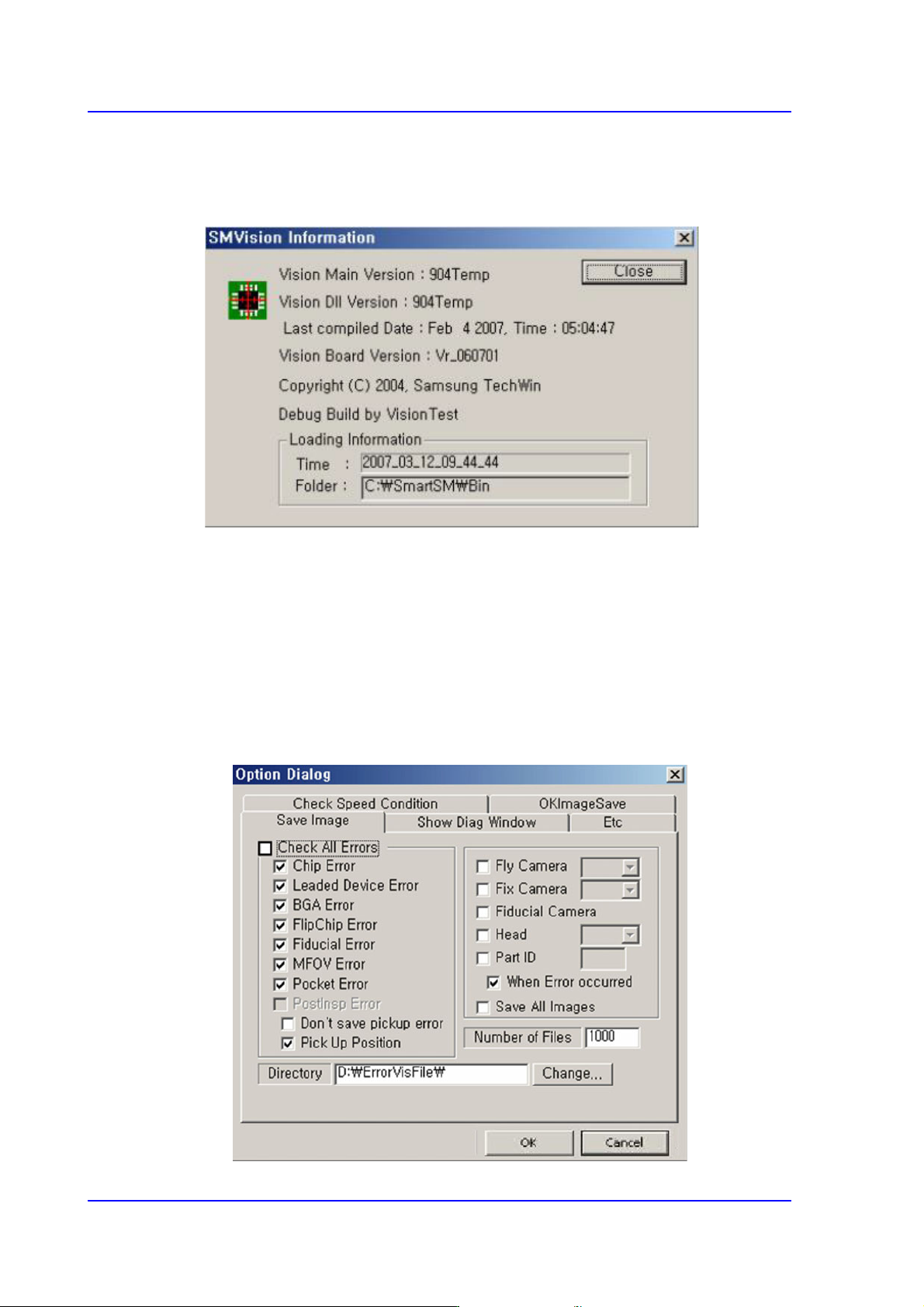
SMVision Info…
Displays the version of the SMVision.
4.2.1.4.3. View
This menu appears in ‘Manager Mode’ only.
Dialog… submenu
<Save Image> Tab Dialog
In case error occurs while recognizing, the data used for recognition and the
corresponding images are saved. Also, saving all of the successfully recognized
images is possible.