SM482PLUS_Admin(Eng_Ver2.8).pdf - 第261页
8-9 Feeder Setup <Pocket T ea ch All> button Performs the ‘Pocket T each’ function repeated ly for all tape feeders with the <PT> column being set to ON or ON-S in the <Grid> group in the “Feeders” di…
8-8
Multi-Functional Placer SM482(L) PLUS Administrator’s Guide
installed in the feeder base slot properly, this function is used to automatically adjust
the pickup point.
In the case of the Chip-Rect part that is fed by the tape feeder, the part pickup can be
done more accurately if the Pocket Teach function is used.
If a pickup error occurs during default operation, the machine tries to pick up the part
as many times as the set number of times of retry for the corresponding part. If the
number of times of the retry exceeds the last count, the machine creates an error and
stops operation.
However, in the case of the part that is fed by the tape feeder before the number of
times the retry exceeds the last count, find the correct pickup point by using the Pocket
Teach function and calibrate the pickup position before performing pickup.
The Pocket Teach recognizes the pockets or sprocket holes of the tape being supplied,
and calibrates current pickup position matches with the center of the pocket.
Teaching the Pocket Teach will reflect its result in the <PT> column in the <Grid>
group.
(ON-S: Successful, ON-F:Failed)
If the setup is performed so that the ‘Pocket Teach’ function can be executed during
automatic operation, this function is not applied when the <PT> column is OFF or
ON-F in the <Grid> group in the “Feeder Registration” dialog box.
Caution If the corresponding function is used while performing
placement, the pickup success rate of the corresponding
feeder can be improved. However, it takes time to perform
pocket teaching, and simultaneous pickup may not be
performed since the pickup point coordinate is
compensated.
Memo Performing pocket teaching will automatically reflect the offset
information obtained during pocket teaching and automatically
correct the home offset of the tape feeder. However, the corrected
offset value will be applied during the next feeding.
If the distance between the position recognized by the vision
system and the logical origin exceeds 0.2mm, the feeder ignores
the offset value.
A motor driven feeder using parts other than 1005/0603 parts
does not use the home offset adjustment function.
8-9
Feeder Setup
<Pocket Teach All> button
Performs the ‘Pocket Teach’ function repeatedly for all tape feeders with the <PT>
column being set to ON or ON-S in the <Grid> group in the “Feeders” dialog box
among the tape feeders installed in the corresponding feeder base.
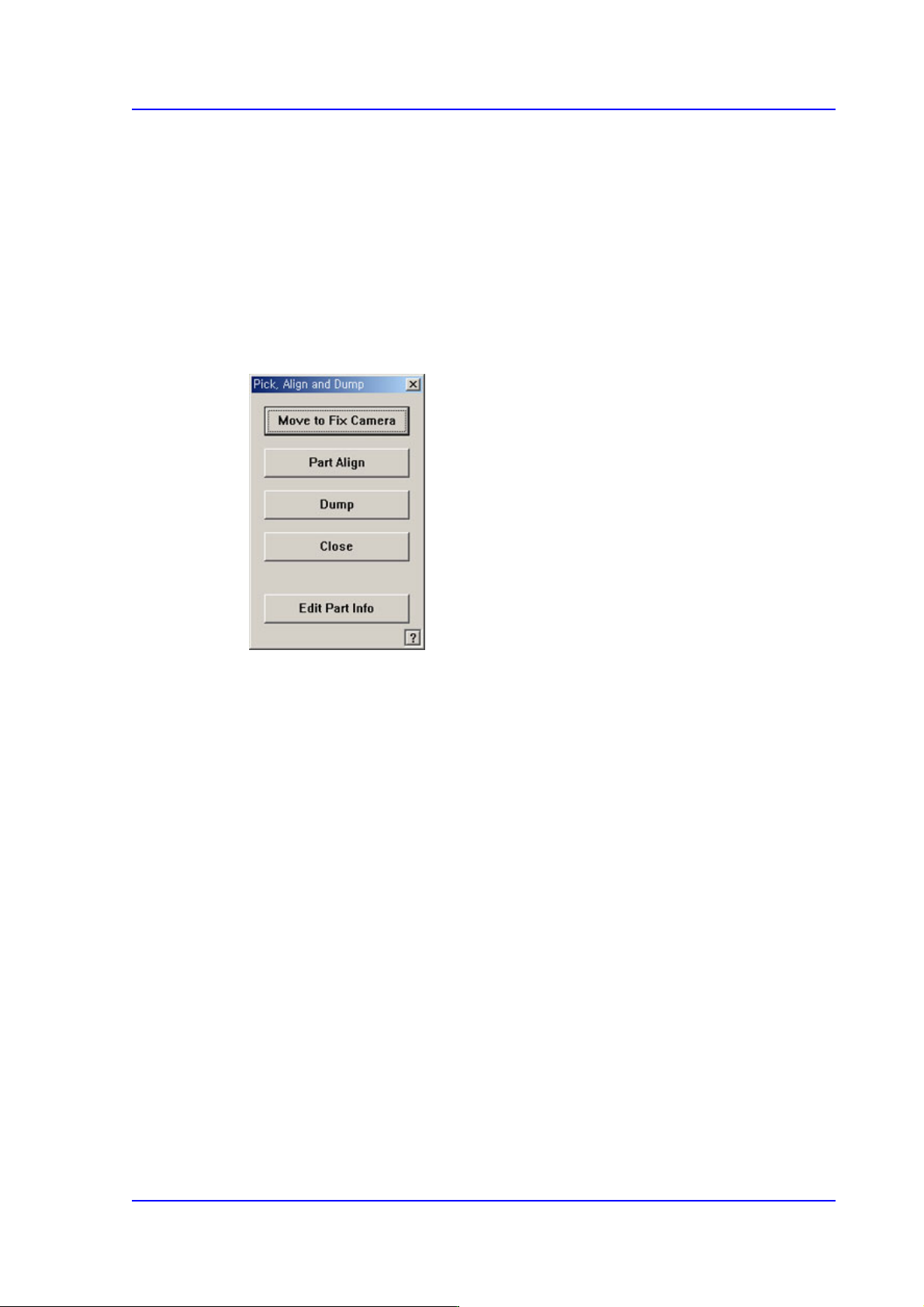
<Pick> button
Performs pickup of the parts for the tape feeder presently selected in the “Feeder
Base” dialog box. A device (Head to pickup) must be selected first. It is displayed
alternately every time the Pick and Dump are clicked. When the pick-up is successful,
the following dialog box is displayed.
<Move to Fix Camera> button
It is activated only when the corresponding component is aligned by the vision
camera and the align camera is the fix camera. When this Button is clicked on,
Moves the selected object in the <Device> combo box of the <Teach> area to the
position of the fix camera.
<Part Align> button
Executes alignment of the corresponding component.
<Dump> button
Dumps the corresponding component to the dump box.
<Close> button
Closes the dialog box.
<Edit Part Info> button
Closes the dialog box.
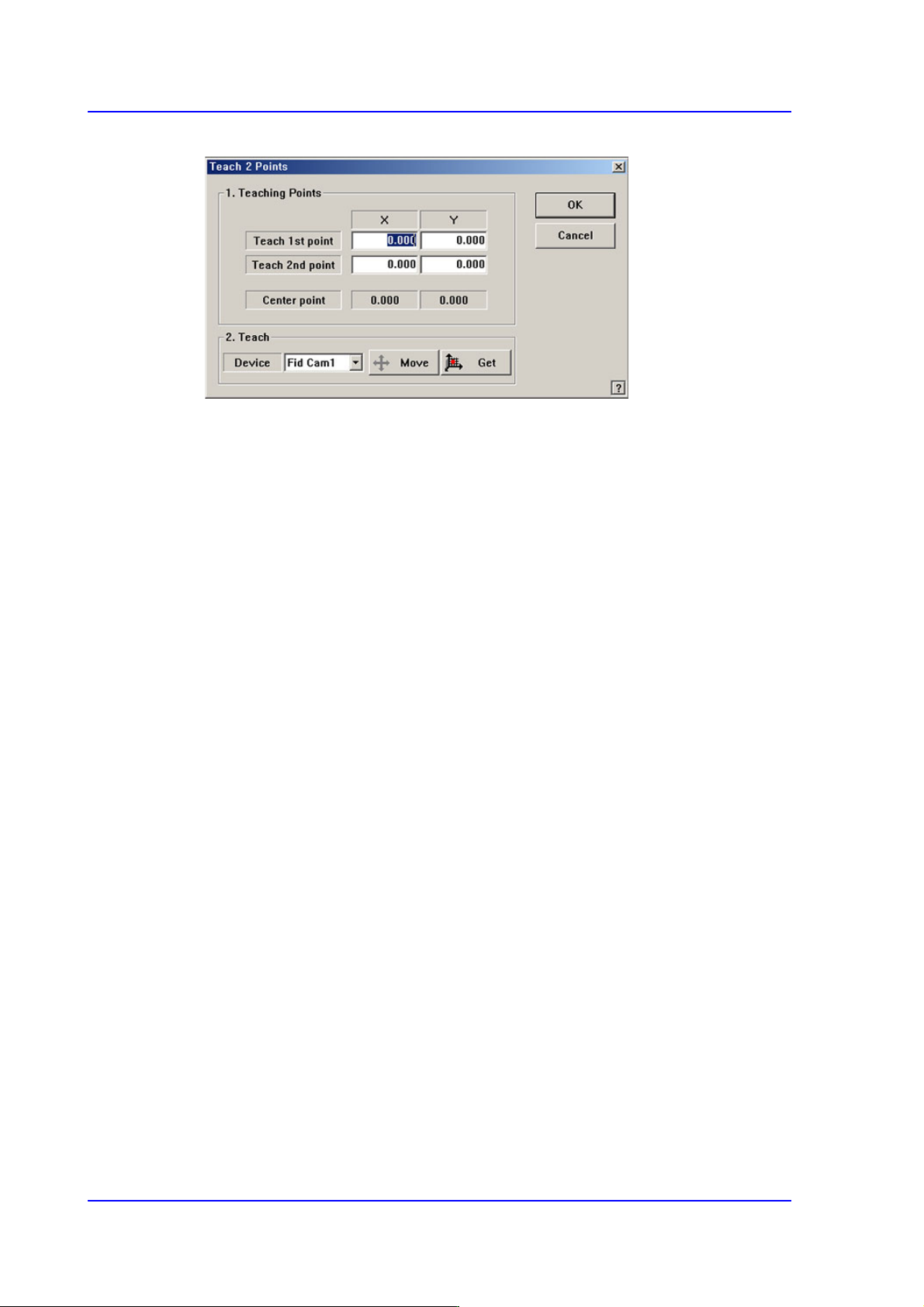
<2Pt. Teach…> button
When teaching the tape feeder pick-up position, This function is used when it is
difficult to teach the part center because the entire part is not viewed in the screen. It
teaches the part center by teaching 2 points at the edges that face with each other
diagonally.When this Button is clicked on, the following dialog box is displayed.
8-10
Multi-Functional Placer SM482(L) PLUS Administrator’s Guide
Figure8.6 “Feeder :2 point teaching in the Feeder Base” dialog box
<1. Teaching Points> group
Set the position of two corner points to find the center point.
Teach 1st point: Set the first point.
Teach 2nd point: Set the second point.
Center point: Finds the center point from the two corner points and displays it.
<2. Teach> group
Used for moving the selected object to the assigned position of coordinates by
rotating XY axis driving motor, or for obtaining the present coordinates of the
selected object.
<Device> combo box
Used for selecting the object to move to the designated coordinates by rotating
the XY axis driving motor or to select the object for which the present
coordinates is searching. Selectable objects are as follows;
Fid Cam: Selects the fiducial camera of the head.
Head 1 ~ Head 6: Selects the Head #1~Head #6
<Move> button
Move the object selected in the <Device> combo box to the position of the
assigned coordinates. At this time, the desired position corresponding to the
teaching position (coordinates of teaching point) must be clicked with the
mouse before clicking on the <Move> button.
<Get> button
Obtain coordinates for XY axis with reference to the object selected in the
<Device> combo box. At this time, the desired position corresponding to the
teaching position (coordinates of teaching point) must be clicked with the
mouse before clicking on the <Get> button.