SM482PLUS_Admin(Eng_Ver2.8).pdf - 第365页
13-17 Production Setup 13.1.4. My PCB Used for easily loading the registered PCB fi les by registering the PCB primarily worked on. Up to 15 PCB files that are frequently used can be set in advance. Figure13.6 “My PCB” t…
13-16
Multi-Functional Placer SM482(L) PLUS Administrator’s Guide
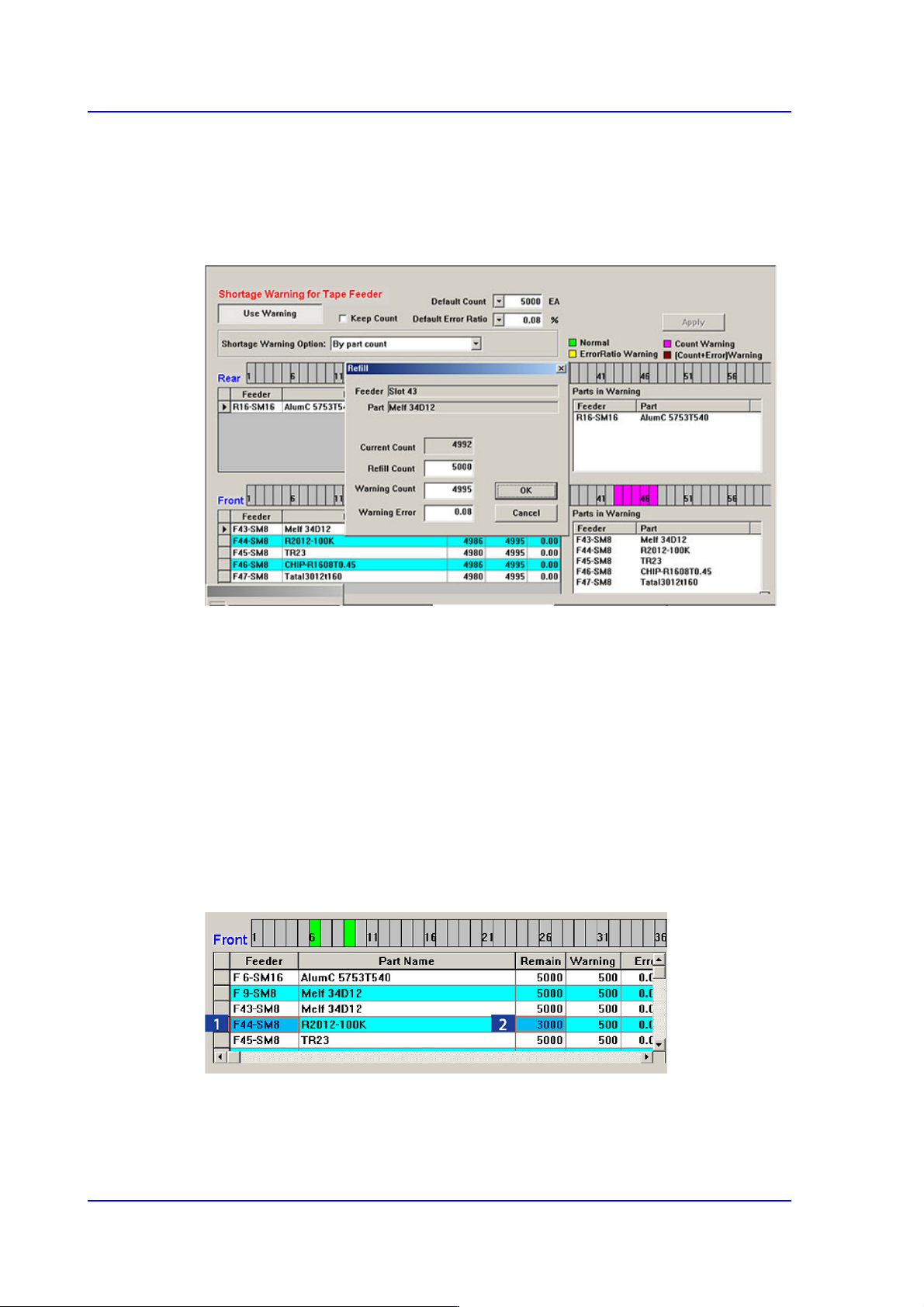
Clicking the mouse on the place at which the feeder is installed will display the
‘Feeder Information’ dialog box as shown above.
However, right clicking the mouse will display the ‘Refill’ dialog box as follows.
When performing the work after splicing reel, change the Remain Count by using the
Refill dialog box.
The values set from the <Default Error Ratio> combo box and <Default Count> in the
Tape Feeder Monitor Tab dialog box are applied.
If the <OK> button is clicked, the value set in the <Refill Count> edit box is added to
the current count to make the Remain Count.
<Apply> button
Generally, if the PCB program is downloaded, the remain count is set up to the default
count.
However, in the case of the part reel to which the Default Count cannot be applied,
select the corresponding tape feeder and set the corresponding count in the <Remain>
column and then click the <Apply> button. Then the change value is applied as the
Remain Count.
13-17
Production Setup
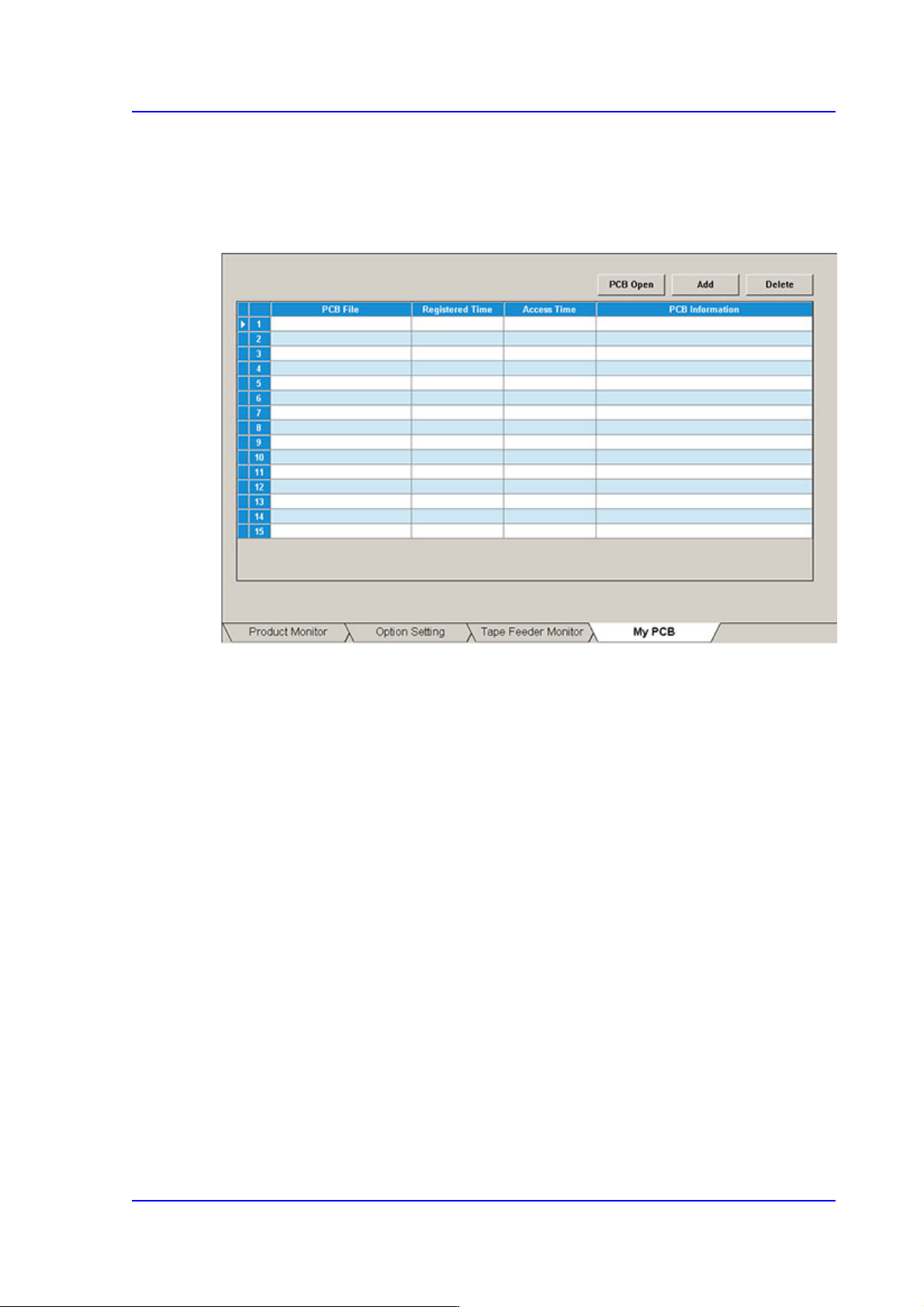
13.1.4. My PCB
Used for easily loading the registered PCB files by registering the PCB primarily worked
on. Up to 15 PCB files that are frequently used can be set in advance.
Figure13.6 “My PCB” tab dialog
<Add> button
Register the PCB file primarily worked on.
<Delete> button
Registration is canceled when this button is clicked after selecting the registered PCB
file.
<PCB Open> button
Perform loading of the selected PCB file by clicking this button is clicked after
selecting the registered PCB file.
13-18
Multi-Functional Placer SM482(L) PLUS Administrator’s Guide
13.2. Start [F2]
When the “PCB Download” operation has been completed, this button is activated while
the placement is not in progress, and it is inactivated while the placement is in progress.
This submenu transmits the command to start the placement related to the downloaded
PCB data to the equipment.
Caution Pressing the Start switch without checking the presence of
worker nearby could cause injury.
Be sure to check if there is any worker near the equipment
before pressing the Start switch.
13.3. Stop [F3]
When the “PCB Download” operation has been completed, this button is activated while
the placement is in progress, and it is inactivated while the placement is not in progress.
This submenu transmits the command to stop the placement related to the downloaded
PCB data to the equipment.
Caution Inserting a part of body while the equipment is in operation
or in temporary stop could result in severe injury.
Do not insert a part of body while the equipment is in
operation or in temporary stop.