SM482PLUS_Admin(Eng_Ver2.8).pdf - 第497页
15-43 System Setup <PCB Edit> T ab Sets the authorization level for th e submenus of the <PCB Edit> menu. <Product> T ab Sets the authorization level for the submenus of <Product> m enu. <…
15-42
Multi-Functional Placer SM482(L) PLUS Administrator’s Guide
<1D Barcode Info with worktable> Check Box
Select this to transfer 1D barcode information from the machine that uses the
1D scanner installed on the work table to the next machine. This will be
synced with external MES systems such as the iTAC program. For more
details regarding this matter, contact us.
<1D Barcode Info with internal scanner> Check Box
Select this to transfer 1D barcode information from the machine that uses the
1D scanner installed on the machine to the next machine. This will be synced
with external MES systems such as the iTAC program. For more details
regarding this matter, contact us.
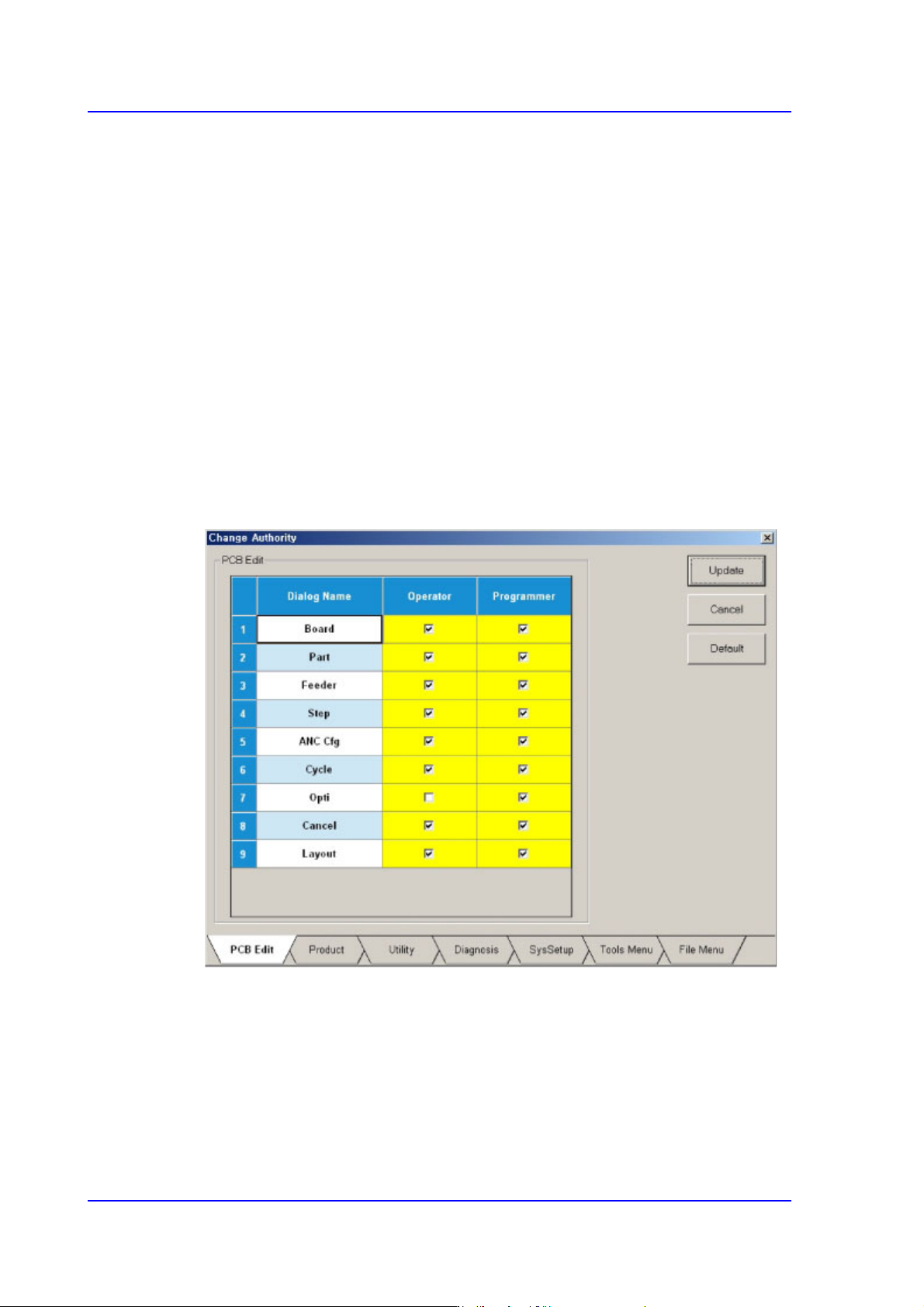
<Change Authority> button
Sets the authorization level of a user. The currently applied authorization level setup
function is used by default. However, if an operator plays the role of a programmer, it
is possible to perform setup to allow the operator to use some functions used with the
authorization level of the programmer.
<Update> button
Saves the setup and closes the dialog box.
<Cancel> button
Neglects the setup and closes the dialog box.
<Default> button
Recovers the setup to the default (recommended) setup in the machine.
15-43
System Setup
<PCB Edit> Tab
Sets the authorization level for the submenus of the <PCB Edit> menu.
<Product> Tab
Sets the authorization level for the submenus of <Product> menu.
<Utiliy> Tab
Sets the authorization level for the submenus of <Utility> menu.
<Diagnosis> Tab
Sets the authorization level for the submenus of the <Diagnosis> menu.
<SysSetup> Tab
Sets the authorization level for the submenus of <Sys.Setup> menu..
<Tools Menu> Tab
Sets the authorization level for the submenus of <Tools Menu> menu.
<File Menu> Tab
Sets the authorization level for the submenus of <File Menu> menu.
The authorization setup can be used only for the Service mode or higher. It is set up by
checking or releasing the check of the check box for the corresponding item in the
Setup screen..
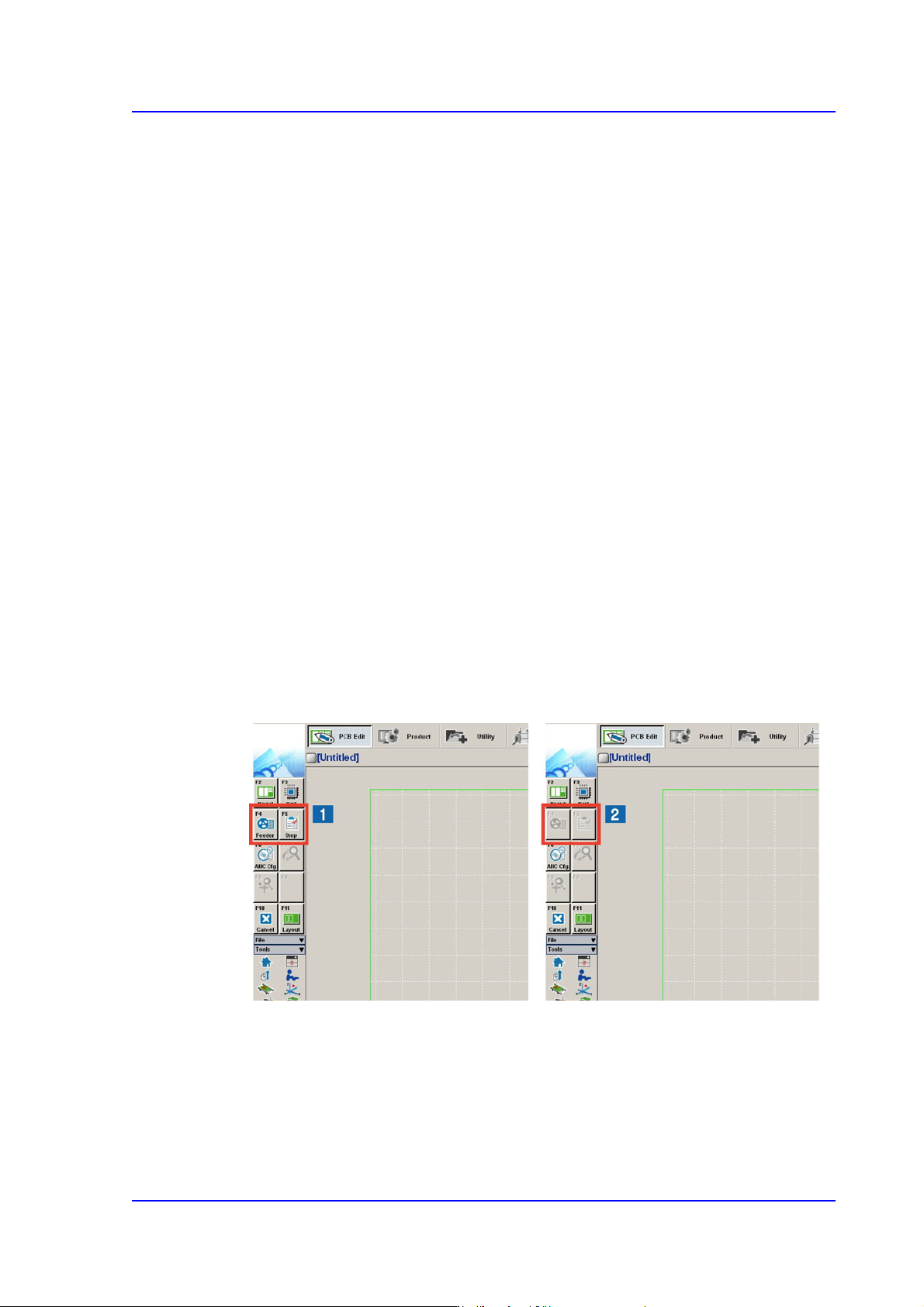
Submenus of the corresponding menu are enabled or disabled as shown below
according to the setup performed in the Setup menu. The disabled menu cannot be
used.
1: User authorization level setup menu
2: User authorization level release menu
<Telemetry Auto Save> check box
Selecting this check box will allow the Telemetry Log file to be saved automatically
when an emergency condition occurs. The name of the folder and file for default
saving is “C:SmartSM\Log\Machine Type_SW Version_Machine Unit

15-44
Multi-Functional Placer SM482(L) PLUS Administrator’s Guide
Information_Time of Occurrence(_E-Error Code).tmr”.
The basic concept for saving a log file is as follows:
1st Stage
1. Clicking the Stop button (<Up Load> button) will:
In the Start state: Upload and save the file automatically.
In the Stop state: Save the uploaded information in the file automatically.
2. Clicking the Start button will:
In the Start state: Change the state to the Stop state and save the file
automatically. The state is then changed to the Start state.
In the Stop state: Delete the uploaded information and change the state to the
Start state.
3. Define the rule for naming files when using automatic saving.
(Machine Type and Version_Unit Information_Creation Date_E-Auto_File
Index.tmr)
Ex) SM411V1.047_Undefined_20080317_103705_E-Auto_0.tmr
4. Save the Telemetry file in the Log directory.
5. Of the Telemetry files automatically saved in the Log directory, only the five
most recent files are kept and older files are deleted automatically.
When performing works including measurement with the Telemetry being
finished forcedly, press the <Upload> button to change the state to the Stop state
and minimize the Telemetry screen and then perform the work.
2nd Stage
When an EMG level error occurs, save the log automatically and stop/start the
system automatically.
Define the rule for naming files when using automatic saving using the details
of the error.
(Machine Type and Version_Unit Information_Creation Date_E-Auto_File
Index.tmr)
Since the automatic Telemetry saving function may decrease the systems’
performance, use an option to turn off the corresponding function when faced with this
problem.
<Scale> Combo box
Able to setup the system of unit (mm/inch/mil) used by MMI of the equipment.
<Confirm before Move> Combo box
Determines whether to display the confirm window prior to movement.
<None> option button: when this button is selected, does not display the confirm
message box when the movement command is transferred to the equipment.